
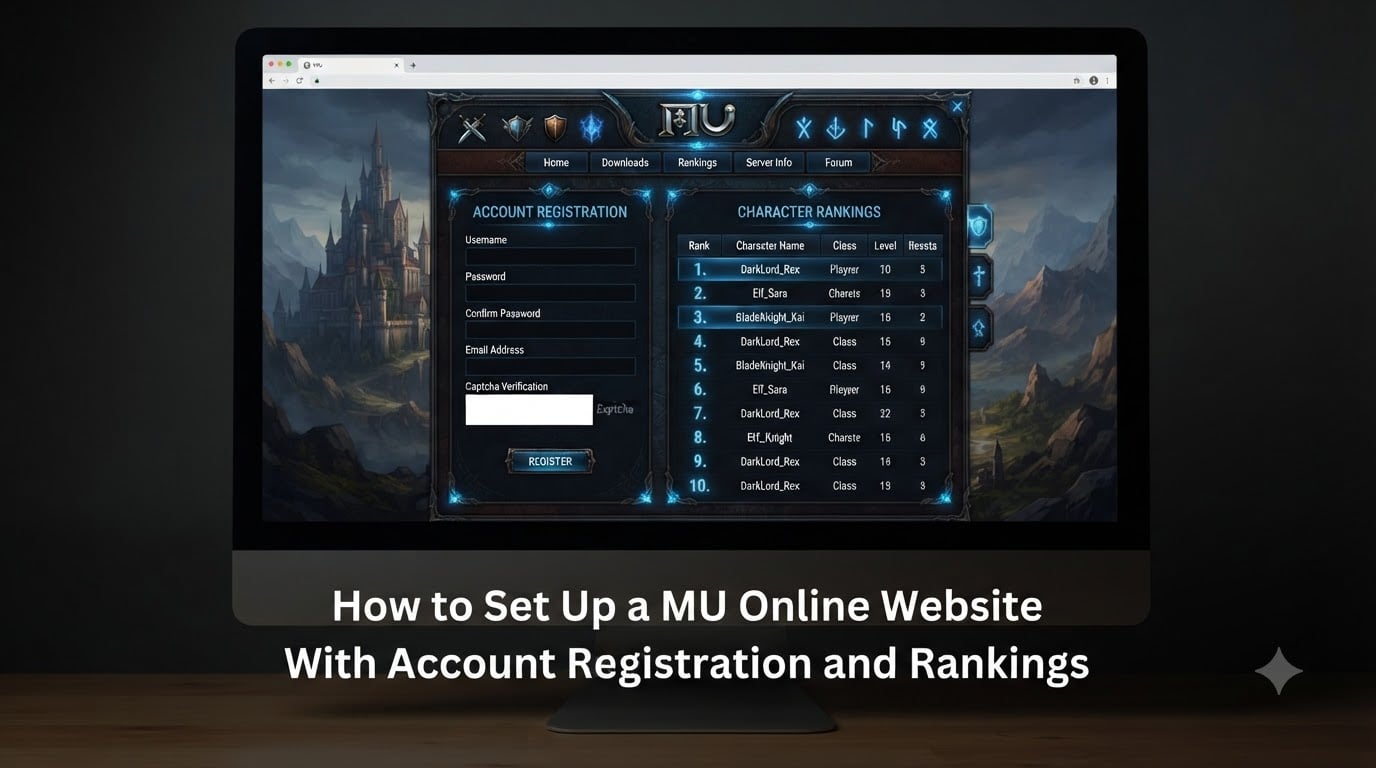
Setting up a MU Online website with account registration and rankings is the most common first step when launching a private server. I have helped several admins walk through this process, and the same five pieces always matter: a working web server, a MSSQL database link, a registration script, a rankings query set, and a basic admin panel. This guide covers every one of those pieces in order, using the tools and folder layouts that the community has relied on for years.
You will learn which XAMPP version to install, how to connect PHP to MSSQL, how the account registration module writes new players into the MuOnline database, and how the rankings module pulls character, guild, and PvP data to display on your homepage. I will also cover the security checks that the official guides skip.
Table of Contents
What Is a MU Online Website and Why You Need One
A MU Online website is a PHP-based front end that sits in front of your MuOnline game database. It handles three jobs: letting new players register an account, displaying server rankings, and giving administrators a panel to manage the server without editing SQL by hand.
For most private servers, the website is also the first thing a player sees. It lists the server name, season, experience rates, download links, and the current top characters. Without a working website, players have nowhere to create an account or check who is online.
The classic MU Online website stack looks like this:
- Web server: XAMPP with Apache on Windows (or Linux with Apache/Nginx)
- Database driver: Microsoft SQL Server 2000 or higher, reachable from the web host
- Language: PHP 5.5 or higher (PHP 7.x works for most modern templates)
- Application code: a website template such as Linkos, MuWeb, or a custom build
If you are starting a new MU Online website setup in 2026, this is the architecture you should plan around. It is the same stack used by community releases on RaGEZONE and by popular public servers like TopMuOnline.
Prerequisites Before You Begin MU Online Website Setup
Before you copy a single file into your web root, gather the tools and confirm your server files are compatible with the website template you picked. Skipping this step is the single biggest cause of “white page” errors after install.
Here is what you need:
- Operating system: Windows 7, 10, 11, or Windows Server 2012+. Linux works but most community templates are tested on Windows with XAMPP.
- Web server stack: XAMPP 1.7.1 or newer (community default). Newer XAMPP versions ship with PHP 8 and may need a downgrade.
- Database engine: MSSQL 2000 or higher. SQL Server 2014 and 2019 are the most common picks in 2026.
- PHP version: PHP 5.5 to 7.4 for legacy templates. PHP 8 only with patched templates.
- SQL Server driver: Microsoft Drivers for PHP for SQL Server, or the older ntwdblib.dll approach.
- MU Online server files: Season 2 or higher (S6, S13, S16, S18, and S20 are common in 2026).
- Website template: Linkos, MuWeb 0.9, DarksWeb, IGCN, or a paid MuOnline web panel.
The minimum specs for the host machine are low. Any PC with 4 GB of RAM, a dual-core CPU, and 80 GB of disk space will run a small to mid-size MU Online website plus the game server. If you only run the website (and the game server is on another box), 2 GB of RAM is enough.
Check the readme file inside your website template. It will list the exact MSSQL version and PHP version it was tested against. Match that list before you start, or you will spend a weekend chasing extension errors.
How to Install XAMPP for MU Online Private Server Hosting
XAMPP is the easiest way to host a MU Online website on Windows. It bundles Apache, MySQL, PHP, and phpMyAdmin into one installer, so you do not need to wire each component by hand.
Follow these steps for a clean install:
- Download XAMPP. Use XAMPP 1.7.1 if your template is old. Use XAMPP 7.4.x if your template supports PHP 7. Save the installer to your Desktop.
- Disable User Account Control warnings. Right-click the installer, choose “Run as administrator.” UAC can silently block Apache from binding port 80.
- Install to C:xampp. Do not change the path. Some MU Online templates hard-code “C:xampphtdocs” in their config files.
- Skip the Bitnami welcome screen. You do not need it for a game server site.
- Open the XAMPP Control Panel. Click “Start” next to Apache. Wait for the green highlight.
- Open your browser and visit http://localhost. If you see the XAMPP dashboard, Apache is working.
- Start MySQL only if your template uses it. Most MU Online templates read from MSSQL, not MySQL, so MySQL can stay stopped.
If Apache fails to start, the usual cause is Skype or IIS already using port 80. Open XAMPP’s “Config” button, edit httpd.conf, and change “Listen 80” to “Listen 8080.” Then visit http://localhost:8080 instead.
Move your website template folder into C:xampphtdocsmusite (or any name you like). From this point on, your site lives at http://localhost/musite.
Connecting MU Online Website to the MSSQL Database
The website cannot do anything until it can talk to the MuOnline database. This is where most beginners get stuck, because PHP does not ship with MSSQL support by default. You need a driver and a working connection string.
Here is the order that works for almost every community template:
- Install Microsoft SQL Server. SQL Server 2014 Express is free and runs the MuOnline database without licensing fees. SQL Server 2019 Express also works for modern templates.
- Enable TCP/IP in SQL Server Configuration Manager. Open the manager, expand SQL Server Network Configuration, select Protocols for SQLEXPRESS, and set TCP/IP to “Enabled.”
- Restart the SQL Server service. Without a restart, the TCP/IP change has no effect.
- Install the PHP SQL Server driver. Copy php_sqlsrv_XX_ts.dll and php_pdo_sqlsrv_XX_ts.dll into C:xamppphpext, where XX matches your PHP version.
- Edit php.ini. Uncomment the matching “extension=php_sqlsrv…” lines and restart Apache.
- Open your template’s config file. Most templates name it config.php, shopy.config.php, or web.config. Enter the MSSQL host (usually localhostSQLEXPRESS), the username (sa), and the password you set during SQL Server install.
- Test the connection. Most templates include a small test page that prints “Connected” if the driver, host, and credentials are correct.
Two stored procedures also need to exist in the MuOnline database: WZ_DISCONNECT_MEMB and the basic memb_info table. If you restored your database from the server files backup, these are already in place. If you see “Invalid object name ‘WZ_DISCONNECT_MEMB’,” run the missing SQL scripts included with your server files.
Once you see “Connected,” move on. Everything below depends on this step.
Setting Up the Account Registration System
The account registration module is the form your new players fill in to create a login. It writes a row into the memb_info table inside the MuOnline database, then logs the player in or redirects them to a download page.
A working registration flow needs the following pieces:
- Registration form: Username, password, password confirmation, email, and a captcha or anti-bot question.
- Server-side validation: Strip HTML tags, enforce a 10-character username minimum, require a mixed-case password, and reject disposable email domains.
- Password hashing: Store passwords using a salted hash. The classic MU Online memb_info table uses MD5 for legacy compatibility, but modern templates add a per-user salt on top.
- Insert query: A SQL INSERT into memb_info with the username, hashed password, email, and registration date.
- Success page: A confirmation message plus a link to the client download.
The SQL behind a typical registration insert looks like this:
INSERT INTO memb_info (memb___id, memb__pwd, memb_name, mail_addr, sno__numb, bloc_code) VALUES (@user, @hash, @name, @email, '1', '0')
Three checks will save you the most headaches:
- Reject duplicate usernames. Check the memb_info table before INSERT. Otherwise, you will get silent duplicate rows that crash the game server login.
- Set bloc_code to ‘0’ on success. A non-zero bloc_code blocks the account from logging into the game.
- Sanitize every input. Use parameterized queries (shown above as @user, @hash) instead of string concatenation. This blocks SQL injection at the registration form.
After the first registration succeeds, log in with the new account on the game client. If the client logs in and lands on the character select screen, your MU Online website registration module is working end-to-end.
Configuring the Rankings Module for Characters, Guilds, and PvP
The rankings module is what makes your site feel like a real MU Online private server. It shows the strongest characters, the top guilds, the most dangerous PvP killers, and the players currently online. All of it comes from SQL queries against the Character, Guild, and Memb_Stat tables.
Most templates split the rankings into four blocks:
- Character rankings: Sorted by ResetCount and Level, capped at the top 100.
- Guild rankings: Summed guild score, joined from the GuildMember table.
- PvP / Killer rankings: Pulled from the PkLevel or PvP point columns.
- Online players: A live count from the MEMB_STAT table where ConnectStat = 1.
A simple character rankings query for a Season 6+ server looks like this:
SELECT TOP 100 Name, cLevel, ResetCount, Class, MapNumber FROM Character WHERE CtlCode = 0 ORDER BY ResetCount DESC, cLevel DESC
The CtlCode = 0 filter hides game masters and banned accounts from the public list. Add the same filter to your guild and PvP queries so admin characters never appear on the rankings page.
Two tips that improve rankings module performance on shared hosts:
- Cache the query for 60 seconds. Rankings do not need to refresh every page load. Cache the result in a flat file or use APCu.
- Index the columns you sort on. ResetCount, cLevel, and PvP points should each have a non-clustered index. Without indexes, a database with 5,000 characters will lock up your site during peak hours.
Once the rankings page renders, test it from a phone and a tablet. Most modern templates already ship with responsive CSS, but I always confirm the table does not break the layout on small screens.
Adding the Downloads Module, News System, and Admin Panel
After registration and rankings work, the next set of features gives your site polish. None of them are required to launch, but each one reduces the load on your Discord and inbox because players can self-serve.
Downloads Module
The downloads module is a list of files (game client, full client, patch, launcher) with version numbers and file sizes. Store the files outside the web root and link to them from a database row. This way, you can update a download URL without editing HTML.
News and Announcements
The news module is a simple CRUD interface: admins post a title, a body, and a date. The front page shows the latest 5 posts in reverse chronological order. Most templates also support Markdown or basic BBCode. Stick with a WYSIWYG editor if your admins are not technical.
Admin Panel
A built-in admin panel saves you from running SQL every time you ban a player or reset a character. The features you should look for:
- Ban and unban accounts (writes to memb_info.bloс_code)
- Reset a character’s level and stats
- Reset a character’s Zen and inventory
- Edit web shop item prices and stock
- View server online count and recent registrations
Linkos MU Online Website 2.0 is a popular community template that ships with all of these modules in one package. MuWeb 0.9 and DarksWeb are older but still functional alternatives. Pick the template that matches your server files season, not the one with the prettiest screenshots.
Basic Security Best Practices for Your MU Online Website
Private server websites are constant targets for SQL injection bots and credential stuffing. I have seen a new MU Online private server get hit within 30 minutes of going online. Lock the basics down before you open registration to the public.
Use this short checklist:
- Use parameterized queries everywhere. No string concatenation in any SQL call.
- Add a captcha to registration and login. Google reCAPTCHA v2 is free and stops most automated signups.
- Force HTTPS. Issue a free Let’s Encrypt cert and redirect all HTTP traffic to HTTPS.
- Change the admin panel URL. If the template uses /admin, rename it to something random.
- Use a strong SQL sa password. 16+ characters with mixed case, numbers, and symbols.
- Restrict MySQL/MSSQL ports at the firewall. Only the web server should reach the database port.
- Back up the MuOnline database nightly. A corrupted database wipes every player’s progress in minutes.
For most small servers, this checklist is the difference between running for years and being hacked in the first week. Treat the website like any other public web app, not like a hobby project.
Frequently Asked Questions
Is MU Online still popular in 2026?
Yes. MU Online still runs a global player base across official Webzen servers and hundreds of private servers, with mobile versions like MU Online Mobile adding new players every season.
What are the minimum specs to run a MU Online website?
You need a PC with at least a dual-core CPU, 2 GB of RAM for the website only (4 GB if the game server is on the same box), 80 GB of disk space, and Windows 7 or newer. The website itself is lightweight; the game server is the heavy part.
What engine does MU Online use?
MU Online runs on the Game Engine developed by Webzen in 2003. The server side is a C++ application that reads from a MSSQL database. The web side is PHP, which is why almost every community website template uses XAMPP with PHP and the MSSQL driver.
How do I connect my MU Online website to the database?
Install the Microsoft SQL Server PHP driver, enable TCP/IP in SQL Server Configuration Manager, then point your template’s config file at the MSSQL host (usually localhostu005cSQLEXPRESS), the sa user, and the password you set during install.
Which PHP version should I use for MU Online website setup?
For legacy templates, use PHP 5.5 to 5.6 inside XAMPP 1.7.1 or 1.8.x. For modern templates released in 2026, PHP 7.4 on XAMPP 7.4 is the safest pick. PHP 8 only works with templates that were updated for the new driver stack.
Can I host the MU Online website on Linux instead of XAMPP?
Yes. You can run Apache or Nginx with PHP 7.4 and the Microsoft SQL Server PHP driver on Ubuntu or Debian. The setup is more hands-on, but Linux hosts handle traffic better and rarely suffer the port 80 conflicts that Windows users hit with Skype and IIS.
Why is my MU Online website not connecting to MSSQL?
The three most common reasons are: TCP/IP is disabled in SQL Server Configuration Manager, the SQL Server Browser service is not running, or the php_sqlsrv extension is not enabled in php.ini. Fix those three first and the connection usually comes back.
Final Thoughts on MU Online Website Setup
A complete MU Online website setup comes down to eight working pieces: a web server, a MSSQL database with TCP/IP enabled, a PHP SQL Server driver, a registration module, a rankings query set, a downloads module, an admin panel, and basic security. Get those in place once and you stop fighting the website and start running the server.
Test registration with a throwaway account before you announce the server. Watch the rankings page under load. Back up the database on a schedule. Those three habits keep most private servers running for years.