
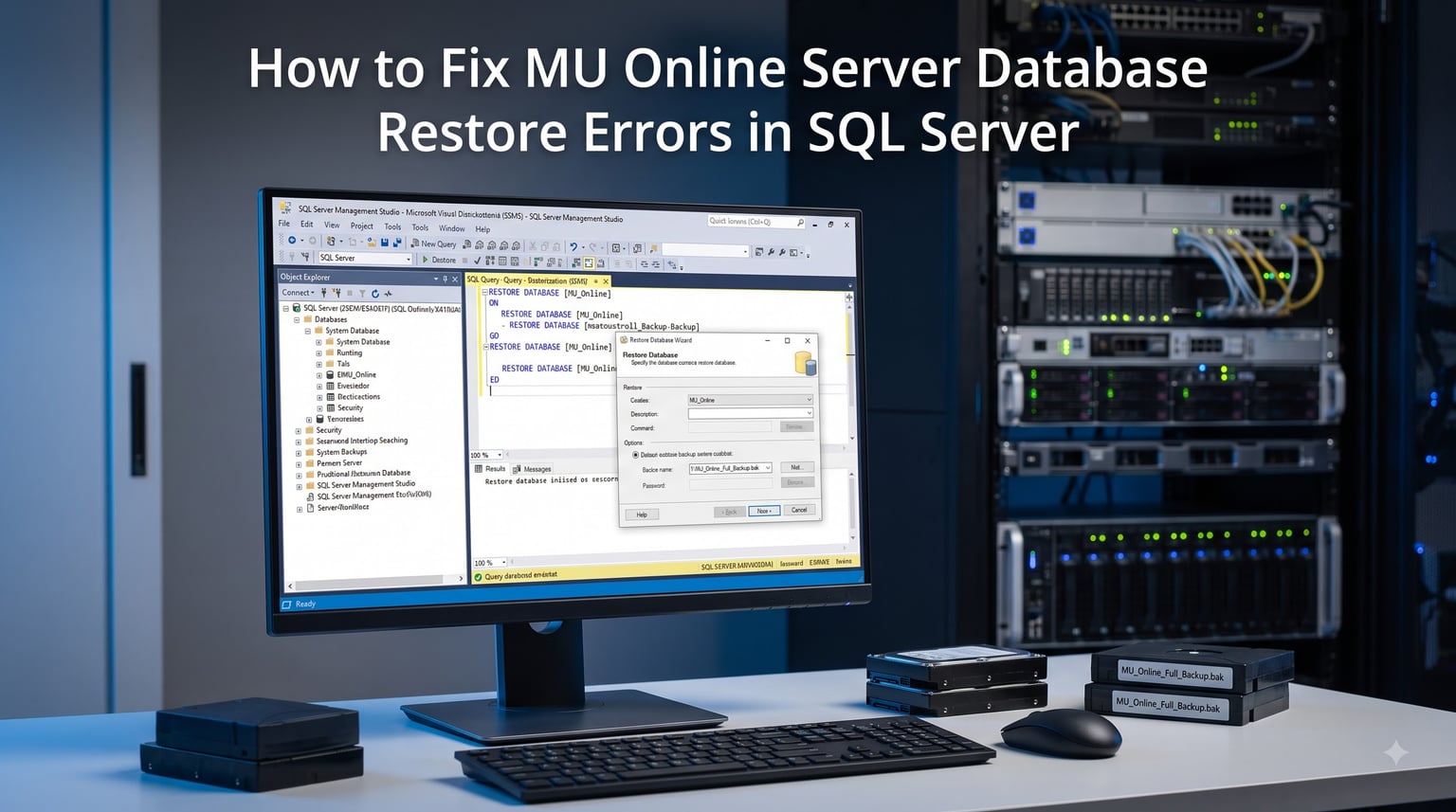
Running a MU Online private server comes with plenty of headaches, but few are as frustrating as a database restore that refuses to complete. You have your .bak file ready, SQL Server Management Studio open, and your players waiting, only to hit an error message that makes no sense if you have never seen it before.
I have spent years setting up and migrating MU Online servers, and the database restore step is where most administrators get stuck. The errors range from “database is in use” to cryptic version incompatibility messages that seem impossible to resolve without insider knowledge.
This guide covers how to fix MU Online server database restore errors in SQL Server comprehensively. I will walk you through every common error scenario, the exact steps to resolve each one, and how to configure your DataServer once the restore completes successfully.
Whether you are setting up a new server, migrating to a better machine, or recovering from a corrupted database, the solutions below apply across SQL Server 2012 through 2022.
Table of Contents
Understanding MU Online Database Structure
Before diving into error fixes, you need to understand what databases your MU Online server actually uses. Most restore errors happen because administrators forget that a full server setup requires multiple databases, not just one.
A standard MU Online server runs on three to five core databases. Each handles a different part of the game infrastructure, and all must be restored from backup for the server to function correctly.
MuOnline — The main game database containing character data, inventory, stats, and account information.
Ranking — Stores ladder rankings, PvP scores, and guild competition data.
Event — Holds event-specific data like Blood Castle rankings and Devil Square scores (some server files merge this into MuOnline).
Account — Used by some server versions for separate account management (older Season files).
If you restore only the MuOnline database and skip Ranking or Event, your DataServer will throw connection errors even though the main restore succeeded. Always identify which databases your specific server files require before starting.
Each database consists of two files: an MDF (primary data file) and an LDF (log file). When restoring, SQL Server needs to map these files correctly to avoid path conflicts.
Prerequisites Before Restoring Your Database
Skipping preparation is the number one cause of restore failures. Take ten minutes to verify these prerequisites and you will avoid the most common errors entirely.
Here is what you need before attempting any restore operation:
SQL Server installed and running — Confirm the service is active in SQL Server Configuration Manager. Both the database engine and SQL Server Browser service should be running.
SQL Server Management Studio (SSMS) — Download the latest version from Microsoft. SSMS works with all SQL Server versions from 2012 onward.
Your .bak backup files — Verify each file exists and is not corrupted. Copy them to a local drive on the server to avoid network-related restore issues.
Correct SQL Server version — You cannot restore a backup from a newer SQL Server version to an older one. Check the backup version before proceeding (explained in the version compatibility section below).
Sufficient disk space — The restored database needs at least as much space as the original. Leave headroom for log file growth.
Administrator access — Your SQL login needs sysadmin or dbcreator server role permissions to perform restores.
One critical step most guides miss: close every application that might be connected to the database. This includes your game server, DataServer, JoinServer, and any query windows with active connections to the target database.
How to Fix MU Online Server Database Restore Errors in SQL Server: Step-by-Step Restore Procedure
Now let me walk through the actual restore process. I will cover both the SSMS graphical method and the T-SQL command method so you can choose whichever feels more comfortable.
Method 1: Restoring via SSMS Graphical Wizard
This is the most beginner-friendly approach and works for the majority of restore scenarios.
Step 1: Open SQL Server Management Studio and connect to your server instance using Windows Authentication or a SQL login with admin rights.
Step 2: In the Object Explorer panel on the left, right-click on the “Databases” folder and select “Restore Database.”
Step 3: In the Restore Database dialog, select “Device” as the source and click the browse button (…). Click “Add” and navigate to your .bak file.
Step 4: In the left panel, click on “Files.” Verify that the “Restore As” column shows correct file paths. If restoring to a new server, update the paths to match your current SQL Server data directory (typically C:Program FilesMicrosoft SQL ServerMSSQL[version].MSSQLSERVERMSSQLDATA).
Step 5: Click on “Options” in the left panel. Check “Overwrite the existing database (WITH REPLACE)” if restoring over an existing database. Also select “Close existing connections to destination database” to avoid “database in use” errors.
Step 6: Click OK to start the restore. If successful, you will see a confirmation message. If an error appears, note the exact message and check the error solutions section below.
Method 2: Restoring via T-SQL RESTORE DATABASE Command
For experienced administrators, the T-SQL method gives you more control and produces clearer error messages. I prefer this method because it is faster once you know the syntax.
First, find out the logical file names inside your backup. Open a new query window and run:
RESTORE FILELISTONLY FROM DISK = 'C:BackupsMuOnline.bak'
This returns a list showing the logical names of the MDF and LDF files inside the backup. Note these names, as you will need them for the next step.
Then run the actual restore command:
RESTORE DATABASE [MuOnline] FROM DISK = 'C:BackupsMuOnline.bak' WITH REPLACE, MOVE 'MuOnline_Data' TO 'C:Program FilesMicrosoft SQL ServerMSSQL16.MSSQLSERVERMSSQLDATAMuOnline.mdf', MOVE 'MuOnline_Log' TO 'C:Program FilesMicrosoft SQL ServerMSSQL16.MSSQLSERVERMSSQLDATAMuOnline_log.ldf'
Replace the logical file names and paths with the ones from your RESTORE FILELISTONLY output. The WITH REPLACE option tells SQL Server to overwrite any existing database with the same name.
Repeat this process for each database your server needs (Ranking, Event, Account). Do not skip any databases even if they seem minor.
Common SQL Server Restore Errors and Solutions
These are the errors I see most frequently in MU Online server forums and community groups. Each one has a specific, tested solution.
Error 1: “Database is in Use” During Restore
This is the single most common restore error. It occurs when another process holds an active connection to the database you are trying to overwrite. The game server, DataServer, or even an open SSMS query tab can trigger this.
Full error message: “RESTORE DATABASE is terminating abnormally. Exclusive access could not be obtained because the database is in use.”
Solution: Kill all active connections before restoring. Run this T-SQL command to force connections closed:
ALTER DATABASE [MuOnline] SET SINGLE_USER WITH ROLLBACK IMMEDIATE
After the database enters single-user mode, immediately run your restore command. If you are using the SSMS wizard, check the “Close existing connections” checkbox in the Options tab before clicking OK.
Also verify that your game server and all DataServer processes are stopped. Check Task Manager for any lingering JoinServer, ConnectServer, or GameServer processes that might still hold a database connection.
Error 2: “Version Incompatible” Restore Failure
This error appears when you try to restore a backup created on a newer SQL Server version onto an older one. SQL Server cannot read backup files from future versions.
Full error message: “The database was backed up on a server running version X.XX. That version is incompatible with this server, which is running version Y.YY.”
For example, a backup made on SQL Server 2022 (version 16.00) cannot be restored on SQL Server 2014 (version 12.00). The version numbers tell you exactly which direction the incompatibility goes.
Solution: There is no workaround for downgrading. Your only options are to upgrade the target SQL Server to the same version or higher, or to generate the backup from the older version. Check the version comparison table in the next section.
To check which SQL Server version you are running, execute: SELECT @@VERSION
Error 3: “Operating System Error 5 (Access Denied)”
This happens when the SQL Server service account does not have permission to read the .bak file or write to the target directory.
Solution: Move the .bak file to a location the SQL Server service can access, typically the SQL Server backup folder. Alternatively, right-click the .bak file in Windows Explorer, select Properties, go to Security, and grant “Full Control” to the SQL Server service account (usually NT SERVICEMSSQLSERVER or NT SERVICEMSSQL$SQLEXPRESS).
You can also check which account runs your SQL Server by opening SQL Server Configuration Manager, right-clicking the SQL Server service, and viewing the “Log On” tab.
Error 4: “Logical File Is Not Part of Database”
This error appears when the logical file names in your RESTORE DATABASE command do not match the actual names stored inside the backup file.
Full error message: “Logical file ‘MuOnline_Data’ is not part of database ‘MuOnline’.”
Solution: Always run RESTORE FILELISTONLY first to get the exact logical names. MU Online backups from different sources often use different naming conventions. Some use “MuOnline_Data” and “MuOnline_Log,” while others use “MuOnline” and “MuOnline_log” or even custom names set by whoever created the backup.
Copy the logical names exactly as shown in the FILELISTONLY output and use them in your MOVE clauses.
Error 5: “RESTORE detected an error on page (X:Y)”
This indicates corruption in the backup file itself. The backup may be incomplete, truncated, or damaged during transfer.
Solution: First, verify the backup integrity by running RESTORE VERIFYONLY FROM DISK = 'C:BackupsMuOnline.bak'. If this also fails, the backup file is corrupt and you need to obtain a fresh copy.
If VERIFYONLY passes but the restore still fails, try restoring with the CONTINUE_AFTER_ERROR option: RESTORE DATABASE [MuOnline] FROM DISK = '...' WITH CONTINUE_AFTER_ERROR. This attempts to restore as much data as possible despite corruption, which may recover enough for the server to run.
Error 6: “RESTORE FILELISTONLY” Returns No Data
If RESTORE FILELISTONLY returns nothing or throws an error, the backup file is likely not a valid SQL Server backup format. This happens when the .bak file was compressed with a third-party tool or is actually a different format disguised with a .bak extension.
Solution: Try unzipping the file if it might be compressed (check with 7-Zip). If it is a genuine SQL Server backup from a different edition (like a tape backup), you may need to use the original tool to restore it to a SQL Server instance first, then create a standard .bak backup from that.
SQL Server Version Compatibility Matrix
Version incompatibility is one of the hardest errors to troubleshoot because the error message alone does not tell you what to do. Here is a quick reference to help you understand which restore paths work.
SQL Server follows one simple rule: you can restore a backup from an older version to a newer version (with some caveats), but never from a newer version to an older one.
SQL Server 2012 (11.0) — Can restore backups from 2008 R2 and earlier. Cannot restore from 2014+.
SQL Server 2014 (12.0) — Accepts backups from 2012 and earlier. Cannot restore from 2016+.
SQL Server 2016 (13.0) — Accepts backups from 2014 and earlier. Cannot restore from 2017+.
SQL Server 2017 (14.0) — Accepts backups from 2016 and earlier. Cannot restore from 2019+.
SQL Server 2019 (15.0) — Accepts backups from 2017 and earlier. Cannot restore from 2022+.
SQL Server 2022 (16.0) — Accepts backups from 2019 and earlier. Currently the latest version that can restore from all prior MU Online-compatible versions.
Even when restoring from an older version to a newer one, the database compatibility level stays at the original version until you manually change it. This is fine for MU Online servers since the game server does not require features from newer SQL Server versions.
My recommendation for 2026: install SQL Server 2019 or 2022. Both accept backups from virtually all older versions, which eliminates compatibility headaches when restoring community-shared MU Online databases.
DataServer Configuration After Restore
Many administrators successfully restore the database but then find their DataServer refuses to connect. This is a configuration issue, not a database problem, and it catches people off guard because the restore itself completed without errors.
After restoring your databases, you need to verify that DataServer can communicate with SQL Server. Here are the most common post-restore configuration issues.
ODBC Configuration
Older MU Online server files rely on ODBC (Open Database Connectivity) data sources to connect DataServer to the database. If you migrated to a new machine, these ODBC entries do not exist yet and must be created manually.
Open the ODBC Data Source Administrator (run odbcad32 from the Run dialog). On 64-bit Windows, check both the 32-bit and 64-bit versions depending on your server files. Create System DSN entries with these names:
MUOnline or MuOnline — Points to the MuOnline database
MUOnlineJoinDB — Points to the MuOnline database for JoinServer
Event — Points to the Event database (if applicable)
Ranking — Points to the Ranking database
For each DSN, select “SQL Server” as the driver, enter your server name (typically localhost or the computer name), select SQL Server Authentication, and use the correct database for each entry.
Connection Strings in Server Config Files
Newer MU Online server files use direct connection strings instead of ODBC. Check your server config files (typically located in the DataServer or Server folder) for files like common.ini, DataServer.ini, or ServerInfo.dat.
The connection string should look something like this:
DSN=MuOnline;UID=sa;PWD=yourpassword;
Or with a direct connection string:
Provider=SQLOLEDB;Data Source=127.0.0.1;Initial Catalog=MuOnline;User ID=sa;Password=yourpassword;
Verify that the data source points to your SQL Server instance. If using a named instance like SQLEXPRESS, the data source should be 127.0.0.1SQLEXPRESS or localhostSQLEXPRESS.
DataServer Window Freeze Issue
If your DataServer starts and immediately freezes or shows “Cannot connect to SQL Server,” the configuration is wrong. The most common causes are incorrect ODBC names, wrong SQL authentication credentials, or the SQL Server Browser service not running for named instances.
Community experience confirms that a DataServer freeze after a successful restore almost always means the connection string or ODBC DSN does not match what the server expects. Double-check that the DSN names match exactly, including capitalization.
Verifying Your Database Restore
Once the restore completes, do not assume everything works. Run these verification steps before starting your game server.
Step 1: Expand the Databases node in SSMS and confirm that MuOnline, Ranking, and Event databases all appear without warning icons.
Step 2: Right-click each database, select Properties, and check that the database size looks reasonable. An empty or tiny database means the restore did not copy the data correctly.
Step 3: Run a quick query to confirm data exists. For MuOnline, try: SELECT COUNT(*) FROM Character. This should return a number greater than zero if the database contains player data.
Step 4: Run SELECT COUNT(*) FROM Account_Character and SELECT COUNT(*) FROM MEMB_INFO to verify account data is intact.
Step 5: Check the SQL Server error log for any warnings that occurred during the restore. Open Management Studio, go to Management > SQL Server Logs, and review the current log for entries around the time of your restore.
If all these checks pass, start your DataServer first, then JoinServer, ConnectServer, and finally GameServer. Watch each server window for connection confirmation messages.
MU Online Server Migration Checklist
If you are moving your entire MU Online server to a new machine, the database restore is just one part of the process. Here is a complete checklist to ensure nothing gets missed.
Install the same or newer SQL Server version on the new machine.
Copy all .bak files to the new server (verify file sizes match the originals).
Restore all databases (MuOnline, Ranking, Event, Account).
Run RESTORE VERIFYONLY on each backup before restoring.
Set up ODBC data sources with the exact same DSN names as the old server.
Update connection strings in all server config files if the SQL credentials changed.
Copy all server files (GameServer, DataServer, client data) to the new machine.
Configure firewall rules to allow the required ports (typically 44405, 55901, 55960, 55962).
Test DataServer connection before starting GameServer.
Start servers in order: DataServer, JoinServer, ConnectServer, GameServer.
Connect with a test client to verify login and character data work correctly.
Following this checklist eliminates the trial-and-error that makes server migration painful. I have used this exact sequence on dozens of server migrations without data loss.
FAQs
How to fix SQL database in restoring mode?
If your database is stuck in restoring mode, run this T-SQL command: RESTORE DATABASE [DatabaseName] WITH RECOVERY. This forces SQL Server to complete the restore process and bring the database online. If that fails, the backup may be incomplete or corrupted. Check if you used NORECOVERY during the initial restore, which leaves the database waiting for additional log files.
How do I restore a SQL Server database online?
SQL Server Enterprise Edition supports online restores where the database stays accessible during the operation. For MU Online servers running Standard or Express editions, the database must be taken offline during restore. Use the SSMS Restore Database wizard with WITH REPLACE, or run RESTORE DATABASE [Name] FROM DISK = ‘path’ WITH REPLACE through T-SQL. Close all active connections first using ALTER DATABASE [Name] SET SINGLE_USER WITH ROLLBACK IMMEDIATE.
How to repair a corrupted SQL Server database?
First, try restoring from a known good backup. If no clean backup exists, run DBCC CHECKDB to assess the corruption level. For minor corruption, use DBCC CHECKDB with the REPAIR_REBUILD option. For severe corruption, use REPAIR_ALLOW_DATA_LOSS as a last resort, which recovers the database but may lose damaged data. For MU Online databases, always keep multiple backup copies to avoid needing emergency repairs.
What does database restore failed because database is in use?
This error means another process has an active connection to the database you are trying to restore. SQL Server requires exclusive access to complete a restore. To fix it, close your game server and all DataServer processes, close any SSMS query tabs connected to that database, then run ALTER DATABASE [Name] SET SINGLE_USER WITH ROLLBACK IMMEDIATE to force remaining connections closed. In the SSMS restore wizard, check the Close existing connections option in the Options tab.
Conclusion
Fixing MU Online server database restore errors in SQL Server comes down to understanding which error you are facing and applying the right solution. The “database is in use” error, version incompatibility, and DataServer connection failures account for the vast majority of problems administrators encounter.
Always start with the prerequisites checklist. Close all connections before restoring, verify your SQL Server version is compatible with the backup, and use RESTORE FILELISTONLY to get the correct logical file names. These three steps alone prevent most restore failures.
After the restore completes, do not skip the verification step. Confirm that each database contains data by running count queries, then start your server components in the correct order: DataServer first, then JoinServer, ConnectServer, and GameServer.
If you are migrating to a new machine, follow the migration checklist section to ensure nothing gets missed. A systematic approach saves hours of troubleshooting compared to trial and error. Your players will be back online faster, and you will avoid the data loss that comes from rushed or incomplete restores.
Keep multiple backup copies of your databases at all times. The best way to fix a restore error is to have a clean, verified backup ready to go when you need it.