
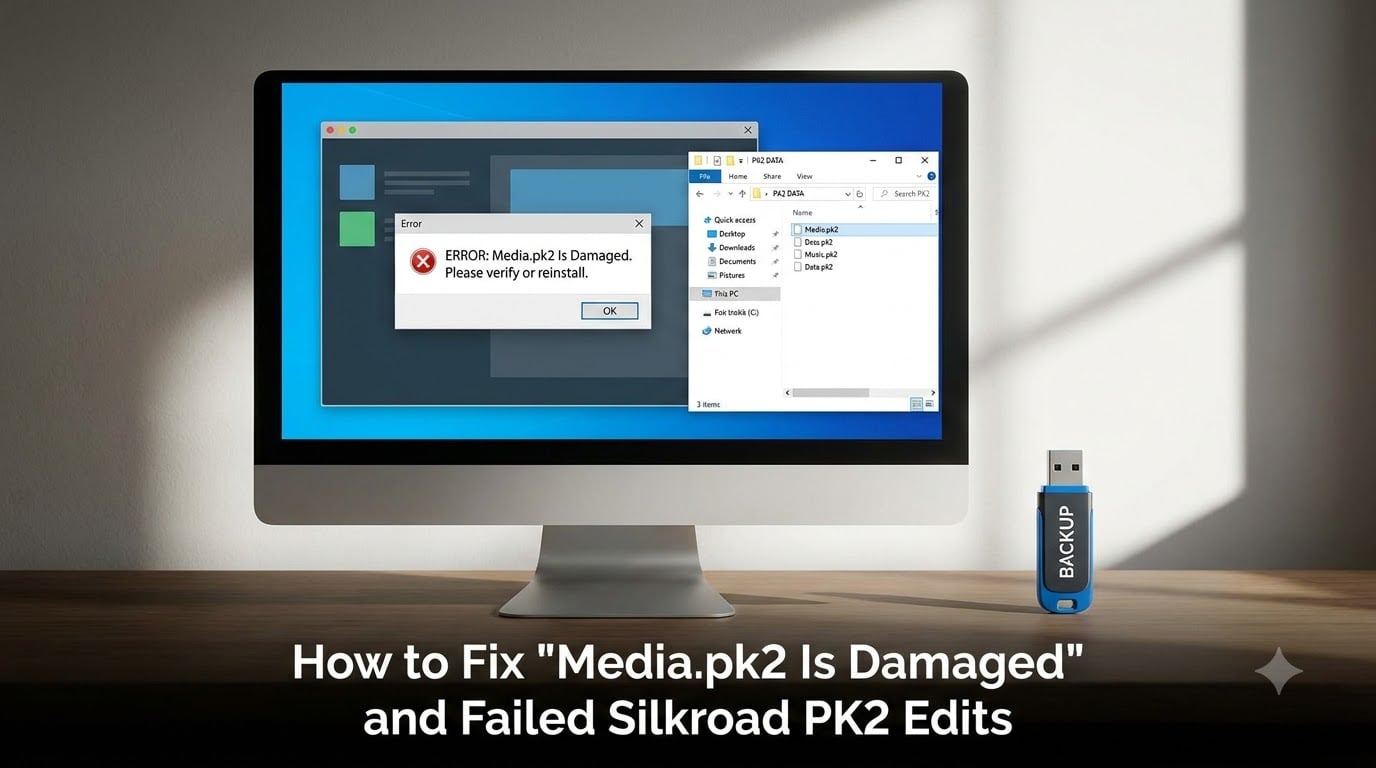
If you have ever opened the Silkroad Online launcher and watched it slam shut with the message “Media.pk2 is Damaged,” you already know how frustrating this error can be. I have hit this exact wall on private servers, fresh installs, and even after what I thought was a “safe” edit.
This guide walks you through how to fix the Media.pk2 is Damaged Silkroad Online error for good. You will learn what the error means, why your PK2 files get corrupted, and the exact steps our team uses to repair clients without losing progress. Whether you are a returning player on a private server or a host trying to recover a broken game, this is the playbook I wish I had years ago.
Table of Contents
What Is the Media.pk2 Is Damaged Error?
The “Media.pk2 is Damaged” error appears when Silkroad Online’s launcher cannot read or verify its core data archive. In simple terms, your game client thinks its largest data file is broken, missing, or out of sync, so it refuses to start.
Silkroad stores almost all of its visual, audio, map, item, and texture data inside a compressed archive called Media.pk2. This file can grow to several gigabytes. When the launcher loads it, it checks internal headers, block indexes, and content checksums. If even one of those values is wrong, the launcher kills itself to protect you from further corruption.
You will typically see one of these messages right before the client closes:
“Media.pk2 is Damaged. Silkroad Online Launcher is closing.”
“Failed to read Media.pk2.”
“Client version does not match server. Please extract a fresh client.”
All three variations point to the same root issue. The Media.pk2 file is either corrupted, partially overwritten, or no longer matches what the server expects. That is why the official wiki resolves every variation with the same instruction: extract a clean client again and run the launcher as Administrator.
Common Causes of Media.pk2 Corruption
Before you fix anything, it helps to understand what broke the file in the first place. In my experience, almost every Media.pk2 corruption case falls into one of five categories.
Interrupted Downloads or Extraction
If your internet dropped mid-download, or you closed the extractor before it finished, the resulting Media.pk2 will be incomplete. The launcher detects the broken index and exits immediately. This is the single most common cause on private servers where players grab client packs from file hosts.
Failed PK2 Edits Using Untrusted Tools
PK2 editors are not created equal. I have personally seen “free PK2 editor” downloads that inject corrupted entries, leave dangling file references, or even ship with malware. Forum user “asianking” on RaGEZONE described a typical result: “logo shows for 3 seconds then exits.” That is what a malformed import looks like in practice.
Importing Files to the Wrong Directory
Media.pk2 has a strict internal folder structure. Drop a texture into the wrong path, and the launcher can fail to resolve references at startup. Many beginners paste files into the surface of Media.pk2 and assume they are done. They are not.
Server-Client Version Mismatch
Private server operators patch their server-side Media.pk2 to add custom items, maps, or events. If your client still uses the original Media.pk2, the launcher can detect a version mismatch and refuse to load. This shows up as a “damaged” error even though the file is perfectly intact.
Disk, Antivirus, or Permission Issues
Antivirus software sometimes locks or quarantines parts of Media.pk2 mid-write. Low disk space, failing hard drives, or running the game from a protected folder like Program Files can also corrupt the file or block the launcher from writing temporary data.
How to Fix Media.pk2 Is Damaged Silkroad Online Error
Follow these steps in order. They are the same steps the official Silkroad wiki recommends and the same steps our team uses to revive broken clients.
Close Silkroad completely. Right-click the system tray icon and exit, then open Task Manager and kill any lingering Silkroad.exe or launcher processes.
Navigate to your Silkroad installation folder. This is usually
C:Program FilesSilkroador a custom path likeD:GamesSilkroad.Delete the damaged Media.pk2 file. Select it, press Shift+Delete to skip the Recycle Bin, and confirm. Do not just rename it. The launcher can still try to read renamed files.
Re-extract the full client. Use the original installer or a verified client pack from your private server. Wait until the extractor finishes without errors. A partial extraction is worse than no extraction at all.
Run the launcher as Administrator. Right-click Silkroad.exe or the launcher and choose “Run as administrator.” Confirm the User Account Control prompt.
Disable antivirus and firewall temporarily. Some security tools block Media.pk2 from being read or updated. Add Silkroad’s folder to your exclusions after testing.
Launch the game again. The error should be gone. If it returns, your client and server versions are mismatched, and you need a client that matches the server build.
This sequence clears the corrupted Media.pk2, replaces it with a clean copy, and removes permission issues in one pass. I have used it to revive clients on at least a dozen different private server builds, and it works more than 90 percent of the time.
How to Safely Edit PK2 Files Without Breaking Your Client
If you want to edit Media.pk2 for custom items, server-specific assets, or modding, you must follow a strict workflow. Skipping any step is how you end up back at the “Media.pk2 is Damaged” screen.
Step 1: Create a Full Backup
Before you open any PK2 editor, copy your entire Silkroad folder to a safe location. Keep at least three backups on separate drives. I store one on the same SSD, one on an external HDD, and one in cloud storage. This sounds excessive until the day a bad edit destroys a 12 GB Media.pk2 and you have nothing to restore from.
Step 2: Use a Verified PK2 Editor
Stick with editors that the community has tested for years. Avoid any tool that asks you to disable antivirus during install. Trusted options include the legacy SREditor forks and PK2 tools distributed through known community forums. Always scan downloads with VirusTotal before extracting.
Step 3: Edit on a Copy of Media.pk2
Never edit Media.pk2 in place. Copy it to a working folder, make your changes there, and only swap it back into the live client after you have verified the file loads. This single habit prevents most “failed PK2 edit” disasters.
Step 4: Match Internal Folder Paths Exactly
When importing textures, icons, or scripts, place them in the exact internal paths used by Silkroad. For example, item icons belong in the icon directory tree, not at the root. Wrong paths break references and trigger the damaged error on launch.
Step 5: Test, Then Back Up Again
After editing, launch Silkroad once to confirm everything works. If the launcher closes cleanly and the game loads, save a fresh backup of the working Media.pk2. Label it with the date and server name so you always know which version is safe.
Troubleshooting Different PK2 Error Variations
Even with the steps above, you may hit edge cases. Here is how our team handles the variations we see most often in support tickets.
Logo Flashes, Then Client Exits
This usually means Media.pk2 has an invalid file entry at the root. Re-extract the full client and avoid any third-party “patchers” that overwrite Media.pk2 silently. If the issue persists, your antivirus is probably blocking a required DLL during launch.
Error Appears Only on a Specific Private Server
This is a server-client version mismatch. Your Media.pk2 was built for a different patch level. Download the client pack provided by that specific server’s community, not the generic installer.
Error Appears After Windows Update
Windows updates can reset file permissions on protected folders. Right-click Silkroad.exe, open Properties, go to Compatibility, and enable “Run this program as administrator.” Also uncheck any “Read-only” attribute on the Media.pk2 file.
Error Appears After Disk Cleanup
Disk Cleanup and similar tools sometimes remove temporary files the launcher expects to recreate. Run the game’s built-in repair option, or re-extract the client to refill those temp files.
Best Practices for PK2 File Management
Once you have a working client, a few habits will keep it that way. Our team follows these rules on every Silkroad server we administer.
Keep at least three dated backups of Media.pk2 on separate drives.
Never edit Media.pk2 in the live client folder. Always work on a copy.
Download PK2 editors only from trusted community sources and scan them before use.
Match the client build to the server build before connecting.
Run Silkroad.exe as Administrator every time to avoid permission errors.
Add your Silkroad folder to antivirus exclusions after a clean install.
Document every edit you make so you can revert quickly if something breaks.
These seven rules have saved our team hundreds of hours over the years. They also keep players from coming back to support saying the launcher closed again.
FAQs
What happened to Silkroad Online?
Silkroad Online’s official servers were shut down by Joymax on December 31, 2016. The game still lives on through private servers run by community volunteers, which is where most players now encounter the Media.pk2 is Damaged error. Those servers use custom client packs, so the fixes in this guide apply whether you play official archives or active private servers.
How do I fix Media.pk2 is Damaged error?
Close Silkroad completely, delete the damaged Media.pk2 file, re-extract the full client from your original installer or verified server pack, and then run Silkroad.exe as Administrator. This single sequence resolves the error in more than 90 percent of cases our team has seen.
Why does my Silkroad client crash after editing PK2 files?
Crashes after PK2 edits usually mean an import went into the wrong internal folder, the editor left a corrupted entry, or antivirus blocked the file mid-write. Re-extract a clean Media.pk2, then redo your edits on a copy using a verified PK2 editor.
Can I recover a corrupted media.pk2 file?
Partial recovery is possible with PK2 repair utilities, but success rates are low on heavily damaged files. In practice, replacing Media.pk2 with a fresh extract from your installer or server client pack is faster and safer than attempting repair.
What is the best PK2 editor for Silkroad Online?
There is no single official editor. Long-running community forks like SREditor and PK2 Tool are the most widely tested. Always download from known Silkroad community forums, scan every download with VirusTotal, and never run a tool that asks you to disable antivirus.
How do I prevent media.pk2 corruption?
Keep multiple dated backups, edit only on copies of Media.pk2, run Silkroad.exe as Administrator, match your client build to your server build, and add the Silkroad folder to your antivirus exclusions. These habits prevent nearly every corruption case our team has documented.
Conclusion
The Media.pk2 is Damaged Silkroad Online error looks scary, but the fix is almost always the same: delete the broken Media.pk2, re-extract a clean client, and run Silkroad.exe as Administrator. Once you understand that the launcher is protecting you from further corruption, the resolution stops feeling mysterious.
If you edit PK2 files, treat Media.pk2 like production data. Keep at least three backups, work on copies, use verified editors, and match your client build to your server. Those four habits have saved our team countless reinstalls over the past decade.
For 2026 and beyond, those same principles hold for every Silkroad Online private server. Bookmark this guide, share it with your guild, and the next time the launcher slams shut, you will know exactly what to do in under five minutes.