
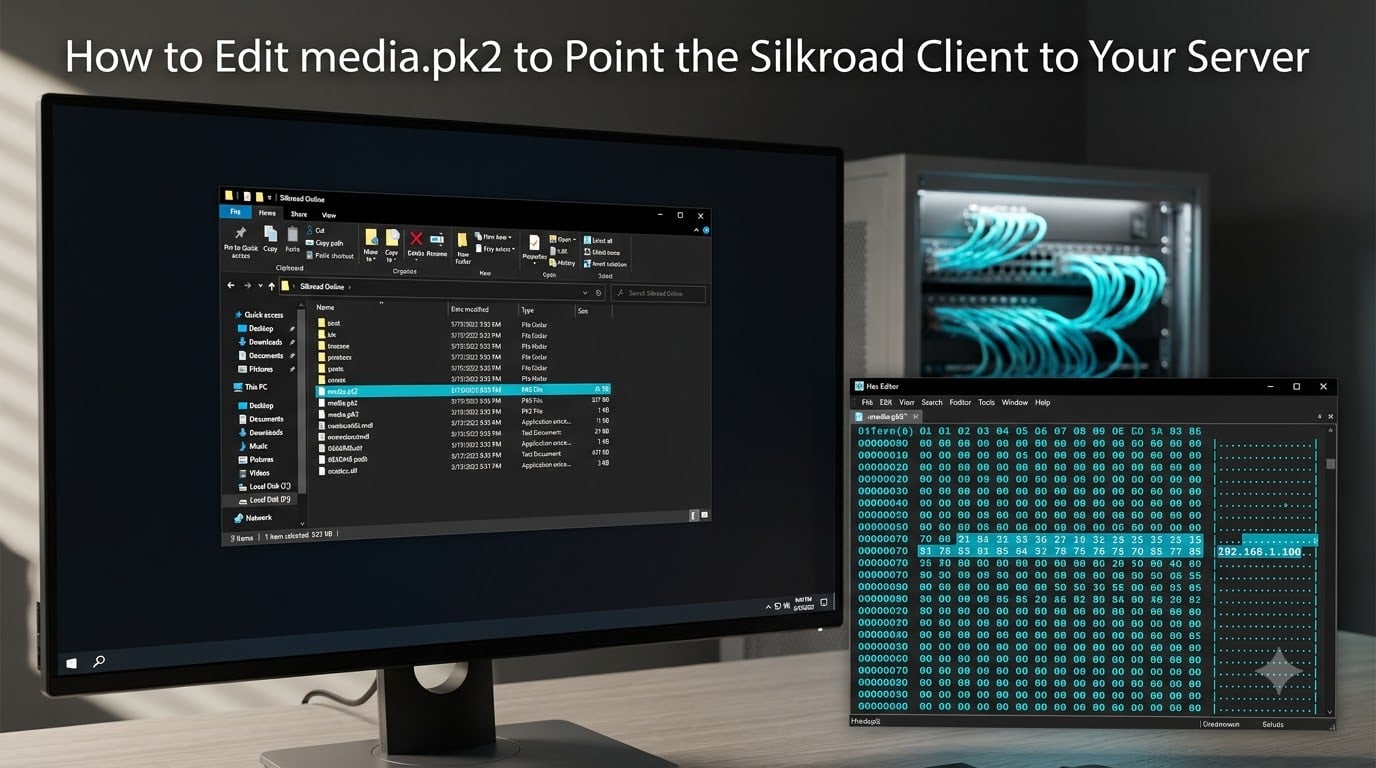
Editing media.pk2 is the single most important step in pointing a Silkroad Online client at a private server. The file is a proprietary encrypted archive that stores the game’s server connection data, and without modifying it, the client will always try to reach the official Joymax servers. Our team has walked hundreds of server admins through this exact process, and the steps below cover everything from extracting the right file to repacking and testing the connection.
This guide covers how to edit media.pk2 to point the Silkroad client to your server using two proven methods: a manual hex editor approach and a faster GUI-based PK2 editor. We also address the common errors that trip up new admins, including the “server under inspection” message, character length hex values, and vSRO versus Classic file differences.
Table of Contents
What Is media.pk2 and Why Does It Control Server Connections
media.pk2 is a proprietary archive file used by Silkroad Online to store client configuration, UI assets, text data, and server connection settings. It sits alongside other PK2 archives like data.pk2 and particles.pk2 in the game’s root install folder. Think of it as a compressed bundle that the client reads at launch to figure out where to connect and what content to load.
The file is encrypted with Blowfish, which is why a standard archive tool like 7-Zip cannot open it. You need a dedicated PK2 extractor that knows the Silkroad archive format and the correct encryption key. Once extracted, the internal files are plain text or standard formats that you can edit normally.
Inside media.pk2, the file that controls server connections is called divisioninfo.txt. This text file stores the division name, the server IP address, and the ports the client should use. When you want to redirect the Silkroad client to your private server, divisioninfo.txt is the file you modify and repack.
Tools Needed to Edit media.pk2
You only need a handful of free tools to complete this guide. Each one handles a different part of the workflow, so gather them all before you start.
PK2 Extractor and Editor: Tools like PK2 Extractor by Mihak or the newer SRO editors shared in the RaGEZONE and elitepvpers communities open the encrypted archive and let you export, edit, and re-import files.
Hex Editor: XVI32 is the community standard because it is lightweight and free. Hex Workshop is the alternative most experienced admins use. Both let you view and edit the raw byte values inside divisioninfo.txt.
Decimal to Hex Converter: Any online converter works. You need this because the IP character length is stored as a hex byte, not decimal.
Text Editor: Notepad++ or any editor that preserves byte structure without adding hidden characters.
Backup Folder: A separate location to store the original media.pk2 before you touch anything.
For admins who want a simpler workflow, the GUI-based PK2 editors that include a built-in divisioninfo editor remove the need for a separate hex editor. We cover that approach in Method 2 below.
Step 1: Back Up Your Original media.pk2
Before you open any tool, copy the original media.pk2 file to a safe location outside the game folder. Name it something obvious like media.pk2.original or media_backup_2026. This is your safety net if the edit corrupts the file or the client refuses to launch.
Corrupting media.pk2 is the most common mistake we see in forum threads, and it almost always happens because the admin skipped the backup step and then saved a bad edit over the original. A clean backup takes five seconds and saves hours of reinstalling the client.
If you are working on a live server environment, keep two backups: one on the server machine and one on a separate drive. This protects you against disk failures as well as editing mistakes.
Step 2: Extract divisioninfo.txt from media.pk2
With your backup secured, open your PK2 extractor and load media.pk2 from the Silkroad install directory. The extractor will prompt you for the Blowfish key if it is not pre-configured. Most modern PK2 tools ship with the standard Silkroad key built in, so this step is usually automatic.
Navigate to the following path inside the archive:
media/server/divisioninfo.txt
The exact path can vary slightly between client versions. In vSRO files, the path is the same but the file may contain additional Gateway and Farm server entries. In older Classic clients, divisioninfo.txt sits directly under the server folder. If you cannot find it, search the archive for “division” to locate it.
Right-click the file and choose Export or Extract. Save it to a working folder on your desktop where you will do the editing. Keep the PK2 extractor open because you will need it again to import the modified file.
Understanding the divisioninfo.txt Structure
divisioninfo.txt is organized around two concepts: Divisions and Servers. A Division is a logical grouping, and each Division contains one or more Server entries. The Silkroad client reads this hierarchy to build the server selection screen and to know which IP address to contact.
Each Server entry contains the server name, the IP address, and the port. The default ports for Silkroad are 15779 for the Gateway server and 15880 for the Agent server. If your private server uses different ports, you need to update those values here as well.
The critical detail most guides gloss over is the character length byte that precedes the IP address. The byte tells the client how many characters to read for the IP string. For an 11-character IP like “192.168.1.1”, the byte value is 0B in hex, which equals 11 in decimal. If your new IP is shorter or longer, you must update this byte or the client will misread the address.
Another requirement forum users consistently flag is the empty byte (00) at the end of the file. The client expects this terminator, and removing it causes the connection to fail silently. Always confirm the trailing 00 byte is present before you repack.
Step 3: Modify the Server IP (Method 1 – Hex Editor)
This is the manual method most experienced admins use because it gives you full control over every byte. Open the extracted divisioninfo.txt in XVI32 or Hex Workshop. You will see the file contents in both hex values and ASCII text side by side.
Use the search function to find the current IP address in the ASCII panel. Once located, note the byte immediately before the IP string. That byte is the character length value described above.
Follow these steps to change the IP:
Calculate the new IP character count. For example, “10.0.0.50” is 9 characters, so the hex value is 09. “203.0.113.25” is 12 characters, so the hex value is 0C.
Update the character length byte. Click on the byte before the IP string and type the new hex value. This is the step most beginners miss, and it is the root cause of most connection failures.
Replace the IP characters. Type the new IP over the old one in the ASCII panel. If the new IP is the same length as the old one, you can simply overwrite it.
If the new IP is longer, use the Insert key. Press Insert on your keyboard to switch XVI32 into insert mode, then add the extra bytes needed. Never overwrite into adjacent data, because that corrupts the next server entry.
If the new IP is shorter, pad with null bytes (00). Replace the leftover characters with 00 so the total byte count stays consistent.
Verify the trailing 00 byte exists at the end of the file. If it does not, add one.
Save the file. Use Save As to keep a clean copy with a clear name.
This method works for every Silkroad client version because you are editing raw bytes. The downside is that one wrong keystroke can corrupt the file, which is why the backup step matters so much.
Step 3: Modify the Server IP (Method 2 – GUI PK2 Editor)
If manual hex editing feels risky, use a GUI-based PK2 editor with a built-in divisioninfo editor. These tools, often built in AutoIt and shared in the Silkroad community, present a form where you enter the division name, server name, and IP address without touching a single hex value.
The typical workflow is:
Open the PK2 editor and load media.pk2.
Click “Add Division.” Enter the division name shown on the server selection screen.
Click “Add Server.” Type your private server IP address into the IP field.
Confirm the ports. The defaults are 15779 for Gateway and 15880 for Agent. Change them only if your server config differs.
Save and re-import. The tool handles the character length byte and trailing 00 automatically.
Use this method when you are new to PK2 editing or when you need to change multiple server entries quickly. It is faster and less error-prone, but it relies on the tool supporting your specific client version. For vSRO files with extra Gateway and Farm entries, double-check that the tool preserves those fields.
Step 4: Repack and Import the Modified Files
If you used Method 1, you now have a modified divisioninfo.txt sitting in your working folder. Switch back to your PK2 extractor, which should still have media.pk2 open. Right-click the original divisioninfo.txt inside the archive and choose Import or Replace. Select your modified file and confirm.
Save the archive. Most PK2 tools re-encrypt the file automatically using the same Blowfish key, so the client will read it normally. Close the PK2 tool before launching the game, because leaving it open can lock the file.
If you used Method 2 with a direct media.pk2 editor, the import step is handled for you. Just make sure to save the archive before exiting the tool. Some editors create a temporary backup automatically, but do not rely on that as your only safety copy.
One common pitfall here: if your PK2 tool has a “compress” option, leave it at the same compression level as the original. Changing compression can break the file index and cause the client to crash on launch.
Step 5: Test and Verify the Connection
Launch the Silkroad client from the same folder where you saved the modified media.pk2. Watch the login screen carefully. If the client reaches the login prompt without an error, the Gateway server connection is working.
Always test from a separate machine, not the server itself. Forum users consistently report that running the launcher on the same machine as the server causes false connection failures due to loopback routing. Test from a second PC on the same network first, then test from outside your network.
Confirm these ports are open and forwarded on your server machine before testing:
15779 – Gateway server (handles login and server list)
15880 – Agent server (handles the actual game session)
If your firewall blocks either port, the client will hang or show “server under inspection.” Check both Windows Firewall and any router-level firewall rules. Test the ports with a tool like telnet or an online port checker to confirm they are reachable from outside.
Log in with a test account and enter the game world. If you can move your character and see the map load, the full connection chain is working end to end.
Common Errors and Troubleshooting
Even with careful editing, errors happen. Below are the issues we see most often in forum threads, along with the fixes that work.
“Server Under Inspection” Message
This error almost always means the client reached the Gateway but the Agent server rejected the connection. Check that port 15880 is open and that the Agent server process is actually running. Also confirm the IP in divisioninfo.txt matches the server machine’s public or local IP exactly. A single mistyped digit causes this error.
Client Crashes on Launch
A crash usually means media.pk2 is corrupted. Restore your backup copy and redo the edit. The most common cause is a missing trailing 00 byte or an incorrect character length value that shifted the rest of the file.
Connection Refused After Editing
If the client cannot connect at all, verify the IP address is correct and reachable. Ping the server IP from the client machine. If ping fails, the issue is network-level, not media.pk2. Check port forwarding, firewall rules, and that the server is bound to the correct network interface.
Wrong Hex Character Length Value
This is the most subtle error. If the character length byte does not match the actual IP length, the client reads either too few or too many characters. For example, if you changed an 11-character IP to a 9-character one but left the byte at 0B, the client reads two extra null characters and treats the IP as invalid. Always recalculate the byte and update it.
Ports Misunderstood
Many new admins confuse Gateway and Agent ports. The Gateway port (15779) handles the initial login and server list. The Agent port (15880) handles the game session. Both must be open and forwarded. If only one is open, you get a partial connection that fails at login or character selection.
vSRO Versus Classic Client Differences
vSRO files are based on the later Silkroad versions and contain additional Gateway and Farm server entries in divisioninfo.txt. If you edit a vSRO file with a tool designed for Classic, you may lose those entries and break the connection. Always use a PK2 editor that matches your client version. When in doubt, use the hex editor method because it preserves every byte you do not touch.
Launcher Running on the Server Machine
Testing from the server itself causes loopback issues. The client may connect to localhost instead of the configured IP, which works for the Gateway but fails when the Agent redirects to the public IP. Always test from a separate machine.
FAQs
What is media.pk2 in Silkroad Online?
media.pk2 is a proprietary encrypted archive file that stores the Silkroad Online client configuration, UI assets, text data, and server connection settings. The server IP address lives inside divisioninfo.txt within this archive, which is why editing media.pk2 redirects the client to a private server.
What tools do I need to edit media.pk2?
You need a PK2 extractor and editor (such as the PK2 Extractor by Mihak), a hex editor like XVI32 or Hex Workshop, and a decimal-to-hex converter. A GUI-based PK2 editor with a built-in divisioninfo editor can replace the hex editor for beginners.
What is divisioninfo.txt in Silkroad?
divisioninfo.txt is the file inside media.pk2 that stores the server division hierarchy, server names, IP addresses, and ports. The client reads this file to know where to connect. Editing the IP in this file is how you point the Silkroad client to your private server.
Why does my Silkroad client say ‘server under inspection’ after editing media.pk2?
This error means the client reached the Gateway server but the Agent server rejected the connection. Check that port 15880 is open and forwarded, that the Agent server process is running, and that the IP in divisioninfo.txt is correct.
What is the hex value 0B in divisioninfo.txt?
0B is the hexadecimal representation of 11 in decimal. It is the character length byte that precedes the IP address string in divisioninfo.txt. It tells the client how many characters to read for the IP. If your new IP has a different length, you must update this byte.
Can I edit media.pk2 without a hex editor?
Yes. GUI-based PK2 editors with a built-in divisioninfo editor let you enter the division name, server name, and IP address through a form. The tool handles the character length byte and trailing null byte automatically, which makes it a good choice for beginners.
Conclusion
Editing media.pk2 to point the Silkroad client to your private server comes down to four steps: back up the original file, extract divisioninfo.txt, modify the server IP (and its character length byte), and repack the archive. Whether you use the manual hex editor method or a GUI PK2 editor, the same rules apply. Always update the character length byte, keep the trailing 00 byte, and test from a separate machine.
The two ports that matter are 15779 for Gateway and 15880 for Agent. Both must be open and forwarded before the client can complete a full connection. If you hit the “server under inspection” error, start by checking the Agent server process and port 15880.
Once your connection test succeeds and a test account can enter the game world, your media.pk2 edit is complete. Keep your backup copy until you have run the server under real load for a few days, and document the exact IP and port values you used so future edits are faster.