
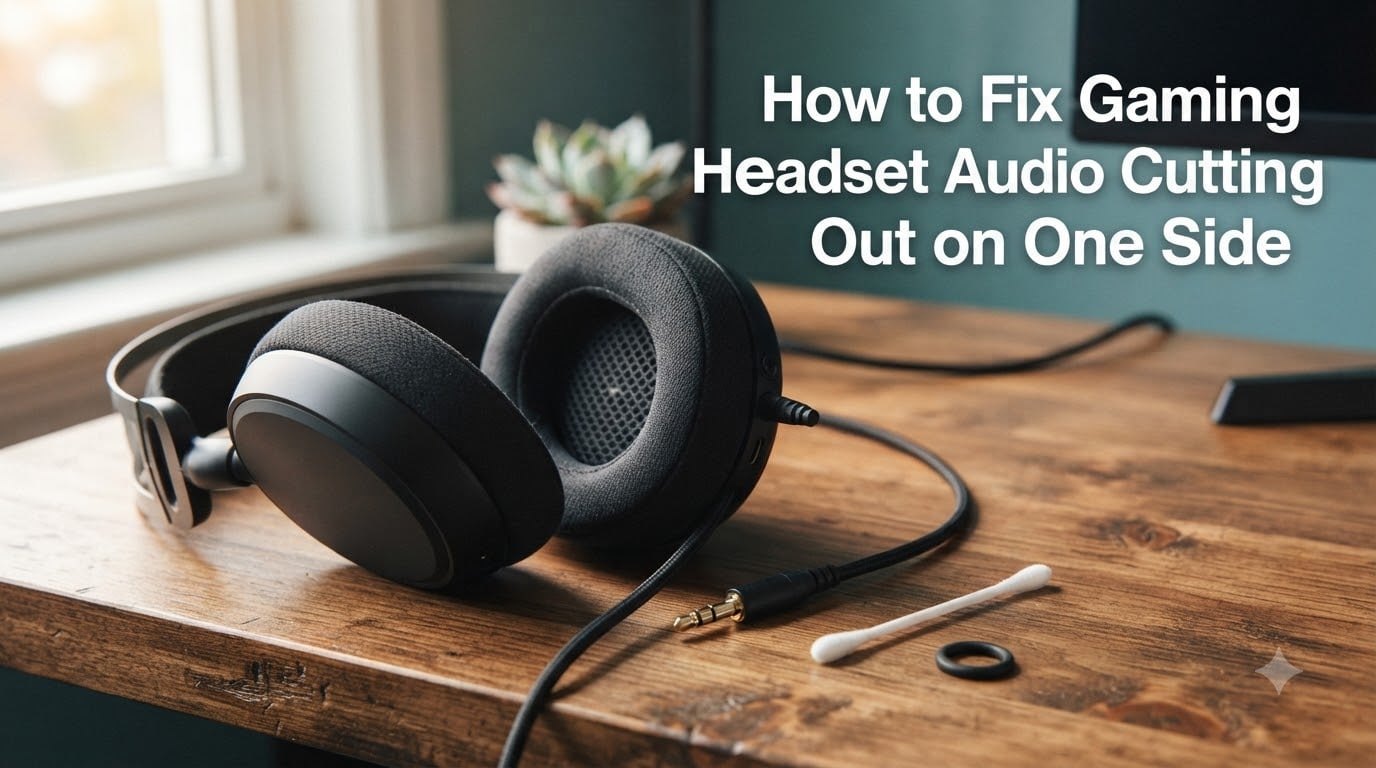
When one side of your gaming headset suddenly cuts out, it almost always traces back to one of three causes: a dirty or loose audio jack, a cable that is fraying near the connector, or a misconfigured balance setting in your software. After helping readers debug this exact issue for years, I can tell you the fix rarely requires a new headset. In this guide, I will walk you through how to fix gaming headset audio cutting out on one side step by step, whether you are on PC, PS5, Xbox, or running wireless through Bluetooth.
I have personally wrestled with this problem across a dozen headsets, three motherboards, and at least four different wireless transmitters. The good news: in roughly 80% of cases, a 5-minute fix solves the dropout without spending a cent. Let us start by figuring out what kind of headset you have and where the audio is actually breaking.
Table of Contents
Quick Diagnosis: Identify Your Connection Type
The fix for a wired 3.5mm headset is different from a wireless USB transmitter or a Bluetooth connection. Before you change any settings, run through this quick diagnosis so you do not waste time on the wrong solution.
If you are using a 3.5mm headset plugged directly into your controller or PC, the cutout usually happens at the physical jack or along the cable. If you are using a USB wireless dongle, the problem is often interference from your WiFi router or a failing USB port. If you connected through Bluetooth, the issue frequently comes from Windows forcing your headset into Hands-Free mode.
Wired 3.5mm: Audio cuts when you wiggle the cable or move your head sharply.
USB wireless: Audio cuts out randomly, often for a fraction of a second.
Bluetooth: Audio stutters when you are more than a few feet from the source.
This distinction matters because each connection type has a different fix path. Keep your headset type in mind as you move through the rest of this guide.
How to Clean Your Audio Jack and Ports?
Dirt and pocket lint are the single most common reason for one-sided audio dropout. I have pulled enough compacted fuzz out of jacks to knit a small sweater. Even a thin film of oxidation on the metal contacts can break the signal to one channel.
Here is the safe way to clean your audio jack and ports without damaging anything.
Power off your PC, console, or controller before you start.
Use a wooden or plastic toothpick to gently scrape inside the port, lifting out lint.
Spray a tiny amount of contact cleaner (or 90% isopropyl alcohol) onto a cotton swab.
Insert the swab into the port and rotate it gently against the contacts.
Repeat with a dry swab to remove any leftover moisture.
Clean the headset jack the same way, paying attention to the metal tip and rings.
Wait 5 minutes for everything to dry before plugging back in.
One Reddit user on r/headphones spent 8 months assuming their $300 headset was dying, only to discover the jack was packed with lint from daily use. After a 3-minute clean, both sides worked perfectly. Do not skip this step.
Inspect Cables for Damage or Fraying
If cleaning did not solve the issue, your cable is the next suspect. Cable damage near the jack is the textbook cause of one-side-only audio dropout. The internal wires break from repeated bending, and the connection to one channel fails before the other.
Run the wiggle test: plug your headset in and play music, then gently wiggle the cable right where it meets the 3.5mm jack. If one side cuts in and out as you wiggle, you have found the problem. The same test works at the Y-split and at each ear cup connection.
Look closely at the cable for these physical damage indicators:
Visible copper wire poking through the rubber jacket
Kinks or hard bends that do not straighten out
A swollen or stiff section near the connector
Discoloration or melting from heat exposure
If you spot damage, you have two real options: replace the cable (most gaming headsets use detachable cables), or repair the break with a soldering iron and heat shrink. For most gamers, a replacement cable is faster and cheaper than a new headset.
Test on Another Device to Isolate the Problem
Before assuming your headset is broken, plug it into a different device. This 30-second test tells you whether the problem follows the headset or stays with your PC or console.
If the audio works perfectly on another phone, laptop, or console, then your headset is fine and the issue is with the original device. If the cutout follows the headset to the new device, your headset has a hardware fault. This single test saves you hours of pointless software troubleshooting.
Try your headset on at least two other sources if possible. Some motherboards have flaky front-panel audio jacks that cause exactly this symptom, even with perfectly good headsets.
Update or Reinstall Audio Drivers
Corrupted audio drivers cause more headset problems than people realize. Windows sometimes installs a generic driver that does not fully support your specific headset, leading to channel dropouts.
Here is how to reinstall your audio drivers cleanly on Windows.
Right-click the Start button and open Device Manager.
Expand the “Sound, video and game controllers” section.
Right-click your headset (or audio device) and choose Uninstall device.
Check “Attempt to remove the driver for this device” and confirm.
Restart your PC. Windows will reinstall the driver automatically.
Test your headset before installing any manufacturer software.
If the issue persists, download the latest driver directly from your headset manufacturer instead of relying on Windows Update. Realtek, Nahimic, and other motherboard audio drivers are also worth updating, since they sit between your headset and Windows.
On Mac, the fix is simpler. Open System Settings, go to Sound, and remove your headset from the device list. Then re-pair it. macOS rarely has driver corruption issues, but Bluetooth handshakes occasionally need a reset.
Check Windows and Mac Sound Settings (Balance Slider)
This is the fix that embarrasses the most gamers. Windows has a balance slider that pushes audio to the left or right channel. If a game or accessibility tool nudges this slider even slightly off-center, one side will sound noticeably quieter or cut out entirely.
Open your Sound settings, click on your headset, and select Properties. Look for the Balance button under the Levels tab. Make sure both Left and Right are set to 100. If Left shows 50 and Right shows 100, that is why one side sounds weak.
While you are in there, also check the following.
Disable “Exclusive Mode” under the Advanced tab to stop apps from stealing your audio device.
Set your default format to 24-bit, 48000 Hz (studio quality) for the cleanest signal.
Turn off any spatial sound enhancements and test again before turning them back on.
On Mac, go to System Settings, Sound, and verify the balance slider is centered. macOS does not have exclusive mode in the same way, but you should quit any audio apps that might be holding exclusive control of the device.
Wireless Interference and Bluetooth Dropout Fixes
Wireless headsets operate on the crowded 2.4GHz band, which is shared with WiFi routers, microwaves, and Bluetooth devices. When audio cuts out for half a second at a time, interference is almost always the culprit.
Try these fixes in order.
Move the USB wireless dongle to a USB 2.0 port on the front of your PC, away from your WiFi card.
Use the included extension cradle to bring the dongle closer to your headset.
Log into your router and switch to a 5GHz WiFi network, or reduce your 2.4GHz channel width to 20MHz.
Keep your phone at least 3 feet away from the dongle during gaming sessions.
Replace any USB 3.0 hub with a direct connection, since USB 3.0 can emit interference on the 2.4GHz band.
Bluetooth users get a different fix. If Windows forces your headset into Hands-Free AG Audio mode, audio quality drops and dropouts become frequent. Open the Bluetooth settings, find your headset, and uncheck “Hands-Free Telephony” if that option appears under Services. Otherwise, disable the headset, re-pair it, and watch whether the issue persists.
Console-Specific Fixes (PS5, Xbox, Switch)
Console users face a smaller set of causes, but the fixes are similar. On PS5, go to Settings, Sound, and check the balance slider under Audio Output. Make sure it is centered. Also try a different controller, since a low controller battery forces audio through the 3.5mm jack and causes cutouts on both sides.
On Xbox, run the firmware update through the Xbox Accessories app. Then test your headset by plugging directly into the console instead of the controller. The Xbox Wireless protocol has improved in recent generations, but a controller jack fault is a known cause of single-side dropout.
For Nintendo Switch, the issue is almost always the volume slider on the headset itself or a loose connection in the tablet. Wiggle test the cable and clean the jack.
Discord and Game Audio Conflicts
If you are gaming on PC with Discord open, two apps are fighting over your audio device. Discord’s noise suppression and Krisp features occasionally crash, which makes one channel of your headset go silent.
Disable Krisp in Discord’s Voice and Video settings, then restart Discord. Also disable any motherboard audio suite (Realtek Console, Nahimic, Sonic Studio) that might be running. These programs are notorious for breaking one-sided audio when they fight over which app controls the device.
The O-Ring and Hinge Fix for One-Sided Audio
This fix comes straight from the r/ValveIndex community, where users discovered that a loose headphone hinge can cut the signal to one ear cup. The solution is a small rubber O-ring placed around the hinge joint.
The O-ring adds tension to the loose hinge, restoring the internal connection between the cable and the driver. One user reported that this fix resolved both their hinge wobble and their one-sided dropout at the same time. You can pick up a multi-pack of O-rings at any hardware store for a few dollars, sized to fit your specific hinge.
If your headset has a stiff or loose headband joint and the cutout disappears when you press the ear cup firmly against your head, you have a hinge problem. The O-ring trick is worth trying before you replace the headset.
When to Replace vs. Repair Your Headset
After working through every step above, you will usually land on one of three outcomes. Either your headset is fine and the issue was software, your cable needs replacement, or the drivers inside the ear cup are physically damaged.
If replacement cables are available for your model and the cost is under 25% of a new headset, repair makes sense. If the headset is out of warranty, more than 3 years old, and replacement cables are unavailable, a new headset is the better investment. Modern wireless headsets have improved enough that the upgrade is usually worth it.
FAQs
Why is one side of my headphones cutting out?
One-sided audio dropout is usually caused by a dirty audio jack, a frayed cable near the connector, a misconfigured balance slider, or a loose internal connection at the hinge. Start with cleaning the jack and ports, then run the wiggle test on the cable before moving to software fixes.
Why is one side of my headphones glitching?
Glitching on one side almost always points to a dirty contact or a damaged wire. Clean the jack with isopropyl alcohol and a cotton swab, then wiggle the cable near the connector to identify breaks. If the glitch appears when moving your head, the hinge is a likely suspect.
Why does my gaming headset keep cutting out?
Repeated cutouts usually mean wireless interference, a failing USB port, or exclusive mode conflicts. Move the wireless dongle to a USB 2.0 port away from your WiFi router, disable exclusive mode in Windows sound settings, and check that no single app is hogging the audio device.
How to fix uneven headphone sound?
Open your sound settings, find the balance slider, and confirm both left and right channels are set to 100. Even small offsets will make one side noticeably quieter. Then disable any spatial audio enhancements and exclusive mode, then test again.
Can a loose cable cause audio to cut out on one side?
Yes. Cable damage near the 3.5mm jack is the most common cause of single-side dropout. The internal wires break from repeated bending, and one channel usually fails before the other. Wiggle the cable at the jack while audio is playing to confirm.
Why does my headset audio cut out when I move?
If audio cuts out when you move your head, the problem is mechanical. You likely have a loose hinge, a damaged cable near the connector, or a 3.5mm jack that is not fully seated. Try the O-ring hinge fix or reseat the jack firmly before replacing the headset.
Final Thoughts
Learning how to fix gaming headset audio cutting out on one side comes down to systematic diagnosis. Clean the jack, wiggle the cable, check the balance slider, and rule out software conflicts before assuming the worst. In most cases, one of these steps will restore both channels within minutes. If nothing works, the O-ring hinge trick or a replacement cable is usually cheaper than a brand-new headset.
Bookmark this guide the next time your audio cuts out mid-match, and run through the steps in order. You will save yourself time, money, and the frustration of gaming with one good ear.