
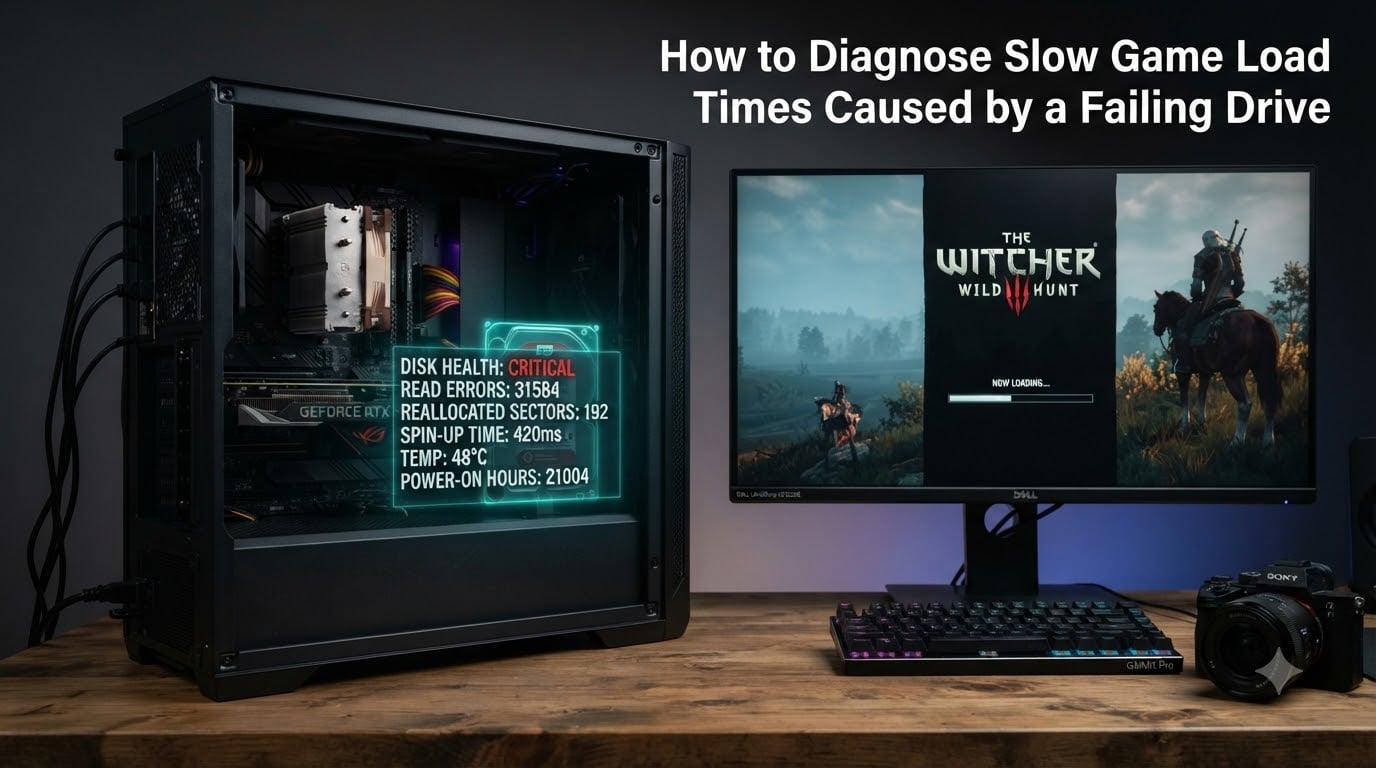
I remember staring at a loading screen for nearly five minutes before dropping into a match of Battlefield 4, watching teammates already capture objectives. My old 250GB Seagate Barracuda was the culprit, and I wish someone had walked me through how to diagnose slow game load times caused by a failing drive back then. If your games feel like they are stuck in quicksand, the storage device is often the first thing to check.
Slow load times are not always about a full hard drive or weak CPU. A failing drive can throttle read speeds to a crawl, causing games to hang on loading screens, stutter through open worlds, and even crash mid-match. The good news is that diagnosing this problem takes about 15 minutes if you know where to look.
Table of Contents
Why Failing Drives Cause Slow Game Load Times?
A failing drive causes slow game load times because the storage device cannot read or write data at normal speeds. When mechanical components wear down or flash memory degrades, your PC has to retry reads, work around bad sectors, and wait on a bottleneck that never resolves.
How HDDs Read Game Data
Hard disk drives read data using a spinning platter and a magnetic head that hovers nanometers above the surface. Modern games stream textures, audio, and level geometry constantly, and every asset request requires the head to physically move to the correct location on the platter.
When the heads or motor start failing, seek times balloon from a typical 8-12ms to 50ms or higher. I have seen diagnostic logs show 200ms seek times on drives that were days away from total failure. That latency shows up directly in your game as a frozen loading screen.
How SSDs Differ
SSDs have no moving parts, so they read data almost instantly from NAND flash cells. However, SSDs degrade in different ways. As flash cells wear out, the controller has to remap data to spare cells, and write performance drops before read performance does.
This means an aging SSD can still boot Windows quickly but crawl when loading a fresh open-world game that writes temporary cache files. I have personally benchmarked 3-year-old SATA SSDs dropping from 500 MB/s sequential reads to under 100 MB/s once the cache filled.
The Cost of a Storage Bottleneck
If your CPU and GPU are fast but your drive cannot keep up, the entire game pipeline stalls. Storage bottlenecks in games cause texture pop-in, slow save operations, and long initial loads. Diagnosing this early saves you money because you catch the drive before it dies completely and takes your saves with it.
Signs Your Hard Drive is Failing
Your hard drive is likely failing if you notice unusual sounds, random game crashes, or load times that gradually worsen over weeks. Catching these signs early gives you time to back up data before the drive stops working entirely.
Audible Warning Signs
Clicking, grinding, and repetitive head-banging noises are the most obvious indicators of mechanical failure. A healthy HDD produces a soft, steady hum during use. A failing drive often produces sharp clicks every few seconds as the head assembly fails to find data and retries.
I once owned a drive that made a high-pitched whine during heavy game loads. That was the spindle motor bearings starting to go, and the drive died two weeks later. If your PC suddenly gets louder during gaming sessions, listen closely for irregular sounds.
In-Game Symptoms
Watch for these in-game symptoms that point to a dying drive: loading screens that take 2-5 minutes while other players are already in-game, texture pop-in or blurry surfaces that stay blurry during exploration, frequent stuttering when entering new areas in open-world games, save files that take 10+ seconds to write or fail entirely, and games crashing to desktop with disk-related error codes.
System-Level Errors
Outside of games, you may see Event Viewer warnings about disk read failures, BSOD crashes referencing atapi.sys or nvme.sys, or Windows reporting that a drive needs to be repaired. These are not software bugs. They are the operating system detecting that the storage hardware is struggling.
How to Check Drive Health with SMART Tools?
You can check drive health with SMART tools by downloading CrystalDiskInfo and reading the five key SMART attributes that predict failure. SMART stands for Self-Monitoring, Analysis, and Reporting Technology, and every modern drive tracks dozens of internal metrics that signal impending problems.
Reading SMART Attributes in CrystalDiskInfo
CrystalDiskInfo is a free tool that reads SMART data directly from your drive and shows a color-coded health status. Green means healthy, yellow means caution, and red means back up your data immediately and replace the drive.
Download CrystalDiskInfo from the official site, run it as administrator, and select your game drive from the dropdown. You will see a status badge in the top right corner along with a temperature reading and total power-on hours.
Key SMART Values to Watch
These five SMART attributes matter most when diagnosing a failing drive: Reallocated Sector Count (05) shows the number of bad sectors the drive has marked as unusable, and anything above zero is a warning sign. Spin Retry Count (10) tracks how many times the drive failed to spin up properly, where non-zero values indicate motor issues. Current Pending Sector Count (C5) lists sectors waiting to be remapped because reads are failing, and growth here is a strong failure predictor. Uncorrectable Sector Count (C6) shows sectors that could not be read even after retries, which is critical and means data loss is happening. Wear Leveling Count (173 for SSDs) shows the percentage of flash cell life consumed, and SSDs near 100% will fail soon.
I keep CrystalDiskInfo running in the background on my main gaming rig and check it monthly. Catching a rising Reallocated Sector Count early saved my Skyrim save files last year.
When to Run a Manufacturer Diagnostic
Manufacturer diagnostic tools like SeaTools for Seagate, WD Data Lifeguard Diagnostics, and Samsung Magician run deeper tests than SMART alone. Use them when SMART shows yellow status or when you suspect intermittent failures that CrystalDiskInfo is not catching. These tools perform short and extended self-tests that read every sector on the drive, and an extended test on a 1TB drive takes several hours but gives you a definitive pass or fail result.
Step-by-Step Diagnostic Methods
Follow these four diagnostic methods in order to confirm whether your drive is causing slow game load times. Each step takes only a few minutes and gives you a clearer picture of the problem.
Step 1: Open Task Manager and Check Disk Usage
Press Ctrl+Shift+Esc to open Task Manager and click the Disk column. Now launch a game or open a loading screen. If disk usage sits at 100% for extended periods while your game is loading, your drive is the bottleneck. Healthy drives show disk usage spikes during loads that drop to 1-5% during gameplay, while a failing drive shows sustained 100% usage because read operations keep timing out and retrying.
Step 2: Run CHKDSK for Bad Sectors
Open Command Prompt as administrator and type chkdsk D: /f /r, replacing D with your game drive letter. The /f flag fixes file system errors and /r locates bad sectors and recovers readable data. You will be prompted to schedule the scan for next reboot because CHKDSK needs exclusive access to the drive, so restart your PC and let the scan complete. If CHKDSK finds thousands of bad sectors, your drive is failing and needs replacement.
Step 3: Test Read and Write Speeds
Download CrystalDiskMark and run a sequential read test on your game drive, then compare the result to the drive’s rated speed. A healthy SATA SSD should hit 500-550 MB/s, a healthy NVMe SSD should hit 3,000-7,000 MB/s, and a healthy 7200RPM HDD should hit 80-160 MB/s. If your drive is scoring 50% or less of its rated speed, something is wrong, and slow sequential reads are a strong indicator of mechanical wear or flash degradation.
Step 4: Check for Disk Fragmentation
HDDs slow down as files fragment across the platter because the read head has to travel to multiple locations to assemble one file, while SSDs are immune to fragmentation so skip this step if you game on an SSD. Open the drive in File Explorer, right-click it, select Properties, click the Tools tab, and click Optimize under Optimize and defragment drive. Windows will analyze fragmentation and offer to defragment if the percentage is high.
Differentiating HDD vs SSD Issues
You can differentiate HDD vs SSD issues by the symptom pattern. HDDs slow down gradually with audible and visible signs of mechanical wear, while SSDs often show sudden performance drops tied to thermal throttling or flash wear.
HDD Failure Patterns
HDDs typically fail with a long decline in performance. You will notice load times getting worse over weeks or months, accompanied by clicking sounds and increasing SMART warnings. Bad sectors accumulate slowly until the drive runs out of spares and fails outright.
SSD Failure Patterns
SSDs often fail suddenly once the flash cells wear out, though performance drops precede total failure. An SSD near its write endurance limit will throttle heavily, causing load times to balloon even though the drive still appears functional in Windows.
NVMe vs SATA SSD Differences
NVMe drives connect through PCIe lanes and run much hotter than SATA SSDs, making thermal throttling common on NVMe drives without heatsinks and causing load time spikes during long gaming sessions. If your NVMe drive shows 70°C or higher during gameplay, install a heatsink or improve case airflow. SATA SSDs rarely thermal throttle but share flash wear issues with NVMe drives, and both benefit from the same SMART checks using CrystalDiskInfo.
When to Replace Your Drive
Replace your drive immediately if SMART shows red status, if CHKDSK finds hundreds of bad sectors, or if load times exceed 2 minutes while identical hardware on the same game loads in under 30 seconds. Do not wait for total failure because data recovery after a dead drive is expensive and not guaranteed.
Immediate Red Flags
These red flags mean you should back up today and replace this week: SMART status showing yellow or red in CrystalDiskInfo, more than 100 reallocated sectors on an HDD, uncorrectable sector count above zero on any drive, clicking or grinding sounds during normal operation, Windows prompting to back up the drive due to repeated errors, and game save files corrupting or disappearing.
Planning a Backup Before Replacement
Before replacing a suspect drive, back up your game saves, screenshots, and any personal files using an external USB drive, cloud storage, or a second internal drive. Windows includes a Backup and Restore tool, or you can manually copy your Documents, Pictures, and saved games folders. For Steam users, the Steam Cloud automatically syncs save files for many games, while Epic and other launchers have their own cloud save settings to verify before wiping the old drive.
Prevention Tips to Keep Your Drive Healthy
Keep your drive healthy by monitoring SMART monthly, avoiding full drive capacity, and ensuring proper cooling around your storage devices. Preventive monitoring catches failures months before they cause game-breaking load times.
Game Storage Best Practices
Install games on a drive with at least 20% free space because drives near full capacity slow down as the controller has less space for wear leveling and write caching. If you have a 1TB SSD dedicated to games, keep at least 200GB free for optimal performance. Avoid parking old game folders you no longer play on your main drive and move completed titles to a secondary storage drive to reduce wear on your primary game drive.
Monitoring Drive Health Long Term
Set a calendar reminder to check CrystalDiskInfo once a month and track your Reallocated Sector Count, Wear Leveling Count, and temperature over time. A trend is more informative than a single snapshot because slow degradation is easier to catch than sudden failures. For gamers in 2026, drives are cheaper to replace than the time lost to corrupted saves and failed troubleshooting, so a quick monthly check keeps your storage healthy and your games loading fast.
FAQs
Why are my game load times so slow?
Slow game load times are usually caused by a failing or overloaded storage drive. HDDs with bad sectors or SSDs nearing their write endurance limit throttle read speeds, causing games to hang on loading screens. Check your disk health with CrystalDiskInfo first.
Can a faulty HDD slow down a PC?
Yes, a faulty HDD can slow down your entire PC. When the drive takes too long to respond, Windows and applications stall waiting for data. This shows up as frozen loading screens, slow boot times, and games that take forever to launch.
How do I tell if my PC hard drive is failing?
Tell if your hard drive is failing by checking SMART data in CrystalDiskInfo, listening for clicking or grinding noises, and running CHKDSK to scan for bad sectors. A yellow or red health status in SMART tools is a clear warning sign.
What are the signs of a dying HDD?
Signs of a dying HDD include clicking or grinding sounds, increasing load times over weeks, BSOD crashes referencing disk errors, files that fail to save, and rising reallocated sector counts in SMART monitoring tools.
How to check hard drive diagnostics on Windows 11?
Check hard drive diagnostics on Windows 11 by downloading CrystalDiskInfo for SMART data, running chkdsk D: /f /r from an elevated Command Prompt for bad sectors, and using Task Manager to monitor disk usage during gameplay.
Conclusion
Learning how to diagnose slow game load times caused by a failing drive saves your saves, your patience, and your wallet. Run CrystalDiskInfo monthly, pay attention to strange noises, and back up your data the moment SMART turns yellow. If your drive is showing failure signs, replace it this week rather than waiting for total breakdown. A healthy storage device means faster loads, smoother open-world streaming, and games that actually let you play instead of making you watch a spinning icon. Your future self will thank you for catching the problem early.