
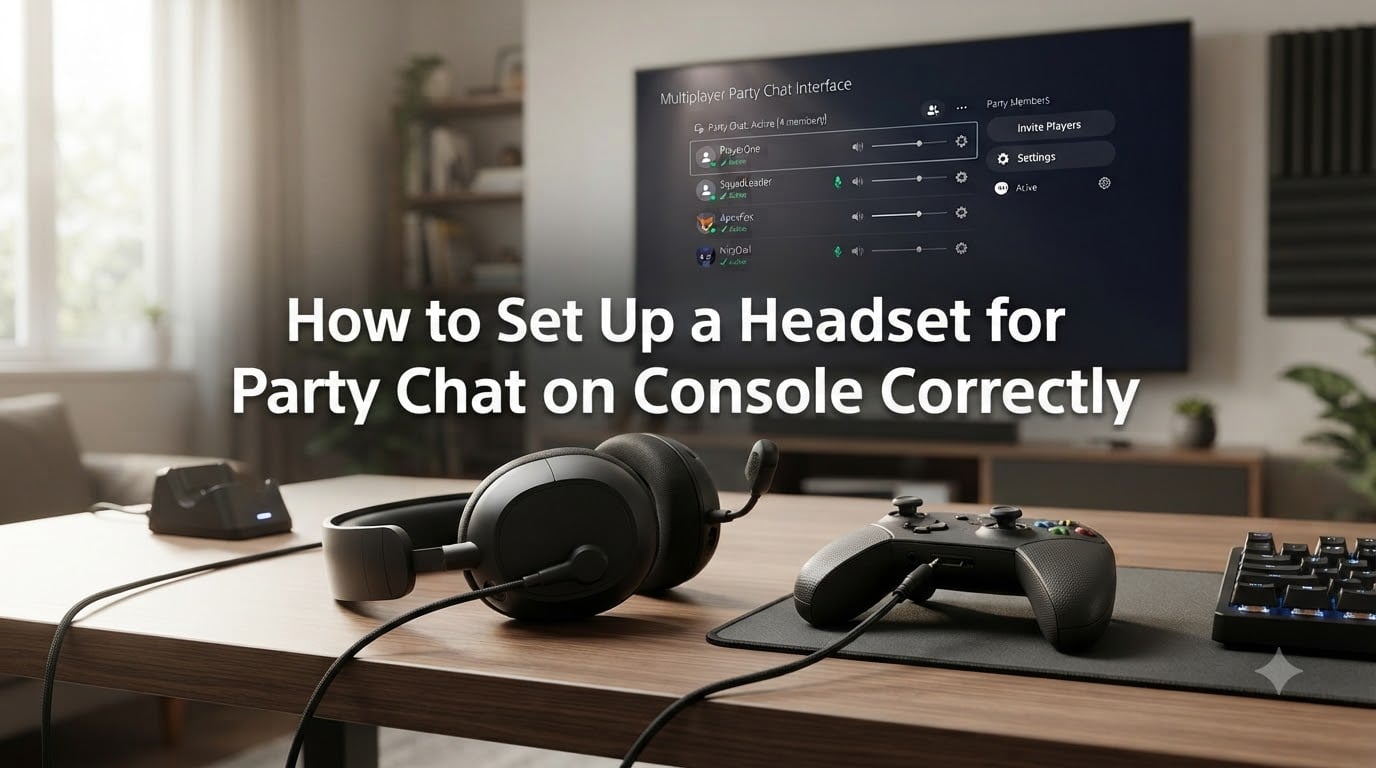
Getting your headset configured properly is the difference between clean squad communication and a frustrating session of “can you hear me now?” If you have ever plugged in a brand new headset only to find that party chat still blares through your TV speakers while nobody can hear your mic, you are not alone. Thousands of players hit the same wall every month.
Learning how to set up a headset for party chat correctly means understanding physical connections, console audio routing, chat mixer balance, and privacy settings all working together. The good news is that once you know the full chain, it takes about five minutes to get everything dialed in.
This guide walks through the complete setup process for both PS5 and Xbox, plus the troubleshooting fixes that actually work when things go wrong. Whether you are on a wired 3.5mm headset or a wireless USB model, you will find the exact steps below.
Table of Contents
Party Chat vs Game Chat: What Is the Difference?
Party chat and game chat are two completely separate audio channels on your console, and confusing them is the number one cause of “my headset does not work” complaints. Party chat is a private voice channel you create with friends through your console’s social system. Only people in the party can hear you, regardless of what game everyone is playing.
Game chat, on the other hand, is the in-game voice channel tied to whatever multiplayer game you are running. Anyone on your team (or in your lobby, depending on the game) can hear you. Your headset needs to be set up correctly for both, but they are configured and routed independently.
Here is where most players get tripped up: your headset might work perfectly in game chat but produce zero audio in party chat, or vice versa. That happens because the output routing and mic permissions differ between the two. Throughout this guide, we focus on party chat setup specifically, since that is where the majority of audio routing problems occur.
A quick way to tell which channel you are in: on PS5, look at the voice chat card in the Control Center. On Xbox, check the party panel by pressing the Xbox button. If you see party members listed there, you are in party chat. If your profile shows you in game chat, you will need to switch over within the party settings.
How to Set Up a Headset for Party Chat on PS5
The PS5 makes headset setup relatively straightforward, but you need to hit the right settings in the right order. Here is the complete process from plugging in to hearing your friends clearly.
Step 1: Connect Your Headset Physically
Plug your headset into the 3.5mm jack on the bottom of your DualSense controller. The PS5 supports most wired gaming headsets through this port without any adapter. If you are using a wireless headset with a USB dongle, insert the dongle into one of the front USB ports on the PS5 and power on the headset.
Once connected, you should hear a brief audio confirmation, and the headset will become the default output device. If you do not hear anything yet, do not worry. We configure the output routing in the next step.
Step 2: Set Audio Output to Headset
Go to Settings > Sound > Audio Output. Under Output Device, select your headset from the list. If you are using a wired headset plugged into the controller, it may show as “Controller Headset” or “Headset Connected to Controller.”
Scroll down to the Output to Headphones option. Change this from “TV” or “Chat Only” to “All Audio.” This single setting is what routes party chat through your headset instead of your TV speakers, and it solves the most common complaint we see in PS5 support forums.
Step 3: Configure the Microphone
Navigate to Settings > Sound > Microphone. Set the Input Device to your headset mic. Under Microphone Level, speak normally and watch the input meter. Adjust the level so your voice peaks in the upper portion of the bar without maxing out, which causes distortion.
Make sure the Mute toggle is off and that Reduce Background Noise is set to your preference. If your headset has a physical mute switch or volume wheel on the cable, double-check that those are not blocking audio either.
Step 4: Start or Join a Party via Game Base
Press the PS button to open the Control Center, then select the Game Base icon at the bottom. From here you can create an Open Party (friends can join freely) or a Closed Party (invite only). Select the friends you want to invite and confirm.
Once the party is active, you will see a voice chat card in the Control Center. This card is your command center for party audio. Press Options on this card to access volume controls for individual party members, mute options, and the ability to switch between party chat and game chat.
Step 5: Check Chat Transcription (Accessibility)
If you or a friend have difficulty hearing spoken chat, PS5 offers a built-in chat transcription feature. Go to Settings > Accessibility > Game Transcription and enable it. This converts party chat to text on screen and can also read your typed messages aloud to the party. It is a great fallback when audio issues strike.
How to Set Up a Headset for Party Chat on Xbox
Xbox handles party chat slightly differently from PS5, with the chat mixer and profile association playing bigger roles. Here is the full setup for Xbox One, Xbox Series X, and Xbox Series S.
Step 1: Connect Your Headset
Plug your headset into the 3.5mm jack on the bottom of your Xbox Wireless Controller. Most modern Xbox controllers have this jack built in. If you are using an older Xbox One controller without a built-in jack, you will need a Stereo Headset Adapter that connects to the bottom expansion port.
For wireless headsets, connect the USB dongle to the console or pair directly via the Xbox pairing button. Some wireless headsets designed for Xbox connect by pressing the sync button on both the headset and the console simultaneously.
Step 2: Configure Audio Settings
Press the Xbox button to open the guide, then go to Profile & system > Settings > General > Volume & audio output. Under Headset audio, make sure Headset format is set to either Stereo uncompressed or Windows Sonic, depending on your headset capabilities.
The key setting here is the headset chat mixer, which appears as a slider when a headset is detected. We cover the chat mixer in detail in the next section, but for now just confirm the slider is visible and centered. If it is not visible, your console is not detecting the headset connection.
Step 3: Check Privacy and Online Safety Settings
This is the step most Xbox guides skip, and it causes more party chat failures than any hardware issue. Go to Settings > Account > Privacy & online safety > Xbox privacy. Select View details & customize. Under Communication & multiplayer, make sure “You can communicate with voice, text, or invites” is set to Everybody or Friends.
If this setting is restricted, your mic will appear to work in system tests but will not transmit in party chat. Many players report spending hours troubleshooting hardware when the problem was a privacy toggle buried three menus deep.
Step 4: Start or Join a Party
Press the Xbox button, navigate to the Parties & chats tab, and select Start a party. Invite friends from your list, or have them join if it is an open party. Once the party is active, you can press the menu button on any party member to adjust their individual volume or mute them.
To switch between party chat and game chat, use the party panel options. On Xbox Series X|S, there is a toggle right in the party guide menu that lets you switch channels instantly.
Step 5: Verify Noise Suppression
Xbox Series consoles have a built-in noise suppression feature that can sometimes clip your voice if it is set too aggressively. Go to Settings > Devices & connections > Accessories and select your controller. Under the audio settings, try toggling noise suppression between Auto and Off to see which produces cleaner voice transmission for your environment.
Adjusting the Chat Mixer for Balanced Audio
The chat mixer is the single most important audio control for party chat, yet most players never touch it until something sounds wrong. It controls the balance between game sound effects and party member voices, and getting it right makes a massive difference to your experience.
On Xbox, press the Xbox button and look for the headset icon in the audio panel at the bottom of the guide. You will see a slider with game audio on one end and chat audio on the other. Slide it toward chat if you are having trouble hearing teammates over explosions and gunfire. Slide it toward game if voices are drowning out your gameplay audio.
On PS5, the equivalent control lives on the voice chat card. Open the Control Center, select the voice chat card, and press Options. You will see a balance slider between party voice and game audio. Adjust it based on what you are playing. For competitive shooters where callouts matter, push it toward party voice. For story-driven co-op games, a more centered balance works well.
A practical tip from players who spend hundreds of hours in party chat: set the mixer to roughly 60 percent chat and 40 percent game for most multiplayer sessions. You can always nudge it in real time using the volume wheel on your headset or the on-screen slider.
How to Set Up Headset for Party Chat: Troubleshooting Common Issues
Even with perfect setup, party chat issues can surface without warning. Here are the most common problems and the fixes that actually work, based on official support documentation and real player experiences from Reddit and Xbox support communities.
Party Chat Audio Goes to TV Instead of Headset
This is the most reported issue across both platforms. On PS5, the fix is changing Output to Headphones to “All Audio” in Settings > Sound > Audio Output. On Xbox, the fix usually involves re-associating your controller with your profile.
To re-associate on Xbox, hold the Xbox button on the controller for about six seconds to turn it off. Then press the Xbox button again to turn it back on and sign in with your profile. This re-establishes the controller-profile link that routes audio correctly. Forum users consistently report that this simple step fixes TV audio bleed when nothing else works.
Microphone Works in Tests but Not in Party
If your mic shows input in system settings but nobody hears you in party chat, check three things in order. First, verify you are actually in party chat and not game chat. Second, check that you are not muted either by the physical headset switch or the on-screen mute toggle. Third, on Xbox, confirm your privacy settings allow voice communication.
Players on Reddit frequently report that toggling the “in game chat” option in party settings, then quitting and rejoining the party, forces the mic to reconnect properly. This is worth trying before any deeper troubleshooting.
Can Hear Party but Nobody Can Hear Me
This usually means your mic input is routing to the wrong device or your input level is too low. On PS5, go to Settings > Sound > Microphone and confirm the Input Device is your headset, not the DualSense built-in mic. The PS5 defaults to the controller mic if a headset was disconnected recently, and it does not always switch back automatically.
On Xbox, check the mic monitoring level in Settings > Devices & connections > Accessories. If mic monitoring is at zero, bump it up slightly. You should hear a faint echo of your own voice, which confirms the mic is picking up input and routing it through the headset.
Party Chat Works but Game Chat Does Not
This issue surfaces most on Xbox Series X, and the community fix is consistent. In the party panel, switch from party chat to game chat using the toggle. If that fails, leave the party entirely, restart the game, and rejoin. Some games also have a separate in-game voice chat setting that must be enabled in the game’s own options menu.
Network Issues Causing Party Chat Disconnects
If party chat drops frequently or voices cut in and out, your network may be the culprit. Try unplugging your router and modem for 30 seconds, then plugging them back in. This clears cached connection states that can interfere with console voice services.
For persistent issues, check whether your console’s NAT type is set to Open. A Moderate or Strict NAT type can block party chat functionality. You can check this on Xbox under Settings > General > Network settings, and on PS5 under Settings > Network > Connection Status.
Cross-Platform Party Chat Considerations
Here is the honest truth: native cross-platform party chat between Xbox and PS5 is not directly supported. You cannot join a PS5 party from an Xbox or vice versa using the built-in party systems. This is a platform limitation, not a settings issue you can fix.
The most reliable workaround is Discord, which both PS5 and Xbox now support natively. You can join a Discord voice channel from either console and chat with friends regardless of what platform they are on. Set up Discord on your console through the respective app store, link your account, and join a server’s voice channel for seamless cross-platform communication.
Some games also offer built-in cross-platform voice chat that works independently of console party systems. Games like Fortnite, Call of Duty, and Minecraft have their own voice chat that bridges Xbox and PlayStation players automatically, as long as you enable cross-play in the game settings.
FAQs
Why is my headset not working on Xbox party chat?
The most common causes are a muted headset, restrictive privacy settings, or the controller losing its profile association. Check the mute switch on your headset cable, then go to Settings u0026gt; Account u0026gt; Privacy u0026amp; online safety and confirm voice communication is allowed. If neither fixes it, hold the Xbox button for six seconds to turn off the controller, then turn it back on to re-associate it with your profile.
How to get party chat audio through headset on PS5?
Go to Settings u0026gt; Sound u0026gt; Audio Output and set Output to Headphones to All Audio. Then make sure your headset is selected as the Output Device. This routes both party chat and game audio through your headset instead of your TV speakers.
How to adjust headset chat mixer on Xbox?
Press the Xbox button to open the guide, then look for the headset icon at the bottom of the audio panel. A slider appears between game audio and chat audio. Slide it toward chat to hear party members more clearly, or toward game to prioritize gameplay sound. Aim for roughly 60 percent chat and 40 percent game for most multiplayer sessions.
Why can’t people hear me in Xbox party chat?
Check three things in order: confirm you are in party chat and not game chat, verify your headset is not physically muted, and go to Settings u0026gt; Account u0026gt; Privacy u0026amp; online safety to make sure voice communication is set to Everybody or Friends. If the issue persists, toggle in-game chat in party settings, leave the party, and rejoin to force a mic reconnect.
Why isn’t my PS5 party chat working?
Start by checking Settings u0026gt; Sound u0026gt; Microphone to confirm your headset is set as the Input Device rather than the DualSense built-in mic. Then verify Output to Headphones is set to All Audio. If voices are cutting out, try a network reset by unplugging your router for 30 seconds, and check that your NAT type is Open under Settings u0026gt; Network u0026gt; Connection Status.
How to fix party chat glitch on Xbox?
Try re-associating your controller by holding the Xbox button for six seconds to power it off, then pressing it again to reconnect. If that fails, leave the party, close the game entirely, restart the console, and rejoin. You can also toggle noise suppression between Auto and Off under Settings u0026gt; Devices u0026amp; connections u0026gt; Accessories, as aggressive suppression can clip your voice transmission.
Conclusion
Knowing how to set up a headset for party chat correctly comes down to hitting four checkpoints: a solid physical connection, proper audio output routing, the right microphone input selection, and privacy settings that allow voice communication. Get those four in order and the vast majority of party chat problems disappear.
On PS5, the critical setting is Output to Headphones set to All Audio. On Xbox, it is the privacy and online safety voice communication toggle plus controller re-association. The chat mixer is your ongoing tool for keeping game sound and teammate voices balanced during play.
Bookmark this guide for the next time something goes sideways mid-session. Most fixes take under a minute once you know where to look. If you are setting up a new console or a brand new headset, run through the steps in order the first time, and your squad will hear you loud and clear from the moment you join the party.