
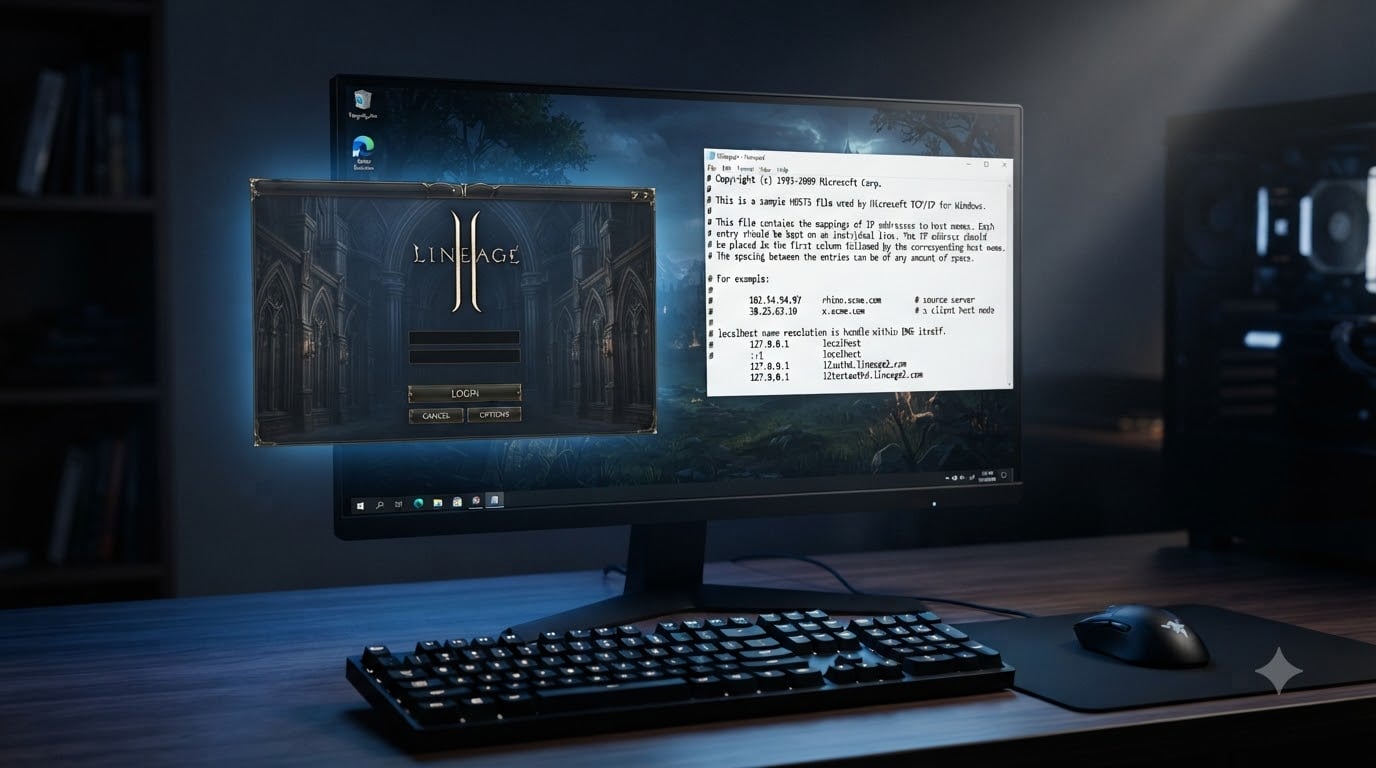
When you launch a fresh Lineage 2 client, it tries to reach NCSoft’s official login servers, and your character list never loads. That is the moment every private server player hits the same wall, and the fix has barely changed in fifteen years. I have rebuilt this setup on Windows 7, 10, and 11, and the combo of editing the hosts file and patching l2.ini still works for Interlude, High Five, and most classic clients. This guide walks through exactly how to redirect the Lineage 2 client to your server, what each line in the hosts file does, and how to handle the encrypted l2.ini you find in modern clients.
By the end, you will know how to switch between multiple private servers in under a minute, diagnose connection failures with netstat, and skip the bloated auto-patcher tools that ship with most server packs.
Table of Contents
Understanding How Lineage 2 Connects to a Server
The Lineage 2 client does not connect directly to a game world. It first opens a TCP connection to a login server on port 2106, and the login server hands back a session ticket plus the IP of the game server. The hostname the client uses by default is L2authd.Lineage2.com, which is a domain NCSoft owned and pointed at their authentication cluster.
When you run a private server, that hostname has to resolve to your machine instead of NCSoft. Two files control this: the Windows hosts file overrides DNS for the client, and l2.ini inside the system folder carries the server IP once the auth handshake completes. Edit the wrong one and you get stuck on the login screen with no error message at all. Edit both correctly and the login server accepts your credentials and boots you straight into the world.
You will also see a second hostname in older guides: nprotect.lineage2.com. That one is for the GameGuard anti-cheat handshake. Some clients validate it, others skip it. If your server does not emulate nProtect, you can ignore that hostname entirely or block it locally with the same hosts file trick.
What to Put in the Hosts File to Redirect Lineage 2
The hosts file is a plain text file Windows reads before any DNS lookup. Any line in the format IP_ADDRESS hostname forces that hostname to resolve to that IP for your user account. That is the entire mechanism behind the redirect, and it works without restarts or reboots.
Open Notepad as Administrator, then open C:WindowsSystem32driversetchosts. Add the following lines at the bottom, replacing 192.168.1.50 with your server’s local IP (for testing on the same network) or your public IP (for friends connecting from the internet):
# Lineage 2 private server redirect
127.0.0.1    L2authd.Lineage2.com
127.0.0.1    nprotect.lineage2.com
192.168.1.50 L2authd.Lineage2.com
Save the file without an extension. If Windows complains about permissions, you did not launch Notepad as Administrator, so close it, right-click the Start menu, choose Terminal (Admin) or PowerShell (Admin), and try again. After saving, flush the DNS cache so the change takes effect immediately:
ipconfig /flushdns
Run that from the same admin terminal. Open cmd and type nslookup L2authd.Lineage2.com to confirm the hostname now resolves to your IP. If you see your server’s address instead of an NCSoft one, the clients on this machine will connect to your login server.
How to Edit the l2.ini File to Connect to Your Server
Once the login server handshake succeeds, the client reads l2.ini from the system folder to find the game server IP. By default the file points to a NCSoft subdomain or a hardcoded IP that no longer exists. You need to change the ServerAddr line to match your server’s IP.
Locate the file at <Lineage2>systeml2.ini. Open it in Notepad. You will see something like this in the [URL] section:
[URL]
ServerAddr=0.0.0.0
Replace 0.0.0.0 with the IP your login server hands out. If you are running everything on the same PC, use 127.0.0.1. If the server is on another machine on your LAN, use that machine’s local IP. If friends are joining from outside, use your public IP. Save the file.
Modern clients (High Five and later) ship with l2.ini encrypted. Notepad will show garbage characters. Use l2encdec from the L2J toolchain to decrypt before editing and encrypt again after:
l2encdec -s l2.ini l2.ini.dec
# edit l2.ini.dec
l2encdec -e l2.ini.dec l2.ini
Run those commands from the system folder so the relative paths resolve. After encryption, the client reads the file normally and connects to your server on the next launch.
Configuring the Lineage 2 Client for a Private Server (Complete Walkthrough)
Putting the two methods together, here is the full sequence I run on every fresh client before launching it against a private server.
Install the client and patch it to the chronicle your server uses (Interlude, High Five, etc.).
Open an elevated Notepad and edit the hosts file with the redirect lines above.
Run
ipconfig /flushdnsfrom an admin command prompt.Navigate to
<Lineage2>systemand decryptl2.iniwith l2encdec if needed.Edit
ServerAddrinside the[URL]section to your server IP.Re-encrypt
l2.iniwith l2encdec if your client expects encryption.Add a firewall exception for ports 2106 (login) and 7777 (game) on the server machine.
Launch
L2.exeand log in with your server account.
If the server is on your own machine, ports 2106 and 7777 already loop back to 127.0.0.1, so no port forwarding is required. If friends are connecting from outside, forward those two ports on your router to the server’s local IP, and replace 127.0.0.1 in the hosts file with your public IP on each friend’s machine.
Why Your Hosts File May Not Be Redirecting L2authd.Lineage2.com
Five things break the redirect more than anything else, and I have hit all of them personally.
Notepad saved as .txt — Windows appends
.txtif you are not in Administrator mode, producinghosts.txtthat the resolver ignores.DNS cache pending — Run
ipconfig /flushdnsafter every hosts file edit.Browser or client using DoH — Some security software forces DNS over HTTPS and bypasses the hosts file. Disable it during testing.
Encrypted l2.ini still pointing to NCSoft — Confirm with
netstat -an | findstr 2106that the client connection goes to your server IP, not a remote address.GameGuard blocking the executable — Some chronicles load nProtect before reading l2.ini. Block
nprotect.lineage2.comin the hosts file as well.
For Hamachi or Radmin VPN setups, friends put the Hamachi IP in their hosts file instead of your public IP. That sidesteps port forwarding entirely and works reliably for groups of five to ten players.
Quick Switch Between Multiple Private Servers
If you play on more than one server, swapping the hosts file by hand gets old fast. Save two backup copies and a small batch script in C:WindowsSystem32driversetc:
@echo off
copy /y hosts.server1 hosts
ipconfig /flushdns
echo Switched to Server 1
Run the script as Administrator and the redirect swaps in one click. Save a separate script for each server and rename them switch-to-server1.bat, switch-to-server2.bat, and so on. Pin them to your taskbar for fast switching.
FAQs
How do I edit the l2.ini file to connect to my server?
Open the system folder inside your Lineage 2 client directory, locate l2.ini, and open it in Notepad. Under the [URL] section, change ServerAddr to your server IP, save the file, and relaunch L2.exe. If the file appears encrypted, run l2encdec -s l2.ini l2.ini.dec, edit the decrypted file, then re-encrypt with l2encdec -e l2.ini.dec l2.ini.
What do I put in the hosts file to redirect Lineage 2?
Add a line in the format YOUR_SERVER_IP L2authd.Lineage2.com to C:u005cWindowsu005cSystem32u005cdriversu005cetcu005chosts, then save the file in plain text format with no extension. Run ipconfig /flushdns from an admin command prompt to apply the change immediately.
How to configure Lineage 2 client for private server?
Edit the Windows hosts file to redirect L2authd.Lineage2.com to your server IP, edit l2.ini in the system folder to set the ServerAddr, open firewall ports 2106 and 7777 on the server, and only then launch L2.exe. Verify the redirect with netstat -an to confirm the client connects to your server and not NCSoft.
Why is my hosts file not redirecting L2authd.Lineage2.com?
The most common reasons are saving the hosts file with a .txt extension, not running Notepad as Administrator, skipping the ipconfig /flushdns step, or having DNS-over-HTTPS enabled in your security software. Open an admin command prompt, run ipconfig /flushdns, then nslookup L2authd.Lineage2.com to confirm the redirect is active.
Final Thoughts on Redirecting the Lineage 2 Client
Redirecting the Lineage 2 client to your server is just two files working together: the hosts file handles the initial login server lookup, and l2.ini handles the game server IP. Once you have both wired up, switching between servers becomes a 30-second job with a batch script, and the rest of your time can go to actually playing the game. If you want to skip the manual edits altogether, most modern server packs include a custom system folder you can drop over the default client, but understanding the underlying redirect is what lets you fix problems when the auto-patcher falls behind your chronicle version.