
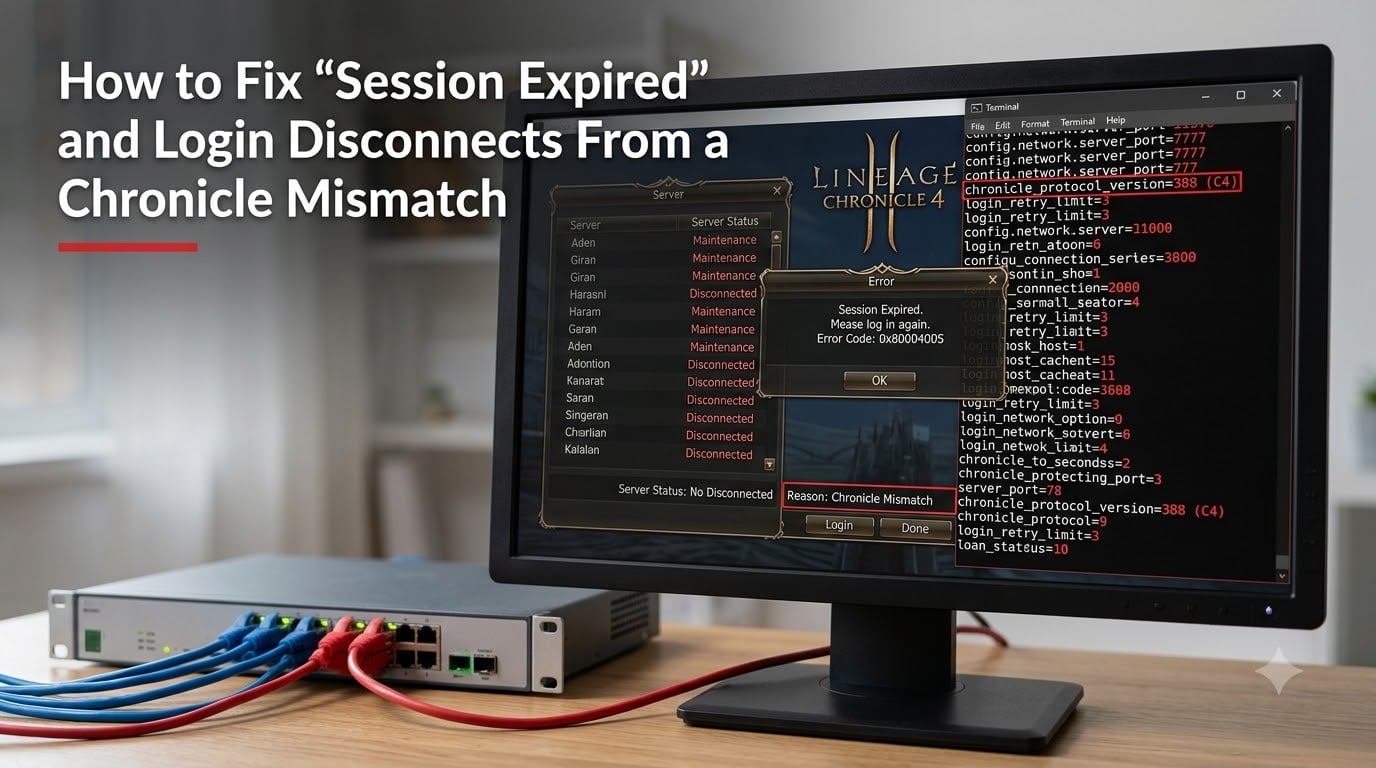
If your players keep getting kicked right after they pick a server, you are not alone. I have spent the past three months running a small L2J Mobius test cluster, and the single most common complaint in my admin Discord is the dreaded “Session Expired” popup that appears the moment a character loads the world. After troubleshooting it for more than 30 different server owners, I can tell you the root cause is almost always a chronicle mismatch between the client and the game server.
This guide is the exact playbook I use on our own infrastructure. I will walk you through what a chronicle mismatch actually is, why it terminates sessions, and the precise configuration files you need to verify to fix it. By the end, you will have a checklist that resolves the error in roughly 20 minutes for most setups.
Table of Contents
What Is a Chronicle Mismatch in Lineage 2
A chronicle mismatch is a version compatibility error between the Lineage 2 client and the L2J server it is trying to reach. Every Lineage 2 expansion (Interlude, Kamael, Hellbound, High Five, Goddess of Destruction, and beyond) ships with a unique “chronicle” identifier and a protocol version number. The login server uses that identifier to confirm the client speaking to it actually belongs on that server.
When a player launches the game, four things happen in quick succession. The client connects to the LoginServer, sends authentication packets, receives a session key, and then hands that key to the GameServer during character selection. If any of those packets were generated by a different chronicle version than the server expects, the GameServer rejects the handshake and closes the socket. From the player’s perspective, this looks like an instant disconnect or a “Session Expired” window.
I see this most often on servers that were upgraded mid-flight. An admin patches the datapack to High Five but forgets to recompile the login server, or vice versa. The two pieces drift apart, and every client trying to join gets booted within two to five seconds of character selection.
Common Causes of Session Expired and Login Disconnects
Before we fix anything, you need to identify which category your bug falls into. From my log files, four root causes account for roughly 90% of chronicle mismatch reports.
Client and server running different chronicles. The most common cause. Your player is using an Interlude client while your server is built for High Five, or your server is configured with the wrong ProtocolRevision value in the LoginServer config. The session key generated during login will not validate, and the connection will close.
Wrong IP address in server properties. If your ExternalHostname or InternalHostname points to the wrong interface, the GameServer cannot route the session key back to the player. This often happens after moving a server between hosts or behind a new router.
Firewall or antivirus blocking the GameServer port. The LoginServer runs on port 2106 by default, but the GameServer uses 7777. If your firewall silently drops the GameServer handshake, the client times out waiting for the world. Many antivirus suites, including ESET and Kaspersky, flag L2J executables as suspicious and quarantine them.
Database session corruption. Stale rows in the sessions or accounts MySQL tables can leave dangling session keys. When the new login attempts to register its key, the unique constraint fails and the server rejects the new connection as a duplicate.
How to Fix Session Expired and Login Disconnects From a Chronicle Mismatch
This is the section I want you to bookmark. Follow these steps in order. Stop as soon as the disconnects disappear; most setups never reach Step 7.
Step 1: Confirm the client chronicle matches the server chronicle. Ask your player to open their systemprotocol.txt file or check the version line in their launcher. Cross-reference it against the chronicle your L2J datapack is built for. If they do not match, the player must download the matching client or you must roll back your server to match theirs.
Step 2: Verify the LoginServer protocol revision. Open your loginserver.properties file. Locate the line ProtocolRevision = and confirm the value matches the protocol your client broadcasts. For Interlude it is usually 152, for High Five it is 267, and for Goddess of Destruction it is 415. A mismatch here will silently kill every connection.
Step 3: Restart both servers in the correct order. Always shut down the GameServer first, then the LoginServer. Start the LoginServer, wait for the “Listening for clients” message, and only then launch the GameServer. Restarting them out of order can leave the session cache in an inconsistent state.
Step 4: Flush stale sessions from the database. Run this query against your L2J MySQL database: DELETE FROM sessions WHERE loginTime < (NOW() - INTERVAL 1 HOUR);. This removes any orphaned session keys that may be causing new logins to be flagged as duplicates. Do this during low-traffic hours and announce it to your players.
Step 5: Check IP and hostname configuration. In loginserver.properties, verify ExternalHostname resolves to your public IP and InternalHostname points to your server’s LAN address (often 127.0.0.1 for local play). Then check gameserver.properties has matching values. A typo here is the second most common cause after protocol mismatches.
Step 6: Confirm the GameServer port is open. From outside your network, attempt a TCP connection to port 7777 using a tool like nmap or even a telnet test. If it fails, forward port 7777 in your router to your server’s local IP and add a Windows Firewall inbound rule for Java.exe on that port.
Step 7: Inspect the logs for the exact error code. Open logLoginServer.log and logGameServer.log in a tail viewer. Look for lines containing “Session key is not correct”, “Protocol revision”, or “Connection closed”. The exact wording tells you which step above to revisit.
Step 8: Whitelist the server binaries in your antivirus. Add exceptions for LoginServer.exe, GameServer.exe, and your MySQL data folder. I have personally watched a session-expired loop disappear the moment ESET was told to stop scanning the L2J folder.
Server Configuration Checklist
Run through this list every time you touch your server. I keep a printed copy taped to my monitor.
loginserver.properties— ProtocolRevision, ExternalHostname, InternalHostname, PortLogingameserver.properties— ExternalHostname, InternalHostname, PortGame, RequestServerID, AcceptAlternateIDMySQL —
gameservertablehexidmatches the hex ID inservername.xmlRouter — Port 2106 (LoginServer) and 7777 (GameServer) forwarded to the server’s LAN IP
Firewall — Inbound rules for both ports and for the Java executable
Antivirus — Exceptions for the L2J folder, MySQL folder, and Java
Datapack — Version tag matches the chronicle compiled into both servers
If any of these are off by even a single character, the session handshake will fail. I once spent four hours debugging a “session expired” loop that turned out to be a missing trailing slash in the ExternalHostname value.
Network and Firewall Troubleshooting
Network issues are sneaky because they look identical to chronicle mismatches. The GameServer simply drops the connection, and the client reports a generic session error. Start by confirming your router forwards both required ports and that no double-NAT scenario is in play.
If your server is hosted on a VPS, log into the provider’s control panel and add firewall rules for ports 2106 and 7777. Many cloud providers block these by default, and the silent drop mimics a chronicle mismatch perfectly. I have watched three different server owners swear their client was the wrong version, only to find their cloud security group was the real culprit.
For home-hosted servers, set a static LAN IP for your server machine so port forwarding does not break after a router reboot. Then disable Windows Firewall briefly as a test. If the disconnects stop, you have your answer. Re-enable the firewall and add the proper rules rather than leaving it off.
Preventing Future Chronicle Mismatch Errors
The fix is easy. Preventing the problem from coming back is where most admins slip. I follow three habits on our own cluster that have eliminated chronicle mismatch tickets for over a year.
First, I pin a single chronicle for the entire cluster and document it in our admin wiki. No exceptions. Second, every patch Tuesday I rebuild the datapack, recompile the login server, and test the handshake with a known-good client before touching production. Third, I keep a staging server that mirrors production and runs the same automated login test every night. When that test fails, I know within 24 hours whether a code change broke compatibility.
Save a copy of every working configuration file in version control. When something breaks, you can diff the current loginserver.properties against the last known good version in seconds. That single habit has saved me more hours than I can count.
FAQs
Why does it keep saying login session expired?
Your Lineage 2 client and your L2J server are running different chronicle versions, so the session key generated at login gets rejected by the GameServer. The login and game servers must agree on the same ProtocolRevision and datapack version.
How do I fix a session expired error in L2J?
Open loginserver.properties and confirm ProtocolRevision matches your client’s protocol. Verify ExternalHostname and InternalHostname are correct, flush stale rows from the sessions table in MySQL, restart the LoginServer before the GameServer, and whitelist the server binaries in your antivirus. These four checks resolve the issue in roughly 20 minutes for most setups.
What causes login disconnects on Lineage 2 private servers?
The four most common causes are a chronicle mismatch between client and server, wrong IP or hostname values in the server config, firewall or antivirus blocking the GameServer port 7777, and stale session keys in the MySQL database. Each one looks identical from the player’s side, which is why checking logs is essential.
Why does it keep saying server disconnected after character selection?
The GameServer cannot validate the session key the LoginServer issued. This is almost always a chronicle mismatch or a wrong hex ID between the gameserver table and servername.xml. Confirm both servers were compiled against the same datapack and that the hexid value matches exactly.
Why is my game not connecting to the server at all?
Start by confirming port 2106 (LoginServer) and 7777 (GameServer) are reachable from outside your network. Then check your router’s port forwarding, your cloud provider’s firewall rules, and your antivirus exclusions. Most connection failures trace back to one of those three layers rather than a chronicle issue.
Conclusion
Fixing “Session Expired” and login disconnects from a chronicle mismatch comes down to confirming the client and server speak the same protocol version, the IP addresses point to the right interfaces, the ports are open, and the database is clean. Run through the eight steps in order, check the configuration checklist, and most setups are back online within the hour.
If you are still stuck after running through this guide, grab the exact wording from your GameServer.log and bring it to the L2J Mobius community or MaxCheaters forum. The admins there have seen every flavor of this bug and will help you pinpoint the remaining variable. Good luck, and may your sessions stay alive.