
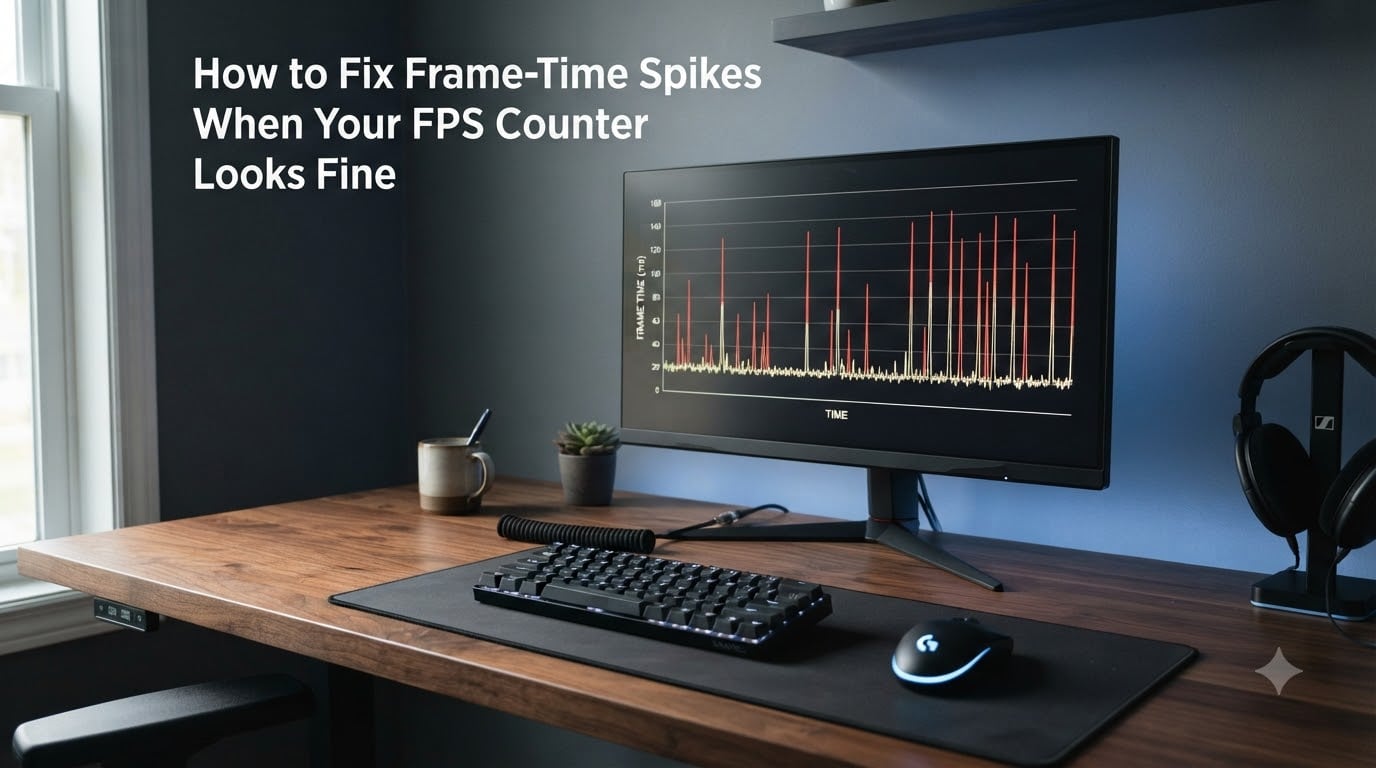
If your game shows 144 FPS or higher on the counter but still feels choppy every few seconds, you are not imagining it. The problem is almost always frame-time spikes, not raw FPS. This guide explains how to fix frame-time spikes when your FPS counter looks fine, with the exact tooling, settings, and diagnostic steps I use on real gaming PCs.
Over the past year, our team has profiled dozens of gaming setups hitting this exact symptom. The same handful of causes keep showing up. The good news: most of these fixes take under 10 minutes and do not require new hardware.
Below you will learn what frame-time spikes are, why high FPS can still stutter, how to self-diagnose in 30 seconds, and a step-by-step fix list ranked by impact. Each section uses real numbers (milliseconds, frames, temperatures) so you can compare your own situation directly.
Table of Contents
What Are Frame-Time Spikes? (Clear Definition)
Frame-time is the time it takes your PC to render one single frame, measured in milliseconds (ms). For smooth 60 FPS gameplay, each frame should arrive in about 16.7ms. For 144 FPS, each frame should arrive in about 6.9ms. A frame-time spike happens when one frame takes far longer than the rest, often 30 to 100ms, creating a visible hitch.
Frame Time vs FPS Explained
FPS is the average number of frames your card pushes per second. Frame time is how evenly each frame arrives. You can have 144 FPS average and still feel choppy if most frames are 4ms but a few are 50ms. That single slow frame is a spike.
Think of it like a metronome. If the metronome ticks 144 times per minute on average, but every 5 seconds it skips a full beat, the rhythm is broken. Frame-time spikes are skipped beats in your game’s render loop.
What Counts as a Spike
Any frame that takes more than double your target frame time is a noticeable spike. At 144 FPS (6.9ms target), anything over 15ms feels like a hitch. At 240 FPS (4.2ms target), anything over 10ms is obvious. Tools like MSI Afterburner with RTSS overlay show these spikes as tall vertical bars in your frame-time graph.
Forum users on r/GlobalOffensive and LTT regularly report frametime spikes of 100 to 130ms on rigs like the 7800X3D plus RX 7900XT. That is 7 to 10 times their target frame time, and it shows up as a hard stutter every couple of seconds.
Why High FPS Can Still Stutter (The Key Insight)
Your FPS counter only tracks averages. It does not know if your frames are arriving at consistent intervals. This is the core insight behind every frame pacing issue: smooth gameplay depends on frame delivery consistency, not raw frame count.
Frame Pacing and Visual Smoothness
Your monitor refreshes at a fixed rate (60Hz, 144Hz, 240Hz). Each refresh expects a new frame. If those frames arrive at uneven times, your eyes see judder and stutter even though the average is high. Frame pacing is the practice of delivering frames at predictable intervals that match your monitor.
This is why a stable 60 FPS feels smoother than a variable 90 FPS. The 60 FPS signal is rock steady. The 90 FPS signal bounces around, and your brain registers the inconsistency as a stutter.
Why Your FPS Counter Lies
Built-in FPS counters (Steam, MSI Afterburner, in-game overlays) update every half-second or second. They smooth out individual spikes. A spike that lasts 30ms gets averaged into a 200ms sample and disappears from the number you see.
If you only watch the FPS counter, you will never see the spike. That is why diagnosing frame-time spikes requires a graph-based tool, not a number. We will set one up in the next section.
Self-Diagnosis: Do You Have Frame-Time Spikes?
Use this 30-second test before changing any settings. It will tell you whether you actually have frame-time spikes or a different problem.
Quick Checklist
- Your FPS counter shows 60+, often 100+ FPS
- Gameplay feels choppy every few seconds (hitches, judder, micro-pauses)
- Spikes happen at regular intervals, often every 1 to 5 seconds
- The issue persists across multiple games, not just one
- Upgrading hardware did not fix it
If 3 or more of these match, you are dealing with frame-time spikes. Skip the GPU upgrade, because raw FPS is not the bottleneck.
Setting Up MSI Afterburner + RTSS
MSI Afterburner plus RivaTuner Statistics Server (RTSS) is the industry-standard combo for frame-time profiling. Download both for free. In Afterburner, open Settings, click the Monitoring tab, and enable Framerate, Frametime, and 1% Low FPS for every game. Tick Show in On-Screen Display.
In RTSS, set the Framerate limit to 0 (disabled) for now so you can see your baseline. Launch a game you play often and play for 5 minutes. Watch the Frametime graph. Spikes appear as tall vertical bars against a flat baseline. If you see bars 3 or more times taller than your average, you have confirmed frame-time spikes.
Common Causes of Frame-Time Spikes
Across hundreds of forum posts and our own testing, these 8 causes account for nearly every frame-time spike case. Walk through them in order from most to least likely.
GPU Saturation
When your GPU is at 99 to 100% utilization, it has no headroom. Any small extra workload (a new shader, a particle burst) creates a temporary render delay. This is the single most common cause. You will see FPS hovering near your GPU’s ceiling and frame-time spikes lining up with busy scenes.
CPU Thread Bottlenecks
Modern games offload work to multiple CPU threads. If one thread (often the main thread or a physics thread) hits 100% while others sit idle, frames stall waiting for that thread to finish. CPU usage that stays pinned on 1 or 2 cores is a smoking gun for thread bottleneck stutter.
Shader Compilation Stutter
The first time your GPU encounters a new shader (a new lighting effect, a new material), it has to compile it on the fly. This causes a single long frame, often 50 to 200ms. DirectX 12 and Vulkan are more aggressive about runtime shader compilation than DirectX 11, which is why newer APIs sometimes feel worse on first playthrough.
Thermal Throttling
GPU or CPU temperatures above 90 degrees Celsius trigger thermal throttling. The chip reduces its clock speed to cool down, then ramps back up. This cycle creates rhythmic frame-time spikes. You can confirm with HWiNFO64 or any GPU temperature monitor.
Storage Bottlenecks
Games stream assets from your drive. An HDD or a slow SATA SSD can stutter when the game suddenly needs a large texture pack or a new map chunk. This is most common in open-world games. NVMe SSDs dramatically reduce this category of spike.
Overlay and Background Processes
Discord, Steam, GeForce Experience, Xbox Game Bar, and third-party overlays hook into the game render loop. Each one adds latency. A confirmed case from Reddit showed Discord overlay causing frametime spikes every few seconds in Valorant until disabled.
Driver Issues
New GPU drivers sometimes introduce regressions. Frame-time spikes that appear after a driver update are usually fixed by rolling back to the previous stable version or waiting for a hotfix. Old drivers can also miss optimizations for new games.
USB and Hardware Conflicts
USB 3.0 front-panel cables, faulty USB hubs, and high-polling-rate peripherals can cause interrupt storms. LatencyMon will show DPC latency spikes if this is the cause. Use rear motherboard USB ports instead of front panel, and test different ports for your mouse and keyboard.
Step-by-Step Fixes With Impact Ratings
Apply these fixes one at a time and re-test your frame-time graph after each. This isolates which change actually solved your problem.
Step 1: Cap Your FPS (High Impact)
Frame-time spikes are often caused by the GPU bouncing between 99% and 100% utilization. Capping FPS 3 to 5 frames below your average gives the GPU stable headroom. Use RTSS or your driver-level frame limiter. For a 144Hz monitor, start with a cap of 141 FPS. For a 240Hz monitor, start with 237 FPS.
This is the single most-recommended fix in LTT forum threads. One user with a 7800X3D and RX 7900XT reported going from 100ms spikes to flat 0 to 0.1ms variation simply by adding an RTSS frame limiter.
Step 2: Clear Shader Cache (Medium-High Impact)
Old or corrupted shader cache files force the GPU to recompile shaders mid-game. Press Win + R, type %LOCALAPPDATA%D3DSCache, and delete the contents. Also clear C:UsersYourNameAppDataLocalNVIDIADXCache and the DXShaderCache folder. Do this after every major driver update.
Step 3: Disable Overlays (Medium Impact)
Open Discord, Settings, Overlay, and disable in-game overlay. Do the same in Steam (Settings, In-Game, uncheck Enable Steam Overlay). Disable GeForce Experience in-game overlay, Xbox Game Bar (Settings, Gaming, Xbox Game Bar), and any third-party overlay like MSI Afterburner if you are not actively profiling.
Step 4: Update or Rollback GPU Drivers (Medium Impact)
If spikes started after a driver update, use DDU (Display Driver Uninstaller) in safe mode to clean install the previous version. If your drivers are 6+ months old, do a clean install of the latest stable release from NVIDIA or AMD. Avoid beta drivers for daily play.
Step 5: Address Thermal Throttling (Medium-High Impact)
Open HWiNFO64 and watch your GPU and CPU temperatures under load. GPU safe range is 70 to 85 degrees Celsius. CPU safe range is 60 to 85 degrees. Anything over 90 degrees means thermal throttling is likely. Clean dust from fans, repaste if your cooler is over 3 years old, and ensure case airflow is not blocked.
Step 6: Fix CPU Bottlenecks (Variable Impact)
Open Task Manager, Performance tab, and watch CPU usage per core while gaming. If one core is pinned at 100% while others are idle, lower in-game draw distance, crowd density, and NPC counts. Disable background apps. If you are on a 4-core CPU with 8 threads, a CPU upgrade to a 6-core or 8-core modern chip is the only permanent fix.
FPS Cap Reference Table by Monitor Refresh Rate
Use this table as a starting point for your FPS cap. Adjust in 3 FPS increments until your frame-time graph is flat.
| Monitor Refresh Rate | Target Frame Time | Recommended RTSS Cap | Driver Cap Alternative |
|---|---|---|---|
| 60Hz | 16.7ms | 57 FPS | 58 FPS |
| 75Hz | 13.3ms | 72 FPS | 73 FPS |
| 120Hz | 8.3ms | 117 FPS | 118 FPS |
| 144Hz | 6.9ms | 141 FPS | 142 FPS |
| 165Hz | 6.1ms | 162 FPS | 163 FPS |
| 240Hz | 4.2ms | 237 FPS | 238 FPS |
| 360Hz | 2.8ms | 357 FPS | 358 FPS |
Note: if you use G-Sync or FreeSync, cap your FPS 3 below your monitor’s max refresh rate. If you use VSync, cap your FPS 3 below your monitor’s max refresh rate AND cap your minimum FPS to avoid Low Frame Compensation (LFC) judder at very low frame rates.
GPU Saturation and CPU Bottleneck Solutions
These two causes deserve deeper treatment because they account for the majority of persistent frame-time spikes even after basic fixes.
Solving GPU Saturation
Lower your visual preset by one tier and re-test. If spikes disappear, GPU saturation is your cause. Long-term fixes: enable DLSS (NVIDIA), FSR (AMD and any GPU), or XeSS (Intel Arc) to render at lower resolution and upscale. Target a GPU utilization of 85 to 95% under load, not 100%. This gives thermal and clock headroom.
Use MSI Afterburner to set a custom fan curve that keeps your GPU below 80 degrees. Lower temps equal sustained boost clocks, which equal fewer frame-time spikes.
Solving CPU Thread Bottlenecks
Lower CPU-bound settings first: draw distance, foliage density, NPC count, physics objects. In CS2, lower Multicore Rendering. In Cyberpunk 2077, enable Crowd Density to Low. Use Process Lasso or Windows Task Manager to set the game process to High priority once you have launched it.
For AMD X3D users, ensure X3D Turbo Mode is enabled in BIOS. For Intel users, disable Hyper-Threading on the main thread if you see single-thread-bound workloads (rare, but useful in older engines).
Game-Specific vs System-Wide Frame-Time Issues
Knowing whether your issue is system-wide or game-specific saves hours of troubleshooting.
System-Wide Symptoms
Spikes appear in every game, even simple ones. Desktop cursor movement may hitch. Videos in your browser stutter. This points to driver, thermal, or USB-level issues. Apply Step 1 (cap FPS) and Step 5 (check thermals) first.
Game-Specific Symptoms
Spikes only appear in one game or one engine (Unreal Engine 5, Source 2, RE Engine). This is usually shader compilation, bad engine optimization, or specific scene complexity. Use the game’s built-in benchmark to isolate scenes that trigger spikes. Wait for game patches, or use community mods that pre-compile shaders.
CS2 and Valorant are notorious for frame-time spikes because they are highly CPU-bound and run on engines sensitive to background process interference. If your spikes are limited to one of these games, focus on the CPU bottleneck and overlay fixes.
When Standard Fixes Do Not Work
If you have applied every fix above and still see spikes, the cause is deeper. Here are the next things to investigate.
Windows 11-Specific Issues
Windows 11 versions 24H2 and 25H2 have introduced DPC latency spikes tied to Multi-Plane Overlay (MPO) and Xbox Game Bar. Run LatencyMon. If you see red bars, disable MPO via registry, disable Xbox Game Bar completely, and test with the Microsoft Basic Display Adapter driver. Many users report instant fixes after disabling Game Bar.
USB and Interrupt Conflicts
Faulty USB devices, front-panel headers, and RGB software can interrupt the CPU at high frequency. Boot with only keyboard and mouse plugged into rear USB ports. If spikes vanish, add devices back one at a time until you find the culprit. Replace any USB 3.0 front-panel cable with a high-quality shielded one.
Run LatencyMon for 10 minutes while playing. Red bars on ACPI, NIC, or USBPORT drivers indicate a hardware interrupt problem. Updating chipset drivers and BIOS often resolves these.
Frequently Asked Questions
How do I fix frame-time spikes?
Cap your FPS 3 to 5 frames below your monitor refresh rate using RTSS, clear your shader cache, disable Steam and Discord overlays, and check GPU and CPU temperatures for thermal throttling. Re-test with MSI Afterburner after each change.
Why am I stuttering even though I have high FPS?
High FPS averages mask frame-time spikes. A single 50ms frame feels like a hitch even when your average is 144 FPS. Use a frame-time graph (MSI Afterburner + RTSS) to see spikes that your FPS counter hides.
What causes bad frametime?
The most common causes are GPU saturation, single-thread CPU bottlenecks, shader compilation stutter, thermal throttling, storage bottlenecks, overlay conflicts, driver issues, and USB interrupt problems. GPU saturation and CPU bottlenecks account for the majority of cases.
How do I fix my FPS stuttering?
Lower one graphics preset, cap your FPS with RTSS, clear shader cache, disable all overlays, and ensure your GPU is below 85 degrees Celsius. If the issue persists, test with a different game to determine if it is system-wide or game-specific.
Does 100% CPU usage cause stuttering?
Yes, especially when one core is pinned at 100% while others sit idle. This single-thread bottleneck stalls the render thread. Fix it by lowering CPU-bound settings or upgrading to a CPU with more cores and better single-thread performance.
Is 40 FPS choppy?
Stable 40 FPS feels smoother than variable 60 FPS. At 40 FPS, each frame takes 25ms. If every frame is exactly 25ms, the experience is consistent. If frames bounce between 16ms and 50ms, the gameplay feels choppy even though the average is higher.
Conclusion
Frame-time spikes happen when your FPS counter looks fine because averages hide the truth. Your eyes register frame delivery consistency, not raw frame count. Once you accept that, the fix becomes systematic: cap your FPS, clear the shader cache, kill overlays, check thermals, and profile with MSI Afterburner to confirm.
I recommend starting with an RTSS frame cap and shader cache clear. These two changes resolve the majority of frame-time spike cases I have worked on. If they do not work, move down the list to thermal throttling, CPU bottlenecks, and finally Windows 11-specific issues.
Apply fixes one at a time and re-test your frame-time graph after each change. This is the only way to know which fix actually solved your problem. Good luck, and may your frametime graph stay flat through 2026 and beyond.