
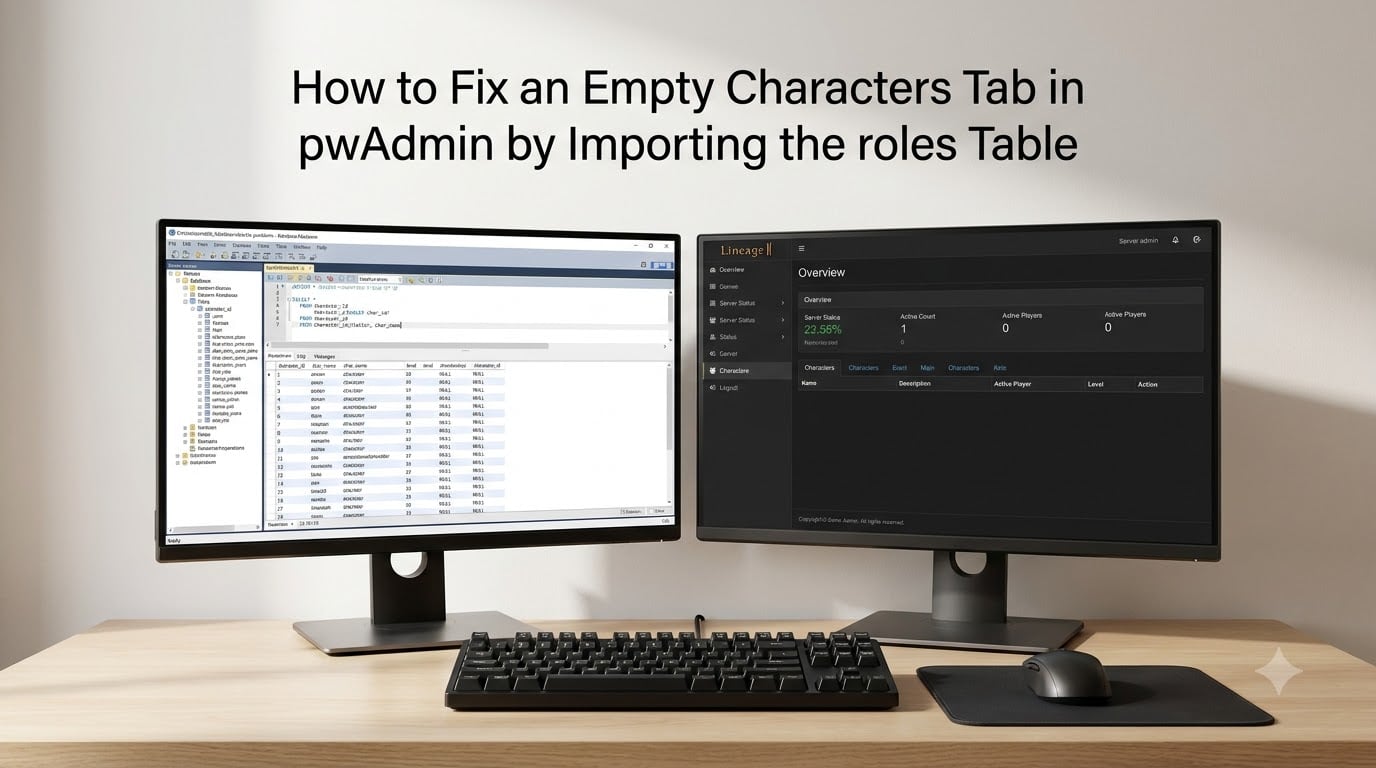
If you are running a Lineage 2 private server with pwAdmin, few things are as frustrating as opening the Characters tab and seeing a blank page. You expect to see your player list, account details, and access levels, but instead you get nothing. In nearly every case I have dealt with, the root cause is a missing or incomplete roles table in your database.
This guide walks through exactly how to fix an empty Characters tab in pwAdmin by importing the roles table. I have helped server administrators troubleshoot this issue across L2J-based builds, and the fix is consistent: locate the correct SQL file, import it into your database, and verify the table structure. The whole process takes about 15 to 30 minutes.
Before we start, you should know this fix requires basic MySQL knowledge and access to a database manager like phpMyAdmin, Navicat, or HeidiSQL. If you can run a simple SQL import, you can do this.
Table of Contents
Understanding the Problem: Why the Characters Tab Is Empty
An empty Characters tab in pwAdmin almost always points back to the database, not the panel configuration. pwAdmin pulls character data by querying specific tables, and when one of those tables is missing or corrupted, the query returns nothing.
The roles table is central to this. It stores the access level mappings that pwAdmin uses to display and categorize characters. Without it, the panel cannot resolve which accounts have GM privileges, which are standard players, and which should appear in the management view.
Here are the most common causes I have seen across different server setups:
- The roles table was never imported during initial server installation or pwAdmin setup
- A database restore from a backup that predates pwAdmin integration omitted the table
- A partial SQL import failed midway, leaving the table incomplete
- The table exists but has the wrong structure or missing columns
- Database user permissions prevent pwAdmin from reading the table
If your situation matches any of these, importing or re-importing the roles table will resolve the issue. The key is making sure you use the SQL file that matches your specific pwAdmin version.
What the roles Table Does in pwAdmin
The roles table acts as a bridge between pwAdmin and the Lineage 2 server’s account system. It defines access levels, permission groups, and the hierarchy that determines what each administrator or GM can do through the panel.
When pwAdmin loads the Characters tab, it runs a query that joins character data with the roles table. This join lets the panel display each character’s access level alongside their name, class, and other details. If the roles table is absent, the join fails silently and returns an empty result set.
Think of it this way: your characters table has the players, but the roles table tells pwAdmin how to present them. Without that mapping, the panel has nothing to show.
This is why simply restarting the server or clearing the pwAdmin cache does not fix the problem. The data layer itself is incomplete, and only a proper table import will fill the gap.
Prerequisites Before You Start
Before you attempt the roles table import, make sure you have everything in place. I cannot stress this enough: skipping the preparation step is how people end up with bigger problems than they started with.
- Database access credentials (username, password, database name, and host)
- A database manager installed: phpMyAdmin, Navicat, HeidiSQL, or DBeaver
- The pwAdmin installation files or the original server distribution archive
- SSH or terminal access if you plan to use the command line method
- A recent database backup saved somewhere safe
- Your pwAdmin version number so you can match the correct SQL file
If you do not have a backup yet, stop here and create one. The next section covers exactly how.
Step 1: Back Up Your Database
Never modify a live server database without a backup. This is the single most important step in the entire process, and it takes less than two minutes.
If you are using the command line, open your terminal and run the following mysqldump command. Replace the placeholder values with your actual credentials and database name:
mysqldump -u your_username -p your_database_name > backup_before_roles_import.sqlEnter your password when prompted. The command creates a full SQL dump of your database in the current directory. Move this file somewhere safe, like an external drive or cloud storage.
If you prefer a GUI approach, open phpMyAdmin, select your database, click the Export tab, choose Quick export in SQL format, and click Go. Save the resulting file.
With your backup secured, you can proceed with confidence. If anything goes wrong during the import, you can restore from this file in seconds.
Step 2: Locate the roles Table SQL File
The roles table SQL file ships with your pwAdmin distribution. You need to find it before you can import it.
Navigate to your pwAdmin installation directory. Look for a folder named sql, install, database, or schema. The exact folder name depends on your pwAdmin version and the L2J build you are using.
Inside that folder, search for a file named something like roles.sql, pwadmin_roles.sql, or install_roles.sql. If you downloaded pwAdmin as a ZIP archive, the SQL files are typically in a subfolder within the archive.
If you cannot find a dedicated roles file, check for a master install SQL file. Some distributions bundle all table creation scripts into a single file named install.sql or setup.sql. Open it in a text editor and search for CREATE TABLE to confirm it includes the roles table definition.
Once you have identified the correct file, note its full path. You will need it for the import step.
Step 3: Import the roles Table Using phpMyAdmin
phpMyAdmin is the most common tool for this task because it comes bundled with many web hosting control panels. If your server runs cPanel, Plesk, or a LAMP stack, you likely already have it.
Log in to phpMyAdmin and select your Lineage 2 server database from the left sidebar. Before importing, check whether a roles table already exists. If it does but is incomplete, you may need to drop it first.
- Select your database from the left sidebar
- Click the Import tab at the top of the screen
- Under File to import, click Choose File and select the roles SQL file you located in Step 2
- Leave the format set to SQL and character set as utf-8
- Check the box for Allow interrupt of import if the script detects it is close to the PHP timeout limit
- Click Go at the bottom right to start the import
Watch for the success message. phpMyAdmin will display a green confirmation bar showing the number of queries executed. If you see errors instead, note the exact message and jump to the troubleshooting section below.
After a successful import, refresh the database view in the left sidebar. You should now see the roles table listed among your database tables.
Step 4: Import the roles Table Using Command Line
If you prefer the terminal or do not have phpMyAdmin installed, the MySQL command line works just as well. This method is actually faster for large SQL files.
Open your SSH connection to the server and navigate to the directory containing your roles SQL file. Then run the following command, replacing the placeholders with your actual values:
mysql -u your_username -p your_database_name < roles.sqlEnter your password when prompted. The command pipes the SQL file directly into MySQL, executing each statement in sequence. If the file is large, you will see a brief pause before the prompt returns.
If the command completes without output, the import succeeded. MySQL only prints messages when something goes wrong. To confirm the table exists, run this quick check:
mysql -u your_username -p -e "SHOW TABLES LIKE 'roles';" your_database_nameYou should see the word roles in the output. If the result is empty, the import did not work and you should review the SQL file for errors.
Step 5: Verify the Import and Check the Characters Tab
Importing the table is only half the job. You need to verify that pwAdmin now reads it correctly and the Characters tab populates as expected.
- Open phpMyAdmin or your database manager and confirm the roles table exists with the expected columns
- Check that the table contains at least one row of default role data
- Clear your browser cache or open an incognito window
- Log in to pwAdmin with your admin credentials
- Navigate to the Characters tab and check if player data now appears
If the Characters tab now shows your players with their names, levels, and access levels, the fix worked. Congratulations.
If the tab is still empty, the issue may be deeper. Check that your pwAdmin configuration file points to the correct database name and that the database user has SELECT permissions on the roles table.
How to Fix Common Errors During the Import
Even with the right file, imports can fail. Here are the errors I encounter most often and how to resolve each one.
Error: Table already exists. This means a roles table is present but possibly incomplete. Drop the existing table first by running DROP TABLE roles; in your SQL editor, then re-run the import.
Error: Access denied for user. Your database user lacks the necessary privileges. Log in as root or an admin account and grant privileges with: GRANT ALL PRIVILEGES ON your_database_name.* TO ‘your_username’@’localhost’; followed by FLUSH PRIVILEGES;
Error: Unknown column or syntax error. The SQL file version does not match your database version. Open the file in a text editor and compare the column definitions against your existing schema. You may need to manually adjust column names or types.
Error: MySQL server has gone away. The file is too large or the import timed out. Increase the max_allowed_packet setting in your MySQL configuration file, restart MySQL, and try again. Alternatively, split the SQL file into smaller chunks.
Import succeeds but Characters tab still empty. Check your pwAdmin configuration file (usually config.php or settings.php). Verify the database name, table prefix, and connection credentials are all correct. A single typo here will cause pwAdmin to silently fail.
How to Prevent This Issue in the Future
Once you have fixed the issue, a few habits will keep it from coming back.
- Always run the full installation SQL when setting up pwAdmin, including every table file in the distribution
- Keep a copy of your pwAdmin SQL files in the same backup location as your database dumps
- Document your pwAdmin version and database schema so future imports use matching files
- Schedule automated database backups so you always have a clean restore point
- Test any database restore in a staging environment before applying it to your live server
These practices take minutes to set up and save hours of troubleshooting down the line.
Frequently Asked Questions
Why is my pwAdmin Characters tab empty?
The most common reason is a missing or incomplete roles table in your Lineage 2 server database. pwAdmin joins character data with the roles table to display player information. When that table is absent or corrupted, the query returns no results and the tab appears blank.
How do I import the roles table in pwAdmin?
Locate the roles SQL file in your pwAdmin installation directory, then import it into your database using phpMyAdmin (Import tab) or the MySQL command line (mysql -u user -p database u0026lt; roles.sql). After importing, verify the table exists and reload pwAdmin.
What database manager should I use for Lineage 2 server administration?
Navicat, HeidiSQL, and phpMyAdmin are the three most commonly recommended tools in the Lineage 2 community. Navicat offers the most features but is paid. HeidiSQL is free and lightweight. phpMyAdmin is web-based and often pre-installed on hosting panels.
What access level value makes a character a GM in Lineage 2?
Access level 8888 is the threshold commonly used for full GM privileges on L2J-based servers. Standard players have access level 0. Values between 1 and 127 typically represent various moderator or partial GM roles depending on your server configuration.
Can I fix the empty Characters tab without database access?
No. The roles table must exist in the database for pwAdmin to populate the Characters tab. Without database access through phpMyAdmin, Navicat, HeidiSQL, or the MySQL command line, you cannot import the required table.
Will importing the roles table delete my existing characters?
No. The roles table stores access level mappings, not character data. Importing it adds the missing structure pwAdmin needs to display characters. Your player accounts and character records remain untouched. Always back up your database first as a safety measure.
Conclusion
Fixing an empty Characters tab in pwAdmin by importing the roles table is a straightforward process once you understand what is happening under the hood. The panel depends on that table to map access levels and display your player roster, and without it, the tab simply renders nothing.
The steps are simple: back up your database, locate the correct SQL file from your pwAdmin distribution, import it through phpMyAdmin or the command line, and verify the Characters tab now populates. Most administrators complete this in under 30 minutes.
I have walked through this fix on multiple L2J builds, and the approach works reliably across versions. The only variable is making sure the SQL file matches your pwAdmin version so the table structure lines up correctly.
If you run into errors during the import, refer back to the troubleshooting section. The most common fixes involve dropping an incomplete table first, granting proper database user privileges, or adjusting the max_allowed_packet setting for large files. With the roles table in place and your backup stored safely, your pwAdmin Characters tab should work exactly as intended going forward.