
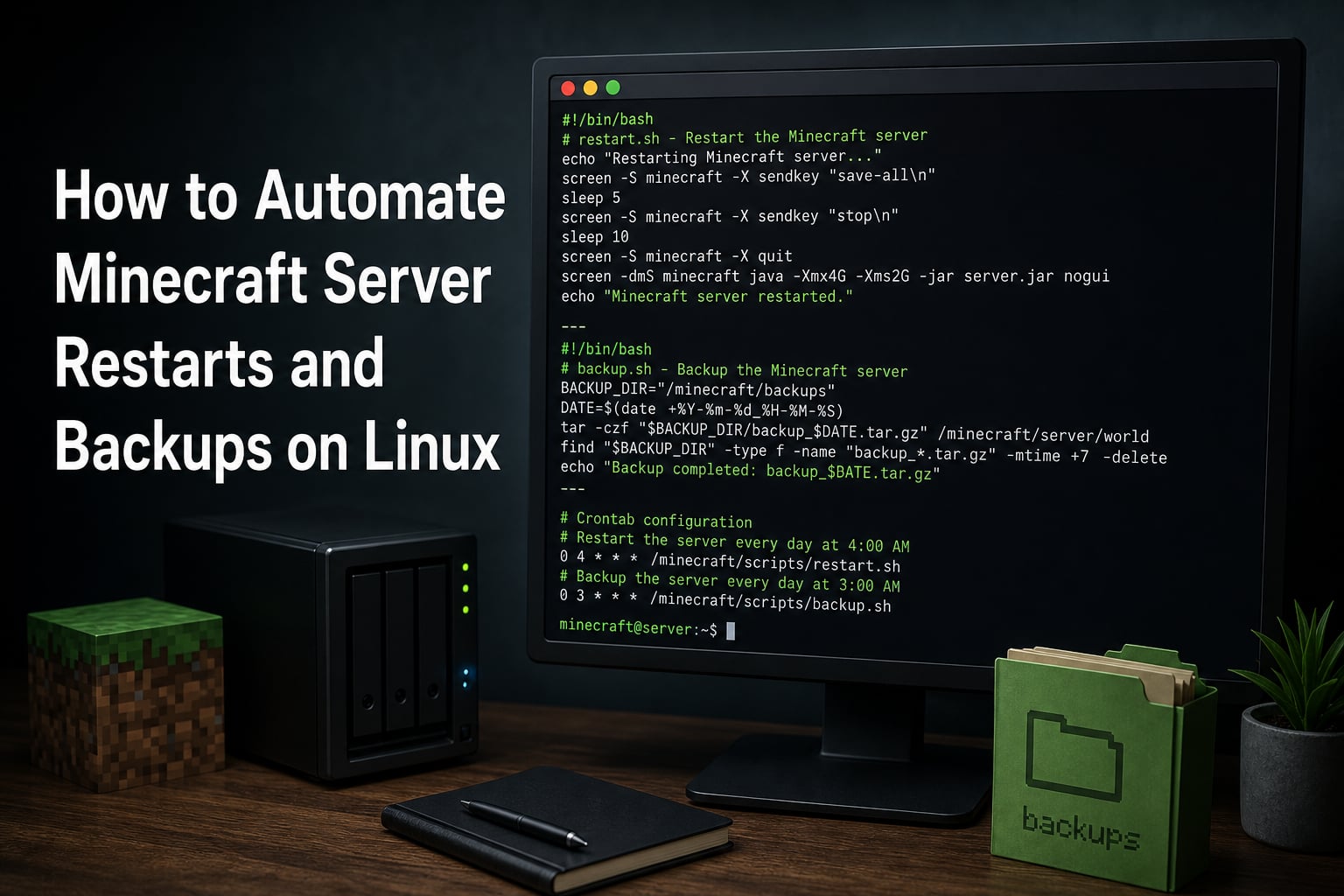
Running a Minecraft server on Linux means dealing with memory leaks, corrupted chunks, and the constant fear of losing your world data. If you have ever woken up to find your server crashed overnight with no backup, you already know why automation matters. This guide shows you exactly how to automate Minecraft server restarts and backups on Linux using nothing but shell scripts and cron jobs.
I have managed Minecraft servers on everything from a $5 VPS to dedicated hardware, and the setup I am about to walk you through has saved my world data more times than I can count. You do not need any plugins, panels, or paid tools. Just a few bash scripts and the cron scheduler that comes with every Linux distribution.
By the end of this article, you will have a complete system that backs up your world folder on a schedule, restarts your server automatically to clear memory leaks, and cleans up old backups so your disk never fills up. Whether you are running a small survival server for friends or a larger community server on Ubuntu, Debian, or CentOS, these scripts will work out of the box.
Table of Contents
Prerequisites: What You Need Before Starting
Before you build any scripts, make sure your server environment is ready. You need root or sudo access to a Linux machine with Java installed and your Minecraft server already running. If your server is not set up yet, you will want to get the basics working first.
You also need screen or tmux installed. These tools let your Minecraft server keep running in a persistent session even after you disconnect from SSH. Without one of these, your server will shut down the moment you close your terminal. Most VPS providers include screen by default, but you can install it with sudo apt install screen on Ubuntu or Debian.
Finally, you need basic familiarity with the command line. You should know how to navigate directories, edit files with nano or vim, and run commands as a scheduled task. If you have never used cron before, do not worry. I will explain every step.
Screen vs Tmux vs Pterodactyl: Choosing Your Approach
Three main approaches exist for managing a Minecraft server session on Linux, and the right choice depends on your comfort level and server size.
Screen is the most common choice for beginners. It creates a virtual terminal session that stays alive in the background. You attach to it when you want to check the console and detach when you are done. Screen is lightweight, available on nearly every Linux distribution, and easy to script against. Most community tutorials and forum posts on Reddit use screen, so you will find plenty of help if something goes wrong.
Tmux offers the same core functionality as screen but with better window management and more modern features. Power users on r/admincraft and r/fabricmc tend to prefer tmux because it handles multiple panes and sessions more gracefully. If you already use tmux for other server tasks, stick with it. The scripting approach is nearly identical to screen.
Pterodactyl is a full game server management panel with a web interface. It handles backups, restarts, and player management through a GUI instead of scripts. This is overkill if you run a single Minecraft server, but it shines if you manage multiple game servers or want to give other admins access without SSH. Pterodactyl has built-in task scheduling, so you would not need the cron setup described in this guide.
For this article, I will use screen since it is what most server admins start with. If you prefer tmux, the scripts are easy to adapt by swapping screen -S for tmux new-session -s.
How to Create a Minecraft Backup Script on Linux
Backups are the single most important part of server maintenance. World corruption, griefing accidents, or a bad plugin update can destroy hundreds of hours of player progress. A solid backup script takes the worry out of running a server.
The key challenge with backing up a Minecraft server is that copying files while the server is writing to them can produce a corrupted backup. Forum users on r/admincraft frequently mention this fear. The safest approach is to either pause saving before the backup or briefly stop the server, create the archive, and then resume.
Step 1: Create the Backup Script File
Create a new file in your server directory. I keep all my scripts in a scripts folder alongside the server jar for easy management.
mkdir -p /home/minecraft/scriptsnano /home/minecraft/scripts/backup.sh
Step 2: Write the Backup Script
Here is a complete, copy-paste-ready backup script. I have used variations of this on multiple servers for years without data loss.
#!/bin/bash# Minecraft server backup scriptSERVER_DIR="/home/minecraft/server"BACKUP_DIR="/home/minecraft/backups"SCREEN_NAME="minecraft"DATE=$(date +%Y-%m-%d_%H-%M-%S)MAX_BACKUPS=30
# Create backup directory if it does not existmkdir -p "$BACKUP_DIR"
# Tell the server to save the world, then pause savingscreen -S "$SCREEN_NAME" -p 0 -X stuff "save-all$(printf 'r')"sleep 5screen -S "$SCREEN_NAME" -p 0 -X stuff "save-off$(printf 'r')"sleep 1
# Create compressed tar backup of the world foldertar czf "$BACKUP_DIR/minecraft_backup_$DATE.tar.gz" -C "$SERVER_DIR" world world_nether world_the_end 2>/dev/null
# Resume savingscreen -S "$SCREEN_NAME" -p 0 -X stuff "save-on$(printf 'r')"
# Delete backups older than MAX_BACKUPS countcd "$BACKUP_DIR" && ls -1t minecraft_backup_*.tar.gz | tail -n +$((MAX_BACKUPS + 1)) | xargs -d 'n' rm -f --
echo "Backup completed: minecraft_backup_$DATE.tar.gz"
Let me break down what each part does so you can customize it for your setup.
The script first sends save-all to the Minecraft console through screen, which forces the server to write all chunks to disk. Then it sends save-off to prevent the server from writing while the tar archive is being created. This two-step approach is what prevents corrupted backups.
The tar czf command creates a gzip-compressed archive of your world folders. I included three folders since most servers run the default dimensions. If you have custom worlds or additional directories like plugins or config, add them to the tar command.
The final block handles backup retention by keeping only the most recent 30 backups. This solves one of the biggest pain points forum users report: disk space filling up from old backups that never get cleaned.
Step 3: Make the Script Executable
chmod +x /home/minecraft/scripts/backup.sh
Test the script manually before setting up automation. Run it once and check your backup directory to make sure the archive was created correctly.
Step 4: Using rsync for Incremental Backups (Advanced)
If your world is large and full backups take too long or use too much disk space, consider rsync for incremental backups. rsync only copies files that have changed since the last backup, which can reduce backup time from minutes to seconds.
rsync -a --delete "$SERVER_DIR/world/" "$BACKUP_DIR/world_latest/"
You can combine rsync with tar to create a compressed snapshot of only the changed files. Advanced users on r/linuxadmin prefer this approach for servers with large worlds exceeding several gigabytes.
How to Build an Automatic Minecraft Server Restart Script
Memory leaks are the number one reason Minecraft servers crash over time. The Java garbage collector is good, but after days of continuous uptime, performance degrades. A scheduled restart clears the memory and gives your players a lag-free experience.
Reddit users across r/admincraft consistently report that daily restarts solve most lag complaints. Here is how to set up a restart script that gracefully stops your server and brings it back up.
Step 1: Create the Restart Script
nano /home/minecraft/scripts/restart.sh
#!/bin/bash# Minecraft server restart scriptSERVER_DIR="/home/minecraft/server"SCREEN_NAME="minecraft"JAR_FILE="server.jar"MIN_MEM="2G"MAX_MEM="4G"
# Send warning to players 60 seconds before restartscreen -S "$SCREEN_NAME" -p 0 -X stuff "say Server restarting in 60 seconds!$(printf 'r')"sleep 60
# Save the worldscreen -S "$SCREEN_NAME" -p 0 -X stuff "save-all$(printf 'r')"sleep 5
# Gracefully stop the serverscreen -S "$SCREEN_NAME" -p 0 -X stuff "stop$(printf 'r')"sleep 10
# Kill the screen session if it is still alivescreen -S "$SCREEN_NAME" -X quit 2>/dev/nullsleep 2
# Start the server in a new screen sessionscreen -dmS "$SCREEN_NAME" bash -c "cd $SERVER_DIR && java -Xms$MIN_MEM -Xmx$MAX_MEM -jar $JAR_FILE nogui"
echo "Minecraft server restarted at $(date)"
Step 2: What Each Section Does
The warning message is important. Players hate sudden disconnects, and a 60-second countdown gives them time to find a safe spot. The say command broadcasts a message to everyone on the server through the screen session.
The script then saves the world, sends the stop command for a clean shutdown, and waits. The screen -X quit line is a failsafe to make sure the old session is fully terminated before starting a new one.
The final command starts the server fresh in a detached screen session. The -dmS flags create the session in detached mode so it runs in the background immediately. Adjust the memory values (-Xms and -Xmx) to match what your server hardware supports.
Step 3: Make It Executable and Test
chmod +x /home/minecraft/scripts/restart.sh
Test the restart script during a low-traffic time. Watch the process with screen -r minecraft to confirm the server stops and starts cleanly. If something goes wrong, you can always start the server manually.
How to Set Up Cron Jobs for Minecraft Server Automation?
Cron is the Linux task scheduler that runs scripts automatically on a schedule. This is what ties your backup and restart scripts together into a fully automated system. No manual intervention required.
Step 1: Open the Crontab Editor
Run this command as the user that owns the Minecraft server files:
crontab -e
If you have never used crontab before, it will ask you to choose an editor. Nano is the easiest for beginners.
Step 2: Add Cron Entries
Add these lines to the bottom of your crontab file:
# Restart the Minecraft server every day at 4:00 AM0 4 * * * /home/minecraft/scripts/restart.sh >> /home/minecraft/logs/restart.log 2>&1
# Backup the Minecraft world every 6 hours0 */6 * * * /home/minecraft/scripts/backup.sh >> /home/minecraft/logs/backup.log 2>&1
Save and exit the editor. Cron will now execute your scripts on the schedule you defined.
Step 3: Understanding Cron Expressions
A cron expression has five fields: minute, hour, day of month, month, and day of week. The expression 0 4 * * * means run at minute 0 of hour 4, every day, every month, every day of the week. The expression 0 */6 * * * means run at minute 0 of every 6th hour, which gives you four backups per day.
Adjust these schedules based on your server activity. A high-traffic server might need restarts every 12 hours, while a small server for friends might only need one restart per day at 4 AM when nobody is online.
Step 4: Verify Cron Is Working
Cron failures are silent by default, which is one of the biggest frustrations forum users report. The log redirects in the crontab entries above solve this by writing output to log files. After the first scheduled run, check the logs:
cat /home/minecraft/logs/restart.logcat /home/minecraft/logs/backup.log
You can also check the cron system log to confirm the jobs are firing: grep CRON /var/log/syslog on Ubuntu or Debian systems.
Backup Retention and Rotation: Preventing Disk Space Issues
The backup script I shared earlier includes a basic retention policy that keeps only the 30 most recent backups. But if you are running backups every 6 hours, that gives you about a week of history. Depending on your needs, you might want a more sophisticated rotation strategy.
A common approach is the grandfather-father-son rotation. Keep hourly backups for 24 hours, daily backups for 7 days, and weekly backups for 4 weeks. This gives you fine-grained recovery for recent issues plus long-term snapshots without consuming excessive disk space.
The simplest way to delete old backups is the find command. This removes any backup file older than 7 days:
find /home/minecraft/backups -name "minecraft_backup_*.tar.gz" -mtime +7 -delete
Add this line to your backup script or as a separate cron job that runs daily. I recommend the find approach over the ls -1t method because it is based on file modification time, which is more reliable across different systems.
For mission-critical servers, follow the 3-2-1 backup strategy: keep three copies of your data, on two different media types, with one copy stored offsite. You can use rsync to push backups to a remote server or a cloud storage bucket for offsite protection.
Monitoring Your Minecraft Server with Monit
Even with automated restarts, you want to know if your server goes down unexpectedly. Monit is a lightweight monitoring tool that can watch your Minecraft process and restart it if it crashes outside of your scheduled restart window.
Step 1: Install Monit
sudo apt install monit
Step 2: Configure Monit for Minecraft
Create a configuration file for your Minecraft server:
sudo nano /etc/monit/conf.d/minecraft
check process minecraft with pidfile /home/minecraft/server/minecraft.pid start program = "/home/minecraft/scripts/start.sh" stop program = "/home/minecraft/scripts/stop.sh" if does not exist then restart if 5 restarts within 5 cycles then timeout
This tells Monit to check if the Minecraft process is alive using a PID file. If the process is not running, it executes your start script. If it crashes repeatedly, Monit stops trying after 5 failed attempts to avoid an infinite restart loop.
Step 3: Reload Monit
sudo monit reloadsudo monit status
You can also configure Monit to send email alerts when it detects problems. Check the Monit documentation for alert configuration options.
Troubleshooting Common Automation Issues
Even with a solid setup, things can go wrong. Here are the most common issues I have encountered and how to fix them.
Cron Jobs Not Executing
This is the most frequently reported problem. The usual cause is a path issue. Cron runs with a minimal environment, so scripts that work when you run them manually may fail under cron. Always use absolute paths in your scripts for every command and file reference. If your script uses java, specify the full path like /usr/bin/java.
Also make sure the crontab belongs to the same user that owns the Minecraft server files. A common mistake is setting up cron as root while the server runs under a different user, causing permission denied errors.
Screen Sessions Dying After Reboot
Screen sessions do not survive a system reboot. If your VPS provider restarts your machine, your Minecraft server will not come back automatically. To fix this, add your server start script to the system startup sequence using a systemd service or the @reboot cron directive:
@reboot /home/minecraft/scripts/start.sh
Backups Corrupted or Empty
If your tar archives are empty or missing files, the server may still be writing when the backup starts. Make sure the save-all and save-off commands have enough time to complete before the tar command runs. Increase the sleep values if your world is large.
Always Test Your Backups
A backup you have never restored is not a backup. It is a hope. Forum users on SpigotMC emphasize this point constantly. At least once, extract a backup archive and load it into a test server to confirm the world data is intact and playable.
tar xzf minecraft_backup_2026-01-15_04-00-00.tar.gz -C /tmp/test_restore/
Point a local Minecraft client at the test server and verify the world loads correctly. This five-minute test can save you from discovering your backups were broken when it is already too late.
FAQs
How do I make my Minecraft server restart automatically?
Create a bash script that sends the stop command through screen, waits for the process to end, and starts the server again in a new screen session. Schedule this script with a daily cron job at a low-traffic time like 4 AM. The restart clears accumulated memory and keeps the server running smoothly.
How to automate Minecraft server backups?
Write a backup script that uses the save-all and save-off console commands to flush world data, then creates a compressed tar archive of the world folder. Schedule the script with cron to run every few hours. Include a retention policy to automatically delete old backups and prevent disk space issues.
How to automate backups in Linux?
Use the crontab command to schedule a backup script that archives your data with tar or rsync. Open crontab with crontab -e, add a cron expression specifying the schedule followed by the script path, and save. Cron executes the script automatically at the defined intervals.
Is 2GB of RAM enough for a Minecraft server?
2GB of RAM is enough for a small Minecraft server with up to 10 players and minimal plugins. For larger servers with more players, mods, or multiple worlds, allocate 4GB or more. Set your Java heap size with the -Xms and -Xmx flags to match your available memory.
How often should I restart my Minecraft server?
Restart your Minecraft server once every 24 hours at minimum to clear memory leaks and maintain performance. High-traffic servers with many players or heavy mods may benefit from restarts every 12 hours. Schedule restarts during low-traffic periods using cron to minimize player disruption.
What is the safest way to backup a running Minecraft server?
Send the save-all command to flush chunks to disk, then send save-off to pause writing before creating your backup archive. Resume saving with save-on immediately after the backup completes. This prevents file corruption caused by copying files while the server is actively writing to them.
Conclusion
Setting up automated Minecraft server restarts and backups on Linux is one of the highest-value tasks you can do as a server admin. With two shell scripts and a few cron entries, you get reliable data protection and consistent performance without touching the console every day.
The backup script handles safe world archiving with save-all and save-off to prevent corruption. The restart script gracefully stops and relaunches your server to clear memory leaks. Cron ties everything together on a schedule that runs while you sleep. Add Monit for crash recovery and a retention policy to keep disk usage under control.
Start by copying the scripts into your server directory, adjust the paths and memory values to match your setup, and test each one manually before scheduling with cron. Once you confirm everything works, you can walk away knowing your Minecraft server is maintaining itself.