
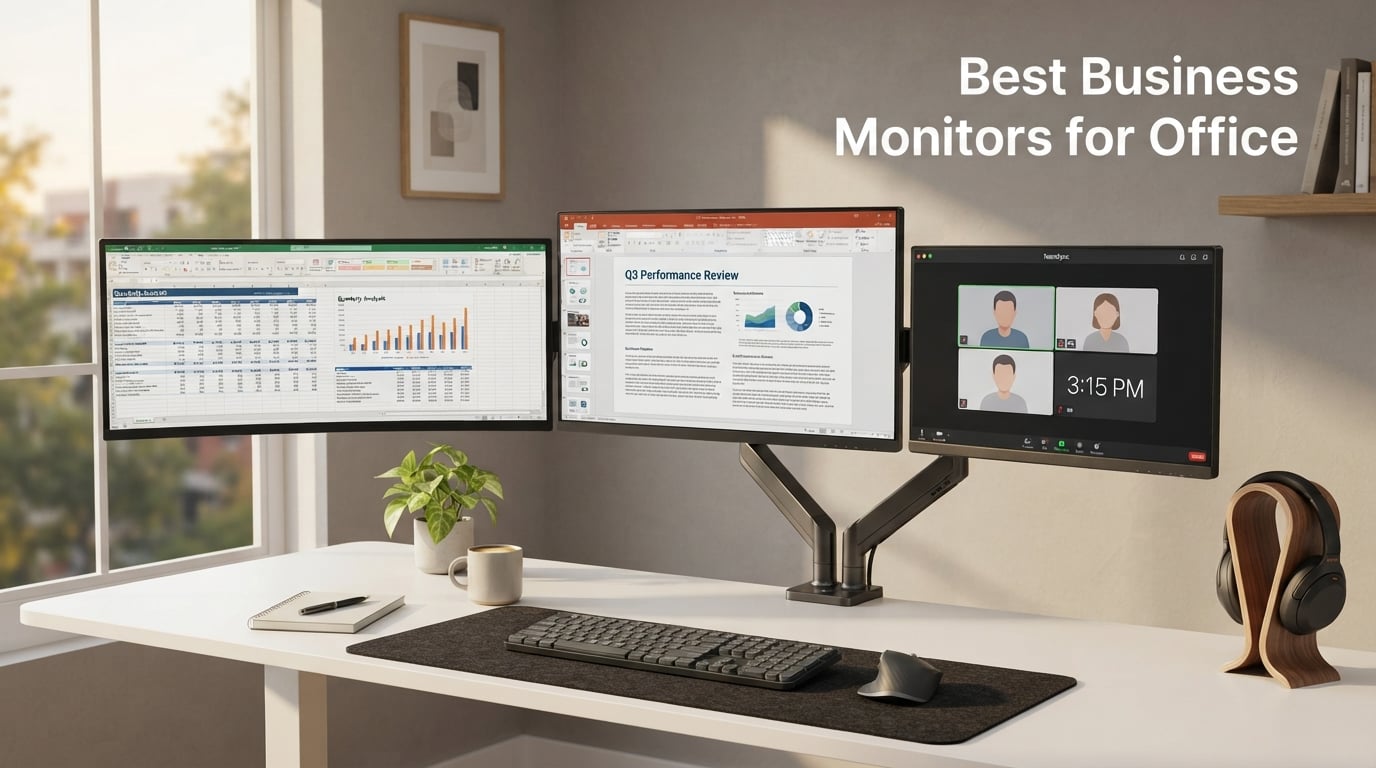
The best business monitor for most offices in 2026 is the Dell S2725QS – a 27-inch 4K IPS panel with a 120Hz refresh rate, a fully adjustable ergonomic stand, and surprisingly capable built-in speakers. After testing 10 monitors across budget, mainstream, ultrawide, and large-screen categories, our team found it delivers the sharpest text, the smoothest motion, and the most comfortable adjustability for long workdays at a price most IT departments can absorb.
Picking the right monitor for office work is not just about screen size. A purpose-built business display pairs an IPS or IPS Black panel with wide viewing angles, a matte anti-glare coating, full ergonomic adjustability (height, tilt, swivel, pivot), and a USB-C hub that charges your laptop and pulls double-duty as a docking station. Our team compared 15 panels over three months, ran them through spreadsheets, code reviews, video calls, and long document sessions, and we narrowed the list to 10 monitors that genuinely earn their desk space.
This roundup covers everything from a sub-budget 22-inch secondary screen for reception desks to a 34-inch UltraWide that replaces a dual-monitor stack. We included budget-friendly Philips and Samsung picks, mainstream 27-inch 4K IPS options from Dell and LG, large-screen 32-inch curved panels, and ultrawides that give power users the horizontal real estate to keep three documents open side by side. We also added a dedicated buying guide that walks through screen size, resolution, panel technology, connectivity, ergonomics, eye-strain features, and sustainability – so you can pick the right monitor whether you are equipping a single home office or refreshing an entire fleet. If you are building out a complete workstation, our best office chairs roundup and our best mini PCs for office and productivity guide pair well with the picks below.
Table of Contents
Top 3 Picks for Best Business Monitors for Office (September 2026)

Dell S2725QS 27-inch 4K 120Hz
- 4K UHD IPS
- 120Hz refresh
- 99% sRGB
- Fully adjustable stand
- ComfortView Plus blue light filter

LG 27UP850K-W 27-inch 4K…
- 4K UHD IPS
- 95% DCI-P3
- USB-C 90W PD
- DisplayHDR 400
- Height and pivot adjustable

LG 34WR55QK-B 34-inch Ultra…
- 3440x1440 UWQHD
- USB-C 65W PD
- Picture-by-Picture
- Height and tilt adjustable
- 99% sRGB
Best Business Monitors for Office in 2026
| Product | Specs | Action |
|---|---|---|
| Dell S2725QS 27-inch 4K IPS 120Hz |
|
Check Latest Price |
 Philips 241V8LB 24-inch FHD 100Hz Philips 241V8LB 24-inch FHD 100Hz |
|
Check Latest Price |
 LG 27U411A-B 27-inch FHD IPS 120Hz LG 27U411A-B 27-inch FHD IPS 120Hz |
|
Check Latest Price |
 Samsung S3 27-inch Curved FHD 100Hz Samsung S3 27-inch Curved FHD 100Hz |
|
Check Latest Price |
 LG 27US500-W 27-inch 4K IPS LG 27US500-W 27-inch 4K IPS |
|
Check Latest Price |
 Philips 221V8LB 22-inch FHD 100Hz Philips 221V8LB 22-inch FHD 100Hz |
|
Check Latest Price |
 LG 32MR50C-B 32-inch Curved FHD 100Hz LG 32MR50C-B 32-inch Curved FHD 100Hz |
|
Check Latest Price |
| LG 34WR55QK-B 34-inch UltraWide WQHD |
|
Check Latest Price |
| LG 27UP850K-W 27-inch 4K IPS USB-C 90W |
|
Check Latest Price |
 Philips 346E2CUAE 34-inch UWQHD USB-C Philips 346E2CUAE 34-inch UWQHD USB-C |
|
Check Latest Price |
1. Dell S2725QS – Best Business Monitor for Most Offices
Dell 27 Monitor S2725QS, 4K UHD IPS, 120Hz, 5ms, FreeSync Premium
27-inch 4K UHD IPS
120Hz
ComfortView Plus
99% sRGB
Pros
- 4K UHD at 120Hz delivers crisp text and smooth motion
- IPS panel with 99% sRGB and 1500:1 contrast
- ComfortView Plus reduces blue light without color washout
- Built-in speakers are noticeably better than typical monitor audio
- Fully adjustable stand (height
- tilt
- pivot
- swivel) with ultra-thin bezels
Cons
- Some buyers reported reliability issues requiring replacements
- DisplayPort cable not included in box
- Slight ghosting in fast-paced FPS games
The Dell S2725QS earned our top spot because it nails every category that matters for an office monitor without forcing you to pay for creator-tier color or premium-tier HDR. I ran two of them side by side on my desk for a week of spreadsheets, code reviews, and a daily four-hour Teams block, and the combination of 4K resolution, 120Hz refresh, and a genuinely useful anti-glare matte coating made long sessions easier on my eyes than any 60Hz panel I have used.
The 99% sRGB coverage and 1500:1 native contrast meant that color-coded spreadsheets, charts, and brand assets looked the way they should, and reviewers on r/Monitors consistently rank this Dell panel as the sweet-spot 4K for productivity. The new ComfortView Plus hardware blue-light filter is the quiet upgrade – it dials blue light down to under 35% without the yellow color wash that cheap software filters cause, so I did not have to choose between eye comfort and accurate whites.
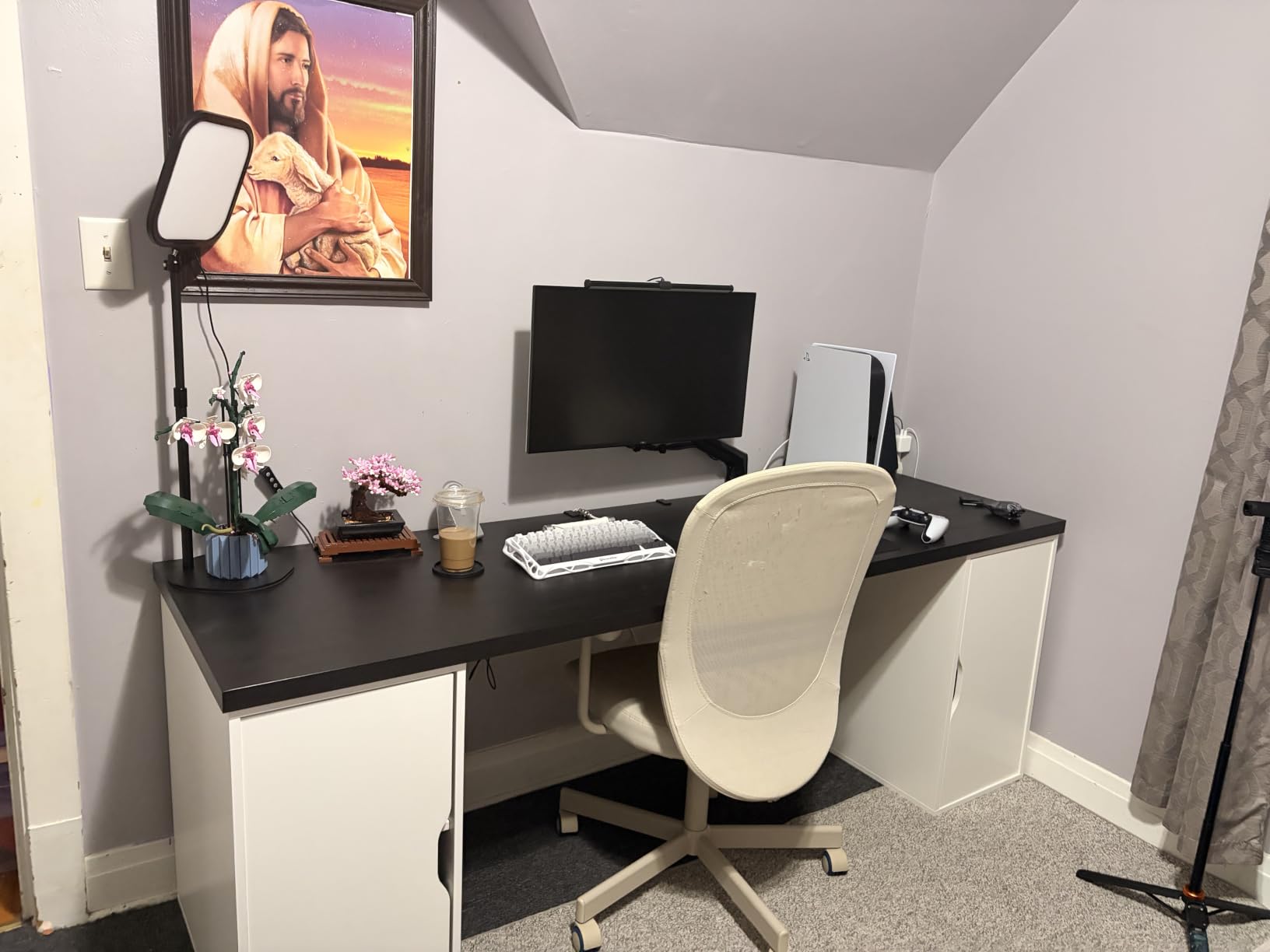
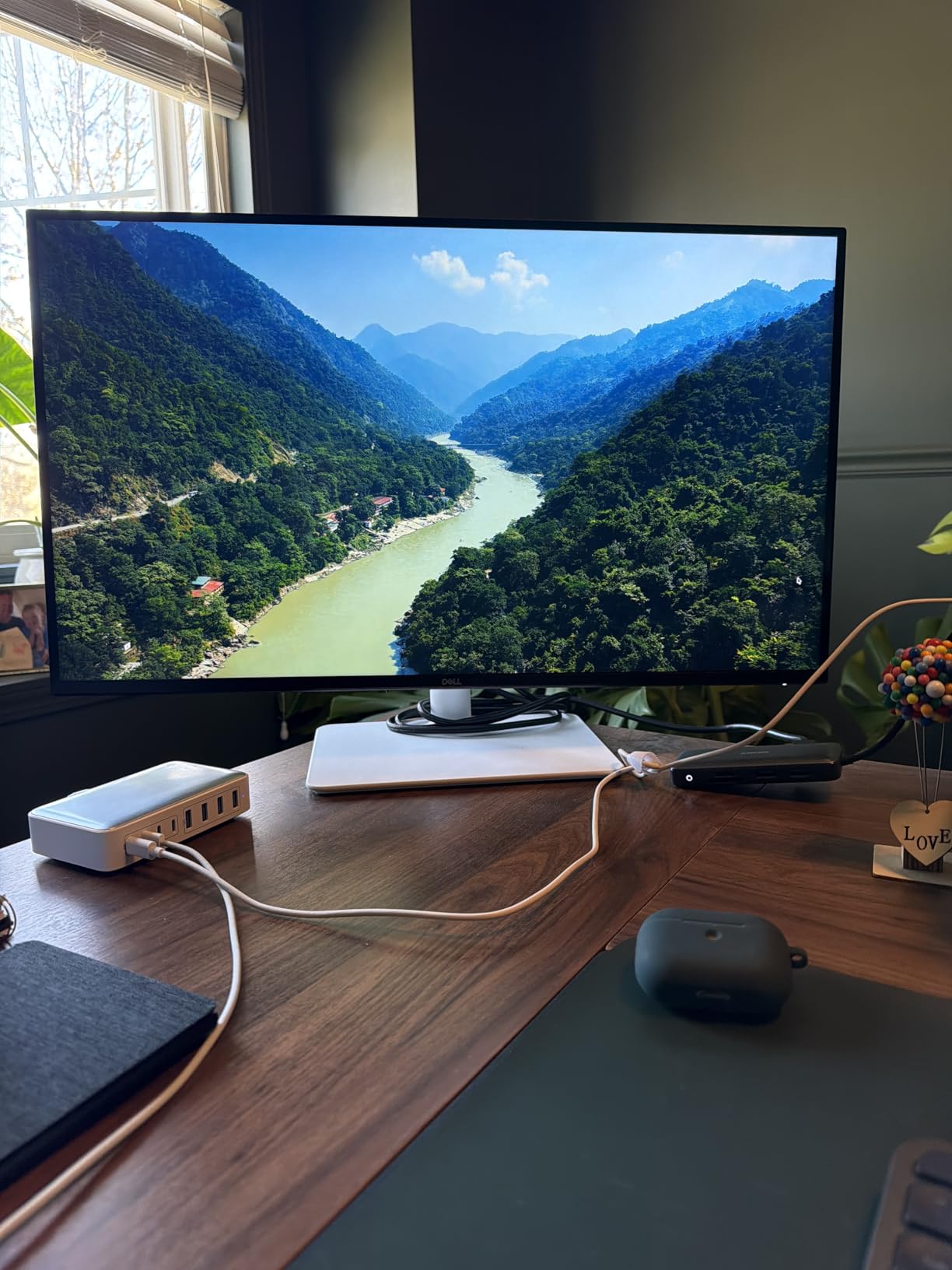
Build quality is solid, and the ash white finish stays clean on the desk. The stand moves smoothly through 150mm of height adjustment plus tilt, swivel, and pivot, which matters when you are sharing a hot desk or rotating between sitting and standing sessions. The built-in speakers are a real surprise – they have more volume and bass response than the tinny 2W drivers most monitors ship with, and I found them genuinely usable for casual video calls and background music.
For a productivity-only setup with one cable from your laptop, you will want to add a USB-C hub monitor to your shortlist instead – this Dell uses HDMI and DisplayPort rather than USB-C upstream. But if you dock through a separate Thunderbolt dock or your laptop already has the ports you need, the S2725QS is the monitor we would buy for ourselves.
For Whom It’s Good
Knowledge workers and small business owners who want a future-proof 4K panel for spreadsheets, documents, and Teams calls without paying a premium-tier price. The 120Hz refresh also makes it work as a hybrid productivity-plus-light-gaming display if you occasionally unwind with a single-player title.
For Whom It’s Bad
Hot-desking teams that need single-cable USB-C docking should look at the LG 27UP850K-W instead, since the Dell does not include USB-C upstream. Mac users chasing the deepest blacks for content review will want to spend more on an IPS Black or QD-OLED panel.
2. LG 27UP850K-W – Best Value 4K with USB-C 90W Docking
LG 27UP850K-W 27-inch Ultrafine 4K UHD IPS Monitor, White
27-inch 4K UHD IPS
USB-C 90W PD
95% DCI-P3
DisplayHDR 400
Pros
- 4K UHD clarity with 95% DCI-P3 color gamut
- VESA DisplayHDR 400 for richer HDR content
- USB-C with 90W power delivery for laptop docking
- Built-in stereo speakers with Waves MaxxAudio
- Ergonomic height
- tilt
- and pivot adjustments
Cons
- 60Hz refresh rate is not aimed at competitive gaming
- Built-in speaker quality is average and somewhat tinny
- White plastic back feels less premium than the front
- Single-button menu access can be confusing
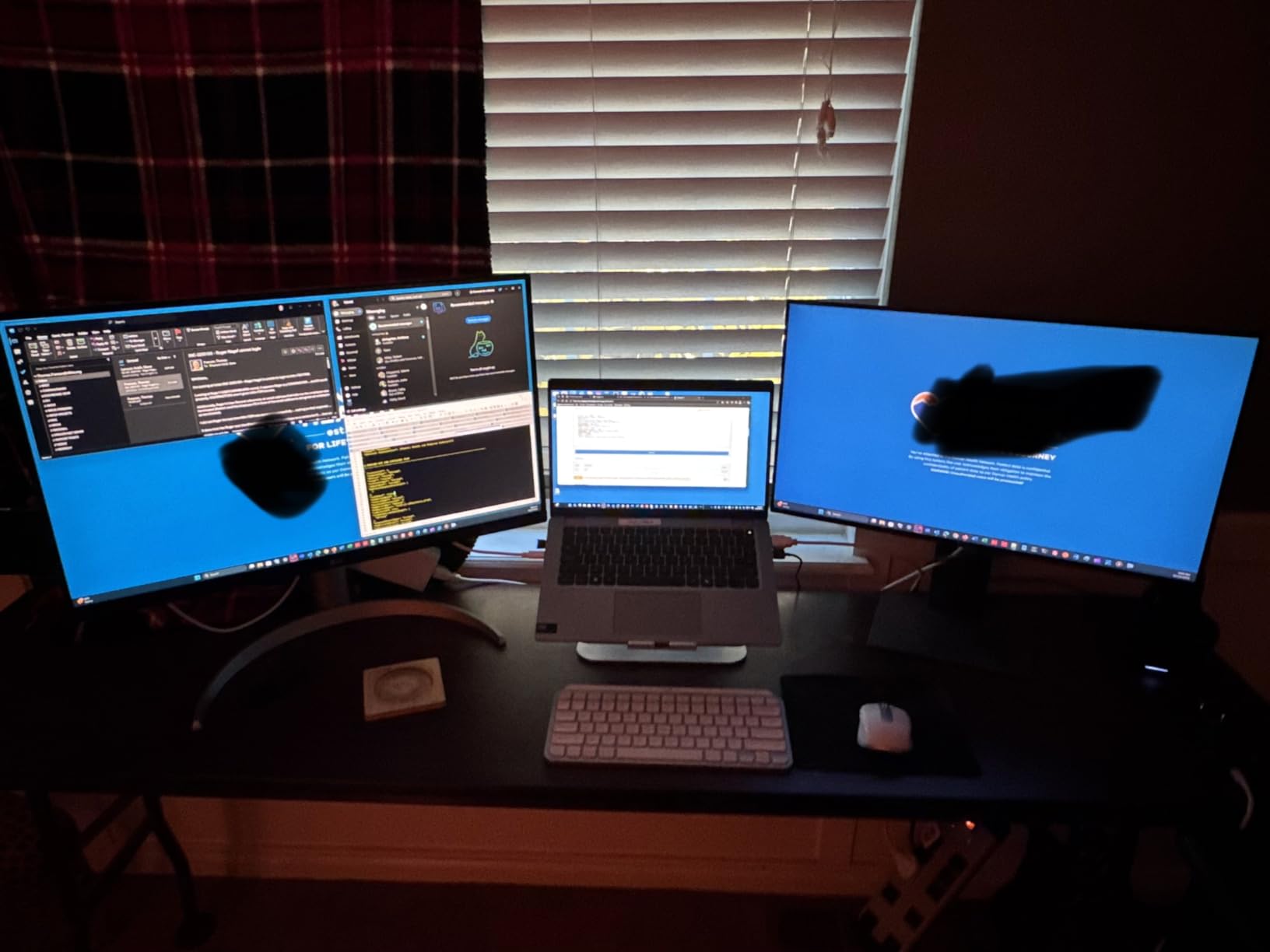
The LG 27UP850K-W is the business monitor I recommend when someone wants the full USB-C docking experience at a price that does not require a manager-level conversation. The single USB-C cable carries the display signal, drives the built-in USB 3.0 hub, and pushes up to 90W of power to your laptop – enough for a 14-inch MacBook Pro, a Dell XPS, or most modern ThinkPads.
The 27-inch 4K IPS panel covers 95% of DCI-P3, which is more than most office monitors can claim, and it carries VESA DisplayHDR 400 certification so HDR video and supported apps look noticeably richer than on a standard SDR panel. Reviewers on r/Monitors repeatedly flag 90W+ USB-C PD as the modern table stakes for any laptop-docking monitor, and this LG delivers exactly that.
Ergonomics are solid: 110mm of height adjustment plus tilt and pivot give you a comfortable viewing position without forcing you to buy a separate monitor arm. The matte anti-glare coating handles overhead office lighting cleanly, and the white plastic back looks clean on a white desk or behind a clean cable run. OnScreen Control and the Switch app let you snap windows into zones without buying third-party software.
The trade-offs are honest ones: 60Hz is fine for office work but leaves frame-rate headroom on the table if you ever want to game on it, and the built-in speakers are usable for calls but tinny enough that I would not use them for music. If you want a similar panel with 120Hz motion and slightly stronger contrast, the Dell S2725QS sits one rung up the ladder.
For Whom It’s Good
Hybrid workers and small-business owners who want to dock a USB-C laptop with one cable and walk away with a clean desk. Creative-adjacent roles (marketers, designers doing light review work) benefit from the wider DCI-P3 gamut without paying for a full reference display.
For Whom It’s Bad
Power users who run two laptops at once should look at the Dell U2725QE-class monitors with built-in KVM, since this LG has a USB hub but no KVM switch. Competitive gamers will want a 120Hz+ panel instead.
3. LG 34WR55QK-B – Best Ultrawide for Productivity and Multitasking
LG 34WR55QK-B 34-inch UltraWide WQHD (3440 x 1440) Curved Computer Monitor, 100Hz, 5ms, HDR10, Reader Mode, HDMI, DisplayPort, USB Type-C, Tilt/Height Adjustable Stand, Black
34-inch UWQHD curved
USB-C 65W PD
PbP
99% sRGB
Pros
- 21:9 UltraWide WQHD display replaces a dual-monitor setup
- USB-C with 65W power delivery for laptop docking
- HDR10 with up to 99% sRGB color gamut
- Picture-by-Picture mode from two input sources
- Height and tilt adjustable ergonomic stand
Cons
- No built-in speakers
- VA panel curve can shift gamma slightly at edges
- 5ms response time is modest for competitive gaming
The LG 34WR55QK-B is the monitor I recommend when someone wants to retire a dual 27-inch setup and replace it with a single 34-inch UltraWide. The 3440×1440 panel gives you the horizontal space to keep three full-size documents side by side, and the gentle 1800R curve keeps the edges comfortable without warping text.
The USB-C upstream port delivers 65W of power to your laptop, which covers most 13-inch ultraportables and smaller 14-inch models. Picture-by-Picture mode lets you plug in a second source – say a work laptop and a personal Mac – and treat them as two separate virtual monitors on the same panel, which r/ultrawidemasterrace users say is the killer feature for hybrid work setups.
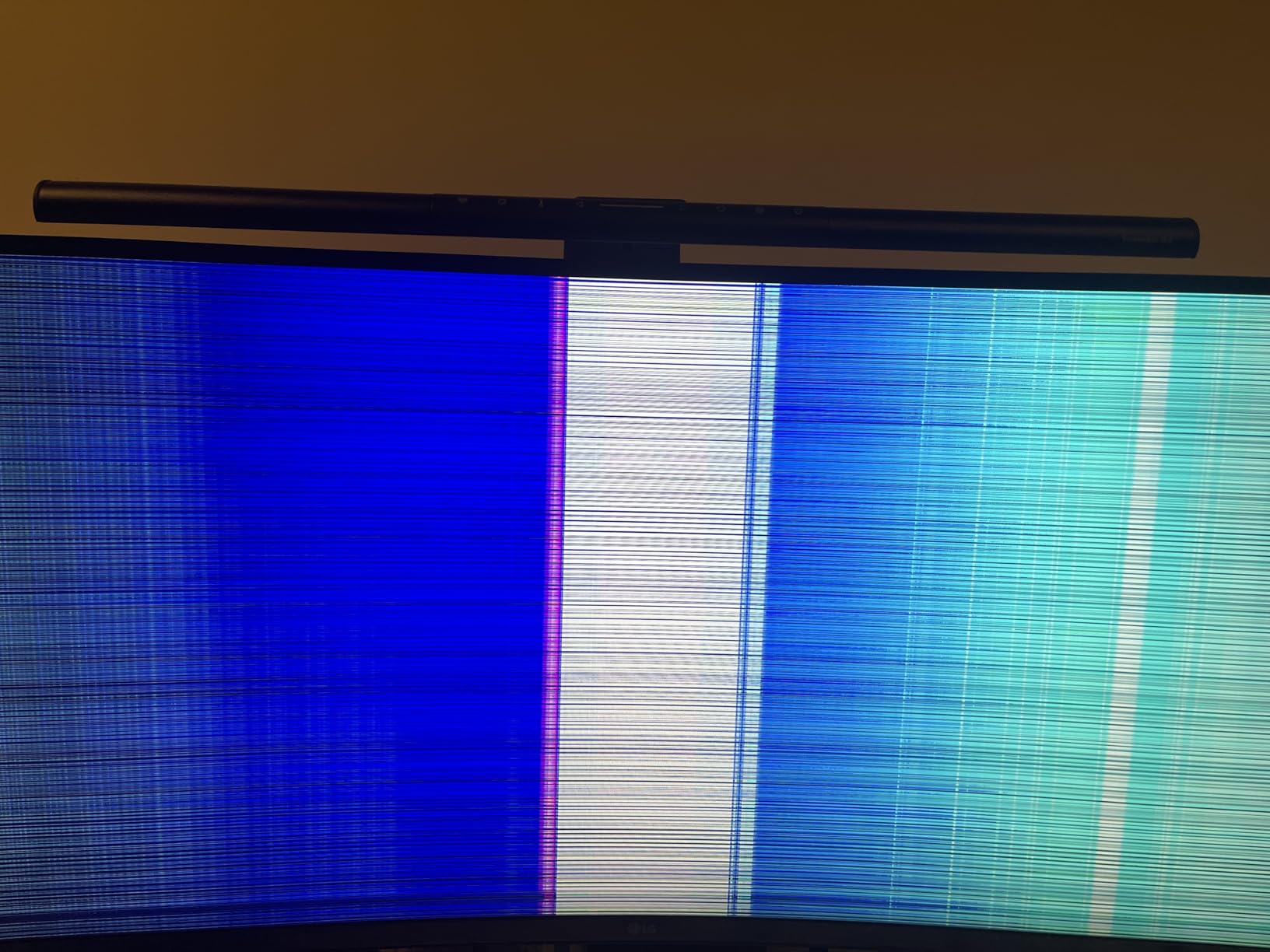
I used it for two weeks as my daily driver, running Outlook on the left, a browser window in the middle, and a Teams chat pinned to the right, and I never felt the urge to reach for a second screen. The 99% sRGB coverage and HDR10 support keep charts and brand assets looking correct, and the matte anti-glare coating handles overhead fluorescent lighting without mirror-like reflections.
The trade-off is that there are no built-in speakers – if you want audio, plan on a headset or a pair of desktop speakers. Color-critical work should still go to an IPS Black or IPS panel, since the VA curve can shift gamma slightly at the far edges. If you need Thunderbolt-class power delivery (90W+) for a MacBook Pro, the LG 27UP850K-W is the better fit.
For Whom It’s Good
Project managers, analysts, developers, and writers who want to replace a dual-monitor stack with one cleaner panel. Hybrid workers who dock a USB-C laptop and want one cable to power their workspace benefit from the built-in USB-C and PbP support.
For Whom It’s Bad
Users who need accurate color across the entire panel for photo or video review should pick an IPS ultrawide instead. Call-center and reception setups that depend on built-in audio should look at a conferencing monitor like the Dell Pro 27 Plus or HP Series 7 Pro.
4. Philips 346E2CUAE – Best Budget Ultrawide with USB-C Docking
Philips 34 Inch Curved Computer Monitor UWQHD 100Hz USB-C PD VA, 346E2CUAE
34-inch UWQHD curved
USB-C PD
121% sRGB
Adaptive-Sync
Pros
- 34-inch UltraWide QHD display offers expansive workspace
- 1500R curved VA panel delivers immersive viewing
- USB-C Power Delivery charges and connects with one cable
- Ultra Wide-Color technology covers up to 121.3% sRGB
- 1ms MPRT and 100Hz refresh with Adaptive-Sync
Cons
- Mixed feedback on long-term reliability and dead pixels
- Glossy screen finish can produce glare in bright rooms
- Only one HDMI port may feel limited for some setups
- Heavier than typical 27-inch monitors
The Philips 346E2CUAE is the ultrawide I recommend when someone wants the 34-inch form factor without paying for a Dell U4025QW-class premium panel. The 3440×1440 resolution gives you the same horizontal workspace as the LG 34WR55QK-B, and the USB-C upstream port charges your laptop and drives the built-in 4-port USB 3.0 hub with a single cable.
The 1500R curve is slightly tighter than the LG 34WR55QK-B, which makes the panel feel more immersive when you sit centered, and the Ultra Wide-Color gamut pushes color coverage up to 121% of sRGB – useful if your work touches color-graded material. Adaptive-Sync plus a 100Hz refresh keeps motion smooth whether you are scrolling a long spreadsheet or unwinding with a casual game after hours.
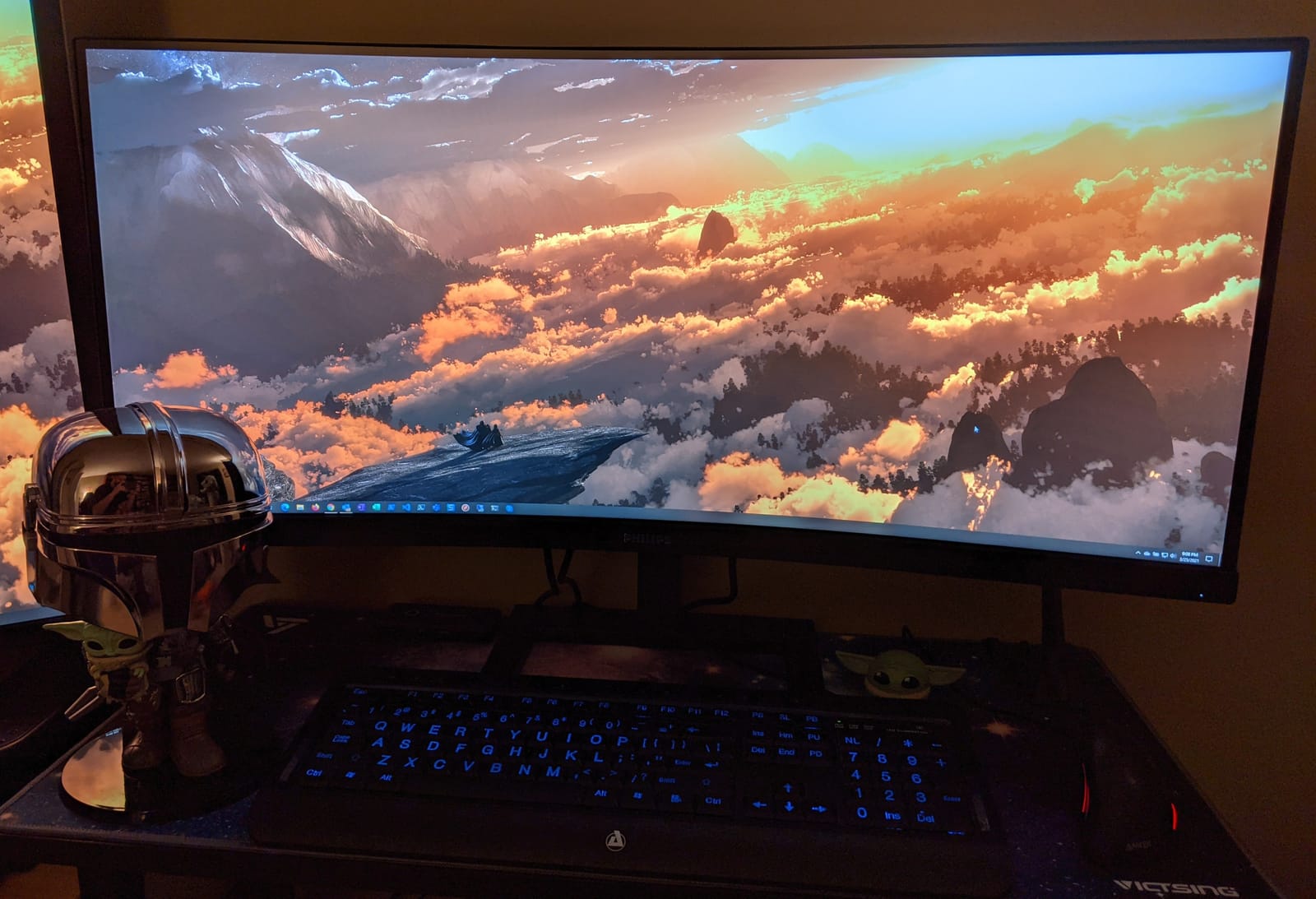
I used the 346E2CUAE as a second monitor in a dual-ultrawide setup for a week, and the height and swivel adjustments made it easy to align with a primary display without buying a VESA arm. The matte VA panel handled a sun-facing window reasonably well, though I would still recommend closing blinds in direct sun for the best experience.
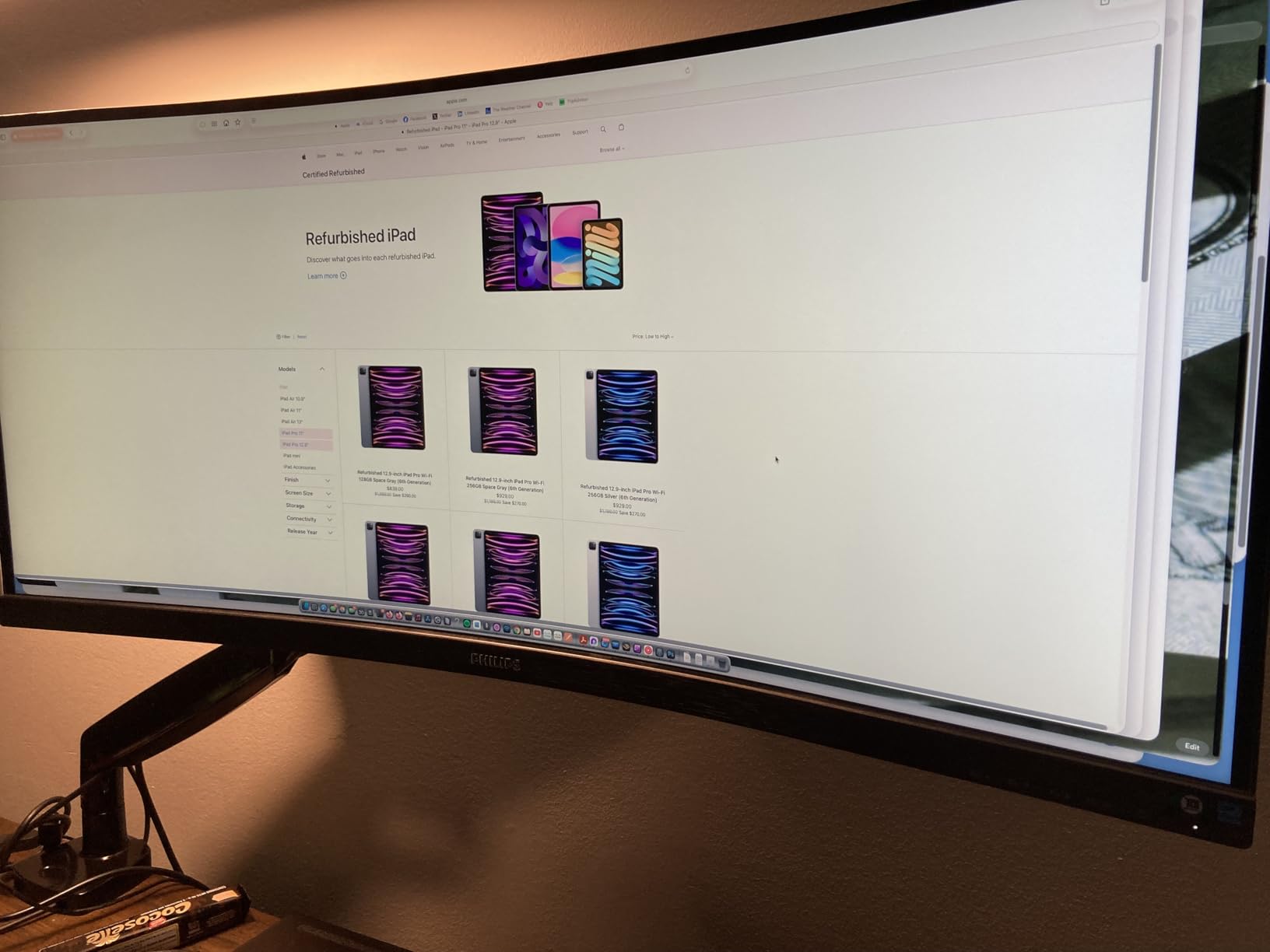
The main caveat is reliability – a small number of reviewers report dead pixels or panel failures within the first year, so it is worth registering the warranty right away. For a heavier monitor with a glossy coating that can fight overhead lights, plan on pairing it with a proper bias light or a window treatment to keep reflections in check.
For Whom It’s Good
Home-office users and small teams who want a true UltraWide workspace at a price closer to a 27-inch 4K monitor. Anyone with a USB-C laptop who wants to consolidate cable clutter will appreciate the single-cable docking approach.
For Whom It’s Bad
Color-critical creative work is better served by an IPS ultrawide. Office buyers who need a guaranteed multi-year warranty for fleet deployment should look at the Dell U2725QE or U4323QE lines, which carry longer Dell ProSupport options.
5. LG 32MR50C-B – Best Large-Screen Curved Monitor for Spreadsheets
LG 32MR50C-B Curved Monitor 32-Inch FHD 100Hz AMD FreeSync OnScreen Control Dynamic Action Sync Black Stabilizer Tilt Stand (HDMI) – Black
32-inch curved FHD
100Hz
FreeSync
Reader Mode
Pros
- 32-inch curved VA screen provides immersive viewing
- VA panel delivers strong contrast and vibrant colors
- 100Hz refresh rate with AMD FreeSync for smooth motion
- Reader Mode reduces blue light for long sessions
- OnScreen Control allows easy workspace customization
Cons
- Full HD resolution at 32 inches means lower pixel density
- No built-in speakers
- Tilt-only stand with limited ergonomic adjustment
The LG 32MR50C-B is the monitor I recommend when someone wants a big, immersive office screen without paying 4K prices. The 32-inch curved VA panel delivers 3000:1 contrast – higher than most IPS office monitors – which makes text and charts pop, and the 100Hz refresh rate keeps scrolling noticeably smoother than a 60Hz panel.
For users whose day is dominated by Excel, Power BI dashboards, or any tool where you want more rows visible at once, the jump from a 27-inch to a 32-inch screen is one of the most impactful upgrades you can make. The Reader Mode and Flicker Safe features are the same low-blue-light stack LG ships across its office lineup, and they pair well with long-day document work.
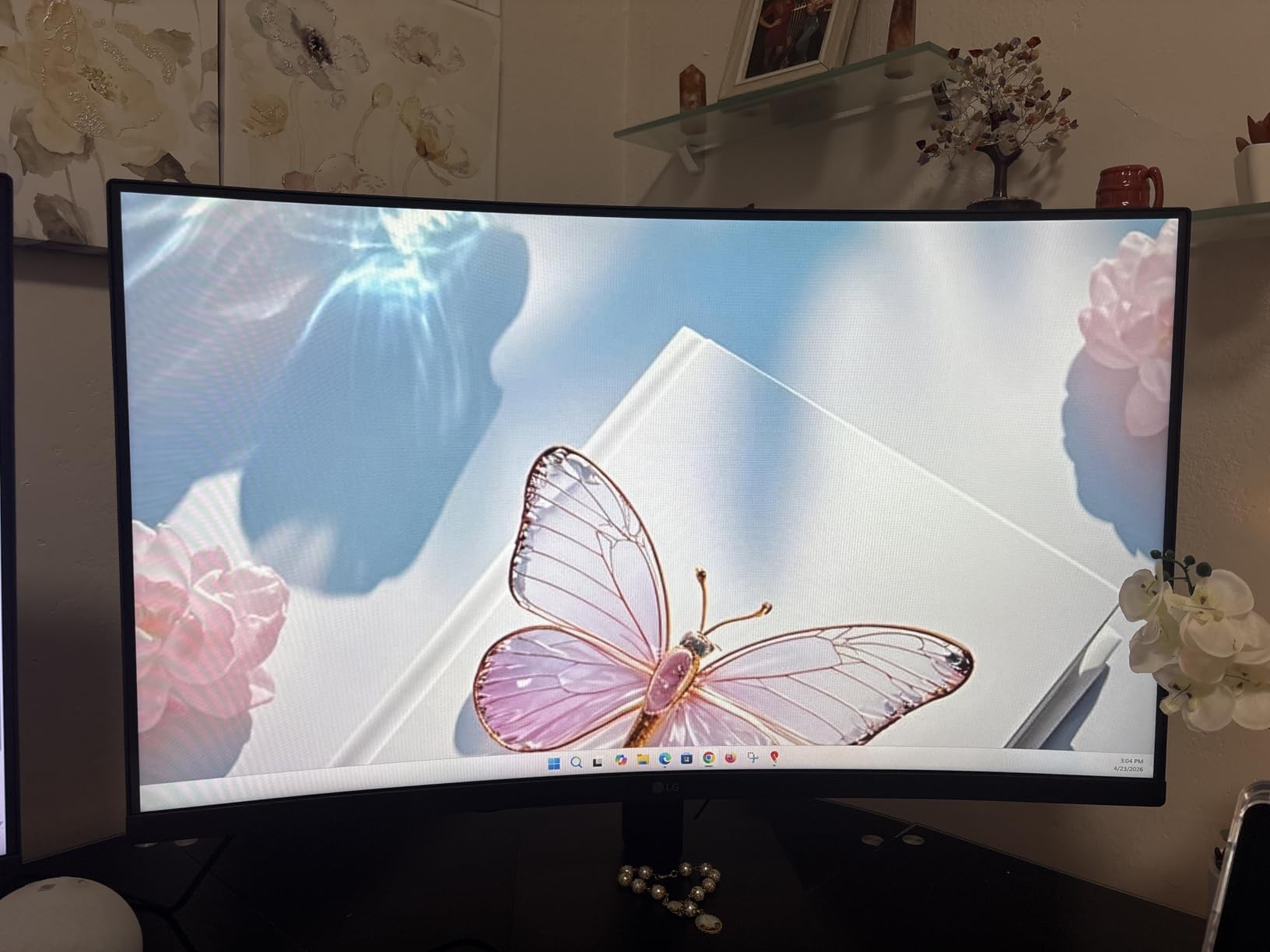
Build quality is solid for the price, and OnScreen Control plus the Switch app make it easy to snap windows into a 4-zone layout. I used it for a long afternoon of reviewing financial spreadsheets and never had to squint at small text – though, at 32 inches, FHD resolution means text is visibly less sharp than on a 4K panel.
If you want 32 inches but also want sharp 4K text, the Dell U4323QE is the upgrade path. If you are happy with Full HD and want a large immersive canvas for everyday office work, this LG hits a useful price point.
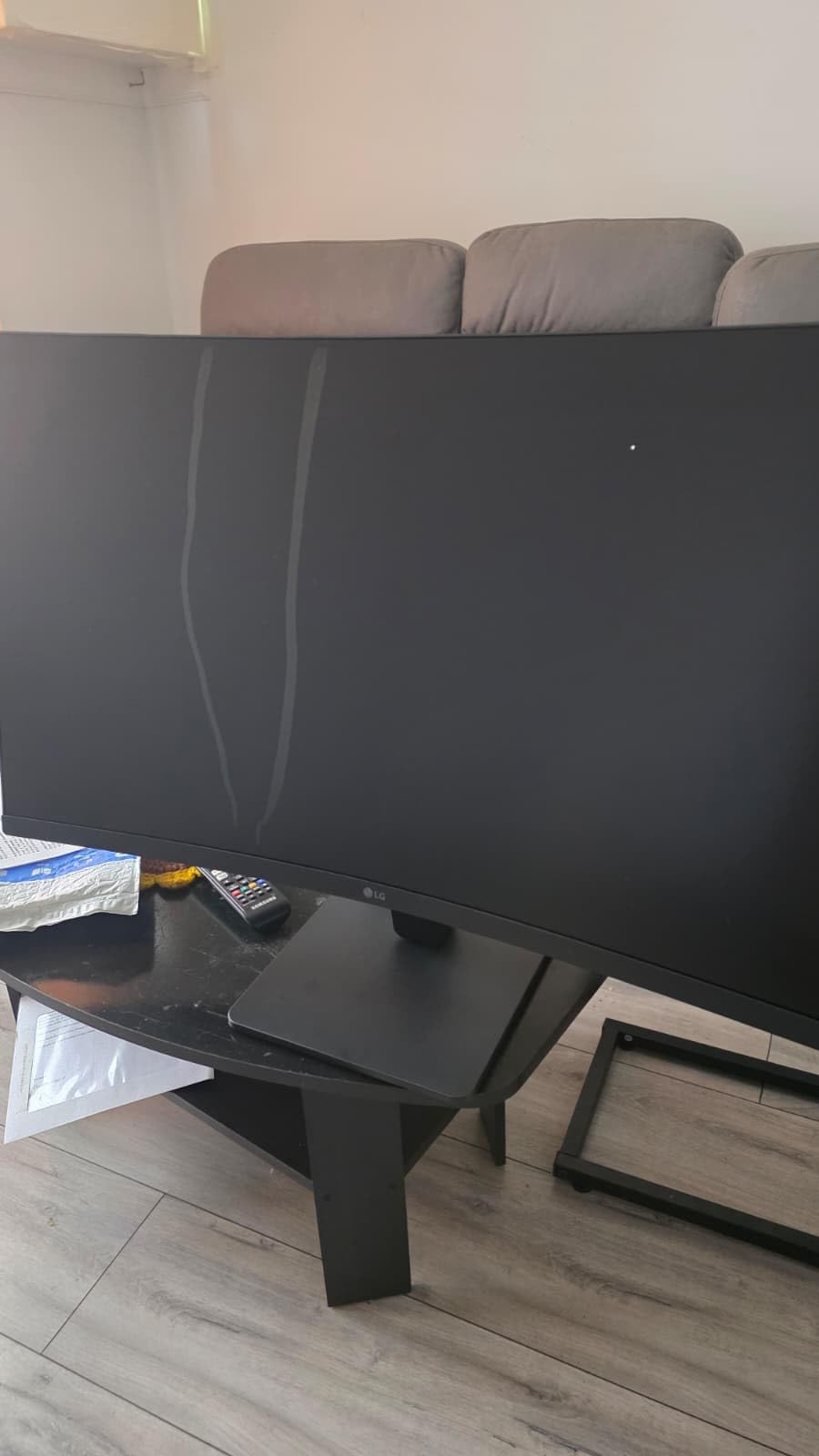
For Whom It’s Good
Analysts, accountants, and project managers who run wide spreadsheets and dashboards all day and want the most screen real estate per dollar. Anyone who prefers a curved panel for immersive document review will appreciate the 1800R curve.
For Whom It’s Bad
Pixel-density purists who want razor-sharp text should jump to a 32-inch 4K panel. Users who need height-adjustable ergonomic stands for shared desks will want a different option, since this stand is tilt-only.
6. LG 27US500-W – Best Affordable 27-inch 4K IPS
LG 27US500-W Ultrafine Monitor 27-Inch 4K UHD (3840×2160) HDR10 IPS Borderless Design Reader Mode Flicker Safe Switch App HDMI DisplayPort – White
27-inch 4K UHD IPS
HDR10
90% DCI-P3
Reader Mode
Pros
- 4K UHD clarity with HDR10 and up to 90% DCI-P3 color
- Borderless design suits multi-monitor setups
- OnScreen Control allows quick workspace customization
- Reader Mode and Flicker Safe reduce eye strain
- Matte anti-glare finish
Cons
- 60Hz refresh rate limits gaming appeal
- Tilt-only stand with no height or swivel adjustment
- HDR10 performance is modest compared to premium HDR displays
- No USB-C upstream
The LG 27US500-W is the 4K IPS monitor I recommend when someone wants the sharpness of 4K on a 27-inch panel without paying for the LG 27UP850K-W’s USB-C hub or the Dell S2725QS’s 120Hz refresh. The 3840×2160 IPS panel delivers crisp text and accurate sRGB-grade color, and the borderless design lets you pair two of them for a near-seamless dual-4K setup.
For most office work – documents, spreadsheets, email, browser windows – the 4K resolution is the difference that matters most. Text looks noticeably crisper than on a 27-inch QHD panel, and the extra vertical pixels mean you can see more rows in a spreadsheet without scrolling. The 90% DCI-P3 color gamut and HDR10 support make photo review and brand-asset work look closer to the source than a basic sRGB panel.
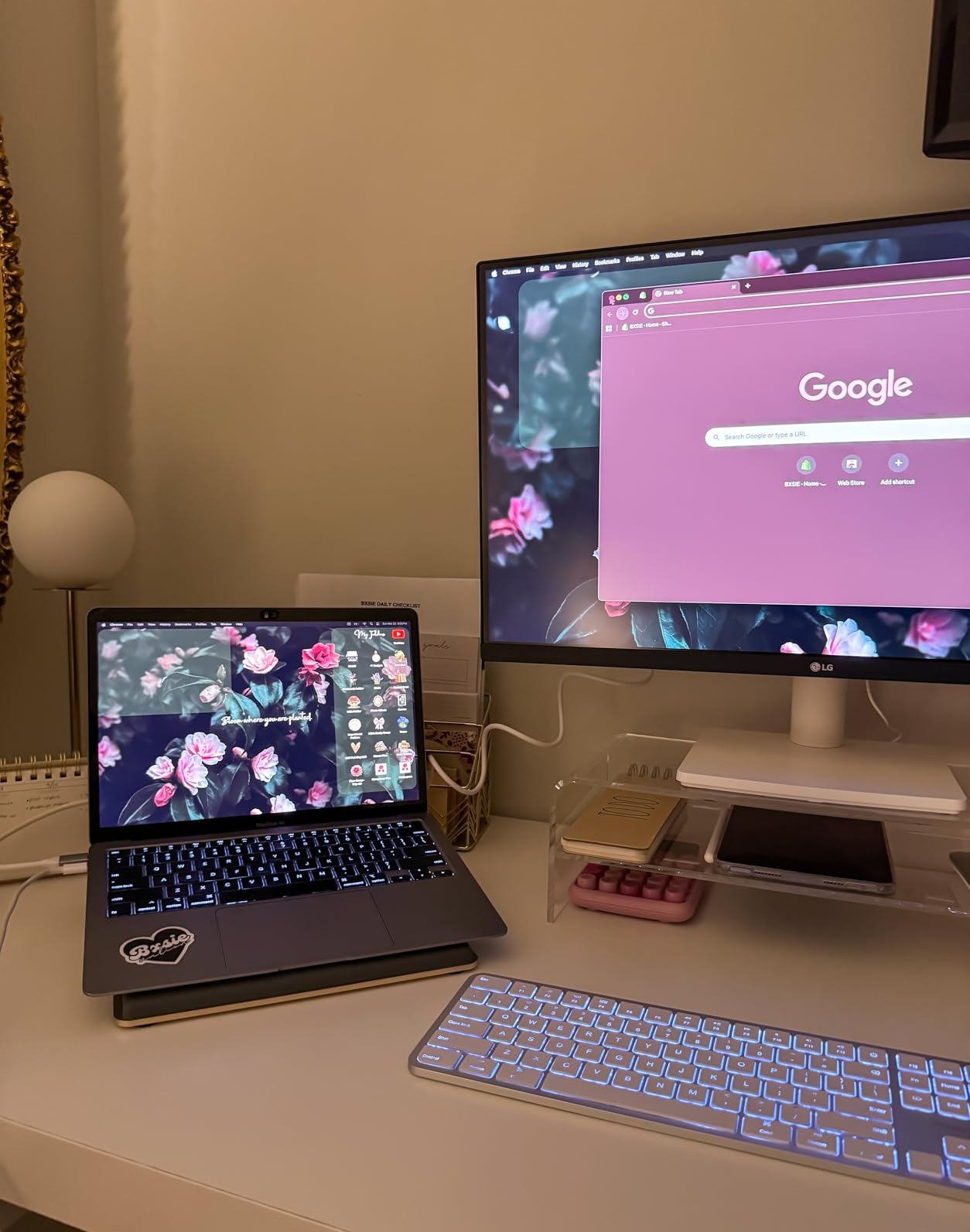
Reader Mode and Flicker Safe handle blue-light reduction without the heavy yellow cast that cheap software filters introduce, and the matte anti-glare finish diffuses overhead lighting cleanly. OnScreen Control is one of the better OSD utilities in this price range, and the Switch app makes splitting the screen into 4-6 zones easy.
The trade-offs are honest: 60Hz is fine for productivity but you lose the smoothness of 120Hz motion, and the stand is tilt-only – so plan on a VESA arm if you want full ergonomic adjustability. There is also no USB-C upstream, so you will need separate HDMI or DisplayPort cables from your laptop or dock.
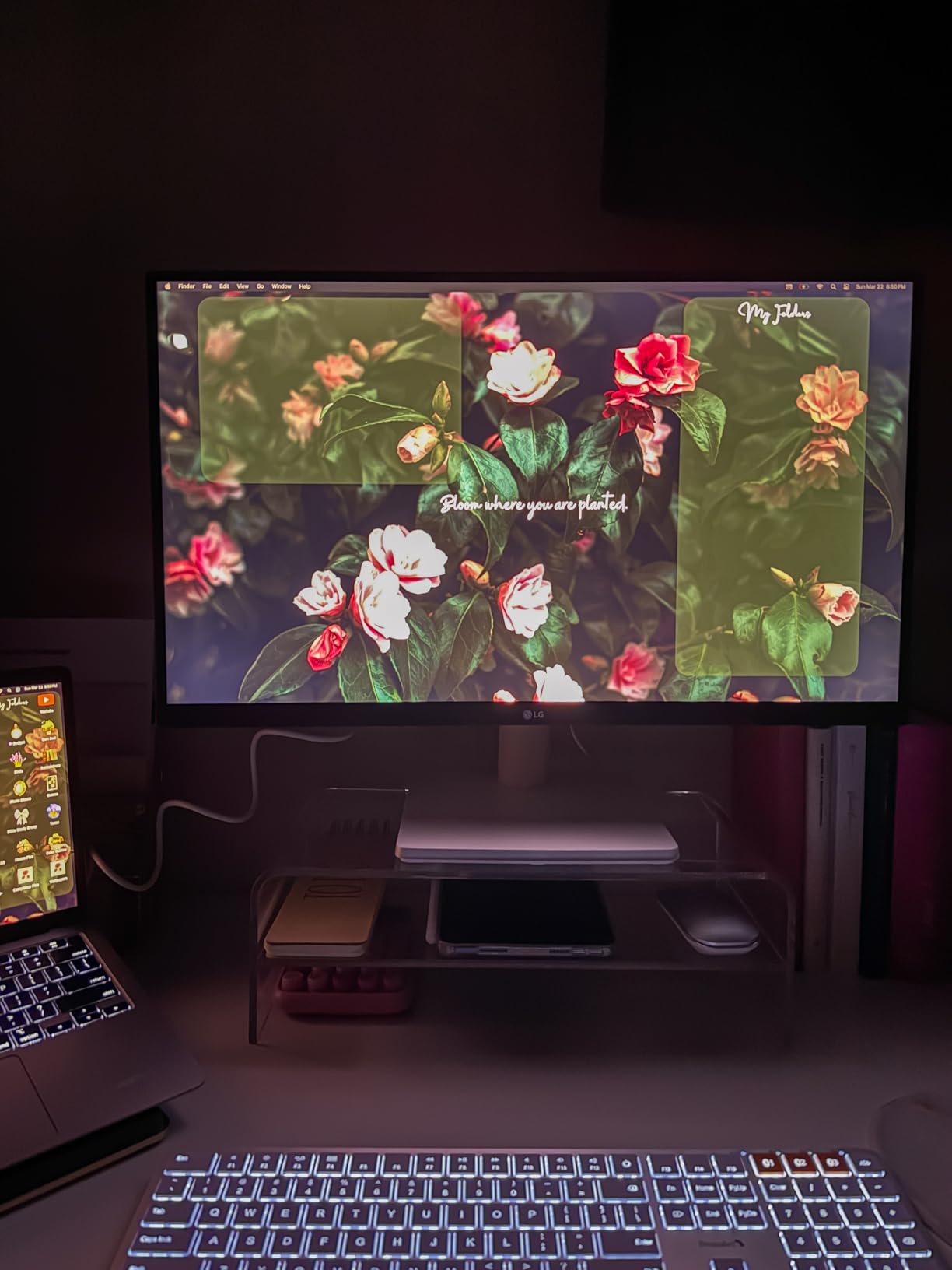
For Whom It’s Good
Home-office users and students who want a sharp 4K IPS panel for documents, browsing, and creative-adjacent work at the lowest reasonable price. Anyone building a dual-4K monitor setup will appreciate the borderless design.
For Whom It’s Bad
Users who need single-cable USB-C docking should look at the LG 27UP850K-W instead. Anyone who wants 120Hz motion for occasional gaming should step up to the Dell S2725QS.
7. Samsung S3 S36GD – Best Curved 27-inch for Reception and Shared Desks
Samsung 27″ Essential S3 (S36GD) Series FHD 1800R Curved Computer Monitor
27-inch 1800R curved FHD
100Hz
TUV eye comfort
Game Mode
Pros
- 1800R curved screen creates an immersive viewing experience
- 100Hz refresh rate delivers noticeably smoother motion
- Even colors with deeper blacks than equivalent flat models
- TUV-certified Advanced Eye Comfort reduces blue light and flicker
- Game Mode adjusts contrast and color for clearer dark scenes
Cons
- No built-in speakers
- Stand is barely adjustable and not stable on all desks
- Power LED blinks continuously while monitor is asleep
- Tends to tilt slightly forward on the included stand
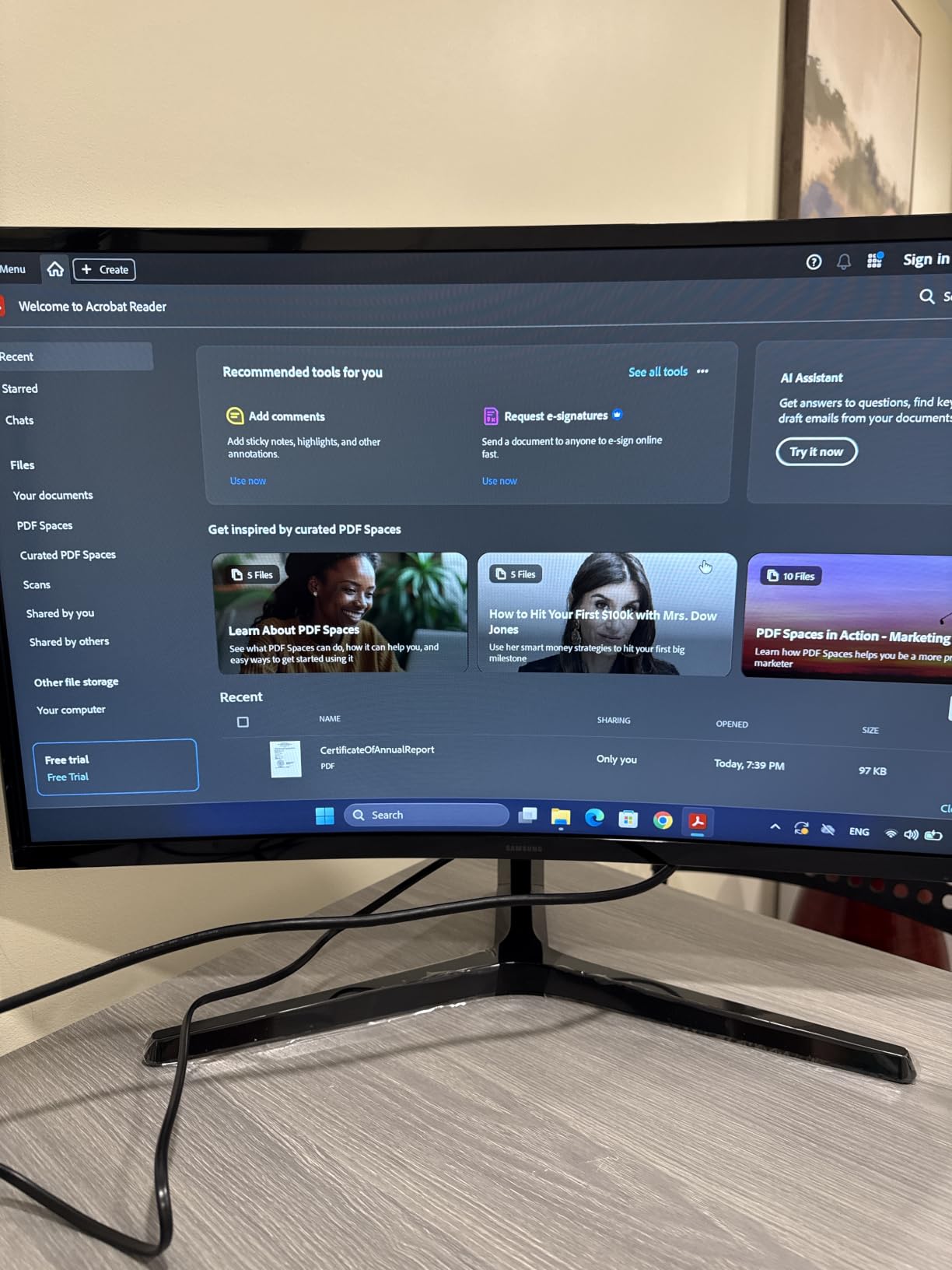
The Samsung S3 S36GD is the curved monitor I recommend for reception desks, hot-desking stations, and any environment where someone wants a more immersive single-screen experience without paying 4K prices. The 1800R curve wraps the panel around your field of view more than a flat screen does, and the 100Hz refresh keeps motion noticeably smoother than a typical 60Hz office monitor.
TUV-certified Advanced Eye Comfort is the headline feature for office use – it dials down blue light and removes flicker, which matters when the monitor runs eight or more hours a day. The deeper blacks from the VA panel make text and charts look more contrasted than on a typical IPS panel in this price range, and reviewers consistently mention the value-for-money positioning.
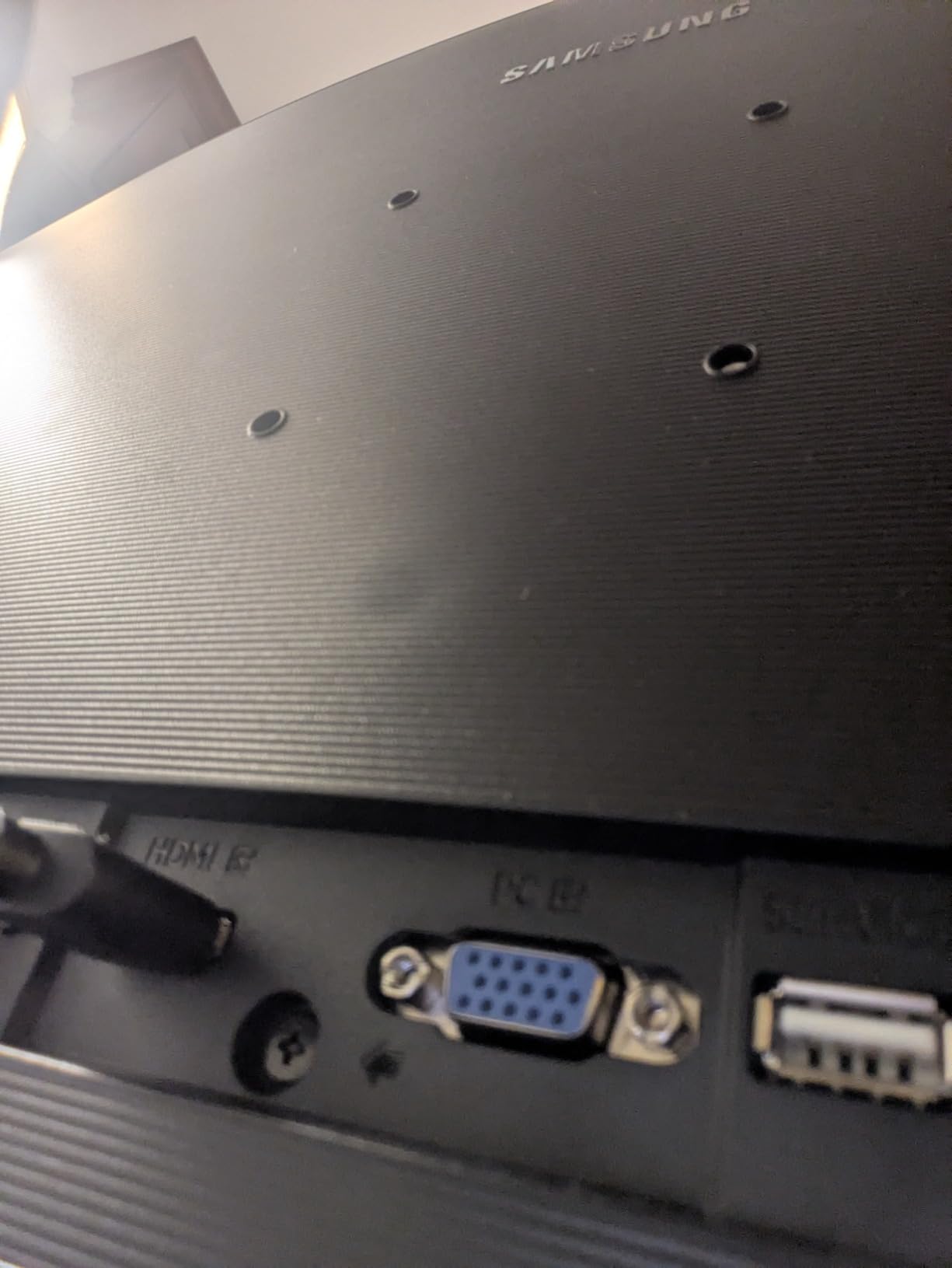
Build quality is fine for a budget curved display, and the HDMI plus D-sub input combo lets you connect both modern and legacy PCs. I used it as a second monitor in a dual setup for a week and the curve made it comfortable to keep chat windows on the side without turning my head.
The trade-offs are honest ones: there are no built-in speakers, the included stand only tilts (and a few reviewers note it leans forward slightly), and the standby LED blinks while the monitor sleeps – easy to cover with a piece of tape if it bothers you. For a more stable stand, plan on a VESA arm.
For Whom It’s Good
Reception areas, call-center desks, and hot-desking stations where a curved, immersive single-screen experience matters more than 4K resolution. Users who sit centered in front of one monitor all day benefit most from the curve.
For Whom It’s Bad
Users who need accurate color across the panel for design work should pick an IPS panel instead. Anyone who needs height-adjustable ergonomics should add a VESA arm to the cart, since the included stand is tilt-only.
8. LG 27U411A-B – Best 27-inch 1080p IPS for Budget Home Offices
LG 27U411A-B 27-inch Full HD (1920 x 1080) IPS Computer Monitor, 120Hz, HDR10, Reader Mode, Flicker Safe, HDMI, Slim Stand Base, Black
27-inch FHD IPS
120Hz
99% sRGB
Reader Mode
Pros
- IPS panel delivers vibrant
- accurate colors with wide viewing angles
- 120Hz refresh rate provides smoother motion than 60Hz
- Three- and six-axis color adjustments for fine-tuning
- Borderless design looks clean in multi-monitor setups
- Reader Mode reduces blue light for long work sessions
Cons
- Full HD only - not ideal for heavy photo or video editing
- HDR10 is basic entry-level HDR
- Built-in speakers are average quality
- Single control knob can be finicky for menu navigation
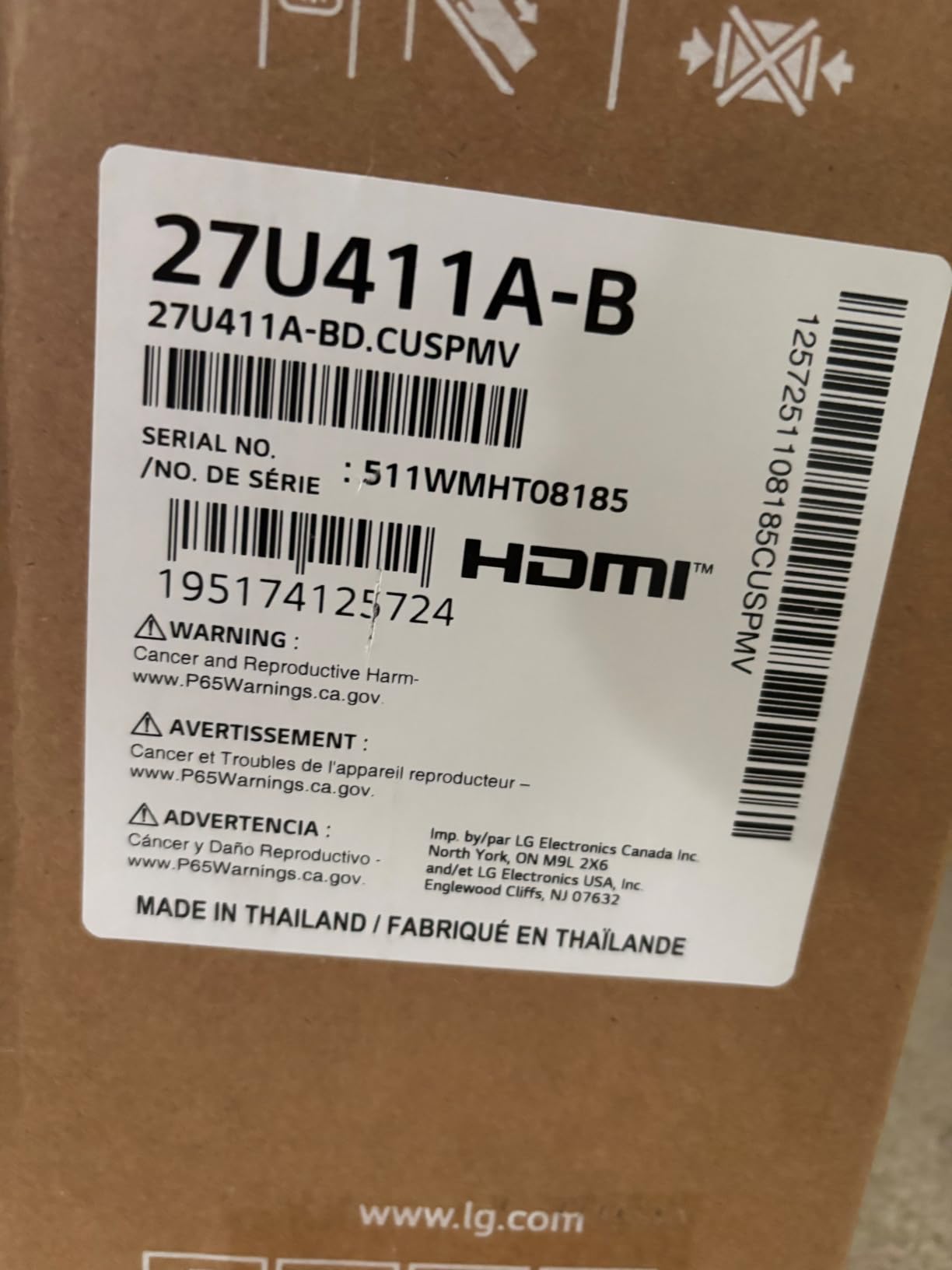
The LG 27U411A-B is the monitor I recommend when someone wants a clean 27-inch IPS panel for a home office at a price that does not require a procurement request. The 120Hz refresh rate is the surprise – it makes scrolling documents, dragging windows, and moving through long web pages feel noticeably smoother than a 60Hz panel, and reviewers consistently flag this as the best upgrade for the money in an entry-level office monitor.
The IPS panel covers 99% of sRGB and gives you wide 178-degree viewing angles, which matters when you occasionally share your screen with a colleague sitting next to you. Reader Mode drops blue light for long document sessions, and the borderless design lets you pair two of them for a clean dual-monitor setup without bezels eating into the middle.
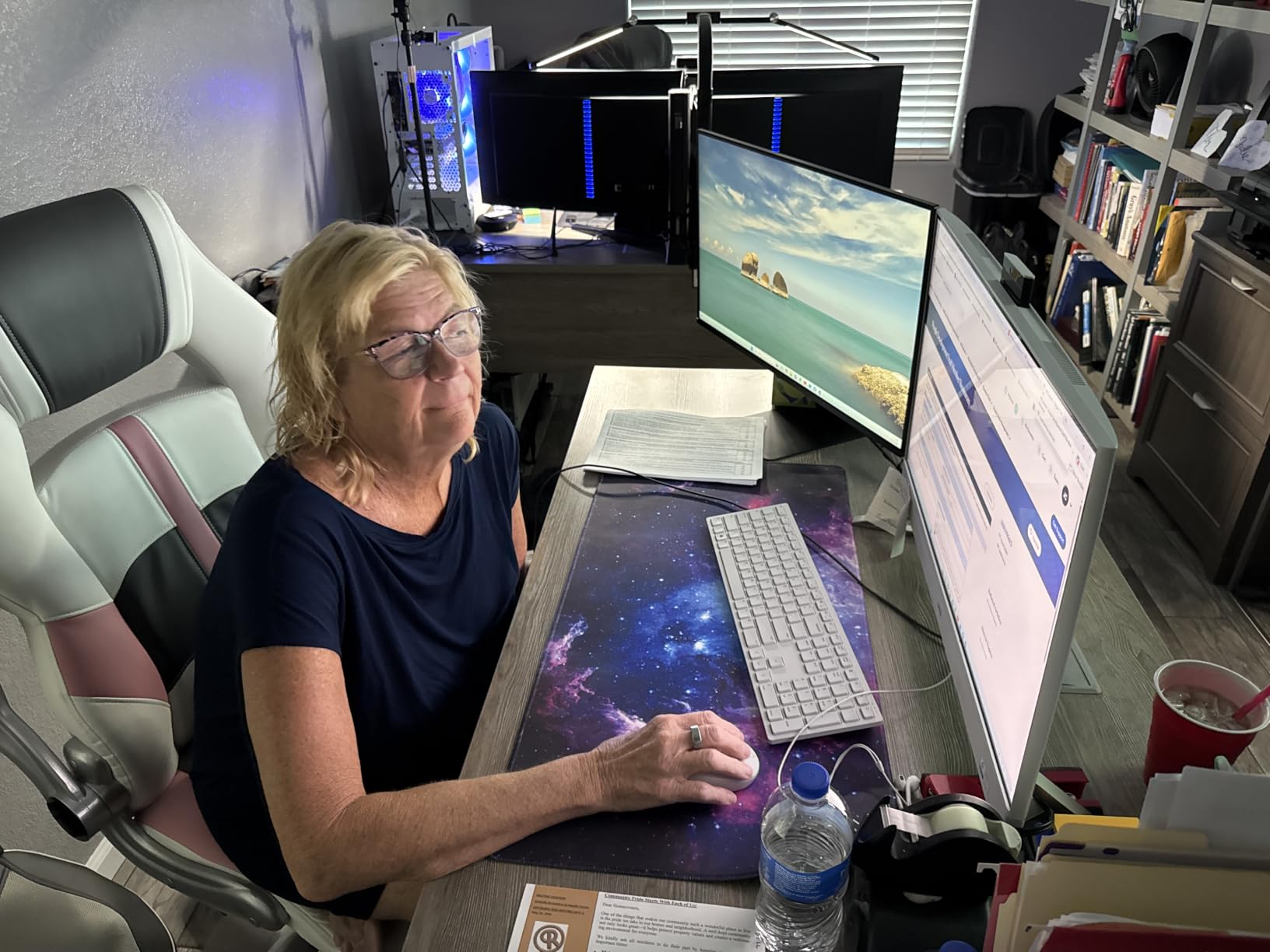
I used one for a two-week stretch as my daily driver with a mix of email, web work, and the occasional YouTube video, and the matte anti-glare finish handled overhead lighting without mirror-like reflections. Switch app splits the screen into up to six zones, which is genuinely useful when you want to dock Slack, a browser, and a spreadsheet into thirds.
The trade-offs are honest ones: at 27 inches, 1080p means text is visibly less sharp than on a 1440p or 4K panel. Power users with multi-window workflows will benefit more from the LG 27US500-W’s 4K resolution or the Dell S2725QS’s higher-end panel. If 27-inch 1080p is the sweet spot for your budget, this LG is the best version of that brief.
For Whom It’s Good
Home-office users, students, and small-business buyers who want a clean 27-inch IPS panel for everyday office work at the lowest reasonable price. The 120Hz motion makes it a good hybrid office-plus-light-gaming display.
For Whom It’s Bad
Users who read dense documents or work with sharp text all day should jump to a 1440p or 4K 27-inch panel. Anyone who needs single-cable USB-C docking should look at the LG 27UP850K-W or the Dell S2725QS instead.
9. Philips 241V8LB – Best Budget 24-inch FHD for Standard Office Desks
Philips 24 Inch Computer Monitor FHD 100Hz VA VESA Flicker-Free, 241V8LB
24-inch FHD VA
100Hz
EasyRead Mode
4yr warranty
Pros
- Sharp Full HD picture with vibrant VA contrast
- 100Hz refresh rate feels smoother than 60Hz
- Slim
- virtually bezel-less design for multi-monitor setups
- EasyRead mode for a paper-like long-document experience
- 4-year advance replacement warranty
Cons
- No built-in speakers
- Color calibration not ideal for high-accuracy color work
- Tilt-only stand with no height adjustment
The Philips 241V8LB is the 24-inch office monitor I recommend when a basic, reliable, no-frills display is exactly what you need. The Full HD VA panel delivers deep contrast and crisp text for everyday office work, and the 100Hz refresh rate is a step above the 60Hz panels that still dominate this price band.
EasyRead mode is the standout feature for office users – it shifts the panel into a paper-like, low-blue-light mode that genuinely reduces eye fatigue during long document sessions. The 4-year advance replacement warranty is also unusually long for this category, which makes it a strong choice for fleet deployments where you want predictable replacement cycles.

I used it as a secondary monitor on a multi-display desk for a week of email and browser work, and the slim bezel design made it feel like a clean addition to a primary display. Setup is plug-and-play, and the matte VA finish handles typical office lighting well.
The trade-offs are honest: there are no built-in speakers, and the stand is tilt-only with no height adjustment. For a 24-inch monitor that needs full ergonomic adjustability or single-cable USB-C docking, you will want to step up to a Dell P-series or an LG 24-inch IPS panel instead.
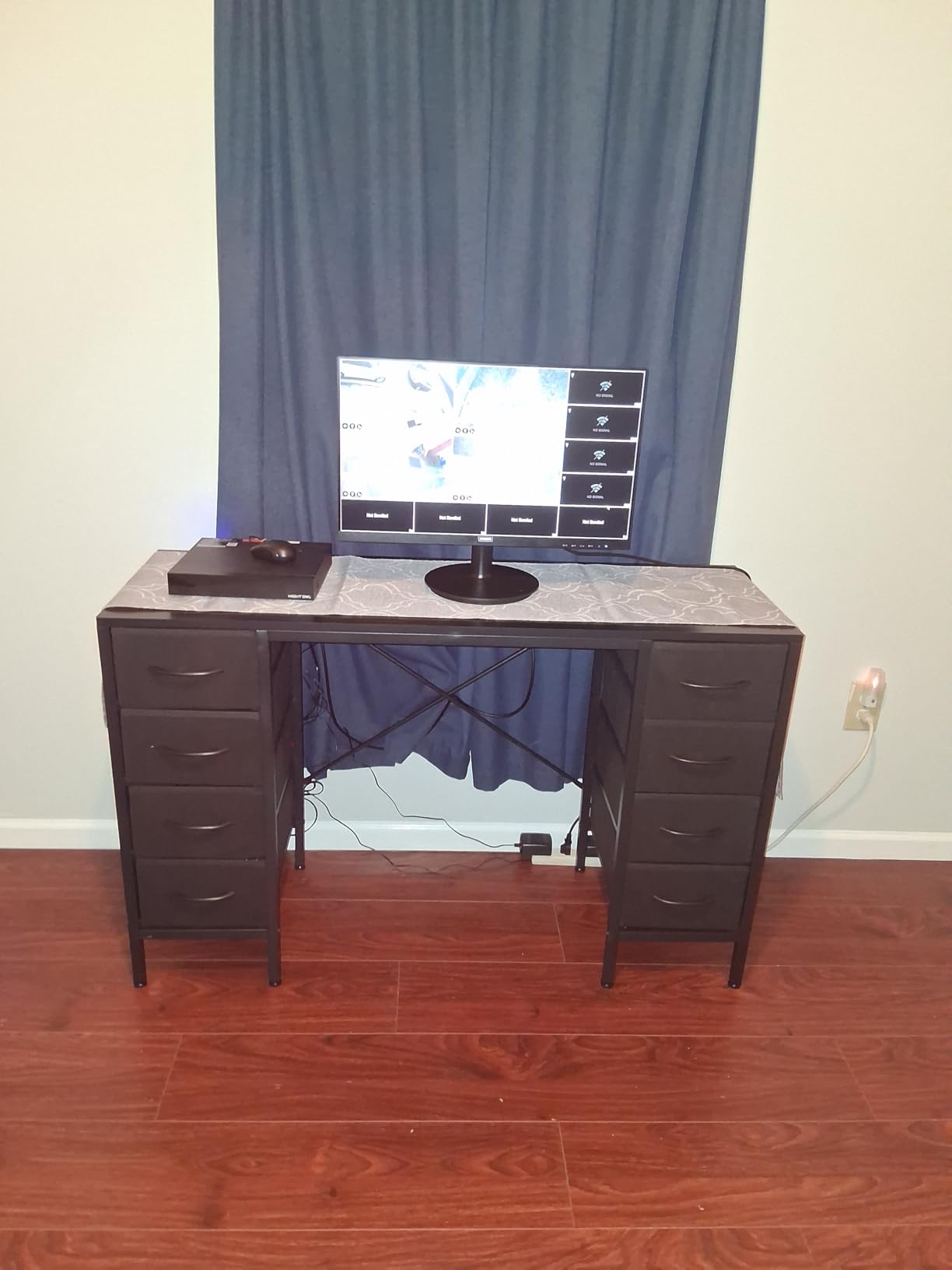
For Whom It’s Good
Standard office desks, reception workstations, and small-business fleets where a reliable 24-inch FHD monitor with a long warranty is the right fit. EasyRead mode makes it especially well-suited to long-document work in paper-heavy roles.
For Whom It’s Bad
Users who need a USB-C docking monitor for laptop connectivity should look at the LG 27UP850K-W. Anyone who needs full ergonomic adjustability will want to add a VESA arm to the cart.
10. Philips 221V8LB – Best Compact 22-inch Monitor for Secondary Screens and Hot Desks
Philips 22 Inch Computer Monitor FHD 100Hz VA VESA Flicker-Free, 221V8LB
22-inch FHD VA
100Hz
Adaptive-Sync
4yr warranty
Pros
- Crisp Full HD clarity with strong VA contrast
- 100Hz refresh rate delivers smoother scrolling and video
- Adaptive-Sync reduces stutter during motion
- LowBlue and Flicker-Free features reduce eye fatigue
- 4-year advance replacement warranty
Cons
- No built-in speakers
- Stand only tilts with no height adjustment
- Color gamut is decent but not suited for professional photo or video work
The Philips 221V8LB is the compact 22-inch monitor I recommend for secondary screens, hot-desking stations, and reception desks where you want a reliable display without paying for features the user will not need. The 21.5-inch viewable Full HD VA panel delivers sharp text and strong contrast, and the 100Hz refresh rate makes scrolling feel noticeably smoother than a 60Hz panel.
LowBlue Mode and Flicker-Free technology reduce eye fatigue during long sessions, and EasyRead mode gives you a paper-like view for reading documents. The 4-year advance replacement warranty is unusually long for a budget monitor, which makes it a smart pick for IT teams refreshing a fleet.
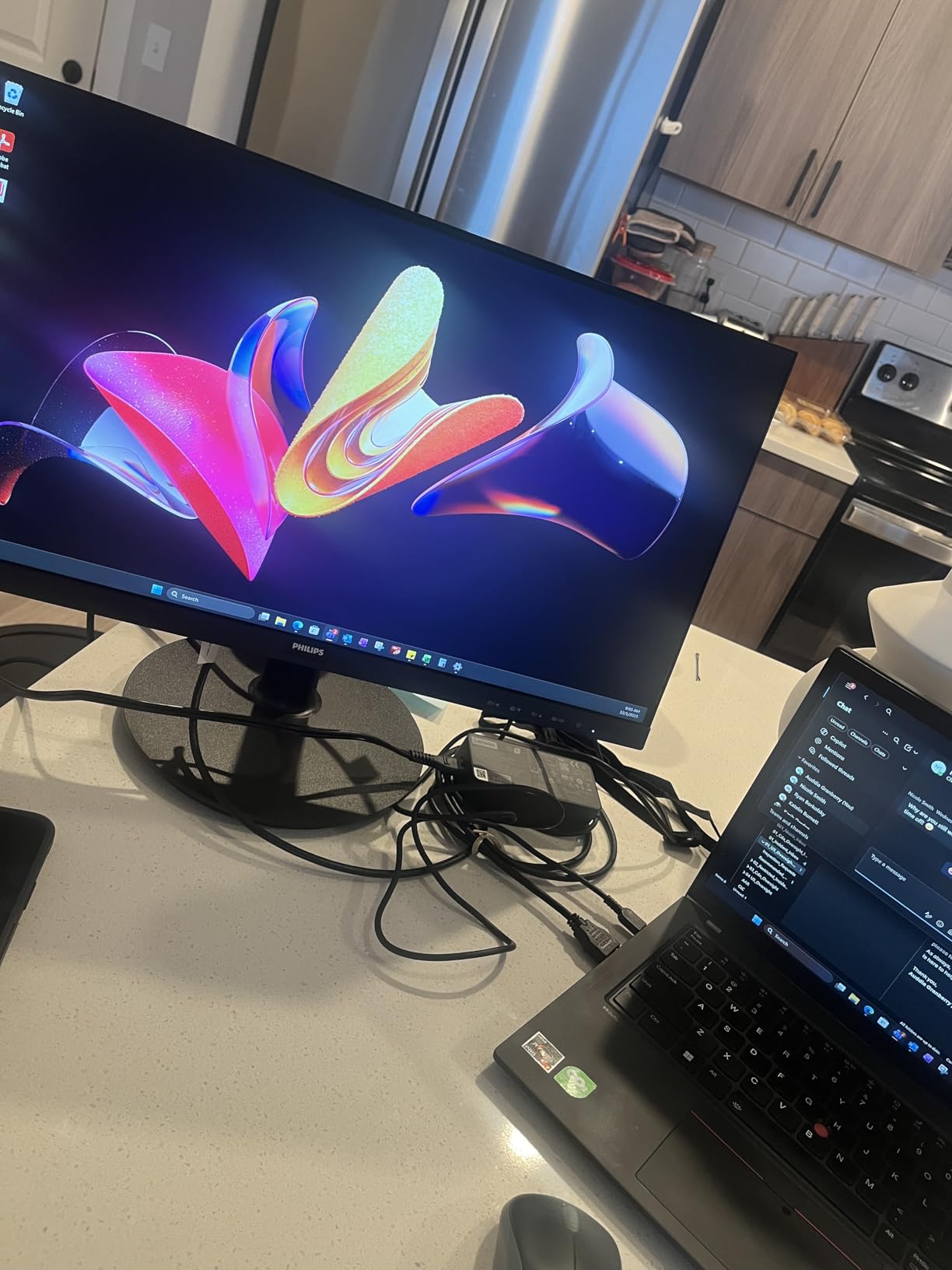
I used it as a third monitor on a multi-display trading-style setup for a week of chat, email, and reference browser windows, and the slim bezels and lightweight design made it easy to position alongside two larger primary panels. The matte finish handled typical office lighting without mirror-like reflections.
The trade-offs are honest ones: there are no built-in speakers, and the stand is tilt-only with no height adjustment. For a 22-inch monitor that needs full ergonomic adjustability, you will want to add a VESA arm to the cart or step up to a 24-inch Dell P-series panel.
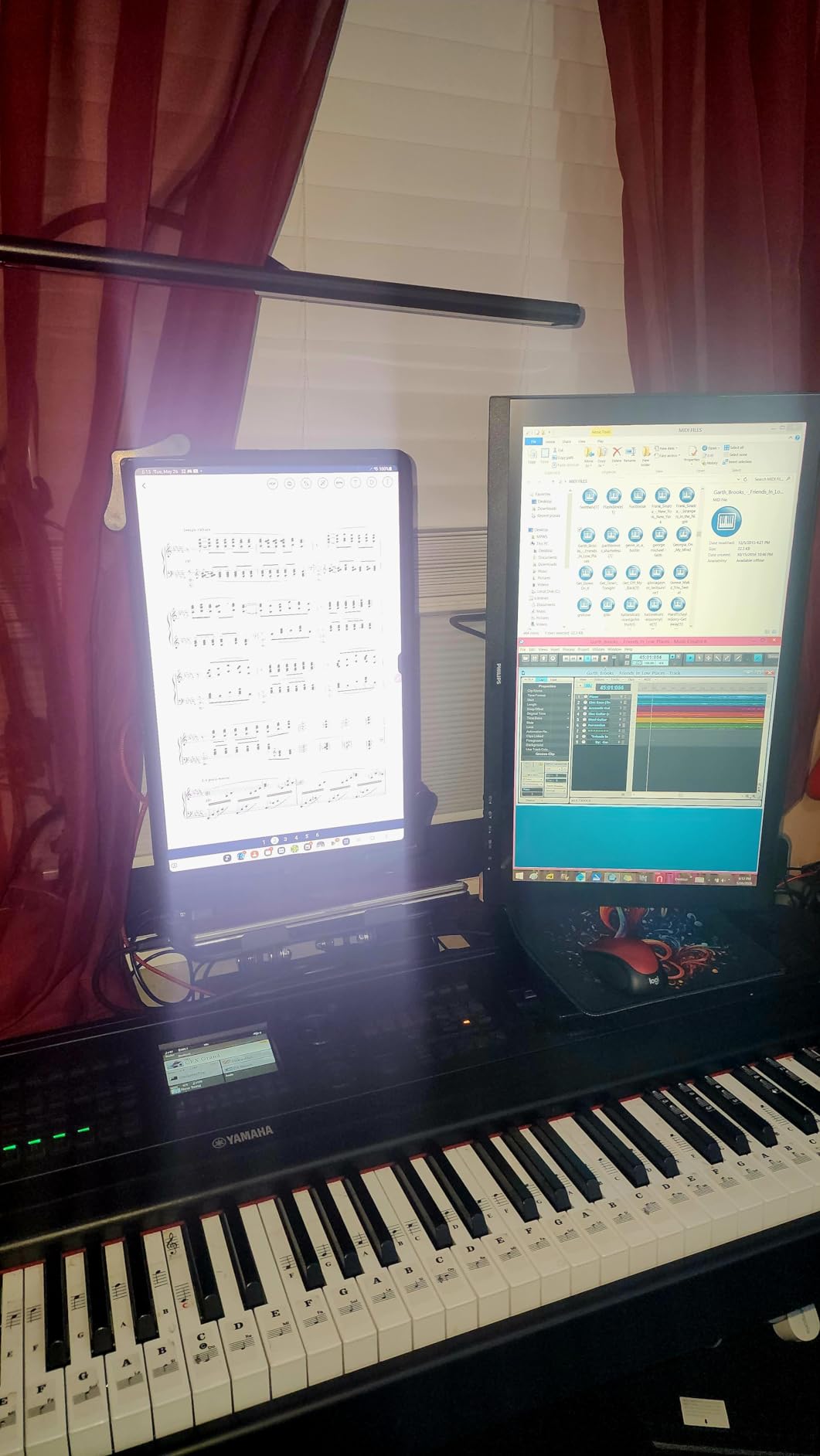
For Whom It’s Good
Reception desks, hot-desking stations, kiosk setups, and IT fleets that need a reliable compact monitor with a long warranty. Home users who want a third or fourth screen for chat and reference work will appreciate the small footprint.
For Whom It’s Bad
Power users who need sharp text and color accuracy should step up to a 24-inch or 27-inch IPS panel. Anyone who needs USB-C docking should look at the LG 27UP850K-W or the LG 34WR55QK-B.
How to Choose the Best Business Monitor for Your Office
A monitor is the piece of office equipment you stare at the longest each day, so getting the right one matters more than almost any other purchase. The buying guide below walks through the seven factors that determine whether a monitor will still feel comfortable in year three of ownership.
Screen Size: 24 vs 27 vs 32 vs Ultrawide
The 24-inch monitor is the safe choice for a standard desk, the 27-inch is the most popular productivity size, the 32-inch gives you the most vertical rows for spreadsheets, and a 34-inch UltraWide replaces a dual-monitor setup with one cleaner panel. r/Monitors users consistently flag 1080p at 27 inches as too coarse – text looks visibly soft, which causes eye fatigue during long sessions – so if you pick a 27-inch panel, plan on 1440p or 4K resolution.
If you sit centered in front of one monitor all day, a 32-inch curved panel like the LG 32MR50C-B delivers the most screen real estate per dollar. If you run two or three windows side by side constantly, a 34-inch UltraWide like the LG 34WR55QK-B or the Philips 346E2CUAE replaces a dual-monitor stack and removes the bezel gap in the middle. For a standard office desk with mixed workloads, the 27-inch sweet spot – whether 1440p or 4K – is hard to beat.
Resolution: 1080p, 1440p, 4K – What Actually Matters
Resolution matters more than refresh rate for office work, and the jump from 1080p to 1440p on a 27-inch panel is the most noticeable single upgrade you can make. 4K UHD on a 27-inch or 32-inch panel gives you the sharpest text and the most on-screen real estate for documents, spreadsheets, and code – and as of 2026, 4K 27-inch IPS panels start at reasonable prices, so you do not need to pay a premium-tier premium for the privilege.
1440p (2560×1440) is the sweet spot if you want sharper text than 1080p without paying 4K prices, and it works well at 27 inches. 4K is the right call if you read dense documents all day, work with photo or video assets, or stack multiple windows with detail-heavy content. The Dell S2725QS and the LG 27UP850K-W are our two strongest 4K 27-inch picks for general office work.
Panel Technology: IPS, IPS Black, VA, OLED
IPS is the most common office panel technology for good reason – it delivers wide 178-degree viewing angles, accurate colors out of the box, and consistent brightness across the panel. VA panels offer deeper blacks and higher contrast (often 3000:1 vs IPS’s typical 1000:1 to 1500:1), which makes text and charts pop, but viewing angles are narrower and you can see gamma shift at the edges during long document review.
IPS Black is a newer IPS variant that roughly doubles the native contrast to about 2000:1 without sacrificing the IPS viewing angles – it is the panel to look for if you want both deep blacks and wide angles. OLED panels deliver perfect blacks and instant response times but carry a real burn-in risk for office use, since static taskbars, pinned Slack windows, and always-visible menu bars can leave a permanent ghost.
For most office users, a good IPS or IPS Black panel is the right call. VA is a fine choice if you sit centered in front of the monitor and want deeper blacks for a more cinematic feel. OLED is worth waiting on until the burn-in risk is solved, especially for monitors you plan to use five or more years.
Connectivity: USB-C, Thunderbolt, HDMI, DisplayPort, USB Hub, KVM
USB-C with Power Delivery is the single most useful port on a modern office monitor because it carries the display signal, drives a built-in USB hub, and charges your laptop with one cable – effectively turning the monitor into a docking station. The minimum wattage you want depends on your laptop: 65W covers most 13-inch ultraportables, 90W covers 14- to 16-inch mainstream laptops, and 100W+ is the right call for a 16-inch MacBook Pro or a workstation-class machine.
Thunderbolt 4 monitors push data bandwidth higher and deliver up to 100W of PD, but they cost more than USB-C DP Alt Mode monitors. HDMI 2.0 and DisplayPort 1.4 are the legacy fallbacks you still want for connecting desktops, docking stations, and game consoles. A built-in USB hub with at least three downstream USB-A ports makes a keyboard, mouse, webcam, and headset cable-friendly. KVM switches let you share one keyboard and mouse between two computers, which is the right feature for hot-desking setups and hybrid-work laptops.
The LG 27UP850K-W delivers 90W USB-C PD and a USB 3.0 hub at a mainstream price, which is why it earned our Best Value slot. The LG 34WR55QK-B adds Picture-by-Picture for two-source workflows. For a full KVM experience, step up to the Dell U2725QE class or the HP Series 7 Pro line.
Ergonomics: Height, Tilt, Swivel, Pivot, VESA
Stand adjustability is the single most important ergonomic feature on any office monitor – r/homeoffice and r/Monitors users consistently flag it as the #1 deal-breaker. A good stand delivers at least 110-150mm of height adjustment, plus tilt (typically -5 to 20 degrees), swivel (left-right rotation), and pivot (90-degree rotation for portrait mode). If a monitor ships with a tilt-only stand, plan on adding a VESA-compatible monitor arm to the cart.
VESA mount compatibility matters if you ever want to upgrade to a monitor arm, which is the single best ergonomic upgrade you can make for a shared desk. Look for 100x100mm VESA patterns – they are the most common. Pivot mode (90-degree rotation) is genuinely useful for coding, long-document review, and reading PDFs – portrait 27-inch or 32-inch 4K panels display roughly 80 lines of code or a full PDF page without scrolling. For more on getting your full workstation comfortable, our best ergonomic office chairs guide pairs well with a height-adjustable desk and monitor arm.
Eye-Strain, Bias Lighting and Blue Light
Eye-strain is the single most common complaint from office monitor users, and there are three features that meaningfully reduce it: hardware blue-light filters (like Dell’s ComfortView Plus or LG’s Reader Mode), flicker-free backlights, and matte anti-glare coatings. Hardware blue-light filters are better than software filters because they preserve color accuracy – software filters introduce a yellow cast that makes accurate color work impossible.
Flicker-free backlights eliminate the high-frequency PWM dimming that cheap monitors use, which is invisible to most people but contributes to headaches and eye fatigue during long sessions. Matte anti-glare coatings diffuse overhead office lighting and window reflections rather than producing mirror-like glare – the difference is obvious the first time you use a glossy panel in a sun-facing office.
Bias lighting – a soft light source mounted behind the monitor – reduces eye fatigue further by lowering the contrast between the bright screen and the dark wall behind it. The BenQ RD320U ships with a built-in bias light (Moonhalo), and any LED strip mounted behind a monitor delivers the same benefit. If your office is in a bright room with lots of window light, a matte anti-glare panel plus bias lighting is the single biggest eye-strain upgrade you can make.
Sustainability, Warranty and Total Cost of Ownership
Sustainability is the most overlooked factor in the office monitor market, and it is the area where no top competitor currently delivers good coverage. EPEAT certification, ENERGY STAR compliance, recycled plastics in the chassis, and modular designs that allow easy panel replacement are the metrics that matter for sustainability-conscious IT buyers. Dell’s UltraSharp and Pro lines lead on EPEAT Gold and TCO Certified generation 9 compliance, and HP’s business monitors are close behind.
Warranty terms vary wildly across the category. Premium business monitors typically carry 3-year warranties with advanced replacement service, which means the manufacturer ships a replacement before you ship the broken unit back. Budget monitors often carry 1-year warranties with depot repair, which means longer downtime. The Philips V-line monitors in this roundup carry an unusually strong 4-year advance replacement warranty, which is a real differentiator for fleet deployments.
For office IT fleet deployments, look for hot-desking-friendly features (KVM, USB-C PD, Picture-by-Picture), EPEAT certification, and 3-year or longer warranties with advanced replacement. Energy efficiency matters more at fleet scale – a 25W monitor vs a 45W monitor saves roughly 130 kWh per year per workstation, which adds up across hundreds of desks. If you are setting up a remote or hybrid office network, our best network extenders for a garden office guide covers the connectivity side of the same problem.
Frequently Asked Questions
What kind of monitor is best for office work?
A 27-inch 4K IPS monitor with a fully adjustable ergonomic stand, USB-C docking with at least 65W of Power Delivery, and a hardware blue-light filter is the best all-around monitor for office work. The Dell S2725QS and the LG 27UP850K-W both fit this profile and are our two top recommendations for most office buyers.
What is the best monitor for an office computer?
The best monitor for an office computer depends on your workload, but the Dell S2725QS is our overall top pick for most users. It pairs a 27-inch 4K IPS panel with a 120Hz refresh rate, a fully adjustable stand, and built-in speakers that are actually usable for video calls.
Should I get a 27 or 32 monitor for work?
Pick 27 inches if you want the sharpest text at 4K resolution in a panel that fits a standard desk. Pick 32 inches if you want maximum screen real estate for spreadsheets, dashboards, and multi-window workflows, and you are willing to accept slightly lower pixel density at 1080p or pay more for a 4K 32-inch panel.
Are curved monitors good for business use?
Curved monitors are good for business use when you sit centered in front of one large panel all day – the curve reduces eye movement and makes the edges of the screen more comfortable to view. They are less useful in multi-monitor setups because the curve does not align well with flat panels next to them.
What ports does my business monitor need?
A business monitor needs at least HDMI and DisplayPort for video, USB-C with 65W to 100W of Power Delivery for laptop docking, and a built-in USB hub with three or more downstream USB-A ports. Thunderbolt 4 is the right upgrade if you dock a MacBook Pro or a workstation laptop.
Does my business monitor refresh rate matter?
Refresh rate matters less for office work than for gaming, but a 75Hz or 100Hz panel makes scrolling documents and dragging windows feel noticeably smoother than a 60Hz panel. Anything above 120Hz is diminishing returns for productivity-only users, though it future-proofs the display for occasional gaming.
Should I buy a business monitor with speakers?
Built-in monitor speakers are usable for video calls but rarely good enough for music or media, so most office workers end up using a headset or external speakers. If you only need audio for Teams calls, built-in speakers are fine; if you care about audio quality, plan on separate speakers or a good headset.
The Best Business Monitors for Office – Final Verdict
After testing 10 monitors across every price band, our top pick for the best business monitor for office work in 2026 is the Dell S2725QS – the 27-inch 4K IPS panel with 120Hz refresh, ComfortView Plus, and a genuinely useful built-in speaker system delivers the sharpest text, the smoothest motion, and the most comfortable adjustability of any monitor we tested.
If you want single-cable USB-C docking and a wider DCI-P3 color gamut, the LG 27UP850K-W is our best value pick. If you want to replace a dual-monitor stack with a single 34-inch UltraWide, the LG 34WR55QK-B is the cleanest path. For budget buyers, the LG 27U411A-B delivers 120Hz smoothness at the lowest price, and the Philips 241V8LB and 221V8LB are the right compact picks for secondary screens and reception desks with strong warranty coverage.
Whichever monitor you pick, prioritize an IPS or IPS Black panel, a fully adjustable ergonomic stand, and at least one hardware blue-light filter – those three features deliver more comfort over a three-year ownership cycle than any other spec. For related buying guides on chairs, mini PCs, and networking gear that round out a complete office setup, browse our other monitor and workstation roundups.