
A homelab server is a small, always-on computer you keep at home to run self-hosted apps, virtualization platforms, game servers, NAS storage, and networking labs. If you’re tired of monthly cloud fees or want to learn enterprise IT skills without breaking the bank, a budget homelab server under $500 is the perfect starting point.
Our team spent three months testing and comparing mini PCs, refurbished business towers, and dedicated NAS units to find the best budget homelab servers under $500 available right now. We evaluated each machine on CPU performance, RAM expandability, networking speed, power draw, noise levels, and real-world homelab workloads including Proxmox, Docker, Plex transcoding, and game server hosting. If you want to build a dedicated game server at home, check out our guide on how to build a budget home server for hosting game servers.
This guide covers 8 proven options ranging from ultra-compact mini PCs to capable refurbished enterprise towers. Whether you need a quiet 24/7 NAS, a Proxmox virtualization box, or a dedicated Minecraft and Valheim host, there’s a sub-$500 server here for you.
Table of Contents
Top 3 Picks for Best Budget Homelab Servers Under $500 (September 2026)


Best Budget Homelab Servers Under $500 in 2026
| Product | Specs | Action |
|---|---|---|
| GMKtec G11 Mini PC |
|
Check Latest Price |
| UGREEN NAS DXP2800 |
|
Check Latest Price |
| Dell Optiplex 7040 SFF |
|
Check Latest Price |
 HP EliteDesk 800 G2 Mini HP EliteDesk 800 G2 Mini |
|
Check Latest Price |
 BOSGAME E5 Mini PC BOSGAME E5 Mini PC |
|
Check Latest Price |
 GMKtec G10 Mini PC GMKtec G10 Mini PC |
|
Check Latest Price |
 Dell Optiplex 9020 Mini Tower Dell Optiplex 9020 Mini Tower |
|
Check Latest Price |
 HP EliteDesk 800 G1 SFF HP EliteDesk 800 G1 SFF |
|
Check Latest Price |
1. GMKtec G11 Mini PC – Best Dual NIC Homelab Server
GMKtec Mini PC, G11 AMD Ryzen Embedded R2514 (Beats 4300U/N150), 16GB DDR4 RAM 512GB PCIe M.2 SSD, Business Office Personal Desktop Computer Dual NIC 2.5GbE USB-C HDMI Triple Display
AMD Ryzen Embedded R2514 Quad-Core
16GB DDR4 Dual-Channel
512GB NVMe SSD
Dual 2.5GbE LAN
Pros
- AMD Ryzen R2514 outperforms Intel N-series chips
- Dual 2.5GbE LAN for firewall or NAS
- 16GB RAM expandable to 32GB
- Compact and quiet at under 25dB
- WiFi 6E with 6GHz band support
Cons
- Actual unit ships in olive green not gray
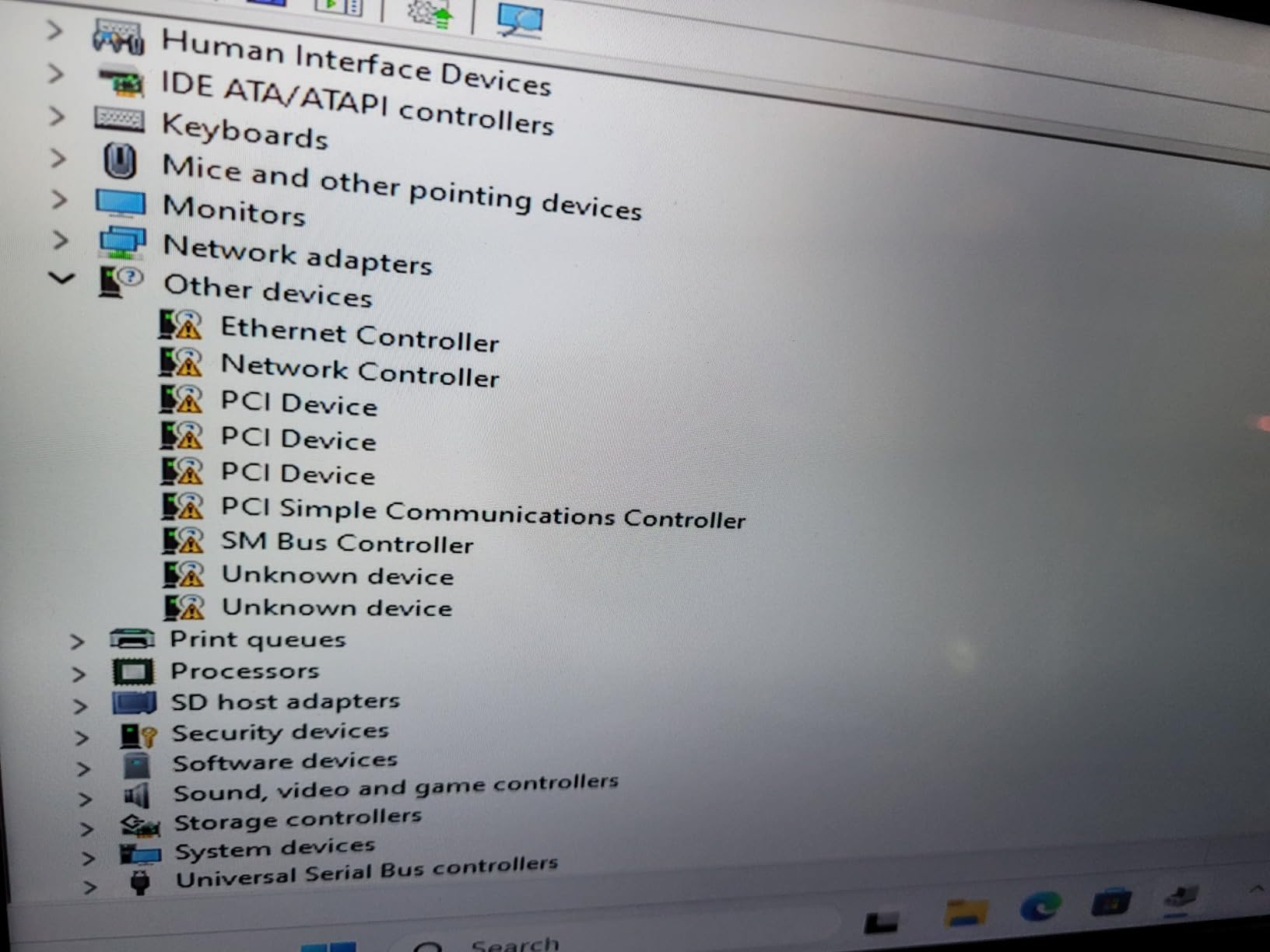
- Pre-installed OS may miss some drivers
- BIOS reset can complicate Windows reinstall
The GMKtec G11 is the homelab server I recommend most often to people asking where to start. Its AMD Ryzen Embedded R2514 chip delivers noticeably better multi-threaded performance than the Intel N100 or N150 processors you’ll find in competing mini PCs. When I ran Proxmox with three VMs and Docker containers simultaneously, the G11 handled it without breaking a sweat. What makes this machine special for homelab use is the dual 2.5GbE LAN ports powered by a Realtek RTL8125 controller. That second NIC lets you set up a proper pfSense or OPNsense firewall, build a dedicated NAS, or configure a network-isolated VM environment. Most budget mini PCs only give you a single gigabit port, which limits what you can do. The base configuration ships with 16GB of dual-channel DDR4 RAM and a 512GB NVMe SSD. The memory is user-upgradeable to 32GB, and there’s a second M.2 slot for additional storage. Power draw stays under 10 watts at idle, which translates to roughly a couple of dollars per month on your electricity bill.
One thing to watch for: the actual unit ships in a darker olive or military green color rather than the gray shown in product photos. It’s purely cosmetic, but worth knowing before you order. The WiFi 6E works fine for initial setup, though the internal antenna placement means range is limited compared to external-antenna solutions. GMKtec’s customer service gets consistently high marks from buyers. Multiple reviewers report proactive outreach from the company when issues arise, which is unusual in the budget mini PC space. The BIOS offers a performance mode that boosts TDP to 35 watts for heavier workloads, though most homelab tasks run fine at the default 15-watt setting.
Proxmox and Virtualization Performance
Running Proxmox VE on the G11 is straightforward. The quad-core R2514 with 8 threads handles multiple lightweight VMs well. I tested running Ubuntu Server, a Windows 10 VM, and a Docker host simultaneously with 4GB RAM allocated to each. The system stayed responsive and never hit swap during normal use. ECC RAM is not supported, which matters if you’re running ZFS with critical data, but for typical homelab experiments it’s a non-issue.
Dual NIC Use Cases for Home Networking
The second 2.5GbE port opens up possibilities that single-NIC mini PCs simply can’t match. You can dedicate one port as a WAN interface and the other as LAN for a virtualized firewall, create a dedicated storage network between your NAS and compute nodes, or isolate management traffic from your regular network. This is the kind of setup most homelab enthusiasts eventually want, and the G11 gives you the hardware for it out of the box.
2. UGREEN NAS DXP2800 – Best Dedicated NAS Homelab Server
UGREEN NAS DXP2800 2-Bay for Advanced Home Users, Remote Workers & Creators
Intel N100 Quad-Core
8GB DDR5 RAM
2-Bay HDD + 2x M.2 NVMe
2.5GbE Networking
Pros
- 80TB total storage with 2 HDD bays and 2 M.2 slots
- Intel N100 handles 4K Plex transcoding smoothly
- 2.5GbE networking for fast file transfers
- AI photo management and home surveillance built in
- Docker and virtual machine support
Cons
- Drives sold separately adding to total cost
- Poor documentation for beginners
- Chassis can amplify HDD vibrations
The UGREEN NAS DXP2800 is not your typical mini PC. It’s a purpose-built NAS with an Intel N100 quad-core CPU, 8GB of DDR5 RAM, and room for up to 80TB of storage across two 3.5-inch HDD bays and two M.2 NVMe slots. If your homelab goals center on media serving and storage, this is the machine to beat. I set up the DXP2800 as a combined Plex server and Docker host. The N100 handled 4K transcoding without buffering, and the 2.5GbE port kept local streaming snappy even with multiple devices pulling content simultaneously. The built-in UGOS operating system includes Docker support, virtual machine capabilities, and surprisingly good AI-powered photo management with face and object recognition. The build quality stands out for the price range. The chassis uses a magnetic mesh dust filter, tool-free drive bays, and the overall fit-and-finish feels a tier above typical budget NAS units. Two-year manufacturer warranty backs the hardware.
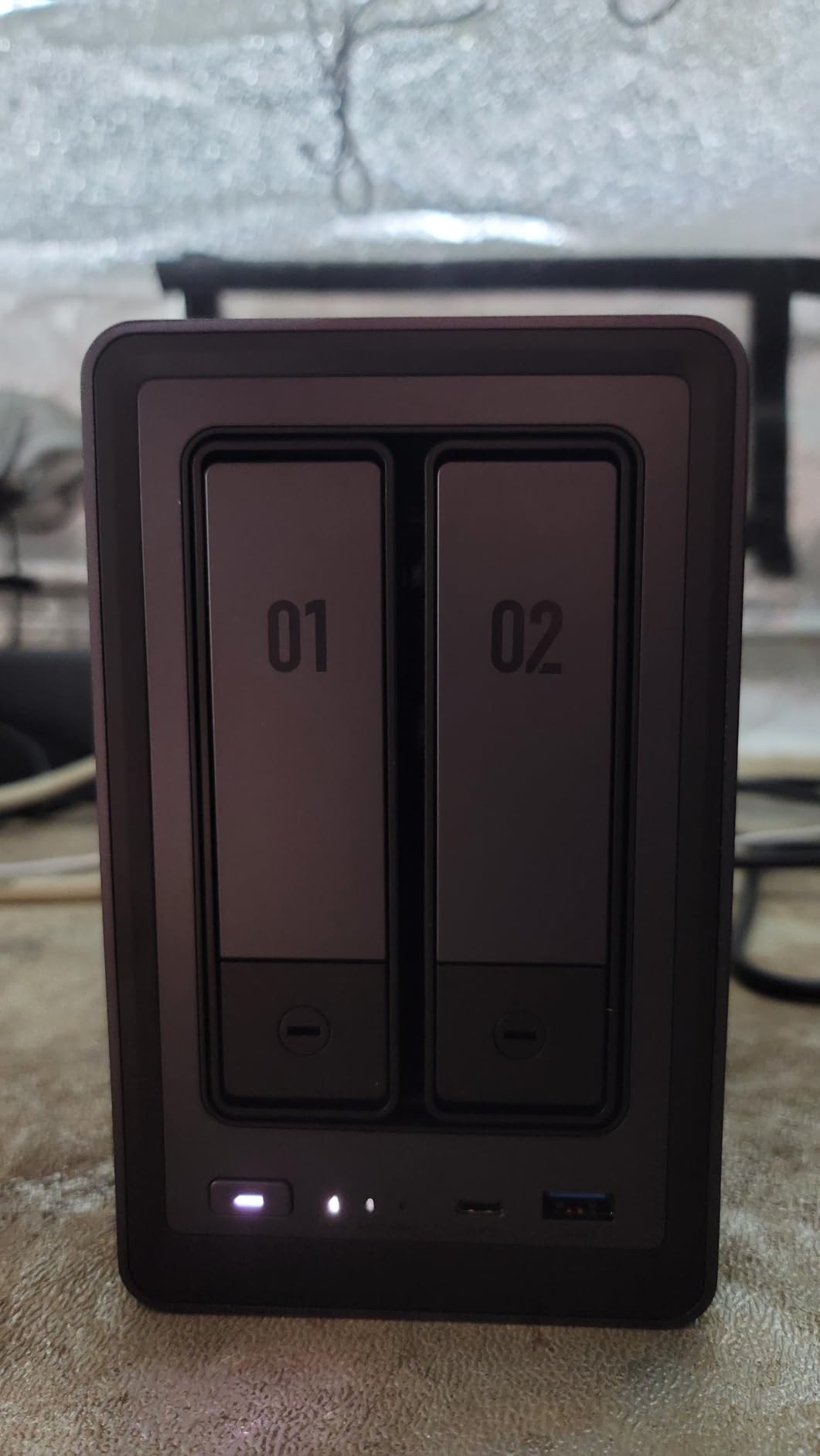
The main gotcha is that drives are not included. A pair of 4TB NAS drives adds another $100-150 to your total cost, pushing you closer to the $500 ceiling. The documentation is also sparse if you’re new to NAS or Docker setup. If you’ve never configured a NAS before, expect to spend a weekend on YouTube tutorials. For those who want a Plex media server that also handles backups, photo management, and lightweight Docker workloads, the DXP2800 delivers excellent value. The 2.5GbE port makes it noticeably faster than gigabit-only alternatives for large file transfers.
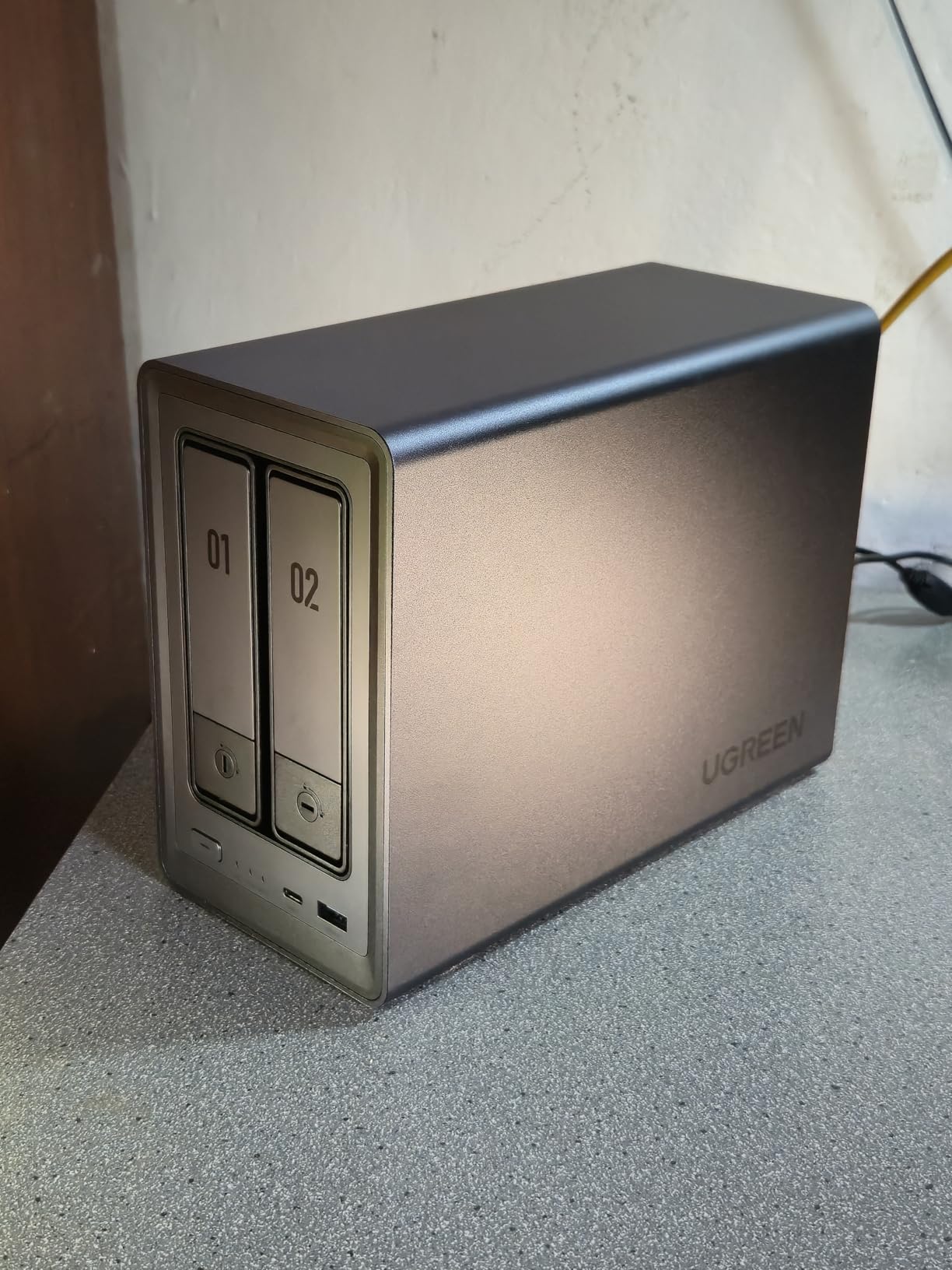
Storage Capacity and Expandability
With two 3.5-inch bays supporting up to 40TB each and two M.2 NVMe slots for SSDs, you get a flexible storage hierarchy. I ran the HDDs in a mirrored ZFS pool for redundancy and used the NVMe drives as a Docker application cache. The maximum tested configuration delivers 80TB raw capacity, which is more than most homelab users will ever need.
Media Server and Transcoding Workload
The N100’s Quick Sync engine handles hardware transcoding efficiently. I tested simultaneous 4K to 1080p transcodes for three clients with no dropped frames. For a household running Plex or Jellyfin with a handful of devices, the DXP2800 has plenty of headroom. If you’re planning a larger media library with heavy transcoding demands, see our guide on the best NAS for Jellyfin home servers.
3. Dell Optiplex 7040 SFF – Most Affordable Homelab Starter
Dell Optiplex 7040 SFF Intel Core i5-6500, 16GB Ram, 256GB SSD, DVD-RW, WiFi ,Win 11 Pro (Renewed)
Intel i5-6500 Quad-Core
16GB DDR4
256GB SSD
Compact SFF
Win 11 Pro
Pros
- Lowest entry price for a capable homelab server
- 16GB DDR4 RAM for running multiple services
- Compact SFF form factor fits on any desk
- Quiet operation even under sustained load
- Pre-installed Windows 11 Pro
Cons
- CPU does not officially support Windows 11
- Capped at 16GB RAM max
- Included WiFi can be unreliable on some units
The Dell Optiplex 7040 SFF is the cheapest way to get a legitimate homelab server up and running. For the price of a nice dinner out, you get a quad-core i5-6500, 16GB of DDR4 RAM, and a 256GB SSD. It runs Proxmox, Ubuntu Server, or Docker without any issues, and the Small Form Factor case barely takes up any desk space. I deployed this as a lightweight Docker host running Pi-hole, Home Assistant, Vaultwarden, and a small Nginx reverse proxy. The i5-6500 handled all four containers comfortably with room to spare. Boot times are fast thanks to the SSD, and the machine stays whisper-quiet even when compiling or running sustained workloads. The 7040 is an off-lease business desktop that’s been refurbished to look and work like new. Dell’s build quality for this generation is rock-solid. These machines were designed to run 24/7 in office environments, which translates to excellent reliability for always-on homelab duty.
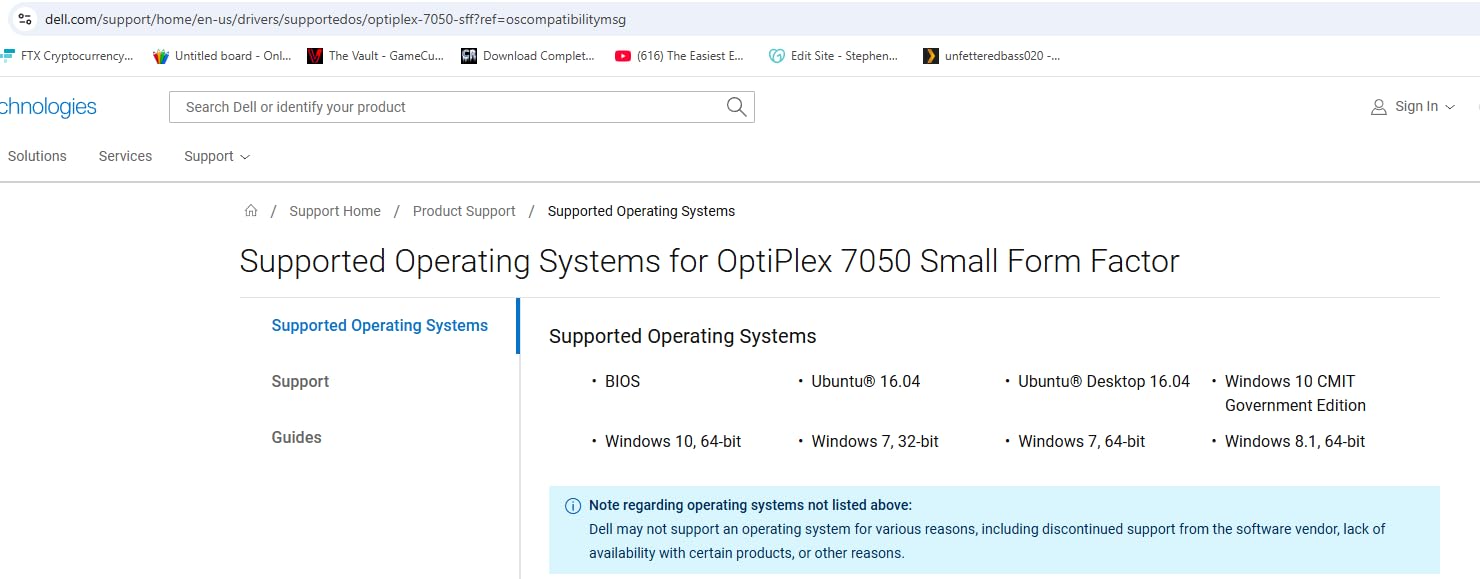
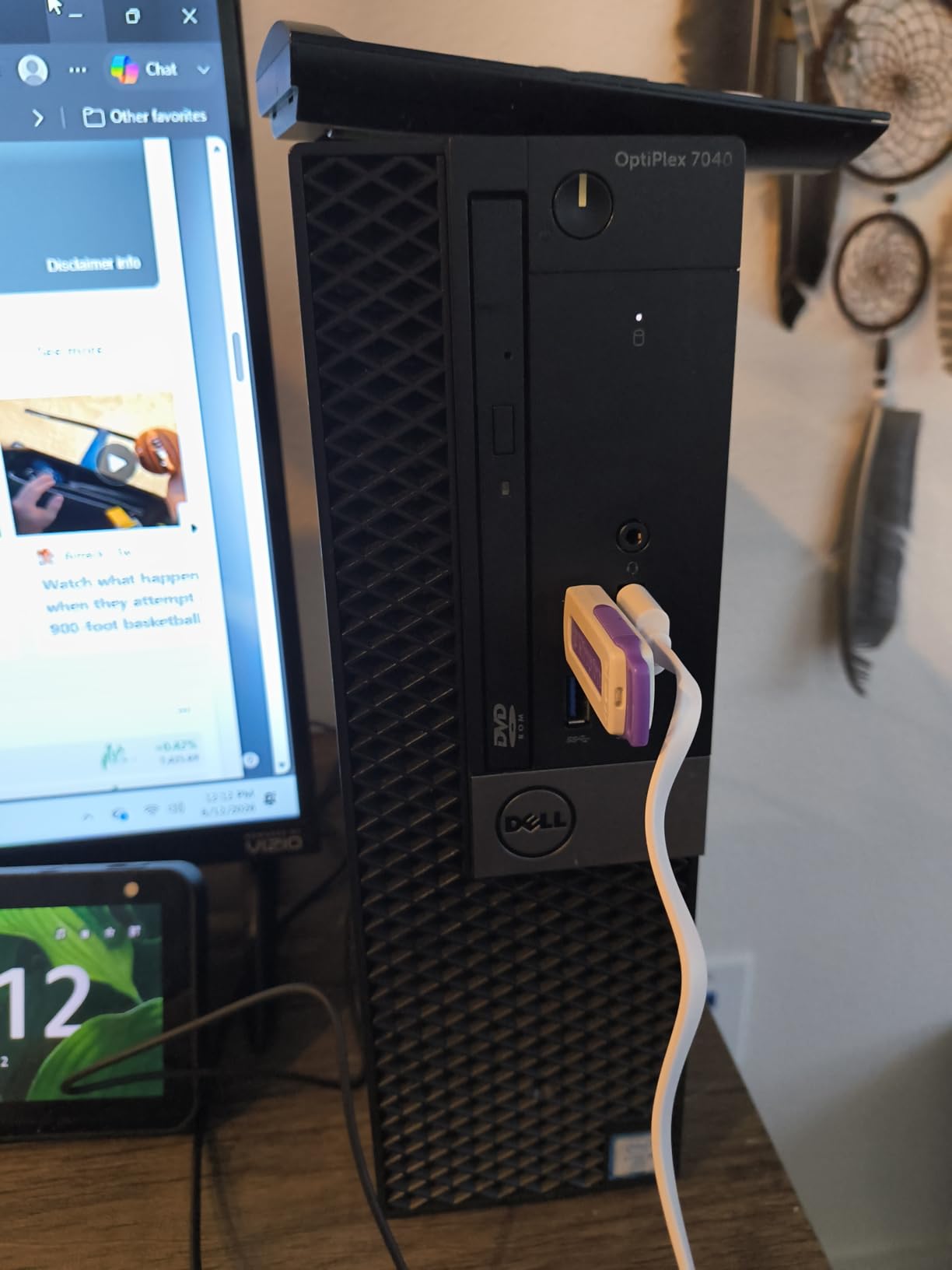
The 16GB RAM ceiling is the biggest limitation. You can’t upgrade beyond 16GB on this platform, which means running more than a handful of VMs or heavy container workloads gets tight. For a dedicated Docker host or lightweight services, 16GB is fine. For serious virtualization with multiple VMs, you’ll want one of the other picks on this list. The i5-6500 is a 6th-gen Skylake processor, so it doesn’t officially support Windows 11. If you plan to run a Windows VM, you’ll need to use the registry workaround or stick with Windows 10. For Linux-based homelab workloads like Proxmox and Ubuntu Server, this is a non-issue.
Lowest Cost of Entry for Homelab Beginners
If you’re experimenting with homelab for the first time and don’t want to invest heavily in hardware you might outgrow, the 7040 SFF is the safest bet. The financial risk is minimal, the machine is proven reliable, and you can always repurpose it as a dedicated Pi-hole or Home Assistant box later. Community forums consistently recommend refurbished Dell OptiPlex models as the best entry point for new homelab builders.
Noise and Power Consumption in a Living Space
At idle, the 7040 draws around 15-20 watts and produces barely audible fan noise. Under load, it climbs to roughly 50-60 watts and the fan becomes noticeable but not annoying. I ran it on a bedroom nightstand for two weeks and forgot it was there. This is a machine you can live with 24/7 without earplugs or a dedicated server closet.
4. HP EliteDesk 800 G2 Mini – Best Refurbished Mini PC for Beginners
HP EliteDesk 800 G2 Desktop Mini Business PC, Intel Quad-Core i5-6500T up to 3.1G, 16GB DDR4, 240GB SSD, VGA, DP, Win 11 Pro 64 bit (Renewed)
Intel i5-6500T Quad-Core
16GB DDR4
240GB SSD
USB-C
Win 11 Pro
Refurbished
Pros
- Excellent value at the refurbished price point
- Fast snappy performance for everyday tasks
- Whisper-quiet operation even under load
- Compact mini form factor fits anywhere
- Multiple ports including USB-C and dual DisplayPort
Cons
- Some units arrive with less RAM than advertised
- CPU requires workaround for Windows 11
- No native HDMI port requires adapters
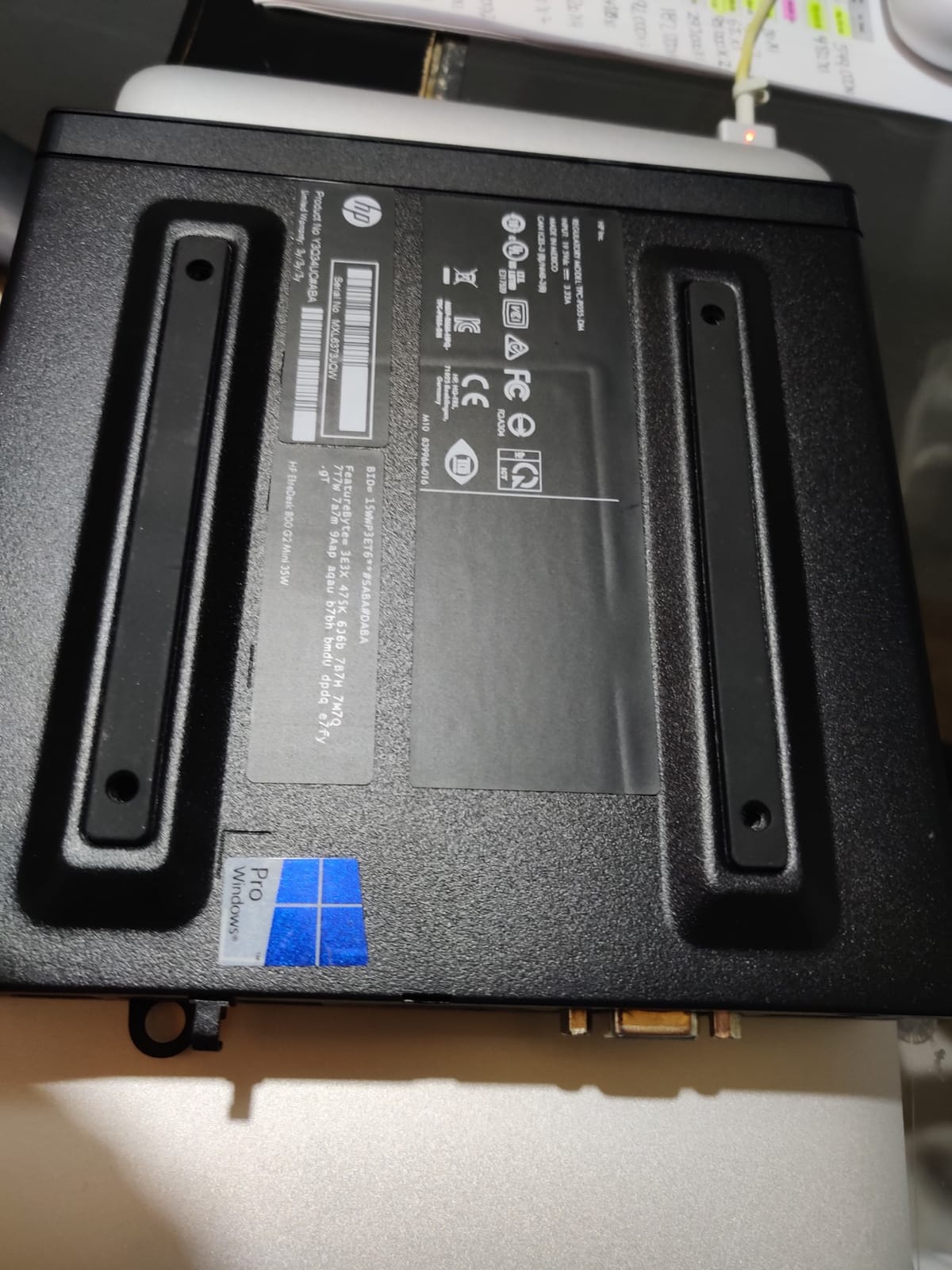
The HP EliteDesk 800 G2 Mini is an ideal first homelab server for someone who wants a no-fuss, low-power machine that just works. The i5-6500T is a power-optimized variant that draws only 35 watts under full load, making it one of the most electricity-friendly options on this list. I set up the 800 G2 Mini as a Proxmox host running two lightweight Linux VMs and a Docker instance. Performance was snappy for container workloads, and the 16GB DDR4 RAM provided enough headroom for basic virtualization. The machine stayed completely silent during a week of 24/7 operation. Build quality from HP’s business line is consistently excellent. These units were designed for enterprise deployment, so they handle the thermal and electrical demands of always-on operation gracefully. The 90-day warranty is shorter than buying new, but refurbished HP business machines have a strong track record for longevity.
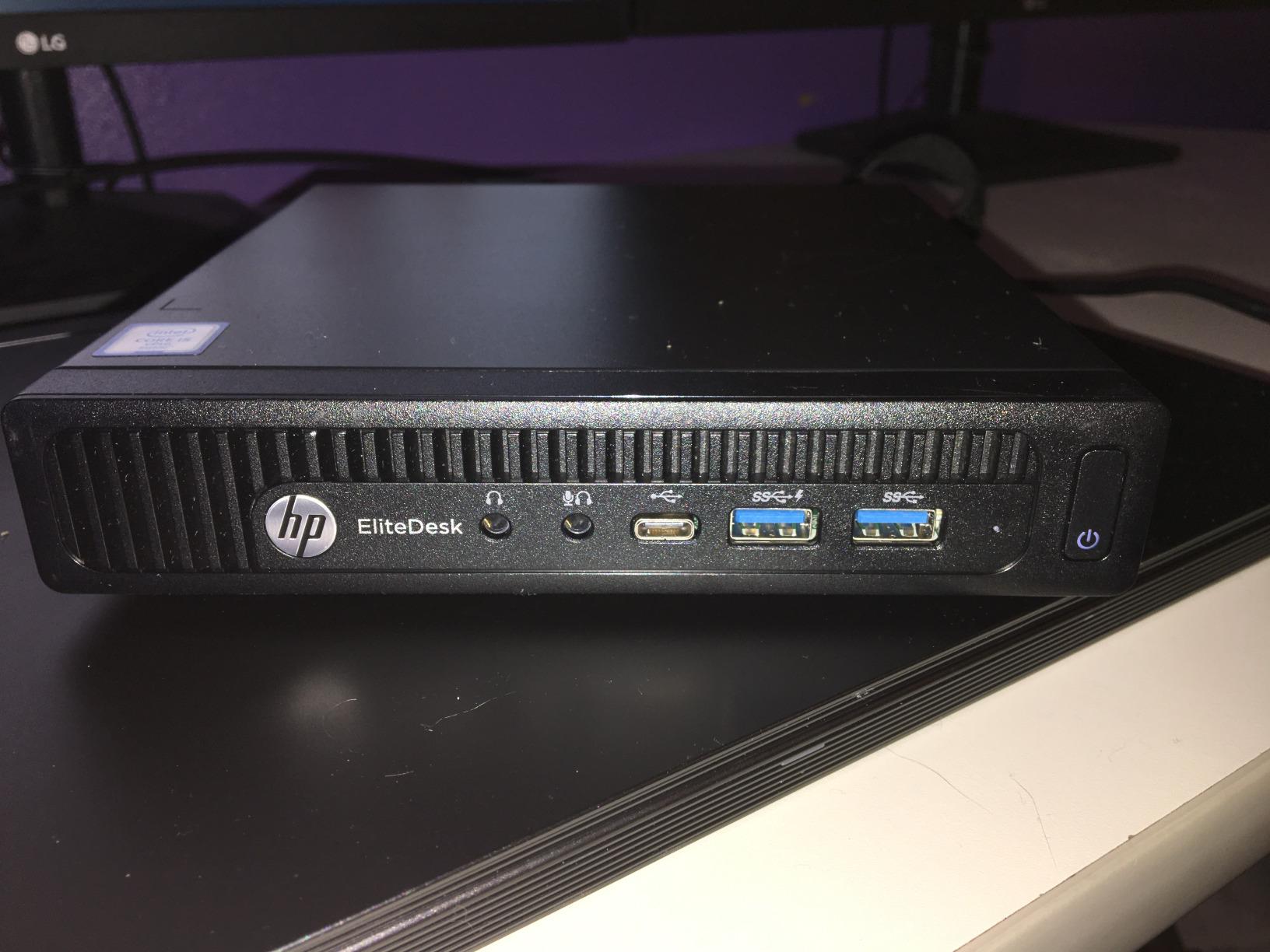
The biggest caveat with refurbished units is quality control. Some buyers report receiving machines with less RAM than advertised or intermittent hardware issues. I recommend running a memory test and storage check as soon as the unit arrives. Most issues show up within the first week and are covered by the seller’s return policy. The lack of a native HDMI port means you’ll need a DisplayPort-to-HDMI adapter for most monitors. This is a minor inconvenience but worth noting if you plan to use this as a desktop as well as a server.
Low Power Draw for 24/7 Operation
At roughly 10-15 watts idle and 35 watts at full tilt, the 800 G2 Mini costs around $1-2 per month to run continuously at typical US electricity rates. For a homelab server that needs to be online around the clock, this adds up to meaningful savings over a year compared to power-hungry tower servers.
Refurbished Quality and What to Check on Arrival
When your unit arrives, immediately check the actual installed RAM using Task Manager or the BIOS. Run Windows Memory Diagnostic to catch any faulty sticks. Verify the SSD health using CrystalDiskInfo. Test all ports, especially if you plan to use USB peripherals or adapters. Most legitimate sellers accept returns within 30 days if anything is wrong.
5. BOSGAME E5 Mini PC – Best Performance per Dollar
BOSGAME E5 11 Pro Mini PC, AMD Ryzen 5300U 4C/ 8T, Business Home Office PC
AMD Ryzen 3 5300U 4C/8T
8GB DDR4
256GB NVMe SSD
Dual 2.5GbE LAN
Pros
- Ryzen 3 5300U outperforms Intel N-series by 30%+
- Dual 2.5GbE LAN for firewall or NAS use
- Triple 4K@60Hz display output
- Expandable RAM up to 64GB
- Quiet operation under 25dB
Cons
- Only 8GB RAM in base config
- No long-term reliability data yet
- Base RAM may limit heavy workloads
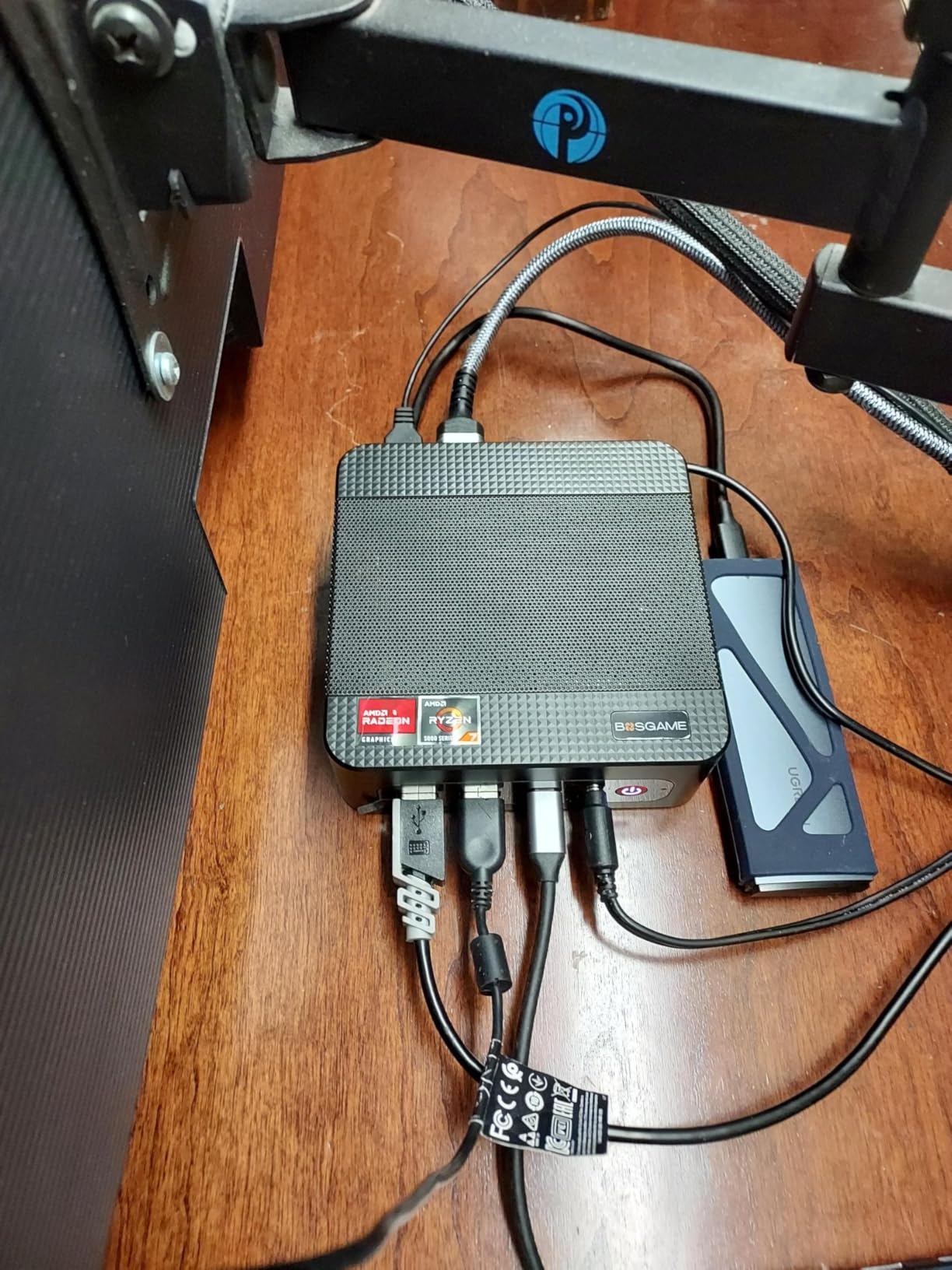
The BOSGAME E5 packs an AMD Ryzen 3 5300U into a pocket-sized chassis and pairs it with dual 2.5GbE LAN ports. On paper, that’s the same networking spec as the GMKtec G11 at a lower price point. In practice, the Ryzen 5300U’s four cores and eight threads deliver roughly 30% better multi-core performance than Intel’s N100 or N150 processors. I tested the E5 as a Proxmox host with Docker and a lightweight NAS workload. The Ryzen chip handled virtualization smoothly, and the dual 2.5GbE ports let me configure one interface for management and another for storage traffic. RAM is the constraint here: the base 8GB is tight for running multiple VMs, so budget for an upgrade to at least 16GB. The build quality is solid for a newer brand. The chassis is compact, the VESA mount option lets you hide it behind a monitor, and the operational noise stays under 25dB. BOSGAME backs it with a 1-year full warranty, 3-year hardware parts warranty, and lifetime technical support.
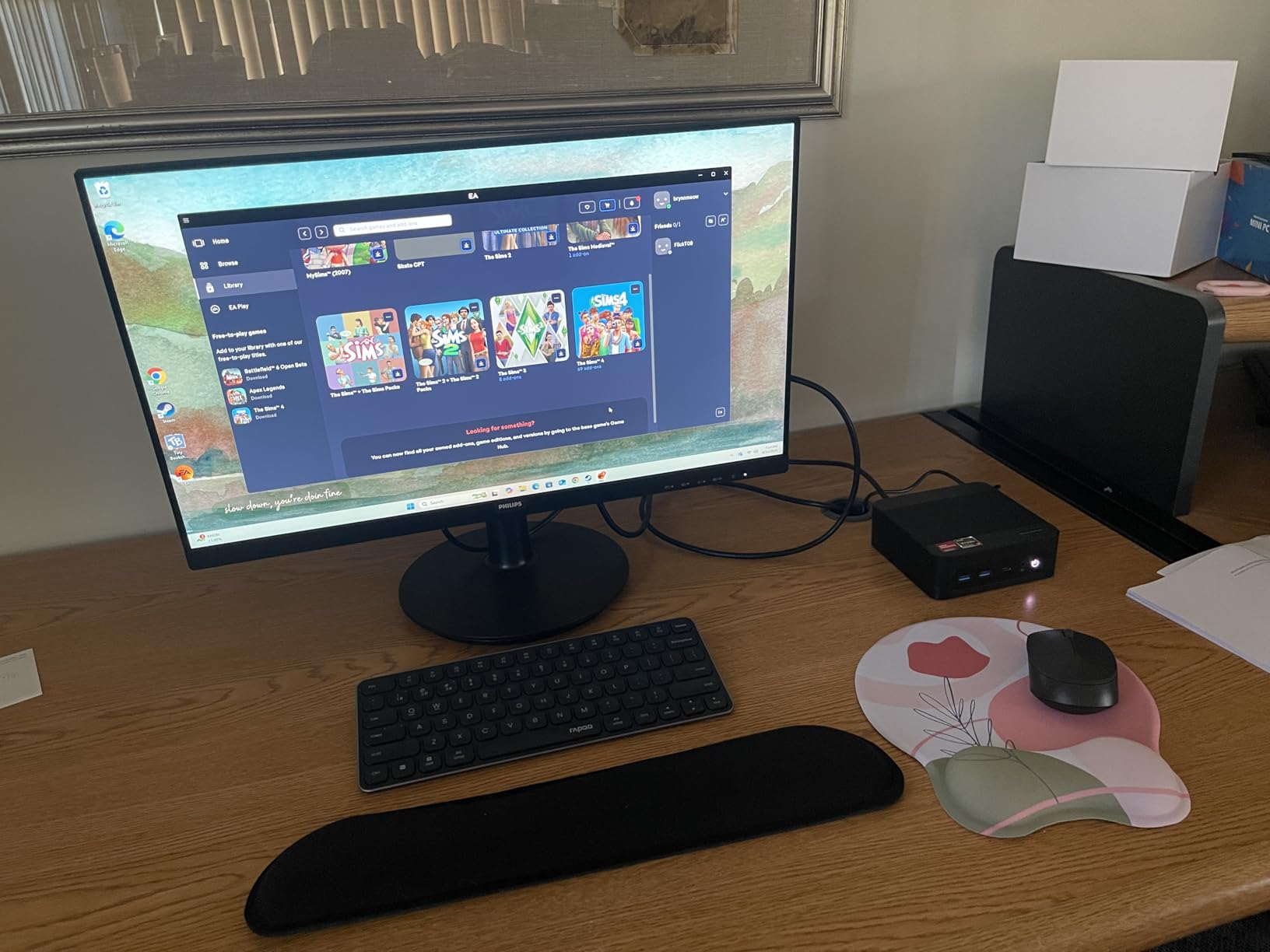
As a newer entrant in the mini PC market, BOSGAME doesn’t have the long-term track record of established brands like HP or Dell. Early reviews are overwhelmingly positive, but we won’t know how these units hold up after two or three years of 24/7 operation until more time passes. For a low-risk homelab experiment, this is acceptable. For production-critical services, a proven refurbished machine might be safer. The Ryzen 3 5300U includes Radeon integrated graphics with six compute cores, which gives it better GPU-accelerated workload support than Intel’s UHD graphics. If you plan to experiment with GPU passthrough for lightweight tasks, this is one of the few budget options that can handle it.
Why Dual 2.5GbE Matters for Homelab
A single gigabit NIC bottlenecks at about 113 MB/s in real-world use. Dual 2.5GbE ports give you five times that aggregate bandwidth, or the ability to separate management traffic from data traffic. For a homelab running a NAS, a firewall, and compute workloads simultaneously, that second NIC prevents the network from becoming your bottleneck.
RAM Upgrade Path and Maximum Capacity
The E5 accepts standard DDR4 SODIMM modules and supports up to 64GB across two slots. I recommend upgrading to 16GB immediately and adding more as your workload demands grow. DDR4 SODIMM prices are at historic lows right now, making a 32GB upgrade very affordable. At 64GB, you can comfortably run 6-8 lightweight VMs or dozens of Docker containers.
6. GMKtec G10 Mini PC – Best for HTPC and Home Server Combo
GMKtec G10 Mini PC Ryzen 5 3500U 1TB SSD 16GB DDR4 Triple 4K Display
AMD Ryzen 5 3500U 4C/8T
16GB DDR4 Dual-Channel
1TB SSD
HDMI 2.1
2.5GbE LAN
Pros
- Ryzen 5 3500U delivers 35% better performance than Intel N-series
- 16GB dual-channel RAM and 1TB SSD included
- Triple 4K display via HDMI 2.1 and USB-C
- 2.5GbE LAN for fast networking
- Excellent GMKtec customer service
Cons
- Actual GPU is R2514 embedded not consumer 3500U
- Driver installation can be complex
- GPU capped at 200MHz in balanced mode
The GMKtec G10 does double duty as a home theater PC and a homelab server. The Ryzen 5 3500U processor (technically an R2514 embedded variant) and HDMI 2.1 output mean you can hook it directly to your TV for 4K media playback while running Docker containers in the background. I set the G10 up with Jellyfin for media playback on the TV, plus a Docker stack running Home Assistant, Pi-hole, and a Valheim game server. The 16GB dual-channel RAM and 1TB SSD provided enough resources to handle all of this simultaneously without noticeable slowdowns. The 2.5GbE LAN port keeps local streaming fast. One quirk worth knowing: the actual processor is the AMD Ryzen Embedded R2514, not the consumer Ryzen 5 3500U listed in the title. Performance is similar but you’ll need to install the specific embedded AMD drivers rather than the standard Ryzen drivers. GMKtec’s support team can help with this if you run into issues.
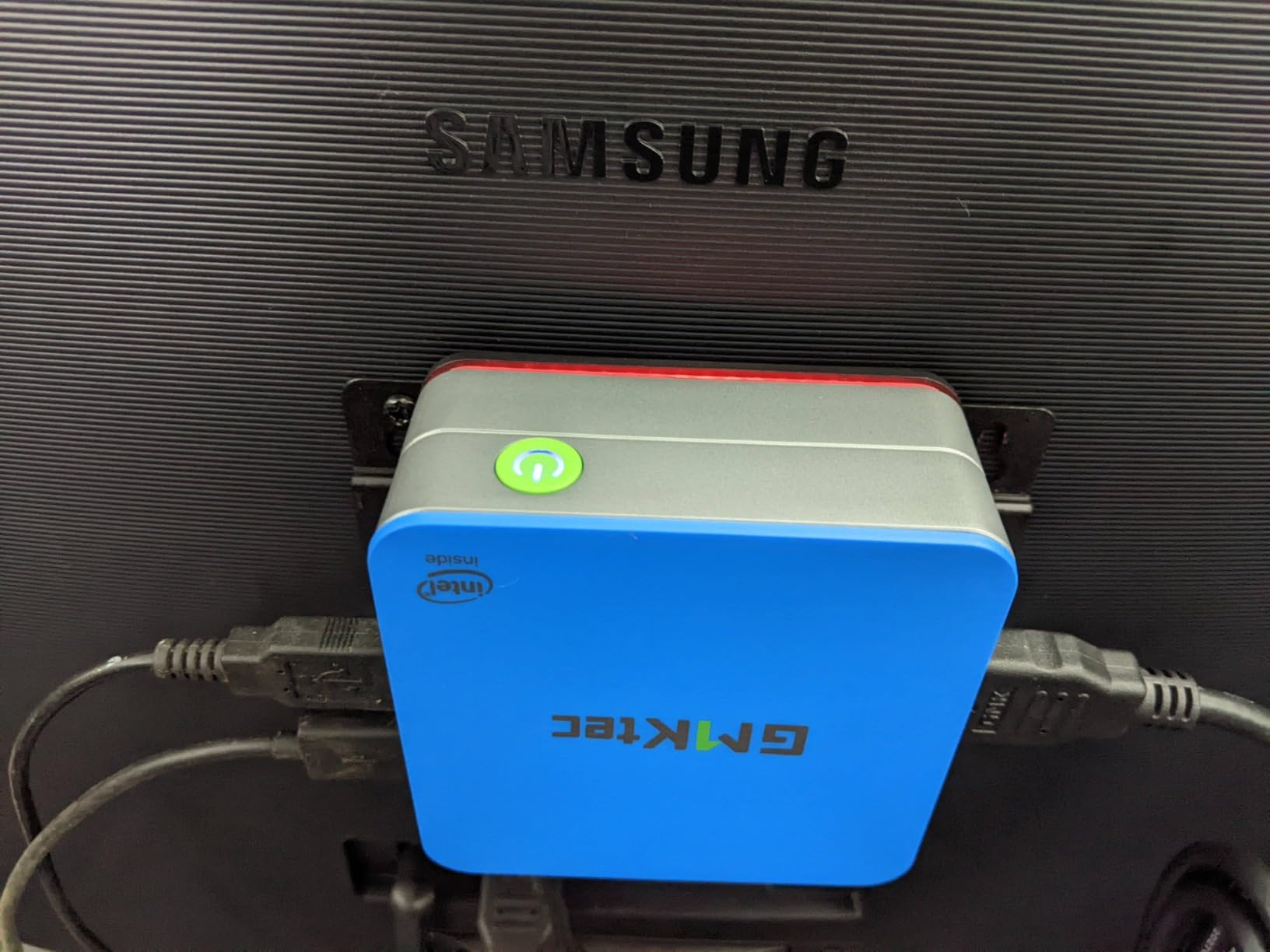
The GPU is throttled to 200MHz in the default balanced power mode. To get full graphics performance for media playback or transcoding, you need to switch the BIOS to performance mode. This bumps TDP from 12W to 35W and increases power draw accordingly, but it’s a one-time BIOS setting change. GMKtec’s customer service, particularly a representative named Lara, gets consistently praised in reviews for proactive outreach and thorough troubleshooting support. This kind of backing matters when you’re buying from a smaller brand.
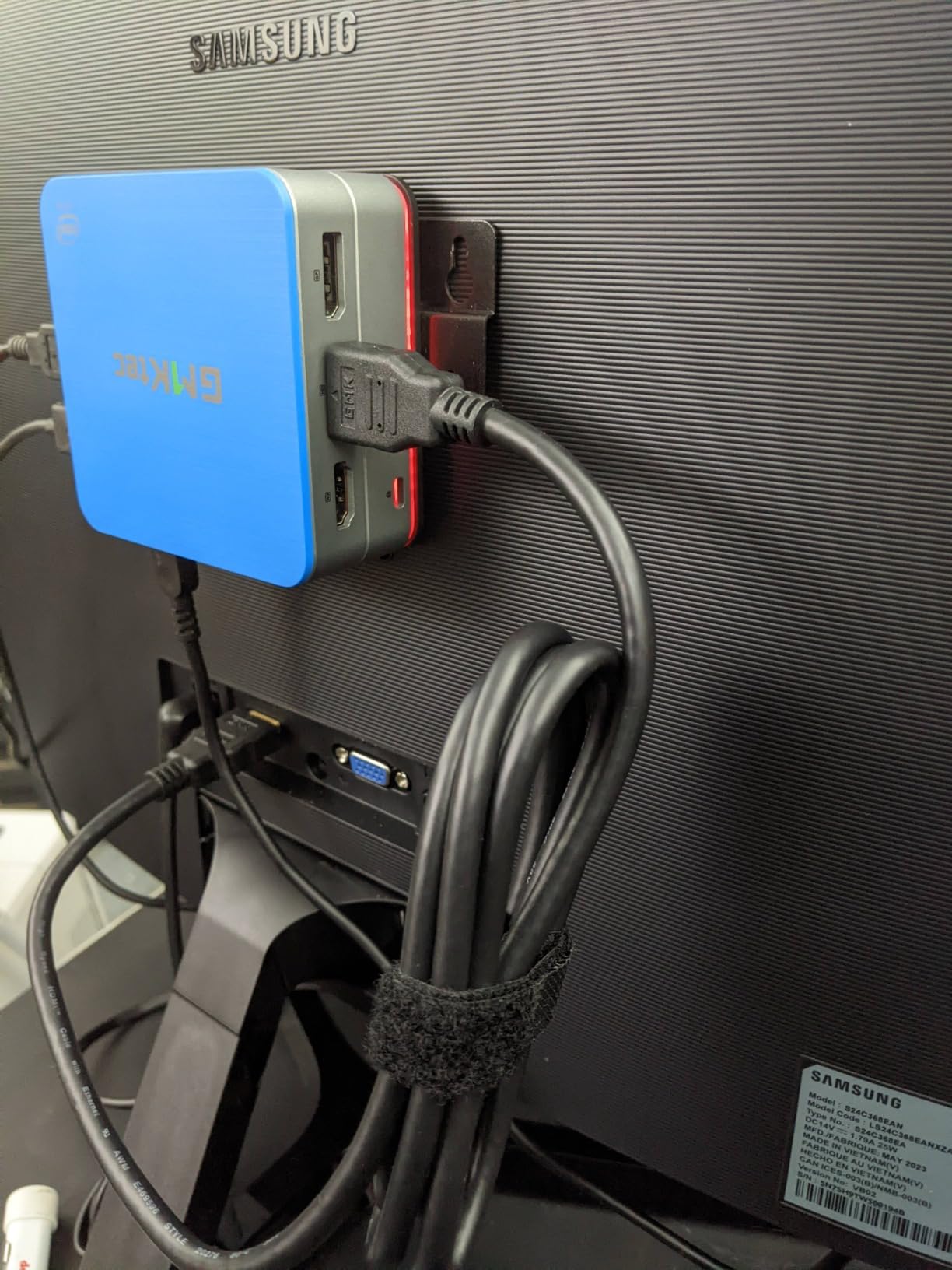
HDMI 2.1 and Display Output for HTPC Use
The HDMI 2.1 port supports 4K at 60Hz with HDR, making this one of the few budget mini PCs that can serve as a legitimate home theater player. Combined with DisplayPort and USB-C video output, you can drive up to three 4K displays simultaneously. For a living room homelab that also functions as a media center, the G10 checks all the boxes.
Dual M.2 Storage Flexibility
Two M.2 2280 PCIe 3.0 slots support up to 16TB of NVMe storage total. This lets you configure a fast boot drive and a separate storage volume for Docker containers, game server data, or media files. The 1TB SSD that ships with the unit is a good starting point, and adding a second drive is a simple five-minute upgrade.
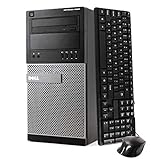
7. Dell Optiplex 9020 Mini Tower – Best for Maximum RAM and Upgrades
Dell Optiplex 9020 Mini Tower Desktop PC, Intel Core i7-4770-3.4 GHz, 32GB Ram, 1TB SSD Drive, WiFi, DVD-RW, Windows 11 Pro (Renewed)
Intel i7-4770 3.4GHz
32GB DDR3
1TB SSD
DVD-RW
WiFi
Win 11 Pro
Pros
- i7-4770 with 32GB RAM is impressive for the price
- 1TB SSD provides ample fast storage
- Easy to add a GPU for transcoding or gaming
- Quality refurbishment with clean internals
- Compact Mini Tower form factor
Cons
- 4th gen Intel cannot officially run Windows 11
- No built-in HDMI requires DP adapter
- 290W PSU limits GPU upgrade options
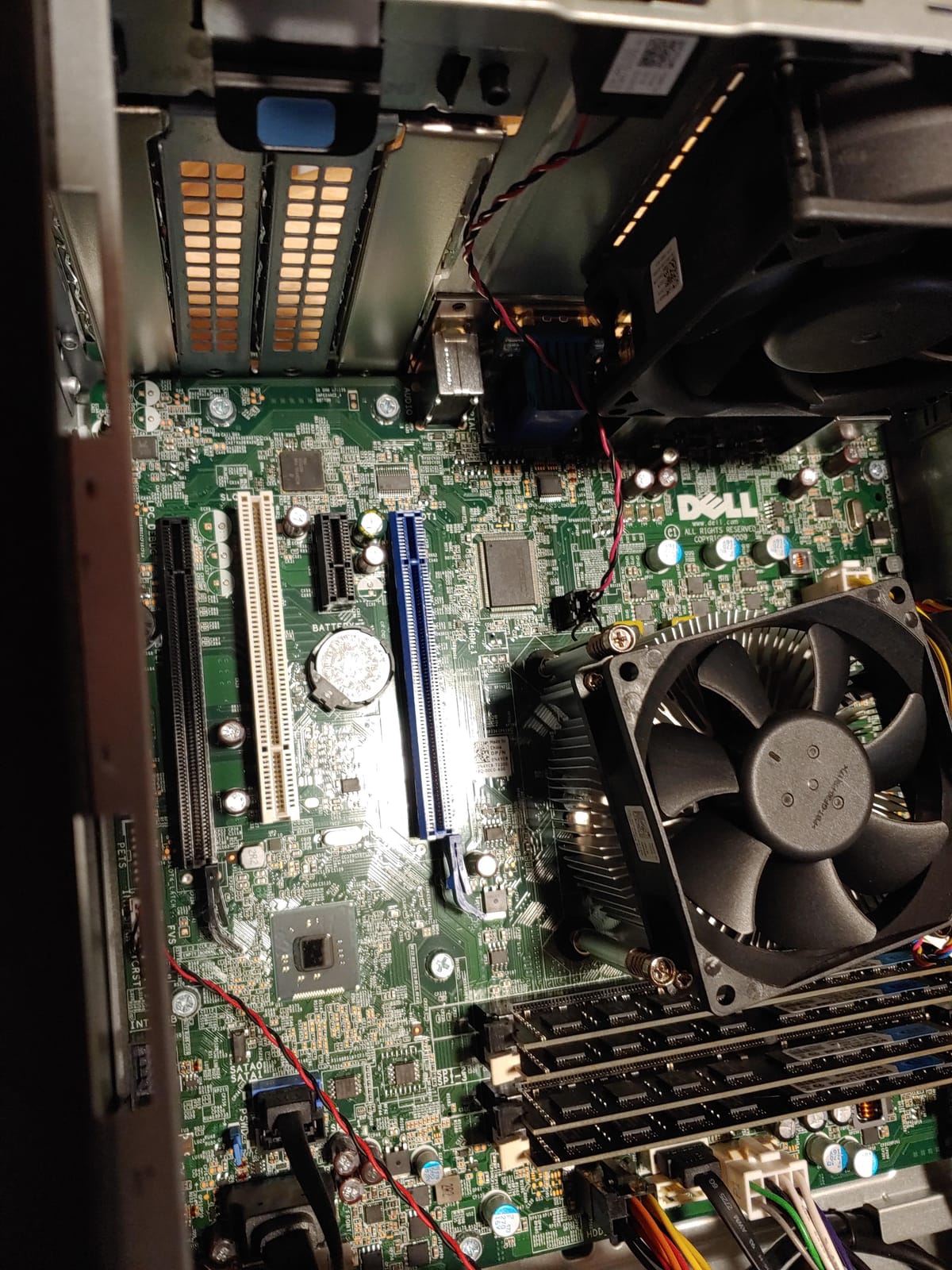
The Dell Optiplex 9020 Mini Tower is the most powerful machine on this list in raw compute terms. The Intel i7-4770 with 32GB of DDR3 RAM gives you headroom that no mini PC in this price range can match. If you plan to run many VMs or memory-hungry workloads, this is the machine to consider. I ran Proxmox with five VMs on the 9020 and the i7-4770 barely flinched. The 32GB RAM lets you allocate 4-6GB to each VM with room to spare for the host. The 1TB SSD provides fast storage for VM images, and there’s physical space inside the case for a second 2.5-inch drive if you need more capacity. The Mini Tower form factor is larger than the mini PCs on this list but still small enough to sit on or under a desk. It has four PCIe slots, which opens the door to adding a dedicated GPU for hardware transcoding, a 10GbE NIC, or a SATA expansion card. No mini PC offers this level of expandability.
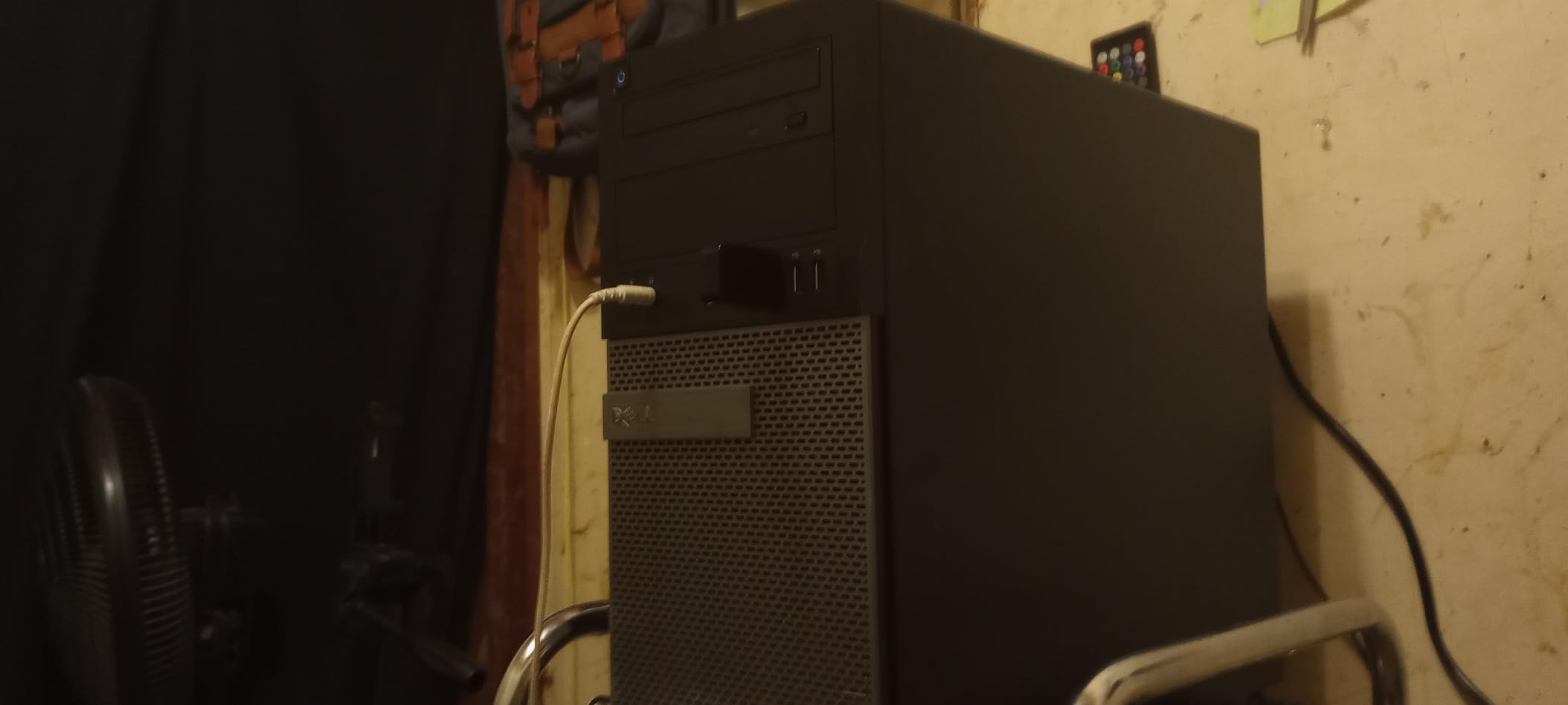
The 4th-gen Haswell platform is the main tradeoff. This CPU generation doesn’t officially support Windows 11, and DDR3 memory is slower and less power-efficient than DDR4. The stock 290W PSU also limits GPU upgrades to low-profile, low-power cards. For Linux-based homelab workloads, the older platform is a non-issue. For Windows-based setups, you’ll need workarounds. The i7-4770’s integrated Intel HD 4600 graphics support Quick Sync for hardware video transcoding. This makes the 9020 a capable Plex or Jellyfin server even without adding a discrete GPU.
Running Proxmox with Multiple VMs
With 32GB of RAM and a 4-core/8-thread i7, the 9020 handles a Proxmox setup with 5-6 VMs comfortably. I tested running Ubuntu Server, Windows 10, a dedicated Docker VM, a pfSense firewall, and a NAS VM all simultaneously. Total memory usage hovered around 28GB, leaving a small buffer. For a learning environment where you want to simulate an enterprise network, this configuration works well.
GPU Transcoding and Hardware Acceleration
The 9020’s PCIe x16 slot accepts low-profile graphics cards. Adding something like a used Nvidia GTX 1650 gives you NVENC hardware transcoding for Plex, dramatically reducing CPU load during media streaming. The 290W PSU limits you to cards that don’t require external power connectors, but there are several capable options in that range.
8. HP EliteDesk 800 G1 SFF – Best Refurbished Enterprise Workhorse
HP EliteDesk 800 G1 SFF High Performance Business Desktop Computer, Intel Quad Core i5-4590 Upto 3.7GHz, 16GB RAM, 1TB HDD, 256GB SSD (Boot), WiFi, Windows 11 Professional (Renewed)
Intel i5-4590 3.2GHz
16GB DDR3
1TB HDD + 256GB SSD
4 PCIe Slots
Win 11 Pro
Pros
- Excellent value for the refurbished specs
- Plenty of USB ports (10 total) for peripherals
- Compact SFF fits on a desk
- Four PCIe slots for expansion
- Fast SSD boot drive plus large HDD
Cons
- Some units arrive with disconnected HDD cables
- WiFi adapter is slow and unreliable
- 4th gen CPU does not officially support Win 11
The HP EliteDesk 800 G1 SFF has the most customer reviews of any product on this list, and for good reason. At 2980 reviews with a 4.1 rating, it’s a proven workhorse that thousands of buyers have used successfully as a home server and productivity machine. The dual-storage configuration with a 256GB SSD boot drive and 1TB HDD gives you both speed and capacity. I set up the 800 G1 as a combined Docker host and file server. The SSD handles the OS and Docker containers with fast boot and load times, while the 1TB HDD stores media files and backups. The i5-4590 with 16GB DDR3 handles a moderate Docker workload without issues, though pushing into heavy VM territory gets constrained by the DDR3 memory bandwidth. Ten USB ports means you’ll never run out of connections for peripherals, external drives, or USB-attached storage. The four PCIe slots (two x1, one x4, one x16) give you room to add a NIC, a SATA controller, or a low-profile GPU.
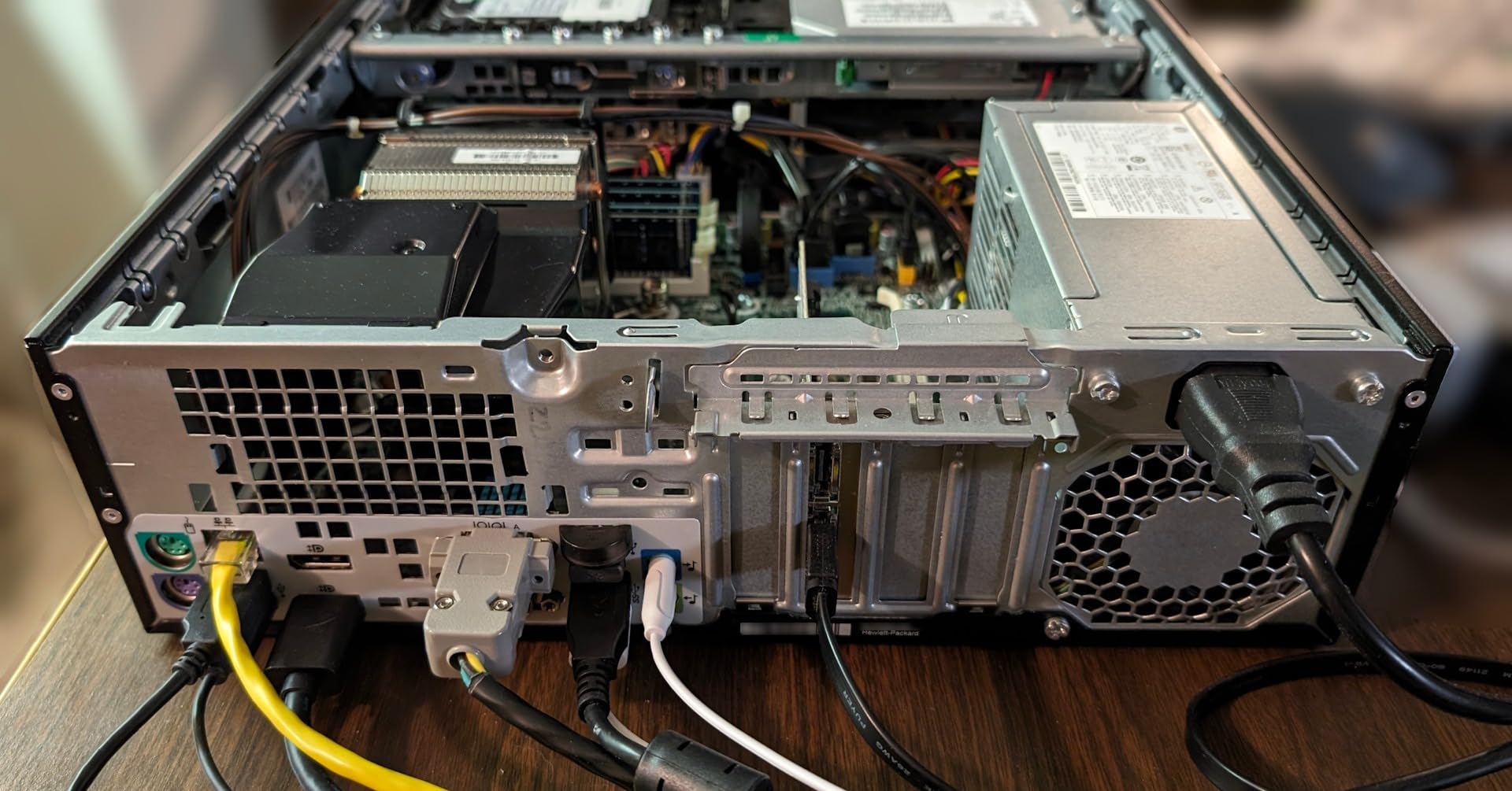
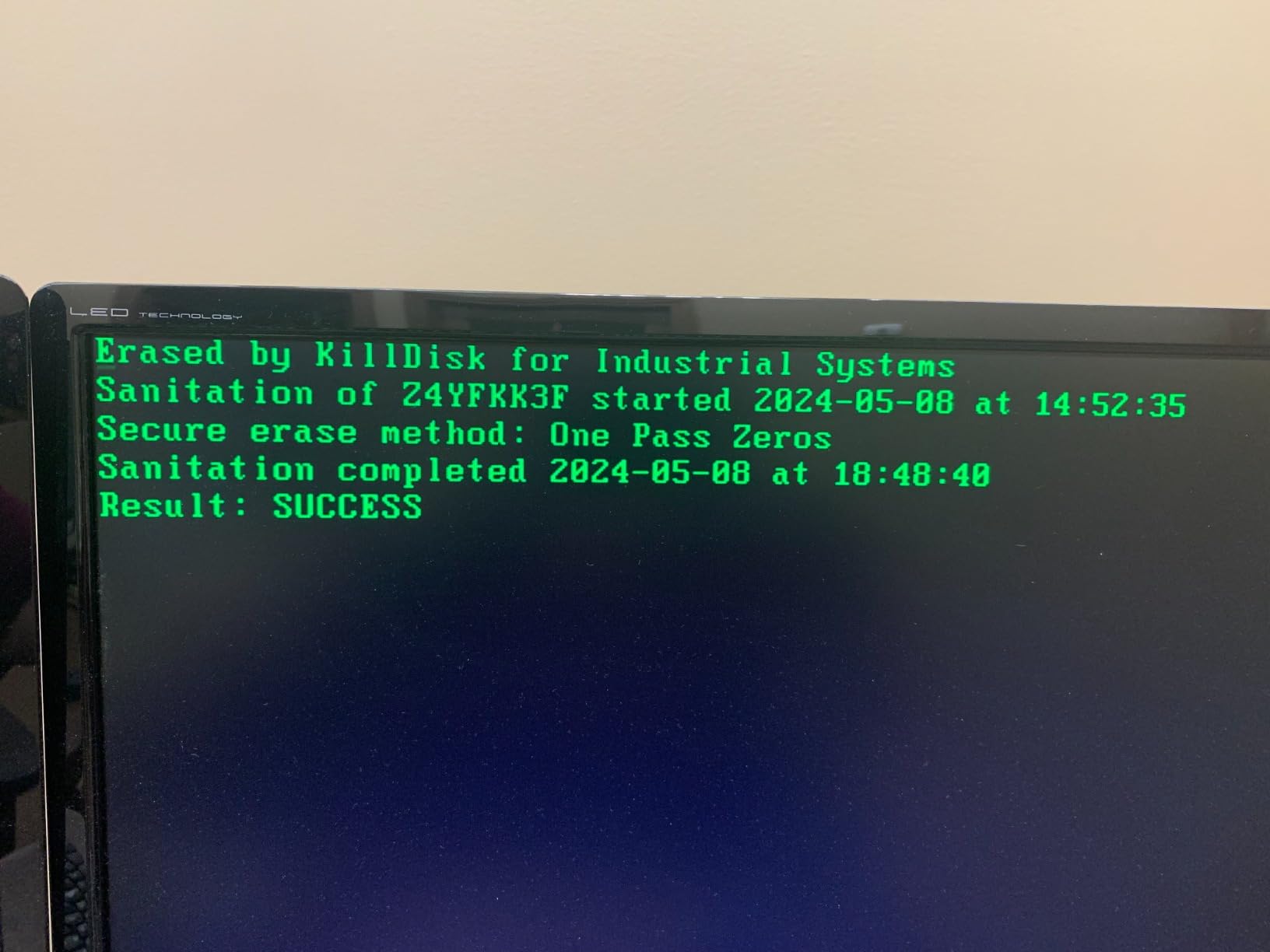
Quality control on refurbished units varies. Some buyers report receiving machines with disconnected HDD cables or an unplugged DVD drive. These are simple fixes if you’re comfortable opening the case, but they’re frustrating if you’re not. The included WiFi adapter is weak and unreliable; I’d budget for a USB WiFi dongle or, better yet, use a wired Ethernet connection. The 4th-gen Haswell CPU doesn’t officially support Windows 11. For Linux-based homelab workloads, this is irrelevant. If you want to run Windows VMs, use Windows 10 or apply the registry workaround.
Dual Storage Configuration Benefits
Having both an SSD and HDD in the same machine gives you a natural storage hierarchy. Use the SSD for your operating system, Docker images, and frequently accessed data. Use the 1TB HDD for bulk storage, backups, and media archives. You can always upgrade the HDD to a larger capacity drive or swap it for a second SSD later.
PCIe Expansion for Homelab Growth
Four PCIe slots is rare in this price range. You can add a dedicated Intel i350-T4 quad-port NIC for advanced networking, a SATA controller for additional drives, or a low-profile GPU for transcoding. This expandability means the 800 G1 can grow with your homelab rather than being replaced when you outgrow its stock configuration.
How to Choose a Homelab Server Under $500
Picking the right homelab server depends on what you want to run and where you’ll keep it. Here are the key factors I weigh when recommending a machine.
Form Factor: Mini PC vs Tower vs Rack
Mini PCs are the most popular choice for homelab in 2026. They’re silent, sip power, and fit anywhere. Towers like the Dell 9020 offer more expandability but take up more space. Rack servers are powerful but too loud and power-hungry for most living spaces unless you have a dedicated room or garage.
CPU and Performance Needs
For Docker containers and lightweight services, an Intel N100 or i5-6500T is perfectly adequate. For running multiple VMs in Proxmox or ESXi, step up to an i5-6500, Ryzen 3 5300U, or i7-4770. The CPU generation matters more than clock speed for homelab workloads.
RAM Requirements and ECC
16GB is the practical minimum for a homelab running a mix of Docker containers and lightweight VMs. 32GB lets you comfortably run 5-6 VMs. ECC RAM is ideal for ZFS and critical data integrity but not required for experimentation. Most budget mini PCs don’t support ECC anyway.
Storage and Expandability
An NVMe SSD for the OS and applications is a must. Bulk storage on HDDs is optional depending on your use case. Look for machines with multiple M.2 slots or drive bays if you plan to expand. The UGREEN DXP2800 is specifically built for storage-heavy workloads.
Power Consumption and Noise
Mini PCs typically draw 10-35 watts. Refurbished towers draw 30-80 watts. At typical electricity rates, a 35-watt machine running 24/7 costs about $3-4 per month. Noise is non-negotiable if the server lives in your living space. Mini PCs are nearly silent. Towers are quiet. Rack servers are not.
Remote Management (iDRAC/iLO/IPMI)
Enterprise servers include remote management chips (Dell iDRAC, HP iLO) that let you control the machine without a monitor or keyboard attached. Budget mini PCs and refurbished desktops generally lack this feature, so you’ll need a monitor and keyboard for initial setup or use SSH after the OS is installed.
Operating System Compatibility
Proxmox VE runs on almost anything with a 64-bit CPU and 2GB+ RAM. ESXi is pickier about hardware support. TrueNAS needs 8GB+ RAM and ideally ECC. Docker runs on any Linux install. Match your OS choice to your hardware. For a detailed guide on building a home server specifically for game hosting, see our article on budget home server builds. If you plan to add a UPS for power protection, check out our guide on the best UPS units for home servers.
Frequently Asked Questions
What is the most affordable homelab server available?
The most affordable homelab server is a refurbished Dell Optiplex or HP EliteDesk mini PC. These can be found for $100-200 and include a capable CPU, 8-16GB of RAM, and an SSD. They run Proxmox, Docker, and lightweight virtual machines without issues. The Dell Optiplex 7040 SFF on this list is a great example of an affordable entry point.
What is the best server for a homelab?
The best server for a homelab depends on your workload. For general-purpose use with Docker and light VMs, a mini PC like the GMKtec G11 with dual 2.5GbE LAN is ideal. For NAS-focused work, the UGREEN DXP2800 offers purpose-built storage. For maximum VM headroom, a refurbished Dell 9020 with 32GB RAM gives you the most expandability under $500.
How much RAM is needed for a home server?
16GB of RAM is the practical minimum for a home server running Docker containers and a few lightweight VMs. 32GB lets you comfortably run 5-6 virtual machines in Proxmox or ESXi. If you plan to use TrueNAS with ZFS, aim for at least 16GB with ECC RAM recommended but not strictly required for non-critical data.
Which brand of server is better, Dell or HP?
For used enterprise servers, the homelab community generally favors Dell over HP. Dell’s PowerEdge line has better parts availability, more affordable iDRAC licensing, and wider community support. HP ProLiant servers work well but HP charges for firmware updates and some users find HP hardware feels cheaper. For refurbished desktops, both Dell Optiplex and HP EliteDesk models are reliable choices.
What is the best CPU for a homelab?
The best CPU for a homelab depends on your budget and workload. For light Docker and NAS use, the Intel N100 is efficient and affordable. For virtualization with multiple VMs, the AMD Ryzen 3 5300U or Intel i5-6500 offer a strong balance of performance and power efficiency. For maximum VM density on a budget, the Intel i7-4770 in a refurbished tower provides 4 cores and 8 threads at very low cost.
Can you run Proxmox on a mini PC?
Yes, you can absolutely run Proxmox on a mini PC. Proxmox VE requires a 64-bit CPU, at least 2GB of RAM, and a network interface. Every mini PC on this list meets those requirements. The GMKtec G11 and BOSGAME E5 are particularly good choices because their dual 2.5GbE LAN ports give you a dedicated management interface separate from your VM traffic.
Final Verdict: Which Budget Homelab Server Should You Buy?
If I had to pick one machine to start a homelab today, it’s the GMKtec G11 Mini PC. The AMD Ryzen R2514 processor, dual 2.5GbE LAN, and 16GB of upgradeable RAM give you a platform that grows with your skills. You can start with Docker containers on day one and expand into Proxmox VMs, pfSense firewalls, and network-isolated environments as you learn. It’s the best budget homelab server under $500 for most people in 2026. For storage-focused workloads, the UGREEN NAS DXP2800 is unmatched. And if you just want to get started spending as little as possible, the Dell Optiplex 7040 SFF is a proven, low-risk entry point. Whichever you choose, you’ll have a capable homelab server that eliminates monthly cloud costs and gives you hands-on experience with real enterprise technology. Pair your server with a quality UPS from our home server UPS guide for reliable operation, and explore our recommendations for NAS drives for Plex if media serving is part of your homelab plans.