
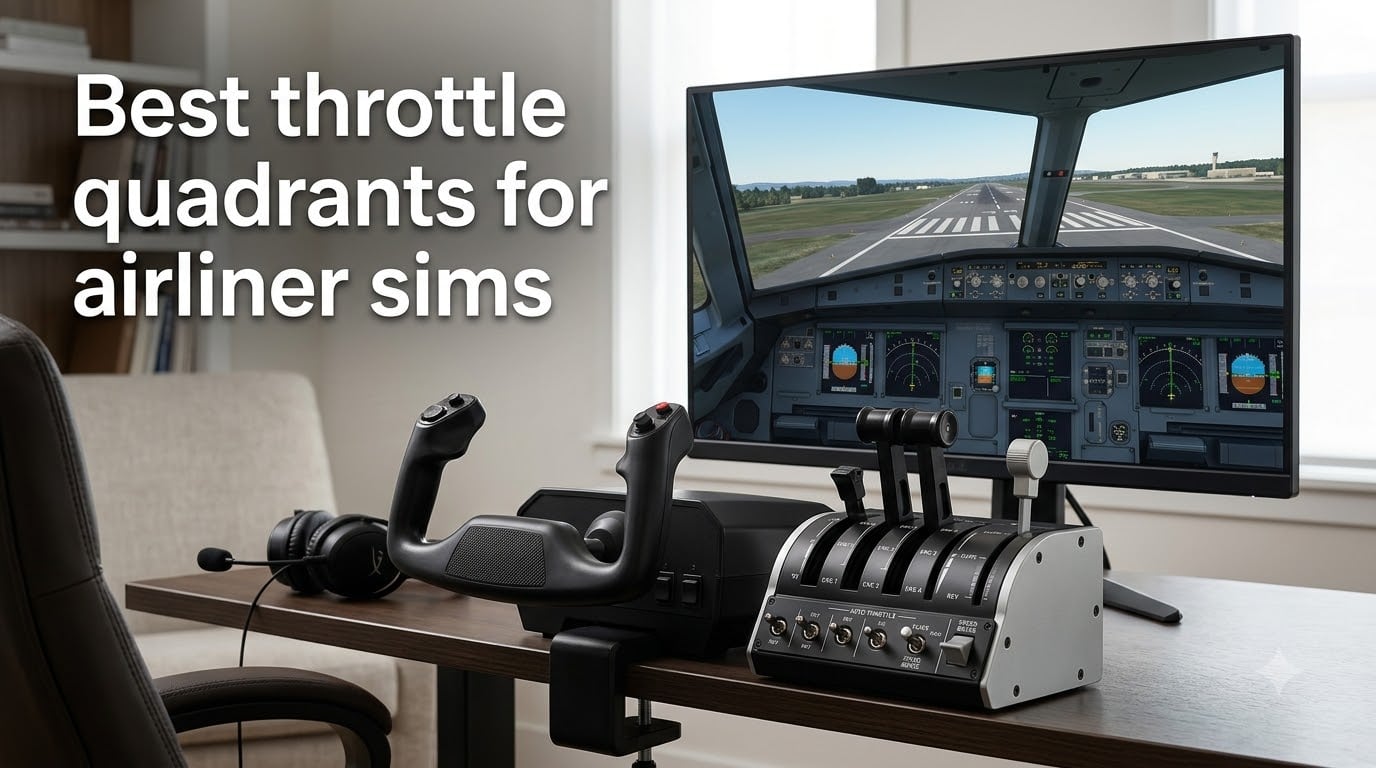
I have spent the past two years flying nothing but airliners in Microsoft Flight Simulator and X-Plane, mostly the A320 and 737, and the single biggest upgrade I ever made was moving from a HOTAS slider to a proper quadrant. If you are hunting for the best throttle quadrant for airliner sims, the difference is not subtle: real detents, thrust reverse you can feel, and switches for flaps and gear that keep your hands off the keyboard. Our team tested six of the most popular quadrants across MSFS and X-Plane to find out which ones actually feel like an airliner flight deck.
Not every quadrant on this list is aimed at the same pilot. Some are officially licensed Airbus and Boeing replicas, one is a full yoke-plus-quadrant system, and one is a cheap way to test whether you even like flying with levers. Every pick below earned its place through hours of engine starts, managed climbs, and hand-flown approaches.
Here is the short version before we get into the details: the Honeycomb Bravo is the best all-round choice, the Thrustmaster TCA Airbus Edition is the smart pick for A320 flyers on a budget, and the Logitech G Saitek quadrant is the cheapest way to get three levers under your hand. If you fly on Xbox, there are two options here that work out of the box.
Table of Contents
Top 3 Picks for Airliner Sim Throttle Quadrants 2026

Honeycomb Bravo Throttle…
- Autopilot panel
- Annunciator lights
- 1 to 4 engine setup
- Gear and flap levers

Thrustmaster TCA Quadrant…
- Airbus detents
- Thrust reverse levers
- Hall-Effect sensors
- 16 buttons
Best Throttle Quadrants for Airliner Sims in October 2026
| Product | Specs | Action |
|---|---|---|
| Honeycomb Bravo Throttle Quadrant |
|
Check Latest Price |
| Thrustmaster TCA Quadrant Airbus Edition |
|
Check Latest Price |
 Thrustmaster TCA Quadrant Boeing Edition Thrustmaster TCA Quadrant Boeing Edition |
|
Check Latest Price |
 Turtle Beach VelocityOne Flight Universal Turtle Beach VelocityOne Flight Universal |
|
Check Latest Price |
| Logitech G Saitek Pro Flight Quadrant |
|
Check Latest Price |
 Thrustmaster TCA Quadrant Add-On Airbus Thrustmaster TCA Quadrant Add-On Airbus |
|
Check Latest Price |
1. Honeycomb Bravo Throttle Quadrant – Full Cockpit Control System
Honeycomb Bravo Throttle Quadrant
2 or 4 engine levers
Autopilot panel
14 warning lights
Gear and flaps
USB-C
Pros
- All-in-one throttle with autopilot and annunciator panel
- Configurable from 1 to 4 engines
- Realistic throttle tension
- Gear lever with red and green LED lights
- Huge aftermarket support
Cons
- Trim wheel is not analog
- Reverse axis is a switch not an axis
- Needs a lot of desk space
This is the quadrant I keep coming back to. The Bravo packs a throttle, an autopilot panel, an annunciator, a gear lever, and a flap lever into one box, and that combination changes how you fly airliners.
During an engine start you physically hold the flap position, watch the gear LEDs go from red to green, and punch the autopilot buttons instead of hunting through cockpit tooltips. On a dark evening flight the 14 annunciator lights glowing back at you genuinely feel like sitting in a real flight deck.
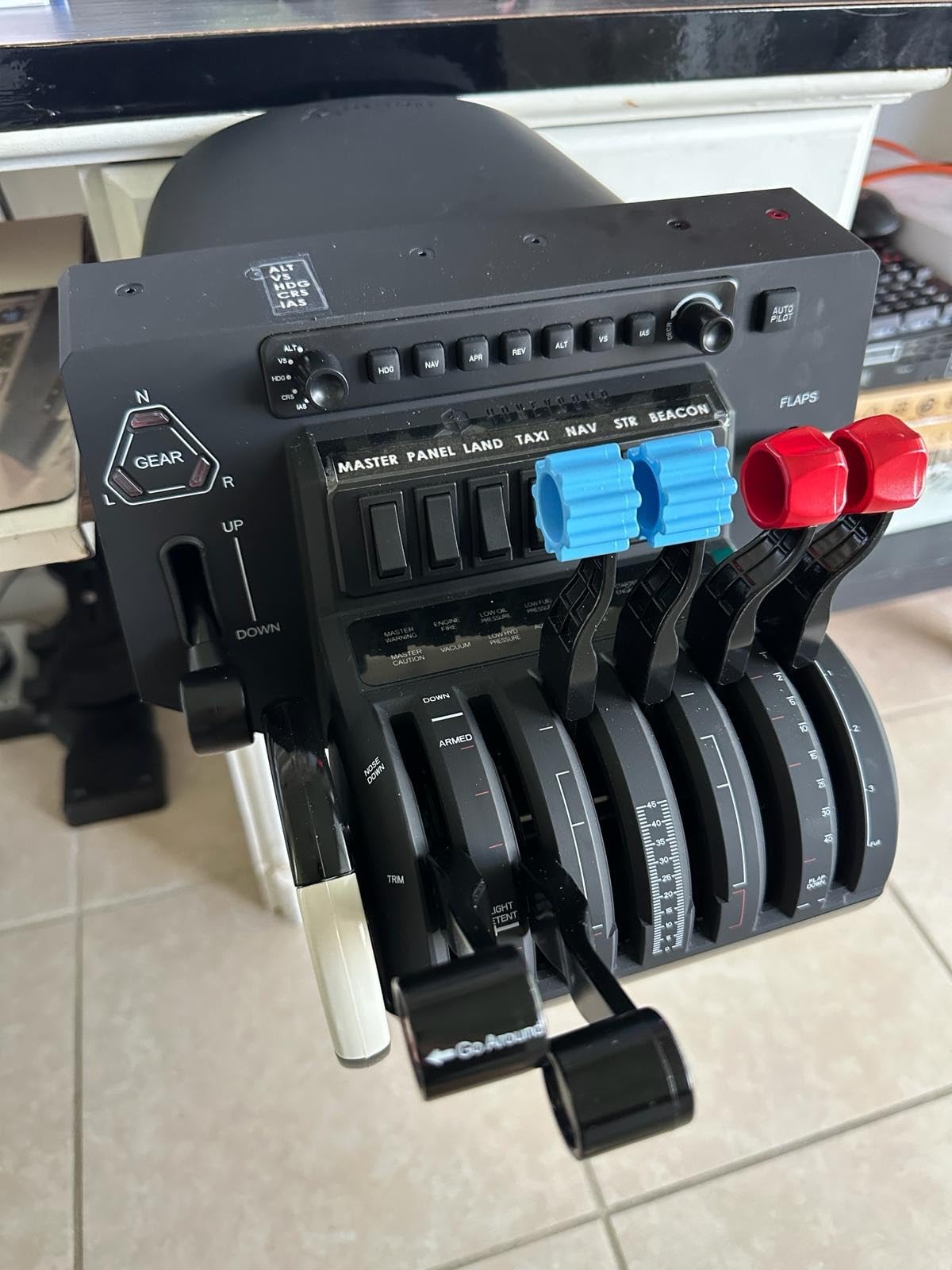
The lever system is configurable from a single-engine Cessna up to a four-engine 747. You get two and four engine lever sets, and swapping between them takes about ten minutes. I mostly run the four-lever setup for the PMDG 737 and the two-lever setup for anything twin-prop.
The throttle tension is the best in this roundup. There is a weight and a smooth resistance to the levers that the plastic competition cannot match, and it holds its position perfectly during a long managed climb. Airliner pilots who switch between aircraft weekly will appreciate how much of a single device can be remapped per airframe.
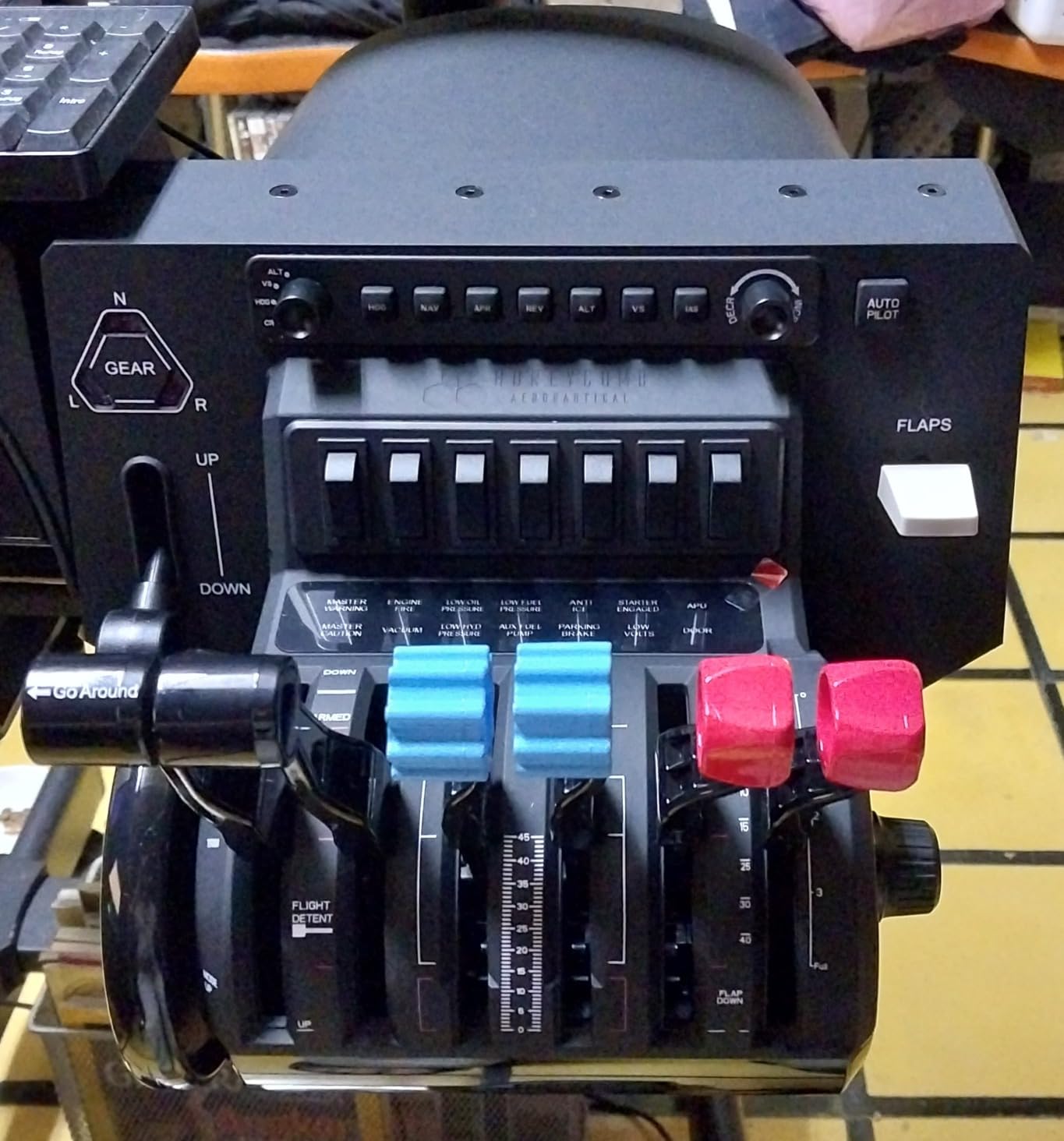
It is not perfect, and I want to be clear about the weak spots. The trim wheel is a set of buttons rather than a true analog axis, so it steps instead of rolling smoothly. The reverse position is a switch rather than a real reverse axis, which matters if you fly aircraft where reverse needs careful control.
This thing is also big. At over 18 inches wide it dominates a small desk, so plan your mounting before buying.
X-Plane 12 users should also test the community profiles before committing. My unit works fine in MSFS with no configuration at all, but X-Plane 12 needed a custom mapping file to get every switch behaving. Once mapped, it has been rock solid through months of daily flying.
The community support is a huge part of the appeal here. There are free profiles for nearly every airliner add-on, 3D-printed mod parts, and replacement lever kits. If you want one device that covers general aviation on Monday and a 737 across the Atlantic on Friday, this is it.
Which Sims and Aircraft It Supports
The Bravo is plug and play with MSFS on both PC and Mac, and it is recognized instantly by Windows. X-Plane 11 works well with community profiles, while X-Plane 12 support is still catching up and may need manual mapping. It works with every airliner from the stock A320neo to payware like the PMDG 737 and Fenix A320.
Because the levers and switches are fully programmable, it handles Boeing, Airbus, and turboprop flying equally well. That flexibility is exactly why it took our editor’s choice slot over the licensed replicas.
Desk Space and Mounting
Plan for a serious footprint. The base is wide and deep, and the clamp needs a desk edge with enough clearance to lock it down properly. On a shallow desk I ended up mounting it on a small shelf just below keyboard level, which actually felt closer to a real quadrant position.
If your desk is small or already crowded, measure before you order. Pilots with a dedicated sim rig or a flight desk will have no trouble at all.
2. Thrustmaster TCA Quadrant Airbus Edition – Real Detents for Airbus Flying
Thrustmaster TCA Quadrant Airbus Edition Flight Sim Throttle – PC
Airbus licensed 2 levers
Detents plus reverse
Hall-Effect sensors
16 buttons
USB-C
Pros
- Authentic Airbus detents and thrust reversers
- Hall-Effect sensors with no drift
- Detents removable for linear mode
- Plug and play with MSFS and X-Plane
- Compact footprint
Cons
- Smaller in person than photos suggest
- Removable USB connector can wear out
- No lights on engine ignition buttons
Fly the A320 family and nothing else? This is your quadrant.
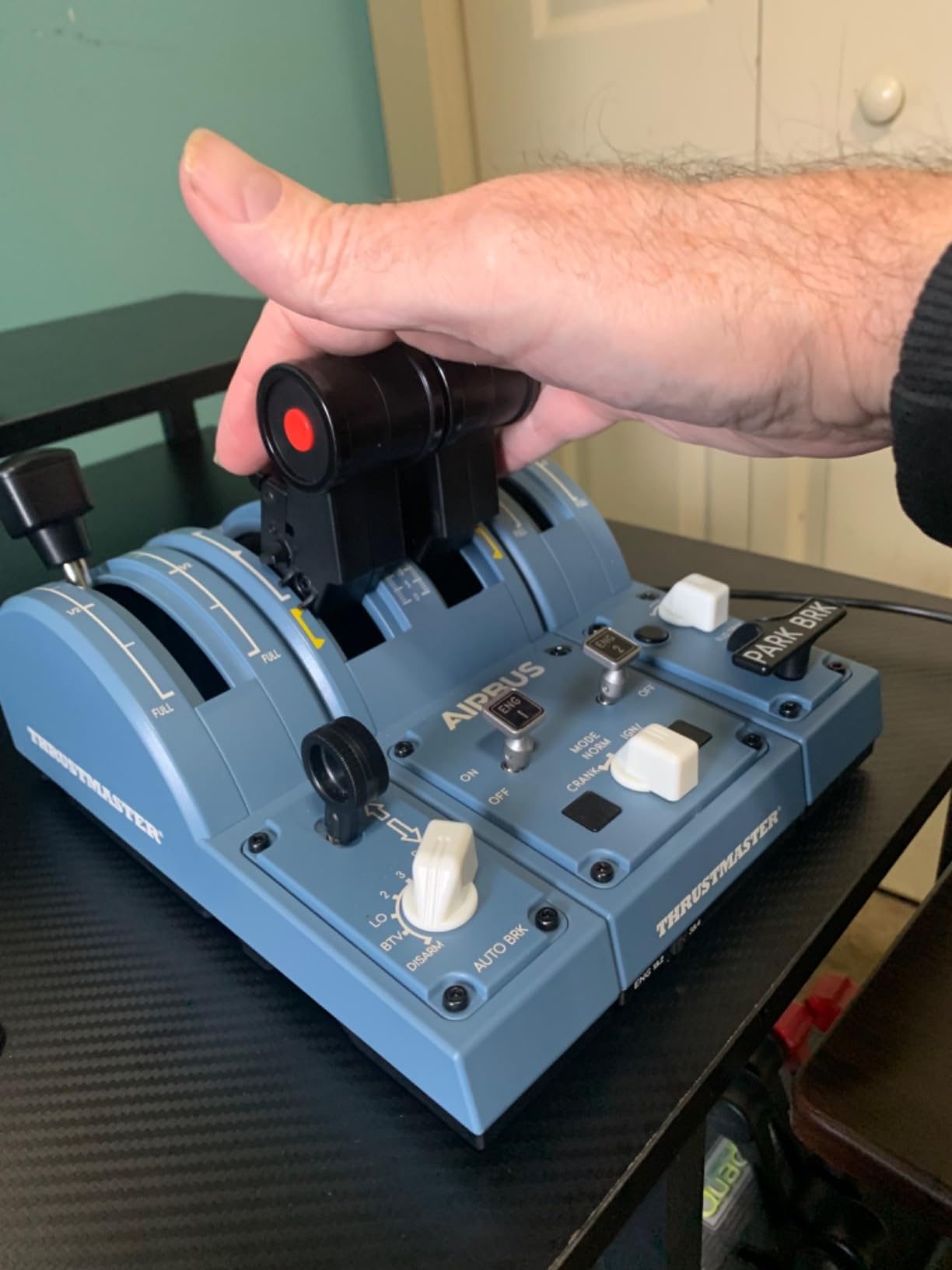
The TCA Airbus Edition is officially licensed by Airbus, and it is the only product in this price range with real mechanical detents at idle, climb, flex, and max thrust. Sliding the levers up until they physically stop at CLIMB and leaving them there for the whole cruise is exactly how an Airbus works, and no software-only solution recreates that feeling.
The thrust reverse levers sit under the main handles and lift up just like the real thing. On landing I can retard to idle, pull reverse, and modulate it with my palm without looking down once. After years of binding reverse to a keyboard key, that alone made landings feel dramatically more real.
When I want to fly the 737 or a Cessna, there are mechanical selectors that disable the detents and turn it into a smooth linear throttle. It takes seconds, and the transition is clean. That flexibility makes a strong case for this being the best throttle quadrant for airliner sims if your hangar is Airbus-heavy.
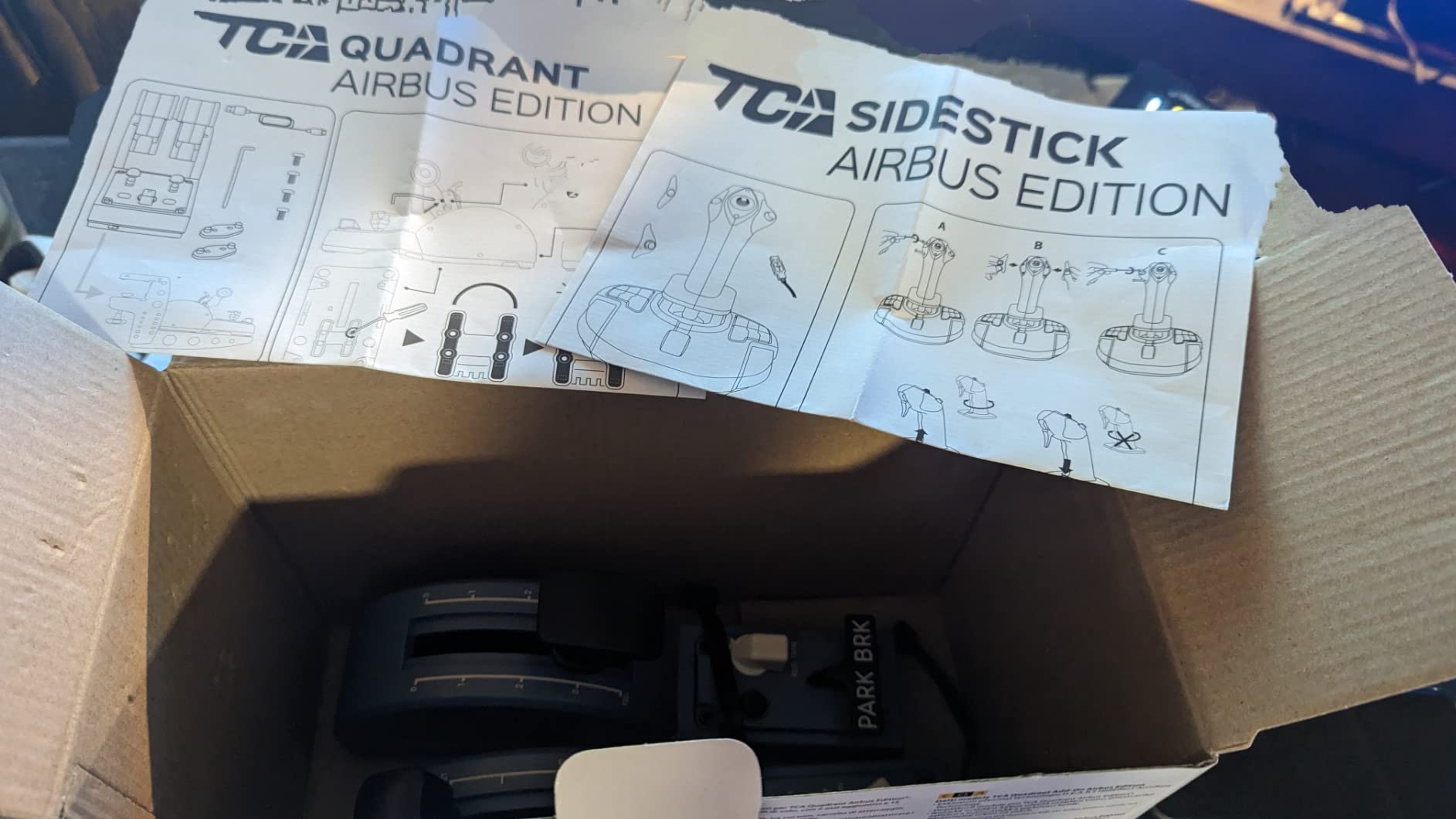
The Hall-Effect sensors are the hidden gem here. They are contactless and magnetic, so there is no potentiometer to wear out or develop dead zones, and my axis calibration has not drifted a single pixel since day one. Sixteen buttons give you engine start, spoilers, flaps, and more right on the unit.
Now the honest part: it is smaller than it looks in photos. The whole unit is compact, which is great for desk space but slightly undercuts the replica feel.
The USB connector on the back is removable, and a few long-term owners report it works loose after a couple of years of plugging and unplugging. Mine has been fine, but I leave it permanently connected.
My last gripe is that the engine ignition buttons have no indicator lights. In a dark room you are pressing them on faith during the engine start sequence. These are small complaints against a quadrant that nails the part that matters most: the feel of the levers.
Airbus Versus Every Other Airliner
With detents engaged, this quadrant is purpose-built for the A320, A330, and A350 in MSFS and X-Plane. The Flybywire A320 and the Fenix recognize it immediately, and the default MSFS bindings are close to perfect out of the box. For Boeing flying, you flip the detent selectors off and treat it as a simple two-lever throttle.
It also chains with other Thrustmaster gear. Paired with the TCA yoke or the TCA Add-On panel covered later in this article, it forms a genuinely convincing budget Airbus cockpit.
Build Quality and Long-Term Reliability
The plastics feel like Thrustmaster mid-range gear rather than premium gear, but the moving parts are where the money went. The levers, detent mechanisms, and reverse handles all feel tight, and the magnetic sensors mean the precision will not degrade with age the way old potentiometer quadrants did.
Treat the USB port gently and do not constantly re-route the cable, and I see no reason this unit will not last through years of airline flying. Hundreds of owners flying since launch report the same.
3. Thrustmaster TCA Quadrant Boeing Edition – Official Boeing Dual Levers
Thrustmaster TCA Quadrant Boeing Edition Throttle Add-On – XBOX & PC
Boeing licensed dual levers
17 controls
Adjustable resistance
Hall-Effect sensors
Xbox and PC
Pros
- Officially licensed by Boeing and Xbox
- Dual levers with adjustable resistance
- 17 integrated controls
- Hall-Effect magnetic sensors
Cons
- All plastic construction
- Reverse is a button not an axis
- Light base slides on the desk
This is the Boeing counterpart to the TCA Airbus quadrant, with an official Boeing license and genuine Xbox support. The two levers have adjustable resistance, so you can dial in a heavy, deliberate feel for the 737 or loosen them for a light twin. I spent a week with it in the PMDG 737 and came away impressed by how well the lever spacing matches the real flight deck.
Seventeen integrated controls mean you barely touch the keyboard during a flight. Between the buttons, the rotary, and the autopilot functions on the base, I had flaps, spoilers, trim, and the autopilot covered during a full sector from pushback to parking.
The sensors are the same Hall-Effect magnetic system as the Airbus edition, and they perform identically: smooth, precise, and completely drift-free. Axis response is excellent for setting exact thrust settings by hand.
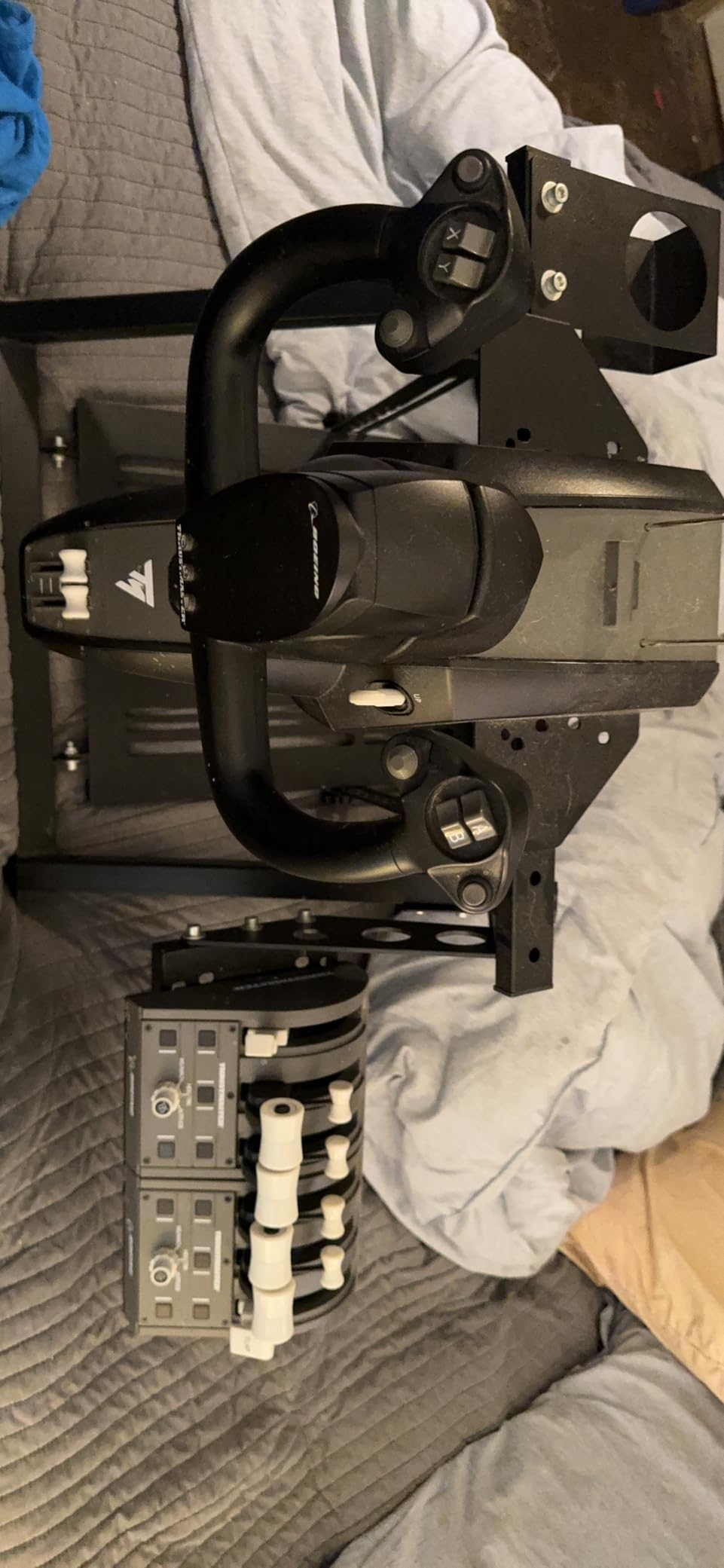
The compromises are real though. Construction is all plastic with zero metal anywhere, and the rotary knob in particular feels fragile in daily use.
The reverse levers are buttons rather than an axis, which is a strange choice for a Boeing replica where you actually ride the reverse out of landing. And the base is light enough to slide around an empty desk unless you clamp it or add some weight.
X-Plane compatibility is inconsistent. It works beautifully with MSFS on both PC and Xbox, but some X-Plane users report the unit is not recognized at all without workarounds, so treat this as an MSFS-first device. In MSFS it is plug and play, and the default Boeing bindings are well thought out.
Dust is another minor issue, as there are no dust guards over the lever slots. If your sim room gets dusty, a quick blow-out now and then keeps the levers moving freely.
Xbox and PC Compatibility
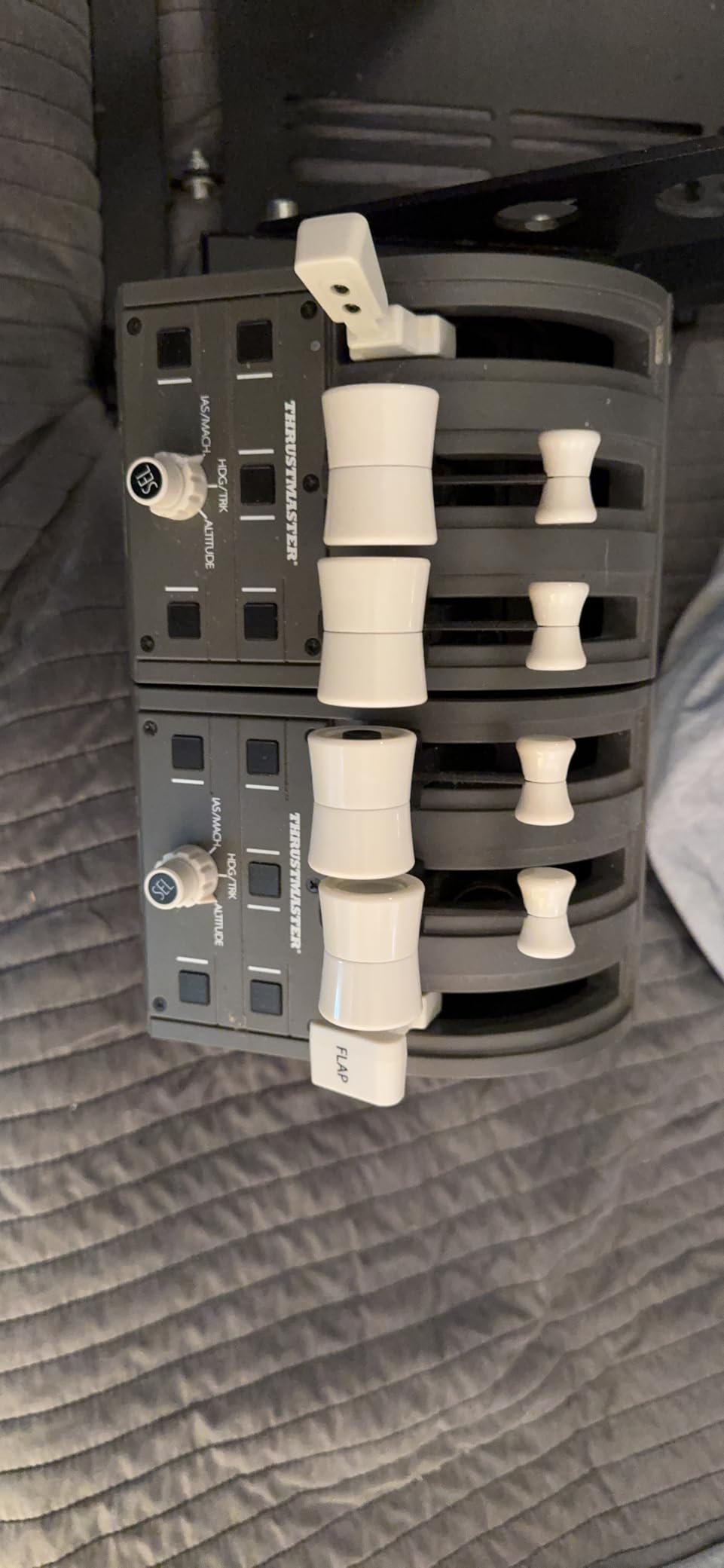
This is one of only two quadrants in this roundup with genuine Xbox Series X and Series S support. Plug it into an Xbox running MSFS and it works immediately with no adapters or extra software. On PC it behaves like any standard HID device, so MSFS, X-Plane 11, and even older sims see it without drivers.
If your household flies on both console and PC, this flexibility is hard to beat at this price point. Just keep the X-Plane caveat above in mind before buying it for a PC-only X-Plane setup.
Pairing With Other Thrustmaster Gear
Thrustmaster designed the whole TCA ecosystem to lock together. The Boeing quadrant sits alongside the Airbus quadrant, the TCA yoke, and the TFRP rudder pedals, and the ecosystem shares a consistent design language and connector system.
Building a mixed Boeing-and-Airbus desk setup out of these modules is far cheaper than going to full replica hardware. If you already own one TCA product, adding this one feels like an upgrade rather than a new purchase.
4. Turtle Beach VelocityOne Flight Universal Control System – Yoke and Quadrant Combo
Turtle Beach VelocityOne Flight Universal Control System – Xbox Series X & Xbox Series S, Xbox One & Windows 10 & 11 PCs with Yoke Handle, Throttle Quadrant, Trim Wheel & Rudder Controls
Yoke plus modular quadrant
Color display
12 analog axes
Rudder and trim
Xbox and PC
Pros
- Yoke and modular quadrant in one package
- True 180 degree yoke with Hall effect sensor
- Full color status display
- 12 analog axes
- Works on Xbox and Windows
Cons
- Yoke friction can go sticky over time
- Support and firmware inconsistent
- SID display works on PC only
The VelocityOne is not just a quadrant, it is a complete control system: a yoke, a modular throttle quadrant, a trim wheel, and rudder controls in a single clamped unit. For an Xbox sim pilot who cannot use most PC hardware, this is effectively the only serious option, and it is genuinely capable. I flew full airliner sectors on it without once reaching for a controller.
The yoke rotates a true 180 degrees on a Hall effect sensor, which is a rarity at this level, and it feels smooth and precise through a full approach. The quadrant module is the star for airliner pilots though, with customizable lever handles and buttons you can rearrange per aircraft.
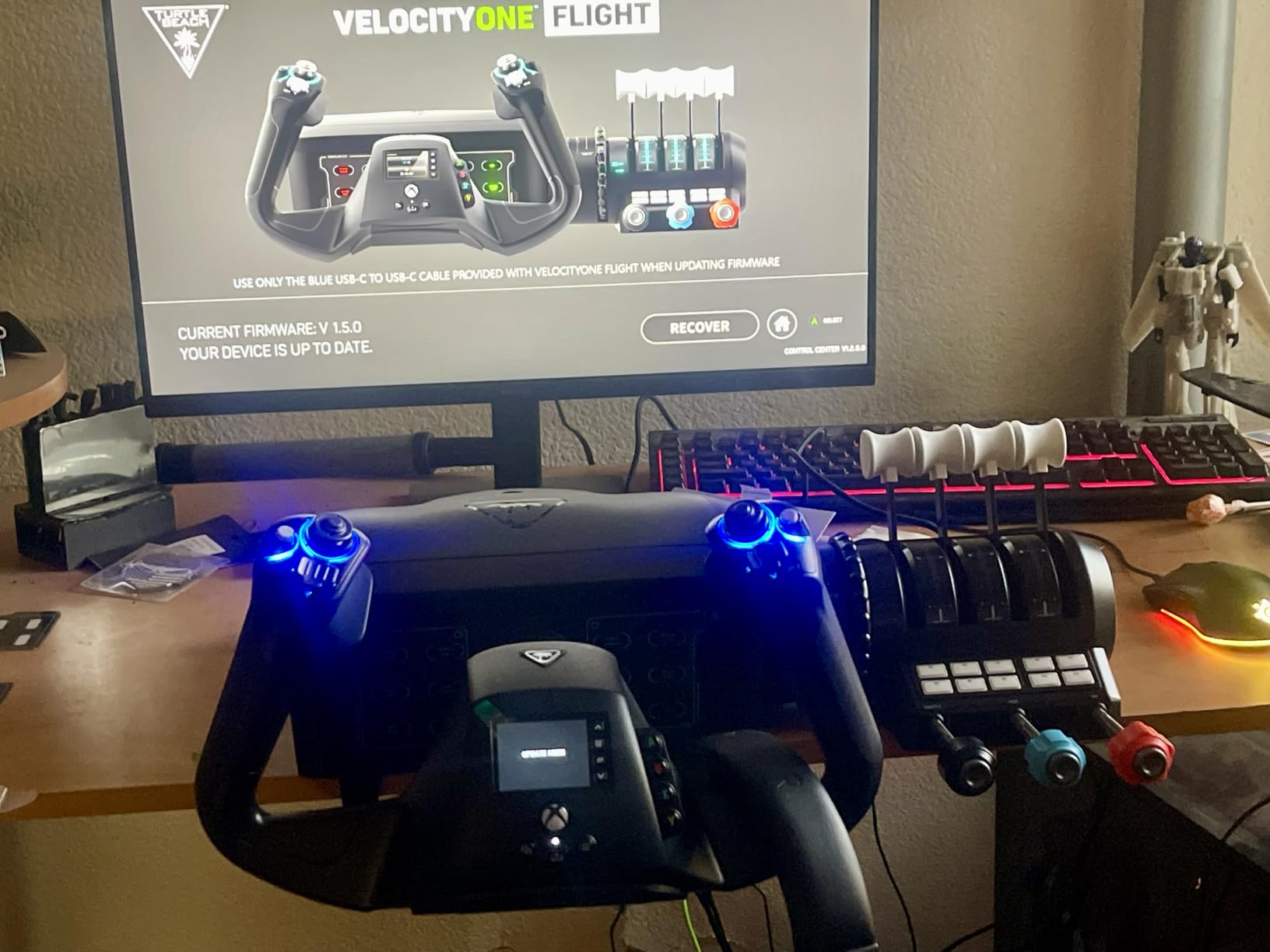
The color flight management display on the front is genuinely useful. You can adjust trim, check axis values, and configure the unit right on the hardware instead of digging through software, which is a big deal on Xbox where there is no configuration app.
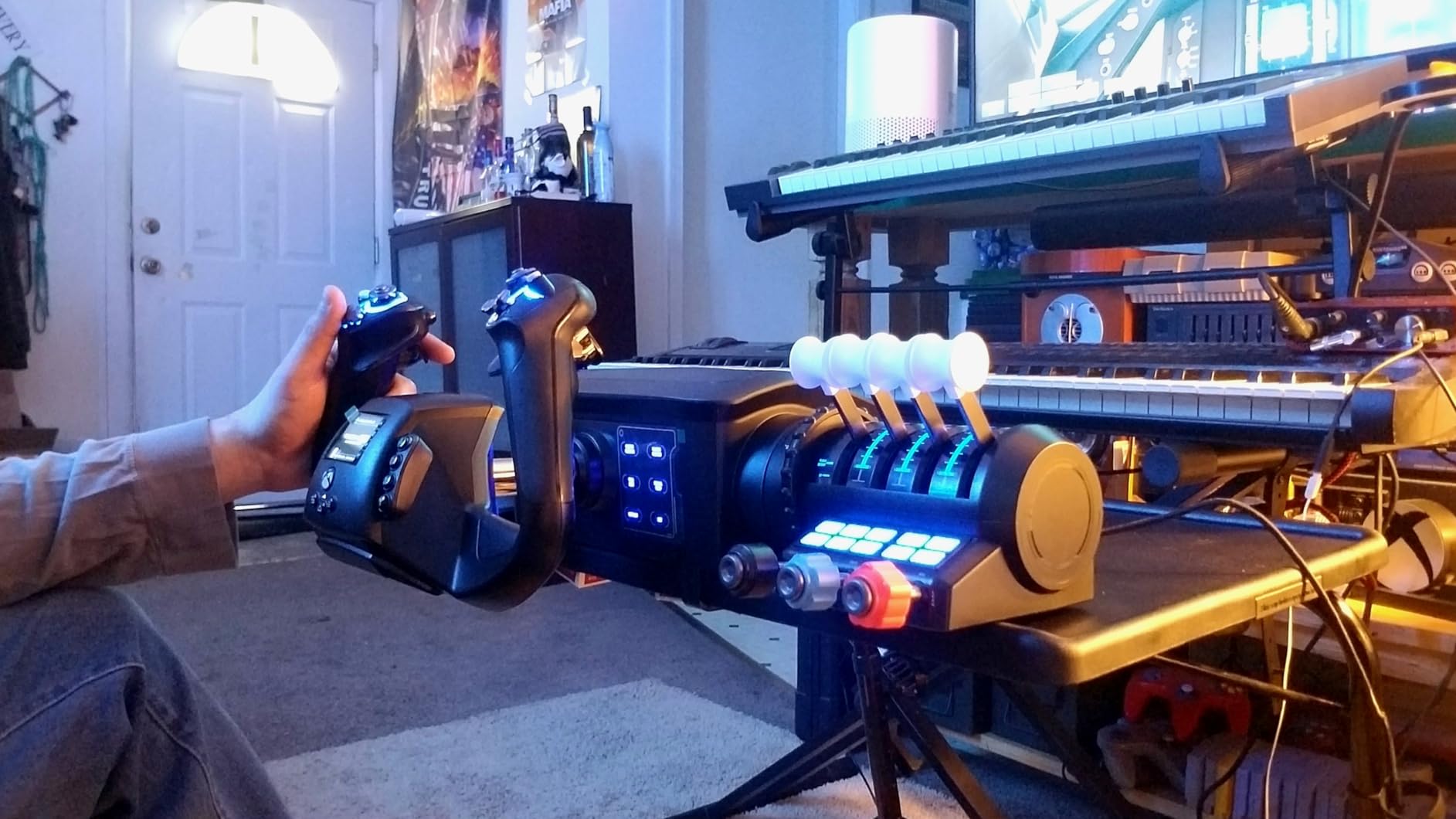
Now the reality check. The yoke can develop sticky friction over time, and mine needed cleaning and adjustment after a few months to get back to that out-of-box smoothness. Some of the warning lights behind the yoke are more decorative than functional, which is a shame when the annunciator concept is so good.
Support and firmware are the bigger concerns. Firmware updates have caused problems for some owners, and Turtle Beach customer support has a reputation for being slow to reach and slow to resolve. The Status Indicator Panel feature works on PC but is still not available on Xbox, which is frustrating when the unit was designed for console first.
At 10 pounds with a serious clamping system, it is also the heaviest and most desk-hungry option here alongside the Bravo. Once it is clamped down, it does not move an inch, but this is not something you stash in a drawer between flights.
Xbox Versus PC Functionality
On Xbox Series X, Series S, and Xbox One, the VelocityOne runs MSFS with full yoke, quadrant, trim, and rudder control. It is the closest thing to a complete PC flight setup you can run from a console. On Windows 10 and 11 it works with MSFS 2020 and MSFS 2024 plus other titles, and the extra PC features like the status panel unlock there.
If you are a PC-only pilot with no interest in Xbox, the Bravo or the TCA quadrants above will serve you better for airliner flying. Buy this for the Xbox compatibility or the yoke-plus-quadrant all-in-one value.
Firmware and Long-Term Ownership
Check for firmware updates before your first long flight, because early units shipped with quirks that later updates fixed. Updates are applied over USB from a PC, which is worth knowing before you buy it purely for an Xbox in a room without a computer.
Given the sticky-yoke reports and the support stories, I would treat this as a great system that needs occasional maintenance rather than a fit-and-forget purchase. Owners who look after it rate it highly, and the review volume shows a lot of people are doing exactly that.
5. Logitech G Saitek Pro Flight Throttle Quadrant – The Starter Quadrant
Logitech G Saitek PRO Flight Throttle Quadrant Professional – Black
3 axis levers
3 rocker switches
Swap lever heads
Top or front mount
USB
Pros
- Excellent value for a first quadrant
- 3 axis levers with swap lever heads
- Mounts top or front of desk
- Plug and play with MSFS
Cons
- Plastic build can break
- Desk clamp is fragile
- Levers can jitter before calibration
This is the quadrant most sim pilots start with, and it is still the best cheap entry into lever-based flying. Three analog levers mean you can run throttle, flaps, and spoilers at the same time, or throttle and two engine condition levers in a twin. For airliner flying, mapping the third lever to spoilers and using the rockers for flaps and gear gets you shockingly close to a full quadrant experience for very little money.
Logitech includes spare lever heads so you can configure it for throttle, flaps, mixture, or prop pitch. I set mine up with two black thrust levers and a grey spoiler lever, and it carried me through a year of 737 flying before I upgraded.
It mounts either on top of your desk or hanging off the front, in pilot or co-pilot orientation, which makes it easy to place next to a yoke. Multiple units can also be daisy-chained if you go deep down the hobby rabbit hole later.
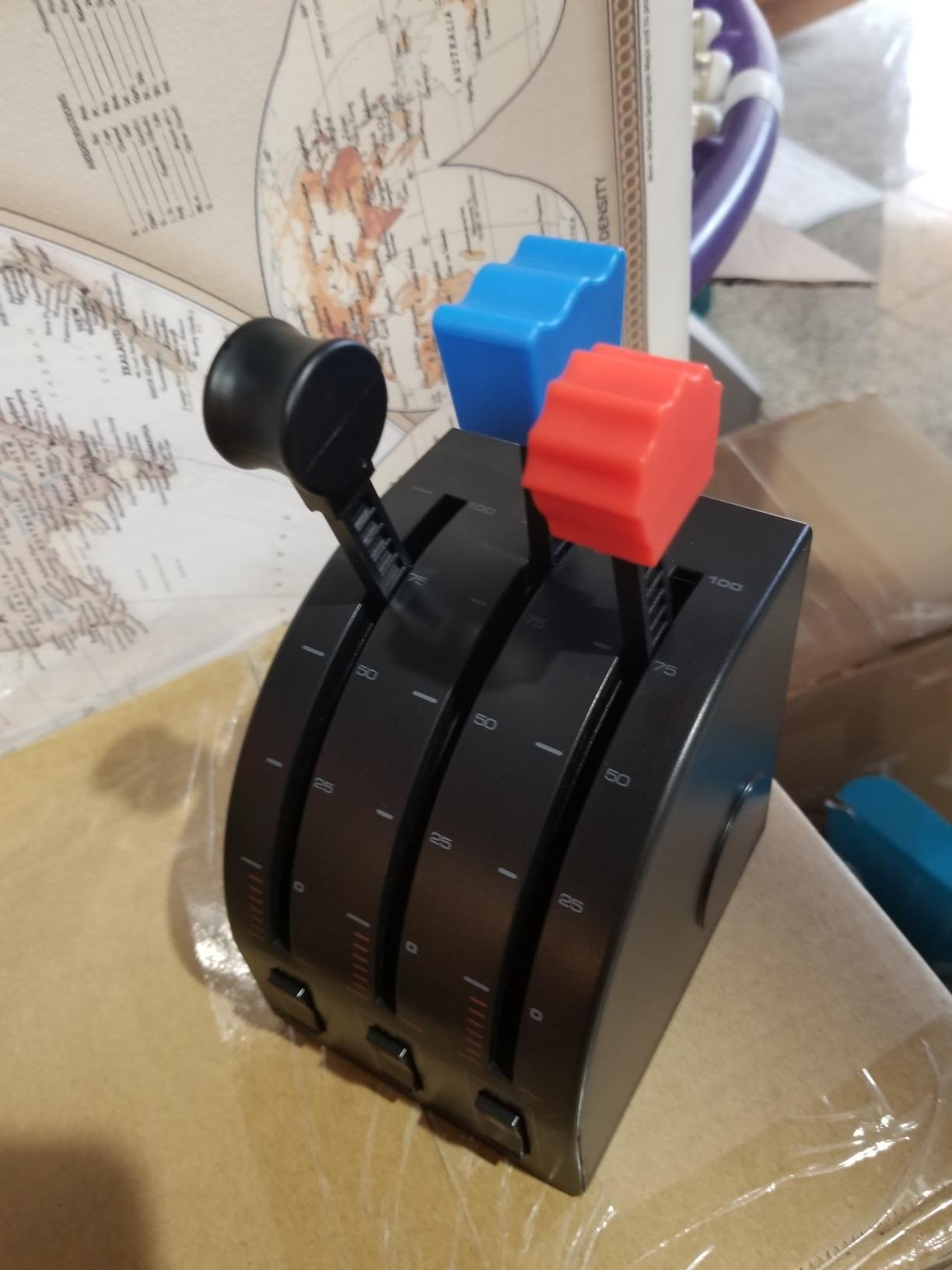
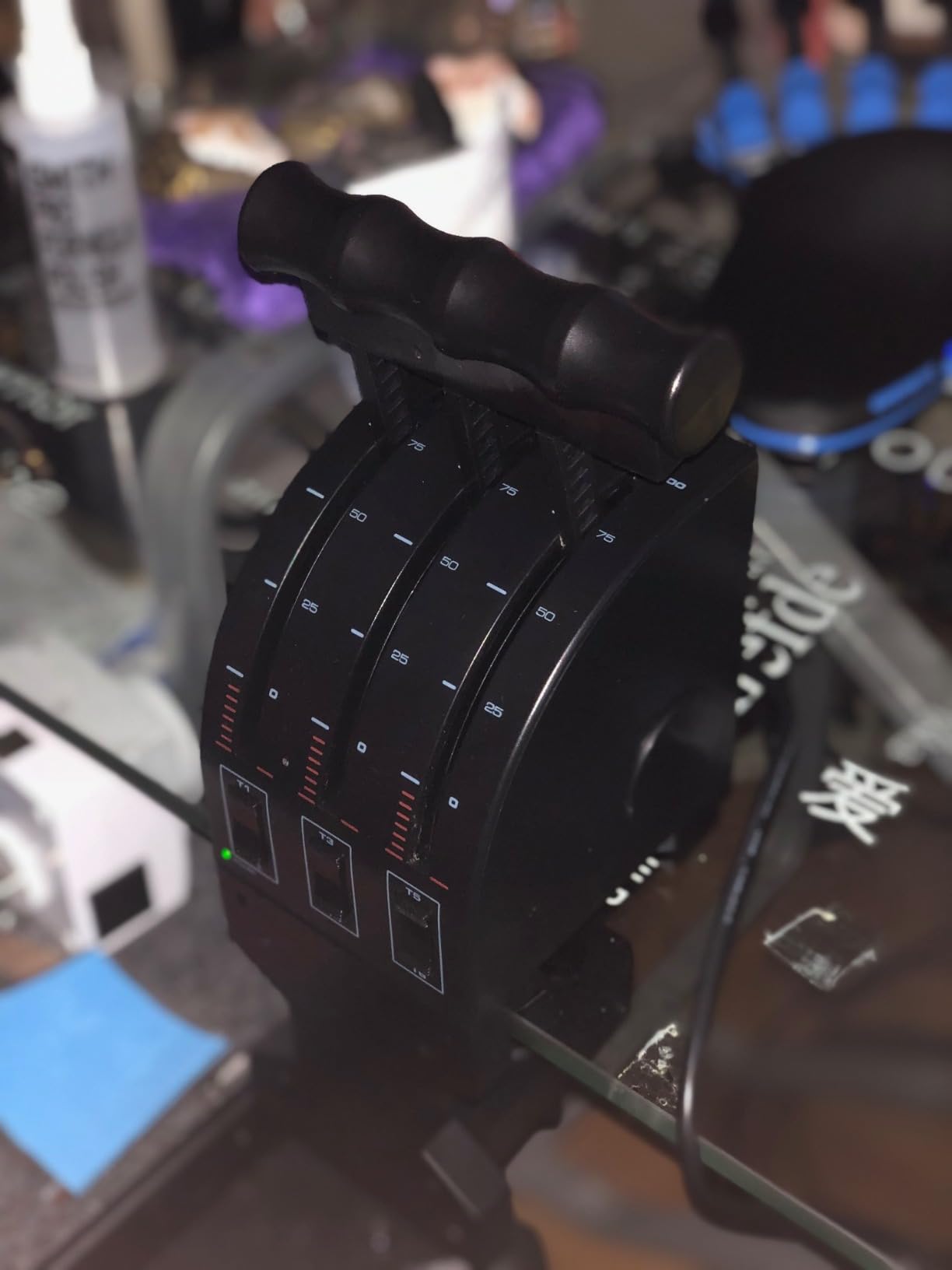
Set your expectations correctly though. The build is lightweight plastic and the desk clamp is the most commonly broken part in owner reviews. The axes can be jittery out of the box and really need a careful calibration pass before they track cleanly.
The three rocker switches work fine but have no backlighting, so night flying means feeling for them. And the levers themselves are short and lack any detent or reverse mechanism, so Airbus and Boeing procedures are all software-mapped rather than physically felt.
None of that changes the core point: for the price of a single payware aircraft you get three working levers and a solid introduction to quadrant flying. Thousands of happy owners and one of the highest review counts in flight sim hardware back that up.
Calibration and Accuracy Expectations
Run the Windows calibration tool before your first flight and again after a few weeks once the levers have settled. After a proper calibration, mine tracked cleanly enough for consistent thrust settings in the 737. Expect tiny input jumps on the very cheapest units rather than the dead-flat response of the Hall-Effect gear higher up this list.
If a lever starts misbehaving, a recalibration almost always fixes it before you consider anything drastic. Patience with setup is part of the deal at this price.
Mounting and Expanding Later
The included clamp fits standard desk edges, but treat it gently, as it is the weakest part of the package. Many owners bolt the unit to a wooden base plate or a DIY sim desk instead, which solves the fragility issue entirely.
Because extra units daisy-chain over USB, a lot of pilots buy one, love it, and add a second for flaps and spoilers duty. It is the cheapest upgrade path in flight sim hardware, and it makes this a low-risk first purchase.
6. Thrustmaster TCA Quadrant Add-On Airbus Edition – The Airbus Panel Expander
Thrustmaster TCA Quadrant Add-On Airbus Edition Control Panel – PC
Flaps and speed brake
Gear and autobrake
Trim and parking brake
15 functions
Magnetic sensors
Pros
- Adds 15 Airbus panel functions
- Dedicated flap and speed brake levers
- Gear and autobrake controls
- Magnetic drift-free sensors
- Shows as one device with the TCA quadrant
Cons
- Documentation is thin
- Parking brake not read correctly in some sims
- Speed brake has no armed detent
This is not a throttle at all, it is the panel that should sit next to one. The TCA Add-On gives you the controls an Airbus pilot actually touches after the thrust levers: flaps, speed brake, landing gear, pitch trim, autobrake, rudder trim, and a parking brake. Combined with the TCA Airbus throttle above, it turns two boxes into a credible A320 center pedestal.
The flaps lever alone justifies the purchase for me. Detented flap positions you can select without looking are a genuine quality-of-life upgrade over keyboard presses, and the speed brake lever sits right where Airbus puts it. Gear and autobrake round out the controls you use on every single sector.
It connects to the main TCA quadrant and is recognized as one combined device, which keeps your controller list clean and your bindings tidy. The magnetic sensors match the main quadrant, so everything feels consistent.
The documentation is genuinely poor, and I will not pretend otherwise. Thrustmaster ships minimal instructions, and getting every function mapped correctly in X-Plane took me an evening of community guides and forum threads. MSFS was easier but still not automatic for every control.
There are functional niggles too. The parking brake is not read correctly by some sims, the autobrake knob does not match the real Airbus appearance closely, and the speed brake lever does not physically click up into the armed position the way the real one does. None of these break the experience, but they remind you this is enthusiast gear, not training equipment.
Owners who push through setup love it. A 4.6 rating across hundreds of reviews from people who bought a niche expansion panel tells you the hardware itself is excellent.
Do You Need the Main Quadrant First
Yes, plan on owning the TCA Airbus throttle quadrant before this. The Add-On is designed to bolt onto that ecosystem and is recognized as one device with it, so buying it standalone makes little sense. Think of it as stage two of an Airbus cockpit build.
It also pairs with Thrustmaster TFRP and TPR rudder pedals, so a full TCA desk of yoke, throttle, panel, and pedals is a coherent, matched setup that costs far less than replica-grade hardware.
Binding It in MSFS and X-Plane
In MSFS, start with the default TCA profile and then assign the autobrake and rudder trim axes manually, which the defaults miss. In X-Plane, expect to do the full mapping yourself with a community guide open in a second window. Budget an evening the first time.
Once bound, everything holds its calibration and I have not needed to revisit settings since. The setup pain is a one-time cost for a panel you will use on every flight.
What to Look for in an Airliner Throttle Quadrant?
Choosing between these comes down to a handful of factors that matter far more than any spec sheet line. Here is what I weigh after testing all six.
Detents and Thrust Reverse
Real airliner throttles have physical gates: Airbus levers click into idle, climb, flex, and max thrust, and Boeing levers have an idle stop you lift over to reach reverse. A quadrant with mechanical detents, like the TCA Airbus Edition, reproduces this in a way software never can. If you fly Airbus procedures, detents should be non-negotiable; if you fly Boeing, look for a real reverse axis rather than a button.
Sim and Platform Compatibility
Check your platform before anything else. Everything here works with MSFS on PC, but only the TCA Boeing quadrant and the VelocityOne support Xbox.
X-Plane users should verify per product: the Bravo needs community profiles for X-Plane 12, and the TCA Boeing has recognition issues for some X-Plane users. The safest X-Plane throttle controller choices in this list are the Bravo with profiles, the TCA Airbus, and the Saitek quadrant.
Sensors and Build Quality
Older quadrants used potentiometers that wear, jitter, and develop dead zones. Hall-Effect and magnetic sensors, used across the entire Thrustmaster TCA range, are contactless and simply do not drift.
My TCA Airbus calibration has not moved since setup day, while every potentiometer quadrant I have owned eventually needed attention. Build materials matter too: the Bravo’s weight gives it a stability the all-plastic units cannot fake.
Room to Grow
Think about where your cockpit build ends. The Saitek quadrant daisy-chains with more units, the Thrustmaster TCA range bolts together into a full Airbus pedestal, and the Bravo’s aftermarket covers everything from replacement levers to 3D-printed mods. Buying into an ecosystem you can extend is smarter than buying the cheapest standalone unit twice.
Setup and Configuration Tips
A new quadrant is only as good as its calibration. Calibrate every axis in Windows or your sim’s joystick settings before the first flight, and set a small deadzone on each lever to kill tiny idle jitter. Re-run calibration after a few weeks once the mechanics have worn in.
Bind idle detents and reverse carefully in MSFS by assigning reverse to a separate axis or button range rather than the bottom of the throttle travel, otherwise you will deploy full reverse every time you retard to idle. In X-Plane, check for a community profile for your exact quadrant before doing manual mapping, because someone has usually solved your exact problem already.
Per-aircraft profiles are the biggest time-saver in MSFS. Set up one profile for your Airbus, another for Boeing, and a third for general aviation, then switch them from the controls menu instead of rebinding levers every time you change aircraft. Finally, clamp or weight your quadrant properly; a sliding base ruins precise thrust inputs faster than any software issue.
Frequently Asked Questions
What is the best throttle quadrant for MSFS?
The Honeycomb Bravo is the best overall throttle quadrant for MSFS thanks to its autopilot panel, annunciator lights, and configurable one-to-four engine levers, and it is plug and play with no setup. If you fly the A320 family in MSFS, the Thrustmaster TCA Airbus Edition is a close second because its real detents match Airbus procedures exactly.
Is a throttle quadrant better than a HOTAS for airliner sims?
For airliner flying, yes. A HOTAS throttle is designed for fighters and general aviation and has no detents, no reverse levers, and no room for flaps, spoilers, and gear controls. A quadrant puts all of those under one hand and mirrors how a real airliner flight deck works, which is why most serious airline simmers move to a quadrant eventually.
Which throttle quadrant is best for Airbus sims?
The Thrustmaster TCA Quadrant Airbus Edition is the best pick for Airbus sims because it is officially licensed and has mechanical detents at idle, climb, flex, and max thrust plus lift-up thrust reverse levers. Adding the TCA Quadrant Add-On Airbus Edition gives you flaps, speed brake, gear, autobrake, and trim for a complete A320 pedestal.
What is the best budget throttle quadrant for flight sim?
The Logitech G Saitek Pro Flight Throttle Quadrant is the best budget option. It costs about as much as a single payware aircraft and gives you three analog levers, three rocker switches, and swappable lever heads. It needs careful calibration and a gentle hand with its plastic clamp, but it is the cheapest way to start flying with levers.
Do throttle quadrants work on Xbox?
Only two in this roundup do: the Thrustmaster TCA Quadrant Boeing Edition and the Turtle Beach VelocityOne. Both are officially licensed for Xbox Series X and Series S and work with MSFS on console out of the box. Most other quadrants, including the Honeycomb Bravo and TCA Airbus Edition, are PC only.
Final Verdict
After months of flying all six, our recommendations split cleanly by mission. The Honeycomb Bravo is the best throttle quadrant for airliner sims overall, because the autopilot panel, annunciator, and gear controls transform the whole flight rather than just the thrust phase. The TCA Airbus Edition wins for dedicated A320 pilots on a budget, and pairing it with the TCA Add-On panel builds a proper Airbus pedestal for far less than replica hardware.
Xbox pilots should choose between the TCA Boeing quadrant and the VelocityOne depending on whether they want a standalone throttle or a full yoke system, and the Saitek quadrant remains the smart first purchase for anyone testing the waters. Whatever you pick, calibrate it properly, clamp it down, and set up per-aircraft profiles before your first long sector.
Pick the one that matches the aircraft you actually fly in 2026, and every landing from here on will feel a little more like the real flight deck.