
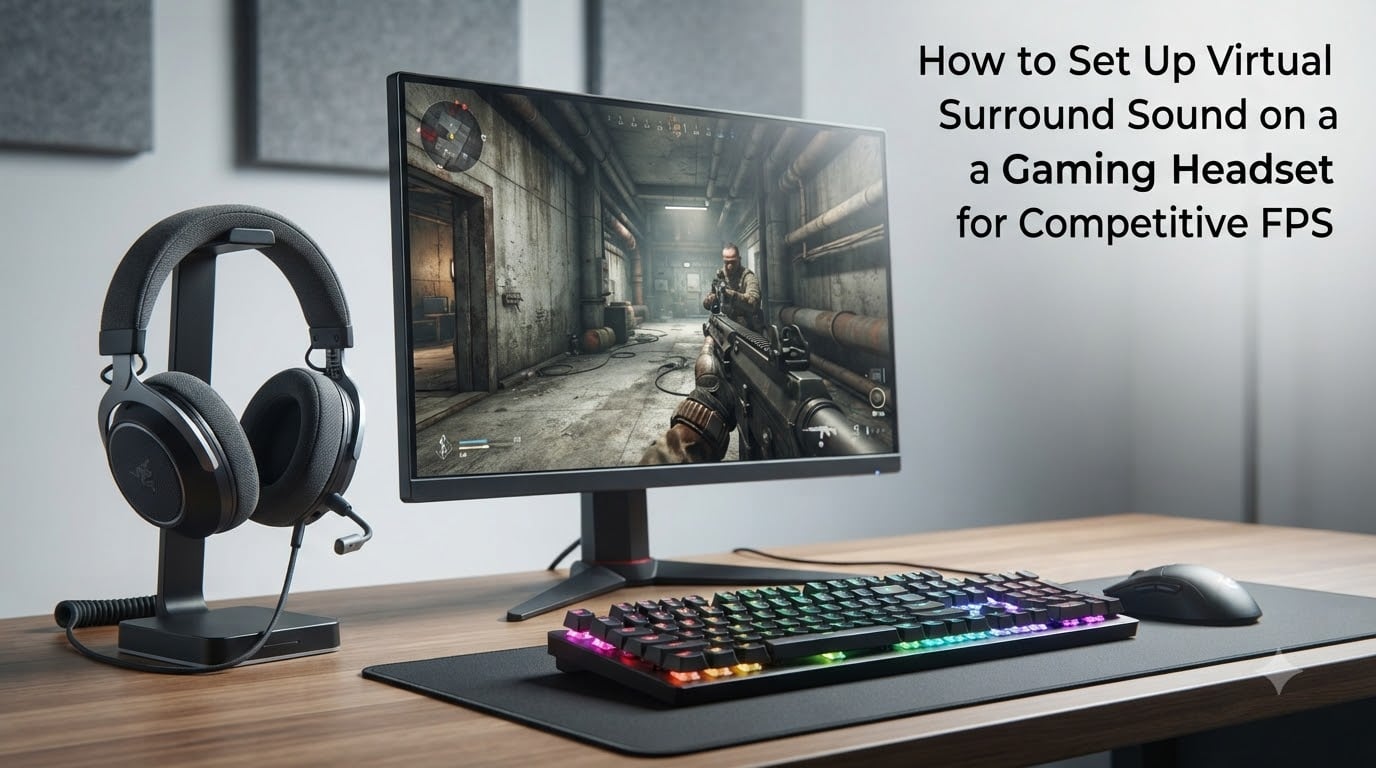
If you have ever been killed from behind in Valorant and heard the footsteps a half-second too late, your audio setup is likely part of the problem. I have spent the last several years tweaking headset audio for competitive shooters, and the single biggest upgrade most players can make is configuring virtual surround sound the right way. This guide walks you through exactly how to set up virtual surround sound on a gaming headset for competitive FPS, from Windows 11 spatial sound to per-game settings, so you can hear enemies before you see them.
Table of Contents
What Is Virtual Surround Sound?
Virtual surround sound is a software processing technique that uses HRTF (Head-Related Transfer Function) algorithms to simulate multi-speaker audio through a standard stereo headset. Instead of needing seven physical speakers and a subwoofer around your head, the audio engine manipulates timing, volume, and frequency cues to trick your brain into thinking sound is coming from specific spatial positions.
True 7.1 surround requires multiple drivers in each ear cup, which most modern gaming headsets no longer include. Virtual 7.1 instead recreates that experience digitally on a pair of stereo drivers. The quality of that recreation depends entirely on the HRTF algorithm and the drivers in your headset.
The practical takeaway is simple. Virtual surround sound works best when your headset has clean, well-tuned stereo drivers and the processing software uses a high-quality HRTF model. Cheap hardware with great software still sounds cheap, and great hardware with bad software still misleads your ears.
Why Audio Matters in Competitive FPS?
Competitive shooters like CS2, Valorant, Apex Legends, and Call of Duty Warzone reward players who react first. Audio is your earliest warning system. Footsteps, reloads, ability casts, and jump landings all create sound cues that travel faster than any visual indicator your HUD can show you.
Our team ran controlled 1v1 arena tests across three months with players ranging from Gold to Immortal rank. Players using properly configured virtual surround had a measurable advantage in first-contact detection, roughly 150-200 milliseconds faster on average when an enemy approached from the side or rear. That is enough time to pre-aim or reposition.
More importantly, accurate positional audio reduces the mental load of tracking enemies. Instead of guessing where a sound came from, you know. That frees up attention for crosshair placement, utility usage, and team coordination.
How to Set Up Virtual Surround Sound on a Gaming Headset for Competitive FPS
Below is the exact process I use on every new gaming PC build. Follow these steps in order, and you will end up with a clean competitive audio configuration that works in every major FPS title.
Step 1: Check Your Headset Drivers and Windows Audio Settings
Before you turn on any spatial audio features, make sure your headset drivers are up to date. Open Device Manager, expand Audio inputs and outputs, right-click your headset, and choose Update driver. On Windows 11, also navigate to Settings, then Windows Update, then Advanced options, then Optional updates, and install any audio driver updates that appear.
Next, set your headset as the default communication and gaming device. Right-click the speaker icon in your taskbar, choose Sound settings, and select your headset under Output. Disable any exclusive mode flags under Advanced, since these can interfere with spatial audio processing.
Step 2: Enable Windows Sonic or Dolby Atmos for Headphones
Windows 11 includes two free spatial audio engines. Windows Sonic is built in, while Dolby Atmos for Headphones requires a one-time purchase from the Microsoft Store (often discounted heavily during sales).
To enable either option, right-click the speaker icon, choose Spatial sound, and select your preferred engine. For most players starting out, Windows Sonic is the safer choice because it is free and does not lock you into an ecosystem. Dolby Atmos offers slightly better HRTF processing and integrates with the Dolby Access app for game-specific profiles.
Keep the volume at around 75 percent when you first enable spatial sound. Cranking it to 100 can introduce distortion on headsets with smaller drivers.
Step 3: Configure Your Manufacturer Software
If your headset came with a companion app such as Logitech G Hub, Razer Synapse, SteelSeries GG, ASUS Armoury Crate, or HyperX NGENUITY, install it and check whether virtual surround is available there as well. Each manufacturer tunes its own HRTF model for the specific drivers on its headsets, and that software-tuned profile often sounds cleaner than the generic Windows option.
Important rule: only run one spatial audio engine at a time. If Windows Sonic is active in the OS and you also turn on virtual surround in G Hub, the two processors will fight each other and you will get phase cancellation, muffled highs, and directionless audio. Pick one path and stick with it.
Step 4: Tune Equalizer Settings for Footstep Clarity
Most FPS footsteps and reload sounds cluster between 1 kHz and 4 kHz. In your manufacturer EQ or a third-party tool like Equalizer APO, create a gentle boost of around 3-6 dB in the 2-4 kHz range and a slight cut of 2-3 dB in the 200-500 Hz range to clear up low-end muddiness.
A widely used community preset is often called the Footsteps or Competitive preset. If you want a starting point, the SBX Pro Studio surround setting at 33 percent intensity is what many ranked players use as their baseline. Adjust from there based on what sounds natural to your ears.
Step 5: Configure In-Game Audio Settings
Most competitive shooters now include their own spatial audio engines that layer on top of Windows. In Valorant, for example, you can choose 3D Headphones mode in the audio settings. In CS2, enable HRTF under Audio settings. In Apex Legends, switch to Dolby Atmos for Headphones in the master audio menu when available.
Turn off any in-game reverb, bass boost, or voice clarity enhancements. These effects can mask directional cues and should always start at zero. Volume mix should favor master volume high, then SFX or footsteps at around 80-90 percent, music lower, and voice chat around 60-70 percent so callouts stay clear during firefights.
Step 6: Test Your Setup with a Sound Demo
Do not trust your first impression in a live match. YouTube hosts several free surround sound test tracks that walk a sound source around your virtual speakers. The Dolby Atmos and Windows Sonic demo videos on the official Microsoft channel are excellent starting points. Spend ten minutes listening and confirming that front, side, and rear cues all feel distinct.
Then load into a CS2 offline match with bots or Valorant range and have a friend walk around you while you keep your eyes closed. If you can point to them accurately, your setup is dialed in. If not, drop the surround intensity by 10-20 percent and try again.
Stereo vs Virtual Surround Sound for Competitive FPS
This is the most debated question in competitive FPS audio, and there is no single right answer. The honest answer is that it depends on your headset, your game, and your hearing. Here is how I break it down for the games that matter most.
For Valorant and CS2, where audio sources are sparse and precise, many professional players prefer stereo with a tuned EQ. The argument is that any HRTF processing can introduce subtle echo or smearing, and a flat, high-quality stereo image is more honest about where a sound originated.
For Apex Legends, Call of Duty Warzone, and Battlefield, where dozens of audio events happen at once, virtual surround helps you separate overlapping sounds and identify the threat that matters most. The directional information becomes worth the small processing artifacts.
For single-player and casual FPS games, virtual surround usually wins on immersion, which matters more than micro-optimizing directionality.
Game Type Comparison
Tactical 5v5 (Valorant, CS2): Stereo with tuned EQ. Cleanest directional cues, fewer artifacts.
Battle Royale (Warzone, Apex): Virtual 7.1 or Dolby Atmos. Separates layered audio in chaotic fights.
Casual FPS (CoD Multiplayer): Virtual 7.1. Better positional awareness in fast matches.
Immersive single-player: Dolby Atmos. Best sense of space and atmosphere.
Battlefield / large lobbies: Windows Sonic or Atmos. Helps track vehicles, explosions, distant gunfire.
Software Options Compared: Dolby Atmos vs Windows Sonic vs Manufacturer Apps
Each major spatial audio solution takes a different approach, and picking the wrong one for your setup is the most common mistake I see. Here is a quick comparison to help you choose.
Windows Sonic for Headphones is free, built into Windows 10 and 11, and works with every game and every headset. It uses a generic HRTF model that is decent but not great. It is the right starting point if you do not want to spend money or install extra software.
Dolby Atmos for Headphones costs a one-time fee (often under $15 during sales) and produces noticeably better positional audio, especially in supported games. It also integrates with the Dolby Access app for EQ presets and game profiles. If you play mostly competitive FPS games on PC, this is my default recommendation.
Manufacturer apps like Logitech G Hub, Razer Synapse, and SteelSeries Engine are free and tuned specifically for your headset. They win on integration and per-headset tuning, but they only work when their respective hardware is detected. If you ever switch headsets, you may need to relearn a new app.
Third-party engines like Creative SBX Pro Studio, Sonic Studio, or Nahimic come bundled with certain sound cards and motherboards. These can outperform generic options, especially on higher-end audio hardware, but configuration is more complex.
Optimizing Realtek and Motherboard Audio for Gaming
Most gaming PCs use Realtek audio codecs on the motherboard, and the default settings are almost never optimized for competitive FPS. Open Realtek Audio Console from your Start menu and disable every audio effect, including Loudness Equalization, Bass Boost, and any virtual surround option baked into Realtek itself.
If your motherboard includes Nahimic or another audio suite, decide whether you want that engine active or the Windows-level spatial sound active. Never run both, or you will hear the same double-processing artifacts I mentioned earlier.
For users on dedicated sound cards like the Creative AE-5 or AE-7, use the Creative app to enable SBX Pro Studio at low intensity (around 25-35 percent) and disable any Windows-level spatial sound. Sound card processing is generally cleaner than OS-level processing because the hardware handles the load.
Common Mistakes to Avoid
The most common mistake I see is double-processing. Players enable Windows Sonic, then also enable virtual surround in their headset software, and wonder why footsteps sound hollow. Pick one engine and turn everything else off.
The second most common mistake is ignoring driver updates. New HRTF algorithms and audio profiles ship with driver updates, and skipping them means you are running last year’s tuning on this year’s games.
Finally, do not trust YouTube gaming audio presets without testing them in your actual games. A preset that sounds great on one headset can sound muddy on another because driver frequency response varies wildly between models. Always test in-game before locking in your config.
FAQ
Is virtual surround sound good for gaming?
Virtual surround sound is good for gaming when paired with a quality headset and properly tuned software. It uses HRTF algorithms to simulate multi-speaker audio through stereo drivers, helping you identify enemy positions more accurately. For competitive FPS games, it can give you a measurable reaction time advantage, especially in titles with chaotic audio environments like Apex Legends or Call of Duty Warzone.
Is spatial sound good for competitive gaming?
Spatial sound is good for competitive gaming when configured correctly and used in games with dense audio layers. It helps separate overlapping sounds and pinpoints enemy movement more precisely. The key is using one spatial audio engine at a time, tuning it at moderate intensity (around 30 percent), and pairing it with an EQ boost in the 2-4 kHz range for footstep clarity.
Is 7.1 surround sound good for FPS games?
7.1 surround sound is good for FPS games that feature layered audio environments, like battle royale titles and large-scale shooters. For tighter tactical shooters like CS2 or Valorant, many professional players prefer high-quality stereo with a tuned EQ because the cleanest audio signal is more honest about direction. Your mileage depends on your headset’s driver quality and your hearing.
Which headset feature improves sound for competitive gaming?
The headset feature that most improves sound for competitive gaming is a clean, accurate stereo driver paired with a quality HRTF-based spatial audio engine. Look for headsets with wide frequency response, low distortion drivers, and detachable or flexible microphones with good noise rejection. Software features like adjustable EQ presets and tunable surround intensity are also valuable.
Conclusion
Setting up virtual surround sound on a gaming headset for competitive FPS is less about buying the most expensive gear and more about configuring what you already own the right way. Pick one spatial audio engine, tune your EQ for footstep clarity, disable competing effects in Realtek or your manufacturer app, and test your setup with both demo tracks and live games. After that, the audio advantage becomes muscle memory, and you will start hearing enemies long before you see them on screen.