
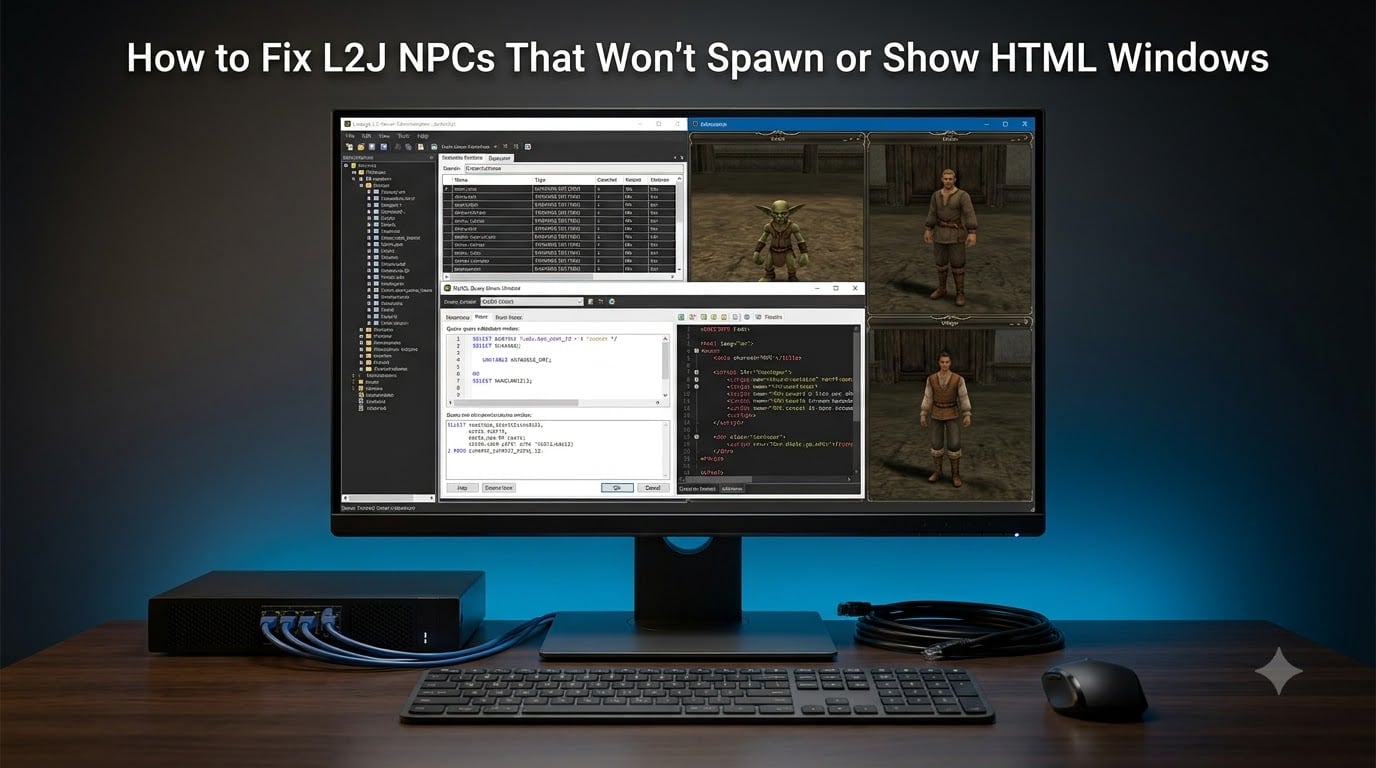
If you are running a private Lineage 2 server and your NPCs refuse to spawn or throw blank HTML windows when players click them, you are dealing with two of the most common L2J administration headaches. I have spent years managing L2J servers, and I can tell you that almost every spawn or dialog issue traces back to a handful of root causes: missing database rows, wrong file paths, stale cache, or access level mismatches.
This guide walks through how to fix L2J NPCs that won’t spawn or show HTML windows from the ground up. I will cover database templates, spawnlist entries, HTML dialog file placement, the GM-versus-player permission trap, cache clearing, and the multi-language fallback system that trips up so many admins.
By the end, you will have a repeatable troubleshooting process you can run every time an NPC acts up. Let us get your server back on track.
Table of Contents
Understanding L2J NPC Spawning Basics
L2J servers split NPC data across two database tables, and understanding the difference is the foundation of every fix. The npc_templates table (sometimes called npc depending on your L2J build) defines what an NPC is: its ID, name, stats, collision radius, and type. The spawnlist table defines where and when that NPC appears in the game world: coordinates, respawn delay, and heading.
For an NPC to appear in-game, it needs a valid row in both tables. If the template exists but the spawnlist entry is missing, the NPC simply never materializes. If the spawnlist references an NPC ID that does not exist in npc_templates, the server logs an error on boot and skips that spawn.
HTML dialog windows are a separate layer. When a player double-clicks an NPC, the server looks for an HTML file matching the NPC’s ID in the game server data folder. If that file is missing, misplaced, or cached incorrectly, the player sees a blank window or a “Dialog not found” error.
So the full picture is: npc_templates defines the NPC, spawnlist places it in the world, and HTML files give it something to say. A problem in any of those three layers produces a broken NPC.
How to Fix L2J NPCs That Won’t Spawn or Show HTML Windows: The Quick Checklist
Run through this checklist before diving into detailed debugging. It catches roughly 80 percent of NPC issues in under five minutes.
- Confirm the NPC ID exists in
npc_templateswith a SQL query. - Confirm a spawnlist row exists for that NPC ID with valid coordinates.
- Check the server console or log for errors on the last restart.
- Verify the
npc_id.htmlfile exists in the correct data folder. - Clear the HTML cache if you recently edited dialog files.
- Test with a GM character first, then a regular player account.
- Run the appropriate reload command or restart the server.
If the NPC spawns but has no dialog, jump to the HTML section. If it does not spawn at all, start with the database sections below.
Checking NPC Templates in the Database
The npc_templates table is your first stop when an NPC will not spawn. Open your MySQL client (phpMyAdmin, HeidiSQL, or the command line) and run this query, replacing YOUR_NPC_ID with the actual ID:
SELECT * FROM npc_templates WHERE id = YOUR_NPC_ID;Depending on your L2J build (Mobius, L2JServer, Lucera), the table might be named npc instead of npc_templates. If the query returns zero rows, your NPC template does not exist and the server cannot spawn something it does not know about.
Missing Template Fix
If the row is missing, you need to insert it. Here is a minimal template insert as an example for a custom buffer NPC:
INSERT INTO npc_templates (id, name, class, type, level, hp, mp, attack, defense)
VALUES (70000, 'Custom Buffer', 'NPC.Buffer', 'L2Npc', 70, 5000, 2000, 100, 200);
The exact column names vary by build, so check your existing NPC rows with DESCRIBE npc_templates; before inserting. Match the column structure exactly or the insert fails.
Template Exists But NPC Still Missing
If the template row is present, the problem is downstream. Move on to the spawnlist table, because the template only tells the server what the NPC is, not where to put it.
One common trap: custom NPC packs sometimes ship template SQL files that admins forget to import. If you installed a custom NPC buffer pack, double-check that you ran every included .sql file against your database.
Verifying Spawnlist Configuration
The spawnlist table controls where NPCs appear and how fast they respawn. A template without a spawnlist entry is invisible in-game, which is the single most common reason custom NPCs never show up.
Run this query to check for spawn entries tied to your NPC ID:
SELECT * FROM spawnlist WHERE npc_templateid = YOUR_NPC_ID;If you get zero rows, the NPC has no spawn point defined. Insert one using valid coordinates from a known good spawn in your world:
INSERT INTO spawnlist (location, count, npc_templateid, locx, locy, locz, randomx, randomy, heading, respawn_delay, loc_id)
VALUES ('custom_buffer', 1, 70000, 146560, 26720, -2200, 0, 0, 0, 60, 0);
Respawn Timer Issues
If your NPC spawned once and then vanished after being killed, check the respawn_delay value. This field is measured in seconds in most L2J builds, so a value of 60 means a one-minute respawn. A typo like 60000 would mean the NPC takes over 16 hours to come back.
I once spent two hours hunting a “disappearing NPC” that was actually set to a 24-hour respawn. Always sanity-check that number.
Coordinates Are Out of Bounds
If the locx, locy, or locz values fall outside the valid geometry of the game world, the server may silently fail to spawn the NPC. Borrow coordinates from an existing spawn in the same area to rule this out.
HTML Dialog File Setup and Placement
When an NPC spawns correctly but clicking it produces a blank window or a “Dialog not found” error, the problem is the HTML dialog file. L2J expects a file named npc_id.html in a specific folder inside the game server data directory.
The exact path depends on your L2J build. For L2JServer and Mobius, the default is typically gameserver/data/html/default/ or a custom subfolder. The filename must match the NPC’s template ID exactly. For NPC ID 70000, the file would be 70000.htm or 70000.html depending on your build’s convention.
The File Naming Trap
The most common HTML dialog mistake is a naming mismatch. Some builds use .htm, others use .html, and getting it wrong means the server cannot find the file even though you placed it correctly. Check existing working NPC dialogs in the same folder and copy the exact extension.
For L2J Mobius builds specifically, custom NPCs often live in a custom/ subfolder. If your NPC is defined as a custom type, the HTML file might need to go in gameserver/data/html/custom/ rather than the default folder.
The Empty HTML Window With “Screen Error”
This is one of the most reported issues on forums. You click an NPC, the main dialog appears, but when you press a button like “Buff Me,” you get an empty window with the title “Screen Error.” That happens when the button links to a second HTML file that does not exist.
Open your main NPC dialog file and check every <a action> link. Each one references another HTML file by name. If any of those linked files are missing, the server returns the Screen Error page. Create the missing files or remove the broken links.
Why NPC Dialogs Work for GMs But Not Regular Players
This is the most frustrating scenario I see on the forums: a GM character clicks an NPC and the dialog opens perfectly, but a regular player clicks the same NPC and nothing happens. No window, no error, no response.
The cause is almost always the access level setting on either the NPC or the dialog file. L2J supports per-NPC access restrictions, and some HTML dialogs include conditions that check the player’s access level before displaying content.
Checking NPC Access Level
Run this query to inspect the access level on your NPC template:
SELECT id, name, accesslevel FROM npc_templates WHERE id = YOUR_NPC_ID;If accesslevel is set to a value above 0, the NPC is restricted to GM characters. Set it to 0 to make the NPC accessible to all players:
UPDATE npc_templates SET accesslevel = 0 WHERE id = YOUR_NPC_ID;Checking HTML File Permissions
Some HTML dialog files include conditional logic that checks player access level before rendering content. Open your NPC’s HTML file and look for tags like <access> or conditional scripts. Remove or adjust any access restrictions that block regular players.
After making changes, always reload the server or clear the HTML cache (covered next), otherwise the old cached version keeps blocking players.
Clearing the HTML Dialog Cache
L2J caches HTML dialog files in memory for performance. This means when you edit an HTML file, the server keeps serving the old cached version until you explicitly clear it or restart. This is why so many admins report that their dialog fixes “do not work” even when the files are correct.
Cache Clearing Methods
- Run the in-game admin command
//reload html(L2JServer and Mobius) to flush the HTML cache without restarting. - If your build lacks that command, use
//reload scriptsas a broader reload. - As a last resort, fully restart the game server process to clear all caches.
A specific forum-reported issue involves the server console being restarted while a player has an HTML window open. On the next boot, a cache error can surface that prevents dialogs from loading. If you see cache-related errors in your console log after a restart, a clean shutdown followed by a full restart usually resolves it.
Server Reload vs Restart: When to Use Each
Knowing when to reload versus when to restart saves time and avoids kicking players offline. Reloads refresh specific subsystems without dropping connections; restarts clear everything and re-read the database from scratch.
- Use
//reload npcafter editing npc_templates or spawnlist entries to push changes without a restart. - Use
//reload htmlafter editing or adding HTML dialog files. - Use
//reload scriptsafter modifying NPC AI, quest scripts, or Java-based NPC behavior. - Use a full server restart when you import large SQL files, change core configuration files, or encounter unexplained cache errors that reload commands cannot clear.
If reload commands do not pick up your changes, the database connection may be caching query results. A full restart forces the server to re-read every table and is the most reliable way to confirm your changes took effect.
Multi-Language HTML Fallback System
Modern L2J builds support multi-language HTML dialogs using a folder-based fallback system. Instead of a single html/ directory, you may see html-en/, html-ru/, and similar language-specific folders.
The server looks for the player’s configured language folder first. If it cannot find the requested HTML file there, it falls back to the default folder. A common error is “Dialog not found” even though the file clearly exists in html-en/, which happens when the server’s configured default language does not match the folder name.
Check your server configuration file for the default language setting and make sure it matches your HTML folder naming convention. If you only run an English server, ensure all dialog files live in the default html/ folder or whichever folder your build treats as the primary fallback.
Frequently Asked Questions
Why are my L2J NPCs not respawning?
The most common cause is an incorrect respawn_delay value in the spawnlist table. Check the field for that NPC and confirm it is set in seconds, not milliseconds. A value of 60 means one minute. Also verify the NPC template still exists in npc_templates, as a missing template causes the spawn to be silently skipped on server boot.
Why is my Guide NPC not spawning in L2J?
If a Guide NPC specifically fails to appear, check whether its spawnlist entry was removed or commented out in your build. Some L2J distributions disable Guide NPCs by default. Query the spawnlist table for the Guide NPC template ID and insert a spawn entry if the row is missing.
Why can’t I talk to the NPC in L2J?
If clicking an NPC produces no dialog window, the NPC’s accesslevel in npc_templates may be set above 0, restricting it to GM characters. Run SELECT id, accesslevel FROM npc_templates WHERE id = YOUR_NPC_ID and set accesslevel to 0 to allow regular players to interact. Also check the HTML dialog file for any conditional access restrictions.
How do I get an NPC to spawn in L2J?
You need both a valid row in npc_templates (defining the NPC) and a row in spawnlist (placing it in the world). Insert the template first, then insert a spawnlist entry with valid locx, locy, locz coordinates and a reasonable respawn_delay. Run //reload npc or restart the server for the changes to take effect.
Why does my NPC show an empty HTML window with Screen Error?
The Screen Error window appears when a button inside your NPC dialog links to a second HTML file that does not exist. Open the main dialog file and check every link action. Create the missing linked HTML files or remove the broken links, then reload the HTML cache with //reload html.
Why does the dialog say not found even though html-en folder exists?
This happens when the server’s default language setting does not match your folder naming. The server looks for the configured language folder first and falls back to the default folder. Check your server configuration for the default language value and ensure your HTML files are in the folder the server actually reads as primary.
Conclusion
Learning how to fix L2J NPCs that won’t spawn or show HTML windows comes down to a methodical approach across three layers: the npc_templates database table, the spawnlist table, and the HTML dialog files. When you hit a broken NPC, run through the checklist, query both tables, verify file paths, clear the cache, and test with both GM and regular player accounts.
The most common mistakes I see are missing spawnlist entries, wrong HTML file extensions, access levels left above 0, and stale cache masking correct fixes. Once you internalize the three-layer model (template, spawn, dialog), most NPC problems become a five-minute fix instead of a multi-hour forum crawl.
Keep your SQL queries and reload commands handy, always check the server console log after a restart for silent errors, and remember that the cache is not your friend when you are actively editing dialog files. With this process, your NPCs will spawn reliably and talk to every player who clicks them.