
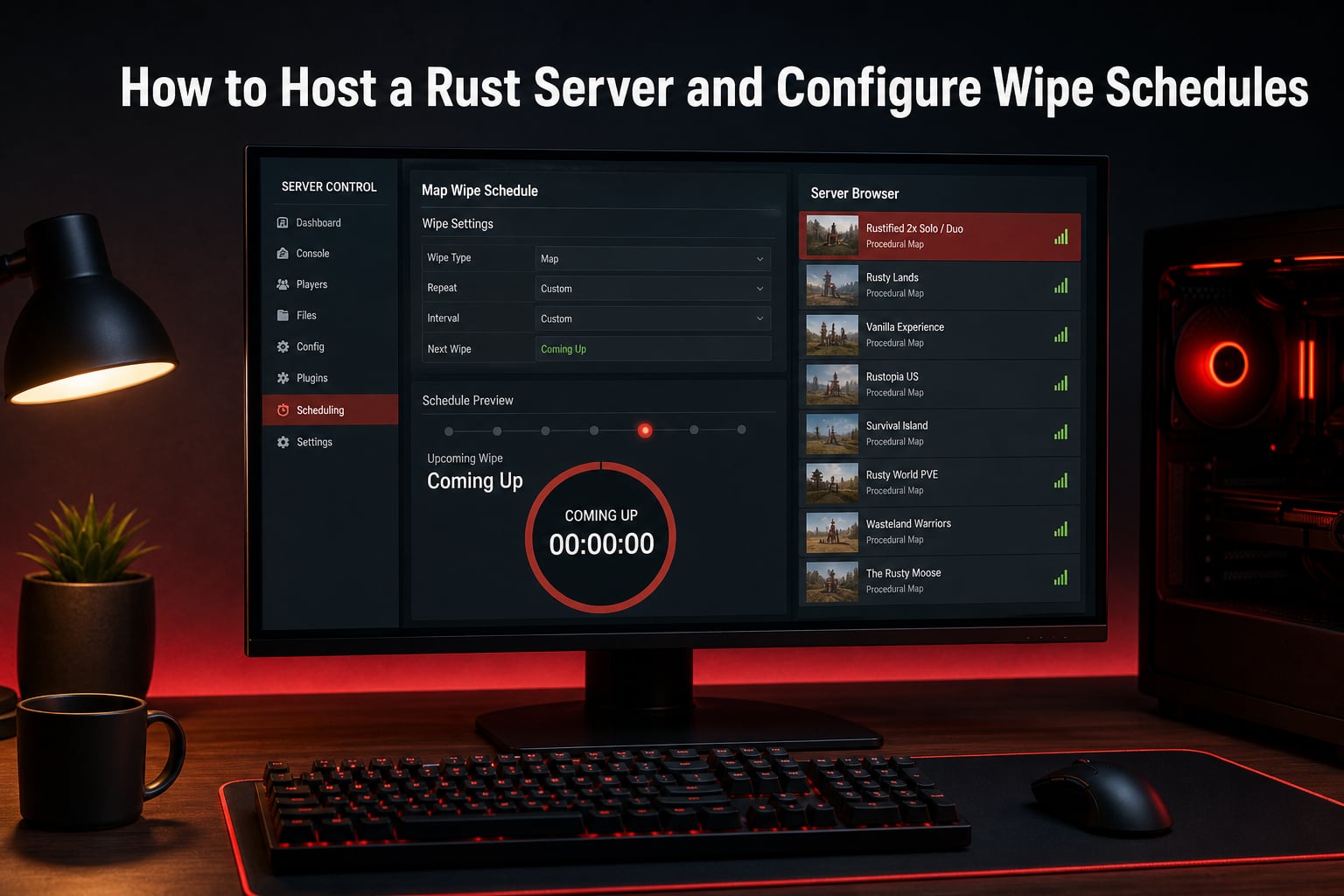
Running your own Rust server gives you complete control over the game experience. You set the rules, pick the map size, manage the community, and most importantly, decide when and how the world resets. In this guide, I walk through how to host a Rust server and configure wipe schedules from start to finish, covering everything from choosing a hosting approach to setting up automatic wipes that align with the official Rust force wipe calendar.
Whether you are setting up a private server for friends or building a public community server, wipe configuration is the single most impactful admin decision you will make. The right wipe frequency keeps your server population healthy, prevents stale gameplay, and gives new players a fair shot at competing. Get it wrong and you risk a ghost town within two weeks.
Our team has tested wipe configurations across multiple server types over the past year. The process is simpler than most guides make it look, but there are some technical details about the wipe timer and endgame events that nearly every tutorial skips. I cover all of it here.
Table of Contents
Rust Server Hosting Options
Before you configure any wipe schedules, you need a running Rust server. You have two main paths: self-hosting on your own hardware or renting a managed game server from a hosting provider.
Self-Hosting on Your Own Machine
Self-hosting means running the Rust dedicated server software on your own PC or a dedicated box. Rust is demanding on hardware, so you need at minimum 8 GB of RAM dedicated to the server process alone, a quad-core CPU, and a stable upload speed of at least 20 Mbps for a 50-player server.
The upside is full control and no monthly hosting fee. The downside is significant: you handle all maintenance, DDoS protection, updates, and troubleshooting yourself. Most admins who start self-hosting for a small friend group eventually switch to managed hosting once they realize how much time server maintenance eats up.
Self-hosting also complicates wipe scheduling. You need to either use console commands manually or install uMod plugins like the Rust auto wipe plugin to automate the process. The control panels that make one-click wipes easy are generally not available on self-hosted setups.
Managed Game Server Hosting
Managed hosting providers give you a web-based game panel where you can start, stop, configure, and wipe your server with a few clicks. Most providers include automatic DDoS protection, instant setup, and built-in wipe scheduling tools that sync with the official Rust force wipe schedule.
This is the route I recommend for almost everyone. The cost is reasonable for what you get, and the time savings on wipe management alone justify it. You also benefit from enterprise-grade network infrastructure that keeps latency low and uptime high.
Key features to look for in a hosting provider include a modern game panel with wipe scheduling, one-click mod support for uMod and Oxide plugins, NVMe SSD storage for faster server performance, and responsive customer support. DDoS protection is non-negotiable for Rust servers, as they are frequent attack targets.
Accessing Your Game Control Panel
Once your server is set up with a hosting provider, all configuration happens through the game control panel. Different providers use different panel software, but the workflow is nearly identical across all of them.
Step 1: Log In to Your Panel
Open your hosting provider’s client portal and sign in with the credentials you received at signup. Navigate to your services or servers list and select your Rust server. This takes you to the main server management dashboard where you can see CPU usage, RAM consumption, and player count in real time.
Step 2: Navigate to the Wipe or Schedules Section
Look for a tab labeled “Rust Wipe,” “Schedules,” “Wipe Manager,” or something similar. Some panels call it the Rust Wipe Beta tab. This is where all wipe configuration lives. If you do not see a dedicated wipe section, check under “Settings” or “Configuration” as some panels nest it there.
Take a moment to familiarize yourself with the panel layout before making changes. You should see options for map wipe, blueprint wipe, full wipe, and schedule creation. There will also be fields for map seed and world size configuration.
Step 3: Review Server Details
Before scheduling any wipes, confirm your server details are correct. Check the map size, max player count, and any custom configuration in your server.cfg file. These settings interact with your wipe schedule because changing the world size or seed mid-cycle triggers an effective map wipe.
How to Host a Rust Server and Configure Wipe Schedules
This is the core of the process. Once your server is live and you can access the panel, configuring wipe schedules takes about ten minutes. I break it into clear steps below.
Step 1: Choose Your Wipe Cadence
Decide how often you want your server to wipe. The three most common options are weekly, biweekly, and monthly. Most community servers run on a biweekly or monthly cycle aligned with the official Rust force wipe, which happens on the first Thursday of every month.
If you want to stay consistent with the global Rust ecosystem, align your schedule with force wipe day. This is when the largest player migration happens, as players leave wiped official servers looking for fresh community servers. Being online and freshly wiped on force wipe Thursday gives you the best chance of filling your server.
Step 2: Create an Automatic Wipe Schedule
In your panel’s wipe or schedules section, look for an option to create a new schedule or use a schedule template. Many providers offer pre-made templates that already align with the official force wipe calendar. Selecting one of these is the fastest path.
If you are creating a custom schedule, you will need to specify the wipe type (map only, blueprints only, or full wipe), the frequency (weekly, biweekly, monthly, or custom), the start date and time, and whether to generate a new map seed on each wipe. Generating a new seed each cycle keeps the map fresh and prevents players from memorizing layouts.
Set the time for early morning hours when your server traffic is lowest, typically around 2 AM to 5 AM in your primary timezone. Most panels also let you configure a schedule offset so you can fine-tune the exact timing relative to the official force wipe.
Step 3: Configure Map Details
Each wipe gives you the option to reset the map with a new seed or keep the same seed. The world size variable, typically set between 2000 and 4500, determines the playable area. Larger maps support more players but require more server resources.
For a new seed each wipe, enable the “generate new seed” or “random seed” option in your schedule configuration. This is the most popular choice because it keeps gameplay unpredictable.
Step 4: Enable the Schedule
Review your configuration and click “Create Schedule” or “Enable.” Your panel should confirm the schedule is active and show you a countdown to the next wipe. From this point forward, wipes happen automatically with no further input from you.
Step 5: Manual Wipe Option
If you ever need to wipe outside your schedule, most panels offer a one-click manual wipe button. This is useful for testing, addressing performance issues, or responding to community requests. Select the wipe type (map, blueprints, or full) and confirm. The server typically restarts within a minute or two.
For self-hosted servers without a panel, you can wipe manually by stopping the server, deleting the map and player save files from the server identity folder, then restarting. The specific files are player.blueprints.<seed>.db, player.death.<seed>.db, player.identities.<seed>.db, player.states.<seed>.db, and sv.files.<seed>.db in the server identity directory.
Wipe Types Explained
Rust supports several different wipe types, and understanding the difference between them is essential for proper server management. Each type clears different data, and choosing the wrong one can frustrate your players.
Map Wipe
A map wipe resets the terrain, all player-built structures, deployables, and loot spawns. The world starts completely fresh. Players lose their bases, stashes, and everything built since the last wipe. However, learned blueprints carry over, so players can immediately craft endgame gear if they have the resources.
Map wipes are the most common type. They reset the gameplay loop without erasing progression entirely, which keeps players engaged without the frustration of losing all their research.
Blueprint Wipe
A blueprint wipe clears all learned blueprints from every player. This means nobody can craft anything beyond starter items until they research it again. Blueprint wipes are typically done alongside map wipes on force wipe day to create a completely level playing field.
Some servers run blueprint-only wipes mid-cycle to reset the tech tree progression without changing the map. This is less common but can work for servers that want to slow down endgame stagnation.
Full Wipe
A full wipe combines both a map wipe and a blueprint wipe. Everything resets: buildings, loot, blueprints, and research progress. This is the standard force wipe configuration and what most players expect when they see a server labeled as freshly wiped.
Player Data Wipe
A player data wipe clears player inventories, sleeping bag positions, and respawn points without affecting the map or blueprints. This is rarely used on its own but can be helpful for clearing stuck player states or removing inactive players from the database.
How the Rust Wipe Timer Works
This is the technical detail most guides skip, and it is what separates a basic admin from someone who truly understands their server. Rust has a built-in wipe timer mechanism that affects gameplay in ways you might not realize.
The Repopulation Unit Survival Test
When a server wipe is scheduled, Rust displays a countdown timer labeled “REPOPULATION UNIT SURVIVAL TEST.” This timer counts down to the next wipe and is visible to all players on the server. It creates a sense of urgency as the wipe approaches.
Wipe Timer Variables
The timer is controlled by server configuration variables. The key variable is wipeschedulewipeoffset, which determines when the next wipe occurs relative to the current cycle. There is also eventschedulewipeoffset, which controls when endgame events begin triggering before the wipe.
These variables interact with the server wipe tag shown in the server browser. When properly configured, the server browser displays your next wipe date, helping players find servers that match their preferred wipe cadence.
Endgame Events Before Wipe
Approximately 24 hours before a scheduled wipe, the server begins triggering endgame events. These are designed to provide a dramatic finale to the wipe cycle and include increased Bradley APC spawns, road Bradleys patrolling major routes, and in some server configurations, F-15E Strike Eagle inbound events at missile silo monuments.
These events ramp up the chaos and give players a reason to log in and fight during the final hours of a cycle. Understanding this timing helps you communicate with your community about what to expect as wipe day approaches.
Automatic vs Manual Wipes
Both approaches have their place, and the right choice depends on your server type and personal preference.
Automatic Wipes
Automatic wipes run on a set schedule with no admin intervention needed. You configure the cadence once, and the panel handles the rest. This is ideal for servers that need consistency, especially public community servers where players expect predictable wipe times.
The main advantage is reliability. You never forget a wipe, it always happens at the optimal time, and you can go on vacation without your server going stale. The trade-off is less flexibility for spontaneous decisions.
Manual Wipes
Manual wipes give you full control over timing. You decide exactly when to wipe based on server population, community feedback, or performance issues. This works well for small private servers where the admin is actively engaged and responsive.
The risk is human error. If you forget or get busy with real life, the server goes stale and players leave. Forum discussions on r/playrustadmin consistently show that admins who rely on manual wipes struggle with consistency over long periods.
For most servers, the best approach is a hybrid: set up automatic wipes aligned with force wipe, but keep the manual option available for emergency situations or special events.
Optimal Wipe Frequency Recommendations
There is no universal answer to how often a Rust server should wipe. The optimal frequency depends on your community type, server size, and player expectations. Here is what we have found works best based on community feedback and testing.
Weekly Wipes
Best for highly competitive servers and large groups that burn through content fast. Weekly wipes keep the action fresh and prevent any single group from dominating for too long. The downside is that players have less time to build elaborate bases or progress through the tech tree.
Biweekly Wipes
The sweet spot for most community servers. Players have enough time to build, raid, and progress, but the server resets before things get stale. This cadence pairs well with the official force wipe schedule if you wipe on force wipe Thursday and again mid-month.
Monthly Wipes
Ideal for casual communities and build-focused servers. Longer cycles let players create massive bases and engage in deeper economic gameplay. The risk is population drop-off in the final week as established groups dominate. Community feedback shows that monthly servers benefit from mid-cycle events or raids to keep engagement high.
FAQs
Can I host my own Rust server?
Yes, you can host your own Rust server either by running the dedicated server software on your own hardware or by renting a managed game server from a hosting provider. Self-hosting requires at least 8 GB of RAM and a stable connection, while managed hosting gives you a web-based control panel with built-in wipe scheduling and DDoS protection.
How often should Rust servers wipe?
Most Rust servers wipe weekly, biweekly, or monthly. Weekly wipes suit competitive servers with active groups. Biweekly is the most popular choice for community servers because it balances progression with freshness. Monthly wipes work well for casual and build-focused communities. Aligning with the official force wipe on the first Thursday of each month is recommended for maximum player traffic.
How do you wipe your own Rust server?
To wipe your Rust server, open your game control panel and navigate to the wipe or schedules section. Choose the wipe type (map, blueprints, or full), then click the wipe button. For automatic wipes, create a schedule with your preferred cadence and enable it. For self-hosted servers without a panel, stop the server, delete the save files from the identity folder, and restart.
How to full wipe Rust server?
A full wipe clears both the map and all learned blueprints. In your game panel, select the full wipe option or choose both map wipe and blueprint wipe simultaneously. This creates a completely fresh start where all players begin from scratch. Full wipes are the standard configuration for official force wipe day on the first Thursday of each month.
Conclusion
Knowing how to host a Rust server and configure wipe schedules gives you full control over your game environment. Start by choosing between self-hosting and managed hosting, then use your game panel to set up automatic wipes that align with the official force wipe calendar. Pick the wipe type and frequency that matches your community, and let the built-in wipe timer handle the rest.
The best servers find a rhythm and stick to it. Set your schedule, communicate it clearly to your players, and focus on building a community that comes back every cycle. Your next step is to log into your panel, create your first wipe schedule, and get your server ready for the next force wipe Thursday.