
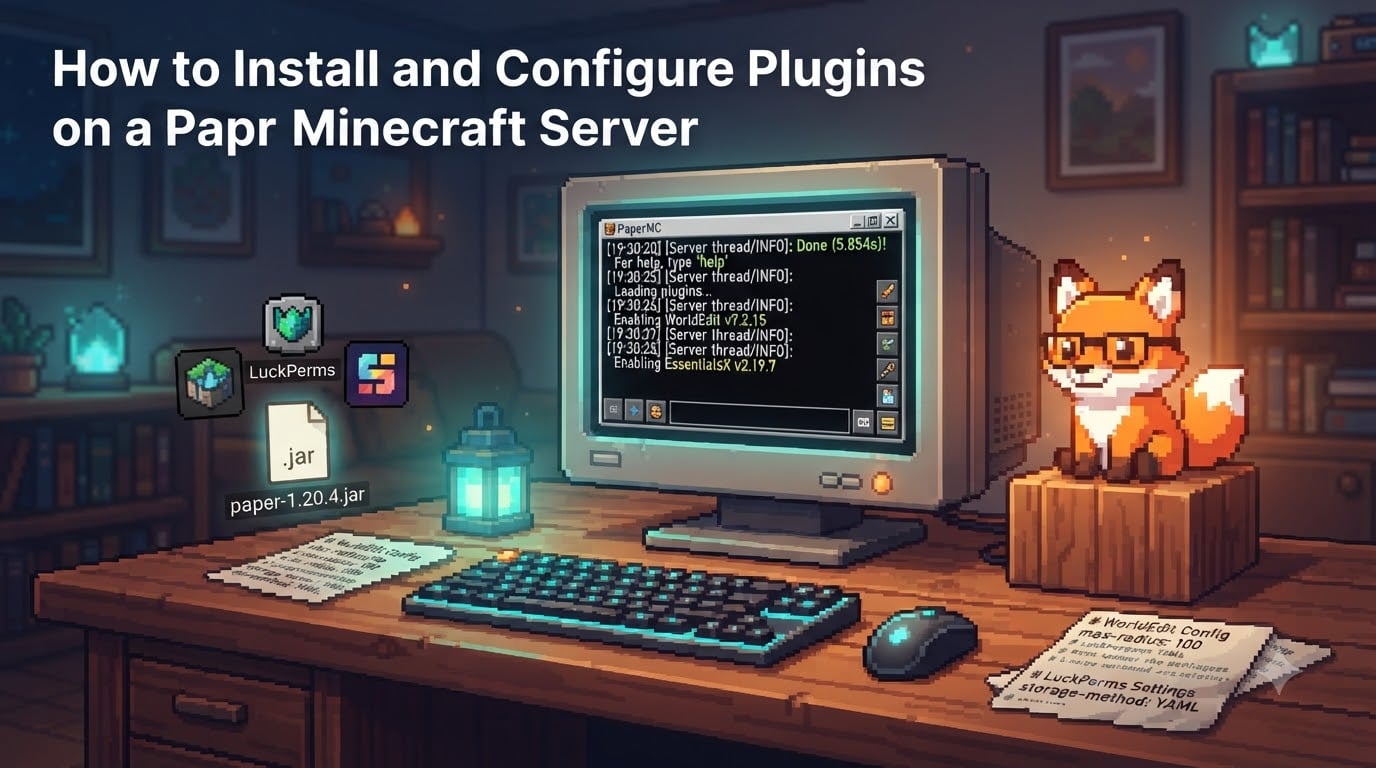
If you run a Minecraft server, you have probably bumped into the same wall I did the first time I tried to add features: the vanilla jar does almost nothing on its own. You want economy plugins, anti-grief tools, minigame frameworks, and admin commands, but vanilla cannot deliver them. The fix is Paper, the high-performance server software that supports the entire Bukkit and Spigot plugin ecosystem. In this guide, I will walk you through exactly how to install and configure plugins on a Paper Minecraft server, from your very first .jar drop to managing updates without breaking your world.
I have set up more than 40 Paper servers over the last few years for friends, clients, and our own community. Every step below comes from real installs, real broken configs, and real recoveries. Let us save you the trial and error.
Table of Contents
What Is Paper and Why Use It for Plugins?
Paper is a high-performance fork of CraftBukkit and Spigot that supports the Bukkit plugin API. Yes, Paper Minecraft fully supports plugins. Any plugin built for Bukkit or Spigot will load on Paper, plus you get access to Paper-specific optimizations and APIs that improve performance, fix vanilla exploits, and give plugin developers more tools to work with.
Compared to Spigot, Paper runs measurably faster on most workloads because it patches several tick-related and entity-related lag sources from vanilla Minecraft. Purpur, a downstream fork of Paper, adds even more gameplay toggles and is a solid choice if you want extra configuration switches. For most server owners who want stability and a wide plugin catalog, Paper hits the sweet spot.
Plugins extend your server with custom features like admin tools, economy systems, minigame frameworks, anti-cheat, land protection, and performance tweaks, all without modifying the base game files. That separation is what makes plugins safe to add, remove, and update independently.
Where to Find Paper-Compatible Plugins?
Before you install anything, you need a trusted source. Three repositories cover nearly every Paper-compatible plugin in active development, and each has a slightly different focus.
Hangar.papermc.io is the official PaperMC plugin repository. It is the safest first stop because every plugin is reviewed for Paper compatibility, and the listings clearly state the supported Minecraft versions. Many Paper-specific plugins only publish here.
Modrinth.com hosts both mods and plugins. Its plugin section has grown fast, and the platform is known for clean version filters and fast downloads. Bukkit and Spigot plugins that also target Fabric or Quilt are often listed here.
SpigotMC.org is the largest legacy catalog. Most older plugins still live here, including essentials like EssentialsX, LuckPerms, and WorldEdit. The download speeds can feel slow for free users, but the catalog is unmatched.
Avoid random forums and unknown links. Untrusted plugins are a real attack surface and have been used to leak server credentials and backdoor live servers.
How to Install and Configure Plugins on a Paper Minecraft Server
The actual installation is short. The configuration is where most beginners get stuck, so I split each path into clear steps. Choose the section that matches how you run your server.
Installing on a Self-Hosted Paper Server
Use these steps when you run Paper on your own machine or a VPS. You have full filesystem access.
Stop the server. Run
stopin the console or kill the process. Never drop a .jar intoplugins/while the server is running, or the plugin will not load and may corrupt config files.Download the plugin .jar. Grab the file from Hangar, Modrinth, or SpigotMC. Make sure the version matches your Minecraft version (for example, Paper 1.21.x needs plugins built for 1.21 or marked compatible).
Drop the .jar into the plugins folder. The path is
<server-directory>/plugins/. Place the file directly in this folder, not in a subfolder.Start the server. Run
java -jar paper-<version>.jar. Watch the console for lines like[Server] Loading plugin MyPlugin v1.2.3.Verify the plugin is enabled. Type
/pluginsin-game or in the console. Green names mean the plugin loaded. Red names mean it failed, and you need to check the logs.
Installing on a Shared Hosting Panel
If you rent your server through a provider like Apex, BisectHosting, or Aternos, the process changes slightly because you usually cannot access the raw filesystem in the same way.
Log into your hosting panel. Open the file manager or SFTP credentials your host provides.
Locate the plugins folder. Most panels show it as a tile or sidebar entry labeled “Plugins” or “Mods/Plugins.” Click it.
Upload the .jar file. Either drag and drop into the web file manager, or use an SFTP client like FileZilla or WinSCP with the host, port, username, and password from the panel. Drop the .jar into the plugins directory.
Restart the server from the panel. Use the “Restart” button, not “Reload.” A full restart is required for Paper to pick up the new file.
Confirm via console. Open the live console in the panel and run
plugins. You should see your plugin listed in green.
If your host offers a “1-click install” for popular plugins, you can use it. Just verify afterward that the .jar actually landed in the plugins folder, because one-click installers occasionally fail silently.
Configuring Plugins After Installation
Once a plugin loads for the first time, Paper generates a default config file inside plugins/<PluginName>/. Most plugins ship a config.yml, but some use settings.yml, plugin.yml, or JSON. Open the file with any plain-text editor. Do not use Word or rich-text editors because they will corrupt the YAML structure.
A few configuration principles apply to almost every plugin:
Read the comments. Most config files include inline explanations above each option. They explain defaults, accepted values, and side effects.
Change one setting at a time. When you edit, restart, and test. This makes it easy to identify which change caused a problem.
Watch for tab vs space issues. YAML forbids tabs. If your editor inserts tabs, configure it to use spaces only, or the file will fail to parse.
Back up before you edit. Copy the file to a backup folder before changing anything. A broken config can lock the plugin or the entire server.
For permissions, most modern plugins integrate with LuckPerms. Install LuckPerms first, then let your other plugins hook into it for rank management, prefixes, and per-command access.
Verifying That Your Plugin Loaded Correctly
The fastest check is the /plugins command. It lists every loaded plugin with a color code. Green is good, red means the plugin failed, and yellow usually means the plugin loaded but a sub-component is missing.
For deeper verification, open logs/latest.log in your server directory. Search for your plugin name. You should see entries like [PluginName] Loading configuration and [PluginName] Enabled. If you see stack traces or the word “error,” scroll up to read the cause.
You can also test a plugin-specific command. If the plugin registers /myplugin help, try it. If the command is unrecognized, the plugin did not register properly and you need to check permissions or config syntax.
Troubleshooting Common Plugin Issues
Even with a clean install, plugins fail. Here are the problems I see most often, with the exact fix for each.
Missing Dependencies
The error usually reads Could not load plugin '<X>' as it requires plugin '<Y>'. Download the dependency plugin, install it the same way you installed the first plugin, and restart. LuckPerms, Vault, and PlaceholderAPI are common dependencies that many other plugins require.
Invalid plugin.yml
This error means the plugin’s metadata file is malformed or missing required fields. For users, this almost always points to a corrupted download. Delete the .jar, re-download it, and try again. If it persists, the plugin may be broken for your Paper version. Check the plugin’s issue tracker.
Ambiguous Plugin Name
Paper throws this when two plugins register commands or permissions with the same name. Disable one of them, change the conflicting alias in its config, or place one plugin in a separate server proxy backend if you run one.
Version Mismatch
Plugins built for older Minecraft versions often fail on newer Paper releases. Check the plugin page for supported versions before installing. If the plugin has not been updated for 1.21 and you run Paper 1.21, wait for an update or pick an alternative.
Plugin Not Detected At All
This usually means the .jar is in the wrong folder, or the file extension is wrong (for example, plugin.jar.disabled after a botched rename). Double-check the path and that the extension is exactly .jar.
Updating, Removing, and Managing Plugins Safely
When you want to update a plugin, stop the server, replace the .jar in the plugins folder with the new version, and start the server. Most plugins preserve your existing config across minor updates, but major version bumps sometimes reset settings. Always back up plugins/<PluginName>/ before upgrading.
To remove a plugin, stop the server, delete the .jar, and delete the plugin folder under plugins/ if you do not want to keep its config. Restart the server. Just deleting the jar without deleting the folder leaves orphaned configs that can confuse future installs of the same plugin.
For backups, our team runs a nightly zip of the entire server directory before any plugin change. This habit has saved us dozens of times when an update broke something subtle that only showed up days later.
Plugin Security and Best Practices
Plugins run with full server privileges. A malicious plugin can read player data, log keystrokes, exfiltrate files, or open network connections. Stick to Hangar, Modrinth, and SpigotMC, and check the plugin’s source code on GitHub when possible. Read recent reviews and check the last update date. A plugin that has not been updated in over two years may have unpatched exploits.
Test new plugins on a staging server before deploying to your live community. Keep Paper itself updated to the latest build, and subscribe to the PaperMC Discord for security announcements. These habits turn plugin management from a fire drill into a routine task.
Frequently Asked Questions
Does Paper Minecraft support plugins?
Yes. Paper supports the full Bukkit and Spigot plugin API, plus its own Paper-specific APIs. Any plugin built for Bukkit or Spigot will load on Paper, and many plugins publish Paper-specific builds on Hangar.papermc.io.
How to set plugins in a Minecraft server?
Stop the server, download the plugin .jar file from a trusted source like Hangar or SpigotMC, drop it into the plugins folder inside your server directory, then start the server. Use the /plugins command to confirm the plugin loaded in green.
Why are my Paper plugins not loading?
The most common reasons are missing dependencies, an invalid or corrupted plugin.yml, a version mismatch between the plugin and your Paper build, or placing the .jar in the wrong folder. Check logs/latest.log for the exact error and the stack trace.
Where is the Paper plugins folder located?
The plugins folder sits inside your server root directory, alongside paper.jar, world/, logs/, and the eula.txt file. The full path is /plugins/. Each installed plugin gets its own subfolder inside this directory for configs and data.
How do I update Paper plugins safely?
Stop the server, back up the plugin’s config folder, replace the .jar with the new version, and restart the server. Test on a staging server first when you are updating several plugins at once, and read the plugin’s changelog for breaking config changes.
Conclusion
That is the full process for how to install and configure plugins on a Paper Minecraft server, from your first .jar drop to safe updates and clean removals. Paper gives you the best combination of plugin compatibility, performance, and active development, and the steps above work whether you self-host on a VPS or use a shared hosting panel.
Your next step is to install the essentials: LuckPerms for permissions, EssentialsX for core commands, WorldEdit for building, and an anti-grief plugin like CoreProtect. Once those are running, you have a real community server instead of a vanilla instance. If you get stuck, the PaperMC Discord and the r/admincraft subreddit are the fastest places to find people who have already solved your problem.