
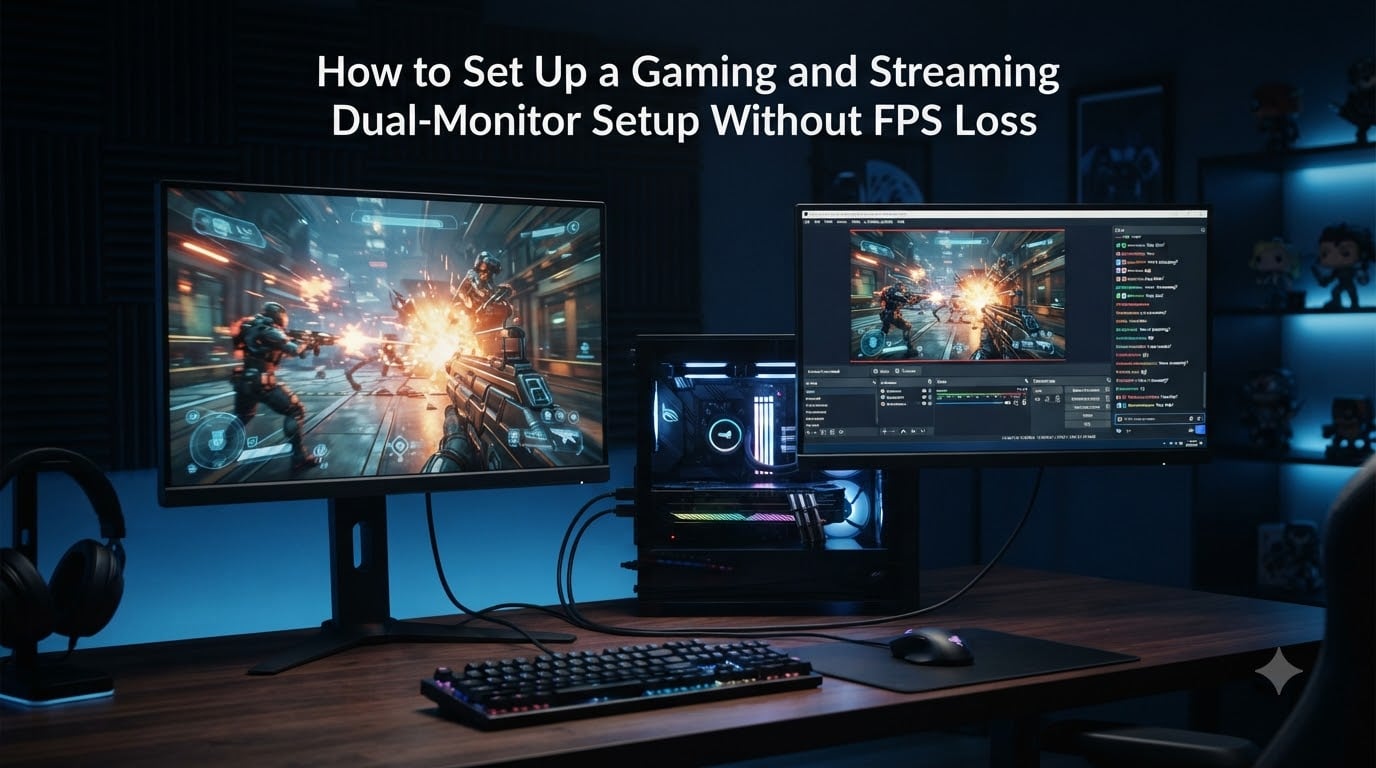
Adding a second monitor to your gaming rig should feel like an upgrade, not a penalty. Yet thousands of players report the same frustrating problem: they plug in a second screen, open Discord or YouTube on it, and watch their frame rate crater from a smooth 150 FPS down to a stuttery 60.
The good news is that a gaming and streaming dual monitor setup without FPS loss is entirely achievable. The FPS drop is not caused by having two monitors alone. It is caused by a handful of fixable configuration mistakes involving GPU connections, refresh rate mismatches, hardware acceleration, and display mode settings.
Our team has dug through hundreds of forum threads on Reddit, Linus Tech Tips, and the OBS community to find the exact solutions real gamers use. In this guide, I will walk you through every step from plugging in your cables to fine-tuning OBS, so your second monitor helps you stream and chat instead of sabotaging your frame rate.
Table of Contents
Do Dual Monitors Actually Reduce FPS?
Yes, dual monitors can reduce FPS, but only under specific conditions. Simply having a second monitor connected and displaying a static desktop wallpaper will not meaningfully impact your gaming performance. The FPS loss happens when the second monitor runs video, animations, or hardware-accelerated apps while you play.
Here is why: your GPU has to render content for both screens simultaneously. If your primary monitor runs a game at 144 Hz and the second monitor plays a YouTube video or runs Discord with hardware acceleration enabled, the GPU splits its rendering workload. That split is what causes the FPS drop.
The problem gets worse with mixed refresh rates. One Reddit user described it perfectly: “Whenever I watch a video on my second monitor while playing games I lose a lot of FPS, going from smooth 150 to 60-90 with jarring stutters.” This is the classic signature of a refresh rate mismatch combined with hardware acceleration, not a fundamental limitation of dual monitors.
The key takeaway is that dual monitors themselves are not the enemy. Poor configuration is. Once you fix the underlying causes covered in this guide, you can run two screens with virtually zero FPS penalty.
How to Set Up a Gaming and Streaming Dual-Monitor Setup Without FPS Loss?
Setting up a gaming and streaming dual monitor setup without FPS loss requires attention to five core areas: physical connections, display settings, refresh rate handling, background app management, and streaming software configuration. I will cover each one in detail below.
Before diving in, here is the high-level roadmap of what we will fix:
Step 1: Connect both monitors to your dedicated GPU, never the motherboard.
Step 2: Configure Windows display settings with your gaming monitor as primary.
Step 3: Match or manage refresh rates to prevent stuttering.
Step 4: Disable hardware acceleration in Discord, Chrome, and other background apps.
Step 5: Set your game to fullscreen mode and cap frames if needed.
Step 6: Configure OBS with the right encoder settings to offload streaming work.
Follow these steps in order. Skipping ahead often leaves one lingering issue that masks the real fix.
Connect Both Monitors to Your GPU
This is the single most common mistake and the easiest to fix. If one monitor is plugged into your motherboard and the other into your dedicated GPU, you are forcing the system to use integrated graphics for one screen. That creates a bottleneck and causes performance issues immediately.
Both monitors must connect directly to your dedicated graphics card. Check the back of your PC and make sure both DisplayPort or HDMI cables run into the GPU ports, not the motherboard I/O shield. This ensures all rendering goes through a single powerful chip.
For best results, use DisplayPort 1.4 cables for high refresh rate gaming monitors. HDMI 2.1 works well too if your GPU and monitor support it. Avoid older HDMI 1.4 cables for anything above 60 Hz, as they cannot carry enough bandwidth.
If you have a CRT or older secondary monitor that only supports VGA or DVI, consider upgrading. Those legacy connections can force your GPU into compatibility modes that hurt overall performance.
Once both cables are seated firmly in GPU ports, boot your PC and confirm both screens show output in Windows Display Settings before moving on.
Display Settings Configuration for Optimal Performance
After both monitors are physically connected to your GPU, you need to tell Windows how to use them. The right display settings prevent the game from minimizing when you click the second screen and keep your primary display running at full speed.
Step 1: Right-click your desktop and select Display Settings.
Step 2: Identify your gaming monitor (usually the higher refresh rate one) and check the box that says “Make this my main display.” This tells Windows and most games to launch on your primary gaming screen.
Step 3: Under Multiple Displays, select “Extend these displays.” Do not use duplicate mode, since that forces both monitors to run the same resolution and refresh rate, which wastes resources.
Step 4: Set each monitor to its native resolution and maximum supported refresh rate in the Advanced Display Settings menu.
One forum fix worth noting: if your game keeps minimizing when you click on the second monitor, the issue is usually display mode. Running the game in exclusive fullscreen rather than borderless windowed fixes this in most titles. I cover that comparison in detail later.
Also check your GPU control panel. In NVIDIA Control Panel or AMD Adrenalin, confirm that both monitors are detected and running at their correct refresh rates. Sometimes the control panel defaults to 60 Hz even when the monitor supports 144 Hz or 240 Hz.
Fixing Refresh Rate Mismatch FPS Drops
Mixed refresh rate setups are the number one cause of unexplained FPS drops on dual monitors. The problem occurs when your gaming monitor runs at 144 Hz or 165 Hz while your second monitor runs at 60 Hz. The GPU driver struggles to synchronize frame delivery across two different refresh cycles.
What happens technically is that the GPU’s frame pacing gets disrupted. When the 60 Hz monitor requests a new frame at a different interval than the 144 Hz monitor, the driver introduces latency and stutter. This is a well-documented GPU driver issue, not something wrong with your hardware.
There are two proven solutions:
Solution 1: Match both monitors to the same refresh rate. If your second monitor supports 144 Hz, set it there. If it only supports 60 Hz, temporarily set your gaming monitor to 60 Hz to test whether the mismatch is the culprit. One Rocket League player found that setting both monitors to 60 Hz and capping the game at 120 FPS eliminated all stuttering.
Solution 2: Keep different refresh rates but disable VSync and G-Sync, then cap your game’s frame rate manually using RivaTuner Statistics Server (RTSS) or the in-game FPS limiter. Set the cap slightly below your gaming monitor’s refresh rate, for example 140 FPS on a 144 Hz panel. This keeps frame delivery consistent without relying on the driver to sync two mismatched displays.
G-Sync and FreeSync can actually make the mismatch worse in some cases. If you experience stutter with G-Sync enabled on a mixed refresh setup, try turning it off and using a manual frame cap instead.
Fullscreen vs Borderless Windowed for Dual Monitors
The display mode you choose for your game directly affects dual monitor performance and behavior. Here is how the three main options compare for a dual monitor gaming and streaming setup:
Exclusive Fullscreen: Gives the game full control of the GPU and display. Best raw FPS and lowest input lag. The downside is that clicking on your second monitor can minimize the game in some titles. Use this mode when you want maximum performance and do not need to alt-tab frequently.
Borderless Windowed: Runs the game in a window without borders that fills the screen. Makes moving your mouse to the second monitor smooth and easy without minimizing anything. However, it adds a small performance overhead because the Windows Desktop Window Manager composites the frame. On mixed refresh rate setups, borderless mode is more likely to cause stutter.
Windowed: Runs the game in a resizable window. Worst performance of the three and rarely recommended for competitive gaming. Useful only for quick testing.
For most streamers, the sweet spot is exclusive fullscreen for the game combined with OBS on the second monitor. If you absolutely need seamless mouse movement between screens during gameplay, borderless windowed works but expect a minor FPS cost.
Discord Overlay and Hardware Acceleration FPS Impact
No competitor guide properly covers this, but forum users have identified it as a major hidden cause of FPS loss. Discord and other apps like Google Chrome use a feature called hardware acceleration, which offloads rendering work to your GPU instead of your CPU.
When hardware acceleration is enabled on a second monitor running at a different refresh rate than your gaming monitor, it conflicts with the GPU driver’s frame pacing. The result is exactly the kind of FPS drop and stutter that players describe on Reddit. One user pinpointed the issue: “The problem is with the GPU driver and any sort of hardware acceleration on mixed refresh rate setups. This includes apps like Discord.”
To fix Discord specifically, follow these steps:
Step 1: Open Discord and click the gear icon for User Settings.
Step 2: Navigate to the Advanced section under App Settings.
Step 3: Toggle off Hardware Acceleration and restart Discord.
Step 4: Also disable the in-game overlay under Overlay Settings if you do not actively use it, since the overlay itself hooks into your game’s rendering pipeline.
Do the same for Google Chrome. Go to Settings, System, and turn off “Use hardware acceleration when available.” This forces Chrome to use CPU rendering for YouTube and other video content on your second monitor, which frees up GPU resources for your game.
This single change has resolved FPS drops for countless dual monitor users. It is the most impactful fix on this list for anyone with mixed refresh rate monitors.
OBS Streaming Settings to Preserve Frame Rates
If you are streaming from the same PC you game on, your encoding settings matter enormously. The wrong encoder can eat into your gaming performance. Here is how to set up OBS for minimal FPS impact.
Use your GPU’s hardware encoder rather than CPU x264 encoding. For NVIDIA cards, select the NVENC H.264 or NVENC HEVC encoder in OBS Output Settings. For AMD cards, use the AMF encoder. Hardware encoders have dedicated silicon that handles video compression separately from the rendering pipeline.
Set your rate control to CBR (Constant Bitrate) at a bitrate appropriate for your upload speed. For 1080p 60 FPS streaming, 6000 to 8000 kbps is a good starting point. Avoid using CQP or VBR if you have a marginal upload connection, as bitrate spikes can cause encoder lag.
In the Advanced settings, set the Process Priority to “Below Normal” so OBS never competes with your game for CPU cycles. Also enable the Preview Feature to disable the OBS preview window if you are not actively monitoring it, since the preview consumes GPU resources to render.
For the ultimate zero-FPS-loss streaming setup, consider a dual PC configuration.
Frame Capping and VSync/G-Sync With Dual Monitors
Frame capping is one of the most underused tools for eliminating dual monitor stutter. When your GPU produces more frames than your monitor can display, the excess frames cause tearing and inconsistent frame pacing. Capping your FPS solves this.
Use RivaTuner Statistics Server (RTSS) for the most consistent frame caps. Set the cap at your gaming monitor’s refresh rate or slightly below it. For a 144 Hz monitor, cap at 140 FPS. For a 165 Hz monitor, cap at 160 FPS. This gives the GPU a tiny bit of headroom to maintain consistent frame times.
For VSync and G-Sync configuration on dual monitors, the rules change. G-Sync and FreeSync work beautifully on a single monitor but can introduce stutter when a second monitor runs at a different refresh rate. If you have G-Sync enabled and still see stutter on a dual monitor setup, try these steps:
Step 1: Keep G-Sync enabled for fullscreen mode only, not windowed mode.
Step 2: Disable G-Sync for the second monitor in NVIDIA Control Panel.
Step 3: Cap your FPS 3 to 4 frames below your refresh rate as described above.
Step 4: Test with VSync off first, since G-Sync already handles tearing.
One forum-tested configuration that works well: “Vsync off, Gsync off, play in fullscreen, cap frames at 120 FPS on a 144 Hz panel.” This brute-force approach strips away all sync technologies and relies on manual capping for smoothness. It is not elegant, but it works.
Dual PC Streaming Setup Overview
If you want absolutely zero FPS loss from streaming, a dual PC setup is the gold standard. One PC handles gaming at full performance, and a second PC handles encoding and streaming via a capture card.
The gaming PC outputs its display to your gaming monitor as usual. Simultaneously, it sends a duplicate or dedicated signal to a capture card connected to the streaming PC. The streaming PC runs OBS and handles all encoding, chat, and stream management.
This completely separates rendering from encoding. Your gaming PC never has to share GPU cycles with OBS, so your frame rate stays exactly where it would be on a single monitor without streaming. The tradeoff is cost and complexity, since you need two capable PCs and a capture card.
One OBS forum user reported “huge performance loss” on a dual PC setup, but that was caused by capture card configuration issues, not the concept itself. Make sure your capture card runs at the correct resolution and refresh rate, and use a high-bandwidth connection between the two PCs.
For most streamers starting out, a single well-configured PC with NVENC encoding delivers performance close enough to a dual PC setup that the extra hardware is unnecessary.
Quick Troubleshooting Checklist for FPS Loss
If you are still experiencing FPS drops after going through the steps above, run through this checklist:
1. Confirm both monitors are connected to your dedicated GPU, not the motherboard.
2. Set your gaming monitor as the main display in Windows Display Settings.
3. Match refresh rates or apply a manual frame cap with RTSS.
4. Disable hardware acceleration in Discord, Chrome, and any other browser or app running on the second monitor.
5. Switch your game to exclusive fullscreen mode.
6. Turn off G-Sync or FreeSync if you have mixed refresh rates and still see stutter.
7. Use NVENC or AMF encoding in OBS instead of CPU x264.
8. Set OBS process priority to Below Normal.
9. Close the OBS preview window if you are not watching it.
10. Update your GPU drivers to the latest version, as frame pacing improvements are regularly patched.
Go through the list one item at a time, testing your FPS after each change. This isolates which fix resolves your specific issue.
FAQs
How to stream without losing FPS?
Use a hardware encoder like NVIDIA NVENC or AMD AMF in OBS instead of CPU x264 encoding. Set OBS process priority to Below Normal, disable the preview window, and cap your game’s frame rate slightly below your monitor’s refresh rate. For zero performance impact, use a dual PC setup with a capture card.
Do dual monitors reduce FPS?
Dual monitors alone do not significantly reduce FPS. The drop happens when the second monitor runs video or hardware-accelerated apps like Discord or YouTube, forcing the GPU to render for both screens. Mixed refresh rates also cause stuttering due to frame pacing issues in the GPU driver.
How to use dual monitors without minimizing game?
Run your game in exclusive fullscreen mode to prevent it from minimizing when you click the second monitor. If you need seamless cursor movement between screens, use borderless windowed mode instead, but expect a small performance tradeoff.
How to stop FPS drop on second monitor?
Disable hardware acceleration in Discord and Chrome, match both monitor refresh rates or apply a manual frame cap using RTSS, connect both monitors to your GPU, and switch your game to fullscreen mode. These steps resolve the vast majority of dual monitor FPS drop issues.
Does having two monitors with different refresh rates affect performance?
Yes, mixed refresh rates are the most common cause of unexplained dual monitor stutter. The GPU driver struggles to deliver frames on two different sync cycles. Fix it by matching refresh rates, disabling G-Sync and VSync, and applying a manual frame cap.
Conclusion
A gaming and streaming dual monitor setup without FPS loss comes down to fixing five things: connecting both monitors to your GPU, configuring display settings properly, handling refresh rate mismatches, disabling hardware acceleration in background apps, and choosing the right display mode and encoder settings.
The biggest hidden culprit is hardware acceleration in Discord and Chrome. Disabling it resolves FPS drops for more dual monitor users than any other single fix. Refresh rate mismatches come in a close second, and they are solved by either matching both monitors or applying a manual frame cap with RTSS.
Your next step is to work through the troubleshooting checklist one item at a time. Test your FPS after each change so you know exactly which fix made the difference. Once everything is dialed in, you will have a dual monitor setup that lets you game at full speed while monitoring chat, running OBS, and keeping Discord open on your second screen.