
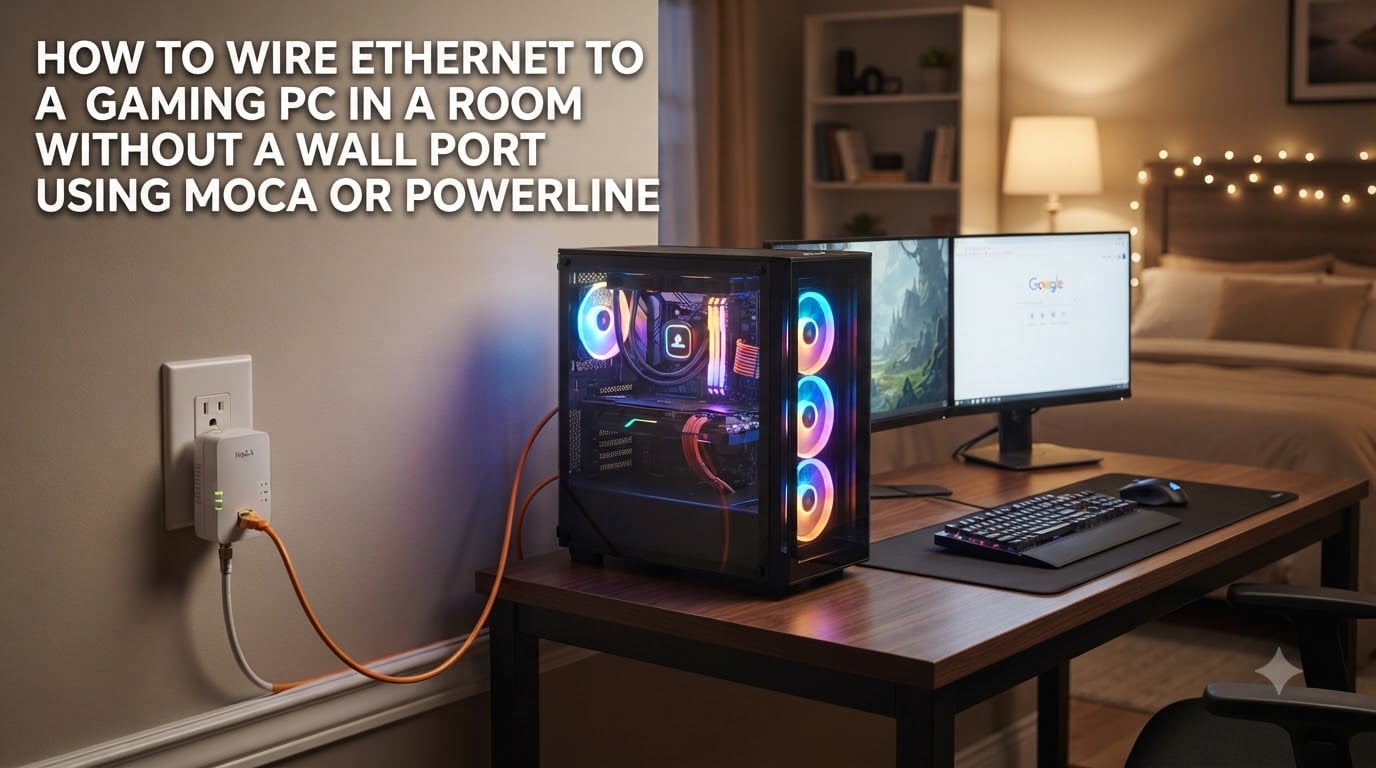
If your gaming PC sits in a room with no Ethernet wall port, you have probably noticed the lag spikes, the rubber-banding in competitive matches, and the random ping jumps that WiFi brings. I have lived with that frustration, and so have a lot of gamers on Reddit and gaming forums. The good news: you can wire Ethernet to a gaming PC in a room without a wall port using MoCA or Powerline adapters, and both options use wiring that already exists in your walls.
This guide walks you through exactly how to wire Ethernet to a gaming PC in a room without a wall port using MoCA or Powerline adapters. I will explain how each technology works, give you a side-by-side comparison, and provide step-by-step setup instructions that I have personally walked through on real home networks.
Table of Contents
Your Options When You Cannot Run an Ethernet Cable
When you cannot drill through walls or fish cable across rooms, you have four practical paths to a wired connection: MoCA adapters, Powerline adapters, a mesh WiFi system with a wired backhaul, or a flat Ethernet cable run along a baseboard. MoCA and Powerline are the two most popular options for gamers because they use existing infrastructure and require no permanent modifications.
MoCA adapters turn the coaxial TV cabling behind your walls into a high-speed Ethernet network. Powerline adapters do the same thing using your home’s electrical wiring. A mesh WiFi system with a wireless backhaul can work, but it still depends on radio signals. A flat Cat6 cable is a clean solution if you can run it along a floor edge or under a rug.
For most gamers reading this, the real decision is MoCA versus Powerline. Let me show you how each one works, then you can choose with confidence.
Why gamers prefer a wired connection in the first place
WiFi adds latency, jitter, and packet loss. Competitive online games feel every millisecond of delay, and even casual gamers feel stuttering when someone starts the microwave. A wired Ethernet connection removes the radio interference and gives you a stable, predictable data path. That stability matters more than raw speed for most gaming scenarios.
What Is a MoCA Adapter and How Does It Work
A MoCA adapter (Multimedia over Coax Alliance) is a small box that converts an Ethernet signal from your router into a signal that travels over your home’s existing coaxial cable. A second adapter in your gaming room converts it back to Ethernet. You end up with what feels like a direct Ethernet cable between rooms, but you did not have to run anything new.
Current MoCA 2.5 adapters deliver up to 2.5 Gbps of real-world throughput and add less than 5ms of latency. That is faster than most internet connections and indistinguishable from a direct cable for gaming. MoCA adapters are the option I recommend first for any gamer who already has coax wiring in their walls.
The 30-second MoCA explanation
Plug one MoCA adapter into a coax outlet near your router with an Ethernet cable to the router. Plug the second adapter into a coax outlet in your gaming room and connect an Ethernet cable to your PC. The two adapters handshake over the coax and you have a wired network. There is no software to install.
What speeds can you expect
MoCA 2.5 adapters advertise 2.5 Gbps and realistically deliver 1.4 to 2.0 Gbps in a clean coax path. That is more bandwidth than a gigabit internet plan, which means the adapter will never be your bottleneck. Even MoCA 2.0 adapters, which top out around 1 Gbps, are excellent for gaming.
What about latency
MoCA adds roughly 3 to 5ms of latency in a healthy setup. That is the same range you would see from a long Cat6 cable. For perspective, your monitor introduces more input lag than that. MoCA will not be the reason you miss a headshot.
What Is a Powerline Adapter and How Does It Work
A Powerline adapter sends Ethernet data over the electrical wiring inside your walls. You plug one adapter into an outlet near your router and connect it with Ethernet. You plug the second adapter into an outlet in your gaming room and run an Ethernet cable to your PC. The two adapters communicate through the copper wiring that already powers your lights.
Powerline is appealing because almost every room has an electrical outlet. The catch is that Powerline performance is unpredictable. Results depend heavily on the age of your wiring, the quality of your electrical panel, and the noise generated by other devices on the same circuit.
The 30-second Powerline explanation
Plug the first Powerline adapter into a wall outlet near your router. Connect it to your router with Ethernet. Plug the second adapter into a wall outlet in your gaming room. Connect the second adapter to your gaming PC with an Ethernet cable. The adapters pair automatically and you have a network connection.
Why real-world speeds collapse
Advertised speeds of 1 Gbps or 2 Gbps rarely show up in real homes. Most users see 100 to 400 Mbps of actual throughput, and some see much less. The Reddit r/HomeNetworking community often describes Powerline as “WiFi on house wiring” because the speed you actually get depends on the wiring path, not the marketing box.
What causes Powerline lag
Electrical noise from appliances, AFC breakers, surge protectors, and long wiring paths between outlets can all degrade a Powerline signal. Microwaves, hair dryers, and vacuum cleaners create spikes that drop your connection. AFC breakers in newer homes are particularly tough on Powerline because they filter out the high-frequency signals adapters use.
MoCA vs Powerline for Gaming: The Direct Comparison
For gaming, MoCA wins almost every category that matters. It delivers faster speeds, lower latency, and more stable connections than Powerline. Powerline is easier to set up and works in more rooms, but the consistency is not there for competitive play.
| Feature | MoCA Adapter | Powerline Adapter | |
|---|---|---|---|
| Speed (real-world) | 1.4 to 2.0 Gbps | 100 to 400 Mbps | Better |
| Latency added | 3 to 5 ms | 10 to 30 ms (variable) | Better |
| Stability | Excellent | Inconsistent | Better |
| Setup difficulty | Easy with coax outlets | Plug and play | Powerline |
| Home requirement | Coax outlets in both rooms | Outlets on same or paired circuits | Tie |
| Interference sensitivity | Low | High (appliances, breakers) | Better |
| Rental friendly | Yes (no wall damage) | Yes | Tie |
| Gaming verdict | Recommended | Backup option only | Better |
Gaming-specific latency scenarios
Imagine a typical Valorant match where your ping sits at 22ms over MoCA versus 38 to 65ms over Powerline. During a spike, Powerline might briefly hit 90ms when the refrigerator cycles. MoCA holds steady because the coax path is shielded and consistent. That consistency is what wins games.
When each option actually wins
MoCA wins when you have usable coax outlets in both rooms and want the most reliable gaming connection without running new cables. Powerline wins when you do not have coax and you need a quick, low-effort solution for casual gaming, video calls, or streaming where a few extra milliseconds do not matter.
How to Wire Ethernet to a Gaming PC With a MoCA Adapter
Setting up a MoCA adapter is the cleanest path to a stable gaming connection. Below is the exact process I followed in my own apartment when I needed Ethernet in my office for a gaming PC.
What you need
Two MoCA 2.5 adapters (a kit is fine)
Two short Ethernet cables (Cat5e or Cat6)
Access to a coax outlet near your router
Access to a coax outlet in your gaming room
Optional: a coax splitter and PoE MoCA filter if you have cable TV service
Step-by-step setup
Connect the first MoCA adapter to a coax outlet near your router using a coax cable. Plug an Ethernet cable from the adapter into one of the LAN ports on your router.
If you have active cable TV or internet service on that coax line, install a PoE MoCA filter on the incoming coax line where it enters your home. This prevents your MoCA signal from leaking outside.
Connect the second MoCA adapter to a coax outlet in your gaming room using a coax cable.
Plug an Ethernet cable from the second adapter into the Ethernet port on your gaming PC.
Plug both adapters into power and wait about 60 seconds for them to handshake.
Check the adapter lights to confirm a link. A solid green or blue light on the coax indicator means the connection is live.
Testing your connection
Run a speed test from your gaming PC to confirm you are getting close to your full internet speed. Then load a competitive game and watch your average ping and jitter for 15 minutes. You should see a stable ping that matches what you would expect from a wired connection.
How to Wire Ethernet to a Gaming PC With a Powerline Adapter?
Powerline is simpler to start but more variable in results. Follow these steps and then test carefully before committing to it for competitive gaming.
What you need
Two Powerline adapters (a starter kit is fine)
Two short Ethernet cables
Two free wall outlets, ideally one near the router and one near your gaming PC
Step-by-step setup
Plug the first Powerline adapter into a wall outlet near your router. Avoid power strips and surge protectors, which block the signal.
Connect the first adapter to your router with an Ethernet cable.
Plug the second adapter into a wall outlet in your gaming room. Again, use the wall outlet directly, not a power strip.
Connect the second adapter to your gaming PC with an Ethernet cable.
Press the pair buttons on each adapter to link them. Most kits pair automatically within a minute.
Check the adapter indicators for a strong link signal.
Testing your connection
Run a speed test and watch for variability. Run the test three times over ten minutes. If speeds fluctuate wildly, try a different outlet in the same room. Powerline is sensitive to outlet choice, and one outlet can be much better than another even on the same wall.
Compatibility Checklist Before You Buy Anything
Skipping this step is the most common reason adapters underperform. Test your home before you commit.
MoCA compatibility
You need at least one working coax outlet near your router and one near your gaming PC. The coax outlets must be on the same physical cable run or connected through a working splitter network. If your home has had cable TV service in the past decade, you likely have what you need. If your home has never had coax, MoCA is not an option for you.
Powerline compatibility
You need outlets that share the same electrical phase. Most outlets in a single room share a circuit. Outlets in distant rooms may or may not. AFC breakers, common in newer homes built after 2014, can block Powerline signals entirely. If your breaker box is labeled “AFC” or “AFCI,” Powerline may not work well in your home.
Rental considerations
Both MoCA and Powerline are fully rental-friendly because they use existing infrastructure. You will not damage walls, drill holes, or modify the building. When you move out, unplug the adapters and leave the coax and electrical systems exactly as you found them. That is a major advantage over running new cables.
Common Mistakes to Avoid and Troubleshooting Tips
Most issues with MoCA and Powerline come down to setup mistakes that are easy to avoid once you know about them. Here are the most common problems from real forum threads.
Powerline pitfalls to avoid
Plugging adapters into power strips or surge protectors, which filter the signal
Using outlets on different electrical phases, which prevents the adapters from pairing
Assuming advertised speeds will match your real speeds
Forgetting that AFC breakers can completely block the signal
MoCA pitfalls to avoid
Forgetting a PoE filter, which lets your signal leak outside and can cause issues with cable service
Using old or corroded coax cables and connectors
Mixing MoCA adapters from different MoCA versions on the same network without checking compatibility
Connecting more than 16 MoCA adapters on a single coax network, which can cause interference
When to give up and try a different path
If your Powerline adapters consistently drop or deliver under 100 Mbps, switch to MoCA if you have coax. If you do not have coax and Powerline is not working, a mesh WiFi system with a wired backhaul or a flat Cat6 cable run along the baseboard is your next best option. Sometimes the right answer is to run a flat Ethernet cable rather than fight an unstable connection.
Frequently Asked Questions
How do I connect Ethernet to my PC without a wall port?
Use a MoCA adapter if your room has a coax TV outlet, or use a Powerline adapter if you have a wall outlet. Both convert your existing wiring into a wired Ethernet connection without running new cables.
Which is better, MoCA or Powerline, for gaming?
MoCA is better for gaming because it delivers 1.4 to 2.0 Gbps with 3 to 5ms of latency, while Powerline delivers 100 to 400 Mbps with 10 to 30ms of variable latency. MoCA is also less affected by interference.
Do MoCA adapters add latency?
MoCA adapters add about 3 to 5ms of latency in a healthy setup, which is the same range as a long Cat6 cable and lower than most WiFi connections.
Why is my Powerline adapter laggy or slow?
Powerline adapters are sensitive to electrical noise from appliances, AFC breakers, surge protectors, and long wiring paths. Switching outlets or moving away from noise sources usually helps.
Can I use MoCA and Powerline at the same time?
Yes, but they operate on independent networks. MoCA uses coax, Powerline uses electrical wiring, so they do not interfere. Pick one based on which works best in your home rather than running both.
Are MoCA adapters worth it for a rental apartment?
Yes. MoCA adapters use existing coax wiring, do not require wall modifications, and can be removed when you move out. They are one of the best rental-friendly solutions for a stable gaming connection.
Final Verdict: Which Option Should You Choose
For gaming, MoCA is the clear winner if you have coax outlets in both rooms. You get near-Ethernet speeds, sub-5ms latency, and rock-solid stability without running any new cables. Powerline is a reasonable backup when coax is not available, but the variable latency is a real problem for competitive play.
If you are deciding how to wire Ethernet to a gaming PC in a room without a wall port using MoCA or Powerline, start by checking which wiring you already have. Coax means MoCA is your best friend. No coax means Powerline is worth a try, with the understanding that you may need to test multiple outlets and accept variable performance. Either way, you will be playing on a wired connection that beats WiFi by a wide margin.