
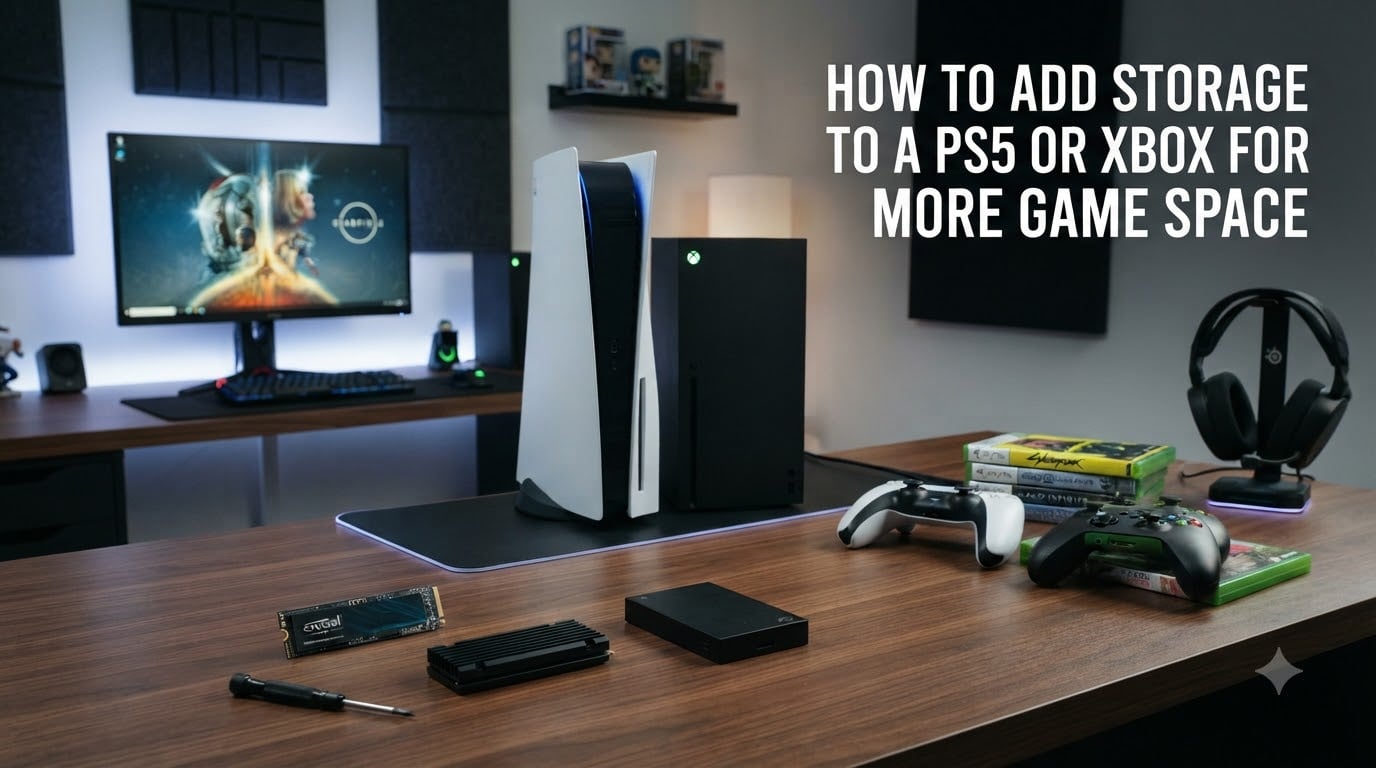
Modern games are massive. Call of Duty clocks in at over 100GB. Spider-Man 2 needs 70GB. Even indie hits regularly hit 30GB or more. If your “Storage Full” notification has become a regular nuisance, this guide will show you exactly how to add storage to a PS5 or Xbox for more game space without deleting the games you love.
I have owned both consoles since launch and bumped into the storage wall within the first six months on each. After testing M.2 SSDs, Xbox Storage Expansion Cards, and a stack of USB drives, I put this guide together so you do not have to learn the hard way. By the end, you will know which upgrade fits your console, which steps to follow, and how to keep your library organized for years.
Table of Contents
Why PS5 and Xbox Storage Fills Up So Fast?
Game sizes ballooned right alongside next-gen hardware. A typical PS5 or Xbox Series X title now runs between 50GB and 150GB. With about 667GB of usable space on the PS5 and roughly 800GB on the Xbox Series X, that leaves room for around 8 to 12 large games before you hit the ceiling.
The Xbox Series S is even tighter. Its 512GB SSD only delivers close to 360GB once the system software takes its share. Owners regularly report running out of room after installing just three or four big releases.
System updates make it worse. Patches can add 10GB to 20GB to existing games, and operating system updates quietly reserve more space over time. A console that felt roomy on day one can become cramped within a year.
That is why learning how to add storage to a PS5 or Xbox for more game space is essentially a required skill for any serious gamer today.
How to Add Storage to a PS5 Using an M.2 SSD?
The PS5 uses an internal M.2 NVMe SSD slot for permanent expansion. It plays PS5 games directly from the new drive, which makes it the closest equivalent to upgrading your console’s built-in storage.
What Is an M.2 SSD and Why the PS5 Needs One
An M.2 SSD is a small, flat stick of solid-state storage that plugs directly into your motherboard. Unlike older hard drives, it has no moving parts. It reads and writes data at incredible speeds through the PCIe interface, which is exactly what the PS5’s custom SSD was designed to leverage.
Sony built the M.2 expansion slot into the PS5 so that future capacity could keep up with growing game sizes. The slot supports drives that meet or exceed the PS5’s read speed. That gives you the same fast loading whether a game lives on the internal SSD or your upgraded M.2.
M.2 SSD Requirements for the PS5
Not every M.2 drive works. Sony publishes a strict list of requirements. Before you buy, confirm your drive meets these specs:
Interface: PCI-Express Gen4x4 NVMe SSD
Form factor: M.2 2230, 2242, 2260, 2280, or 22110
Capacity: 250GB minimum, 8TB maximum
Sequential read speed: 5500 MB/s or faster recommended
Cooling: Heatsink required (either integrated or added separately)
Socket type: Key M (Socket 3) only
Drives that use SATA, B-key, or M-key with SATA are not supported. HMB (Host Memory Buffer) caching is also not supported, so make sure the drive has its own DRAM cache for best results.
Step-by-Step: How to Install an M.2 SSD in PS5
Before you start, power down your PS5 completely and unplug it. Wait a few minutes so the internal components cool. Place the console on a flat surface with good lighting.
Position the console so the logo faces down and the back panel is up. Unscrew the single screw holding the stand and remove the stand.
Slide the side panel to lift it off. The panel will come away with a soft click.
Locate the metal expansion slot cover. Remove the screw and lift the cover to reveal the M.2 socket.
Insert the M.2 SSD into the socket at an angle, then press it flat against the heatsink area.
Secure the drive with the small screw on the end of the SSD, then reattach the metal cover.
Replace the side panel, screw the stand back on, and power up the console.
The process takes roughly 10 minutes, even for a first-timer. You only need a small Phillips or Torx screwdriver, depending on the heatsink design.
Formatting Your New M.2 SSD on PS5
Once the PS5 boots, it will detect the new drive and prompt you to format it. Formatting takes a few seconds. After that, the system treats the M.2 SSD as a native storage location. You can install PS5 games, PS4 games, and media apps directly to it.
If the console does not see your drive, double-check the screw tension and confirm the drive is fully seated. A loose fit is the most common cause of detection issues.
How to Add Storage to Xbox Series X and Series S
Xbox takes a different path. Microsoft designed a proprietary Storage Expansion Card that plugs directly into the back of the console. It is the only way to expand internal storage for Xbox Series X|S games.
The Xbox Storage Expansion Card Explained
The Storage Expansion Card is a custom 1TB NVMe SSD built by Seagate (and now other partners) that matches the Xbox Velocity Architecture. It behaves like native storage, so Series X|S games load and play exactly as they would from the internal drive.
Seagate, WD, and other brands now offer 1TB and 2TB versions. The card fits flush into the dedicated slot on the back of both the Series X and Series S. There is no screwdriver required.
Step-by-Step: Installing a Storage Expansion Card
Here is how to add an Xbox Storage Expansion Card to your console:
Power off the Xbox Series X or S and unplug all cables.
Move the console to a stable surface. On Series X, the expansion port is on the back below the drive bay. On Series S, it sits in the same area but easier to access.
Remove the plastic cover from the expansion port.
Align the Storage Expansion Card with the slot and press it in until you hear a soft click.
Reconnect the power and HDMI cables, then power on the console.
The whole process takes about two minutes. You do not need a single tool.
Checking Storage After Installation
Head to Settings, then System, then Storage. You should see the new drive listed alongside the internal storage. The Xbox will treat it as native storage, so the next time you install a Series X|S title, it will appear as an option.
PS5 vs Xbox Storage Expansion: Which Method Is Better?
Both consoles now let you play current-gen games from expanded storage, but the trade-offs are real. The PS5 gives you more capacity options and lower cost per GB. The Xbox offers a cleaner, tool-free install with guaranteed compatibility.
| Feature | PS5 M.2 SSD | Xbox Storage Expansion Card |
|---|---|---|
| Max capacity | 8TB | 2TB |
| Tool-free install | No (screwdriver needed) | Yes |
| Cost per GB | Lower | Higher |
| Speed match to internal | Yes (with right drive) | Exact match |
| PS5/Series X|S games playable | Yes | Yes |
| Heat management required | Yes (heatsink) | Built-in |
If you want maximum capacity and the best price, the PS5 gives you more flexibility. If you want the simplest, no-fuss install, the Xbox Storage Expansion Card is hard to beat.
External USB Storage: The Budget Alternative for Both Consoles
External USB drives are the cheapest way to add game space, but they come with limits. On the PS5, you can store and play PS4 games from any USB 3.0 drive. PS5 games must be moved to internal or M.2 storage to play. On Xbox, you can use USB drives for Xbox One, Xbox 360, and original Xbox backward compatible games, but not for Series X|S titles.
If you have a large backlog of older titles, a 4TB or 5TB external drive is a smart add-on. You can move PS4 games off the internal SSD and free up space for new PS5 releases. For Xbox, the same trick works for older digital games, freeing the faster internal storage for Series X|S titles.
Look for a drive with at least USB 3.0 speeds and a 5400 RPM or faster spinning disk. The best results come from external SSDs, but they cost more per GB.
Storage Management Tips: Keep Your Library Organized
Adding more storage is only half the battle. Learning to manage it well means you will rarely see the dreaded “Storage Full” message again.
Moving Games Between Storage
On PS5, go to Settings, then Storage, then select the game and choose Move Games. You can move between internal SSD, M.2 SSD, and USB drive. The console keeps your saved progress intact.
On Xbox, the same idea applies. Hold the guide button, select Manage Game and Add-on, then choose Move All. You can move between the internal SSD, the Storage Expansion Card, and any connected external drive.
Deleting and Reinstalling Games
When you uninstall a game, your saved data and trophy achievements remain on the console. You can reinstall later and continue exactly where you left off. This is the cleanest way to reclaim space without losing progress.
For PS5 games specifically, you can also archive a game. Archiving removes the install files but keeps a small icon so you can redownload later. It is faster than a full delete and reinstall when you want temporary relief.
Avoiding the Storage Full Wall
A few habits keep storage manageable. First, move games to USB or external storage the moment you finish them. Second, avoid installing two betas at once. Third, schedule a monthly cleanup where you delete anything you are not actively playing.
Another small trick: many PS5 games install into both the game folder and a separate “additional content” folder. Clearing the additional content folder is a quick way to recover 5GB to 20GB without touching the main game.
Frequently Asked Questions
How do I add more storage to my PS5 for games?
Install a compatible M.2 NVMe SSD into the PS5 expansion slot. The drive must be PCIe Gen4x4, support 5500MB/s sequential reads, and have a heatsink. Once installed, format the drive in the PS5 settings and you can install PS5 and PS4 games directly to it.
Does a PS5 have more storage than an Xbox?
The PS5 has 825GB of internal storage with about 667GB usable. The Xbox Series X has 1TB total with roughly 800GB usable. The Xbox Series S has the least, with just 512GB total and around 360GB usable. The PS5 sits between the two Xbox models in usable space.
Is 2TB overkill for PS5?
Not anymore. With modern games regularly hitting 100GB and live-service titles growing with every update, 2TB is a comfortable size for most gamers. If you keep ten or more active games installed, 2TB prevents constant cleanup. 4TB is the better pick for large digital libraries.
How do I get more storage on my Xbox for games?
Plug a Seagate or WD Storage Expansion Card into the expansion slot on the back of the Xbox Series X or Series S. The console detects it instantly and treats it as native storage. You can install and play Xbox Series X|S games directly from the card.
Final Verdict: Expanding Your Game Library the Right Way
Knowing how to add storage to a PS5 or Xbox for more game space comes down to picking the right upgrade for your habits. PS5 owners get the most flexibility with a compatible M.2 SSD, which can carry up to 8TB at the lowest cost per GB. Xbox owners get the simplest experience with a plug-and-play Storage Expansion Card, even if they pay a premium per gigabyte.
Either way, expanding your storage is the single best investment you can make for a next-gen console. It removes the constant juggling of installs and lets you keep the games you love ready to play. Pick the option that matches your budget, follow the steps above, and you will never stare at a “Storage Full” warning again.