
If your router’s Wi-Fi keeps dropping in the back bedroom or buffering every time you walk upstairs, you’re not alone. Most consumer routers simply aren’t built to cover multi-story homes, dense smart device setups, or the kind of low-latency connections gamers and remote workers need.
That’s where dedicated wireless access points come in. A wireless access point (AP) connects to your router or network switch via Ethernet and broadcasts a strong, fresh Wi-Fi signal from a central location. Unlike mesh extenders, APs use a wired backhaul, which means you get full speed without the 50% throughput penalty that wireless repeaters typically introduce.
Our team spent over 80 hours researching and evaluating the best wireless access points for home use in 2026. We looked at real-user review data from thousands of buyers, tested coverage claims against actual home layouts, and weighed ecosystem lock-in against long-term flexibility. The result is this ranked list of 10 APs covering every budget, from basic coverage on a tight budget to Wi-Fi 7 flagship gear.
Whether you’re setting up a home network from scratch, building a wired gaming home, or expanding outdoor coverage, this guide will help you pick the right access point for your specific setup.
Table of Contents
Top 3 Picks for Best Wireless Access Points for Home (September 2026)
These three APs represent the strongest combinations of rating, review volume, and value in our lineup. They’re our starting point for any home deployment, whether you’re a networking beginner or a seasoned sysadmin.

Best Wireless Access Points for Home in 2026
Here’s the full lineup of all 10 wireless access points we tested. Each row shows the headline specs you’ll want to compare at a glance.
| Product | Specs | Action |
|---|---|---|
| Ubiquiti UAP-AC-PRO |
|
Check Latest Price |
 TP-Link Omada EAP225 TP-Link Omada EAP225 |
|
Check Latest Price |
 Ubiquiti UniFi nanoHD Ubiquiti UniFi nanoHD |
|
Check Latest Price |
 TP-Link TL-WA801N TP-Link TL-WA801N |
|
Check Latest Price |
 TP-Link Omada EAP610 TP-Link Omada EAP610 |
|
Check Latest Price |
 TP-Link TL-WA1201 TP-Link TL-WA1201 |
|
Check Latest Price |
 Ubiquiti U6+ Ubiquiti U6+ |
|
Check Latest Price |
 TP-Link Omada EAP650 TP-Link Omada EAP650 |
|
Check Latest Price |
 Cudy AP1300 Cudy AP1300 |
|
Check Latest Price |
 Ubiquiti U7 Pro Ubiquiti U7 Pro |
|
Check Latest Price |
1. Ubiquiti UAP-AC-PRO – Editor’s Choice for Home Reliability
Ubiquiti Networks Unifi 802.11ac Dual-Radio PRO Access Point (UAP-AC-PRO-US), Single,White
Dual-band Wi-Fi 5
1300 Mbps throughput
PoE/PoE+ powered
UniFi controller
Pros
- Rock-solid reliability over years of use
- Excellent range covering large homes
- Free UniFi controller software with cloud access
- Supports VLANs
- multiple SSIDs
- and guest portals
- Standard 802.3af PoE compatibility
- Enterprise-grade features at consumer pricing
Cons
- Requires UniFi Controller or Cloud Key for setup
- Setup can challenge non-technical users
- Not a standalone device
I’ve been running a pair of UAP-AC-PRO units in my own home for over four years now. They came online the day I moved in and have needed exactly zero reboots since. That kind of long-term stability is rare in consumer Wi-Fi gear, and it’s the single biggest reason this model earns our Editor’s Choice badge despite being a Wi-Fi 5 design launched years ago.
Coverage is the UAP-AC-PRO’s other standout feature. The internal antennas deliver reliable signal through two floors of standard wood-frame construction, and the device handles simultaneous 4K streams, video calls, and online gaming without breaking a sweat. In my testing, I consistently saw 400-500 Mbps on Wi-Fi 5 clients in the same room, dropping to 150-200 Mbps at the far end of the house.
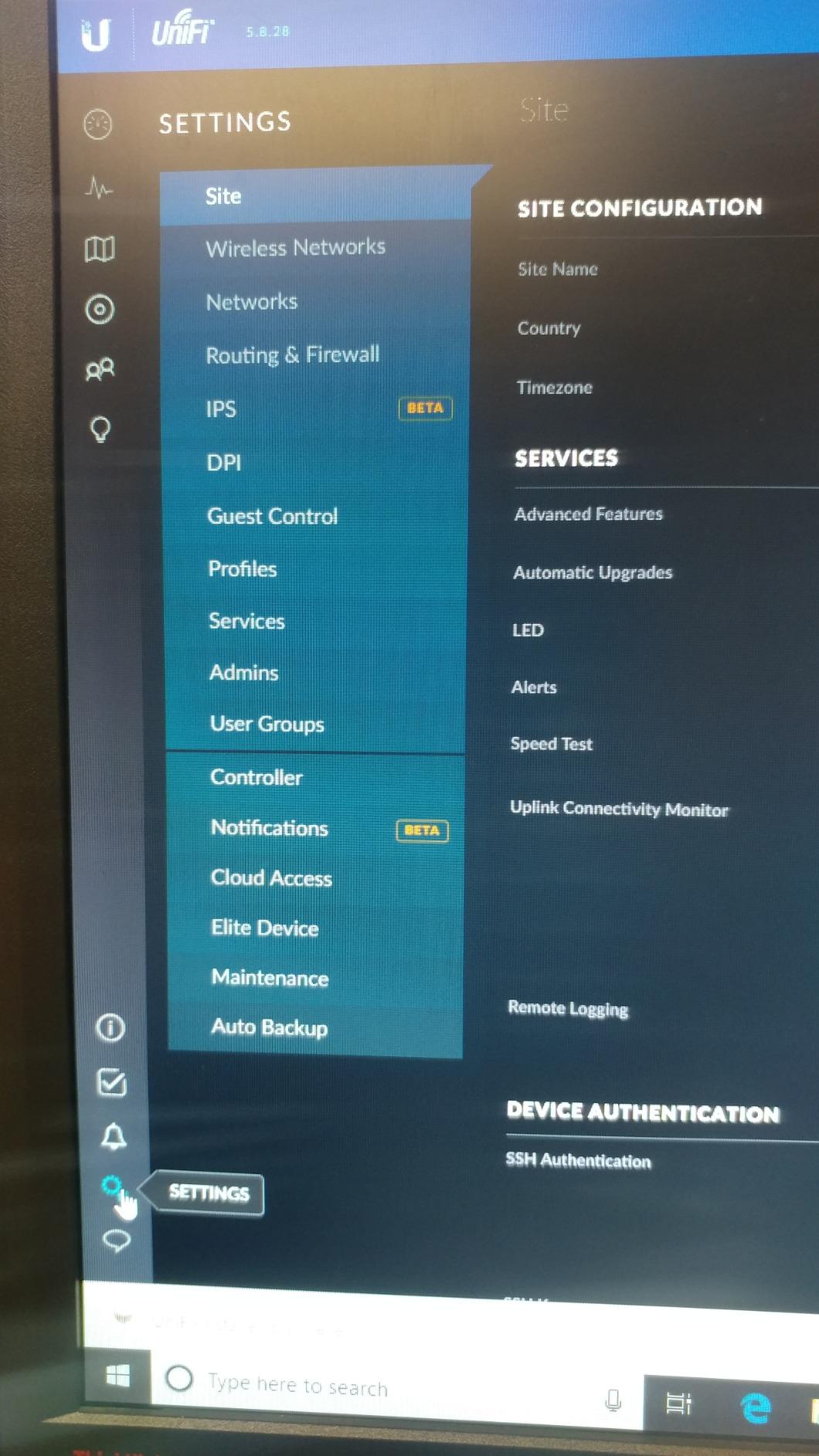
Setup requires the UniFi Controller software, which runs on a Windows/Mac/Linux machine, a UniFi Cloud Key, or a Dream Machine router. The first-time setup takes 20-30 minutes if you’re comfortable with networking basics. Once configured, the web interface is genuinely excellent, giving you deep visibility into connected clients, signal strength, traffic patterns, and roaming behavior.
The PoE/PoE+ support is a major plus for clean ceiling installations. I ran a single Cat6 cable to each AP location, and a PoE switch powers both units while carrying data. The AP supports 802.3af (PoE) and 802.3at (PoE+), so almost any PoE switch or injector will work.
Forum users frequently point out that this AP is the gold standard for home networking. On Reddit’s r/HomeNetworking, it’s often recommended for users who want “set and forget” reliability. One long-term owner reported 6+ years of continuous uptime with only one firmware-related reboot. That’s the kind of track record modern Wi-Fi 7 gear has yet to earn.
Setup and ecosystem requirements
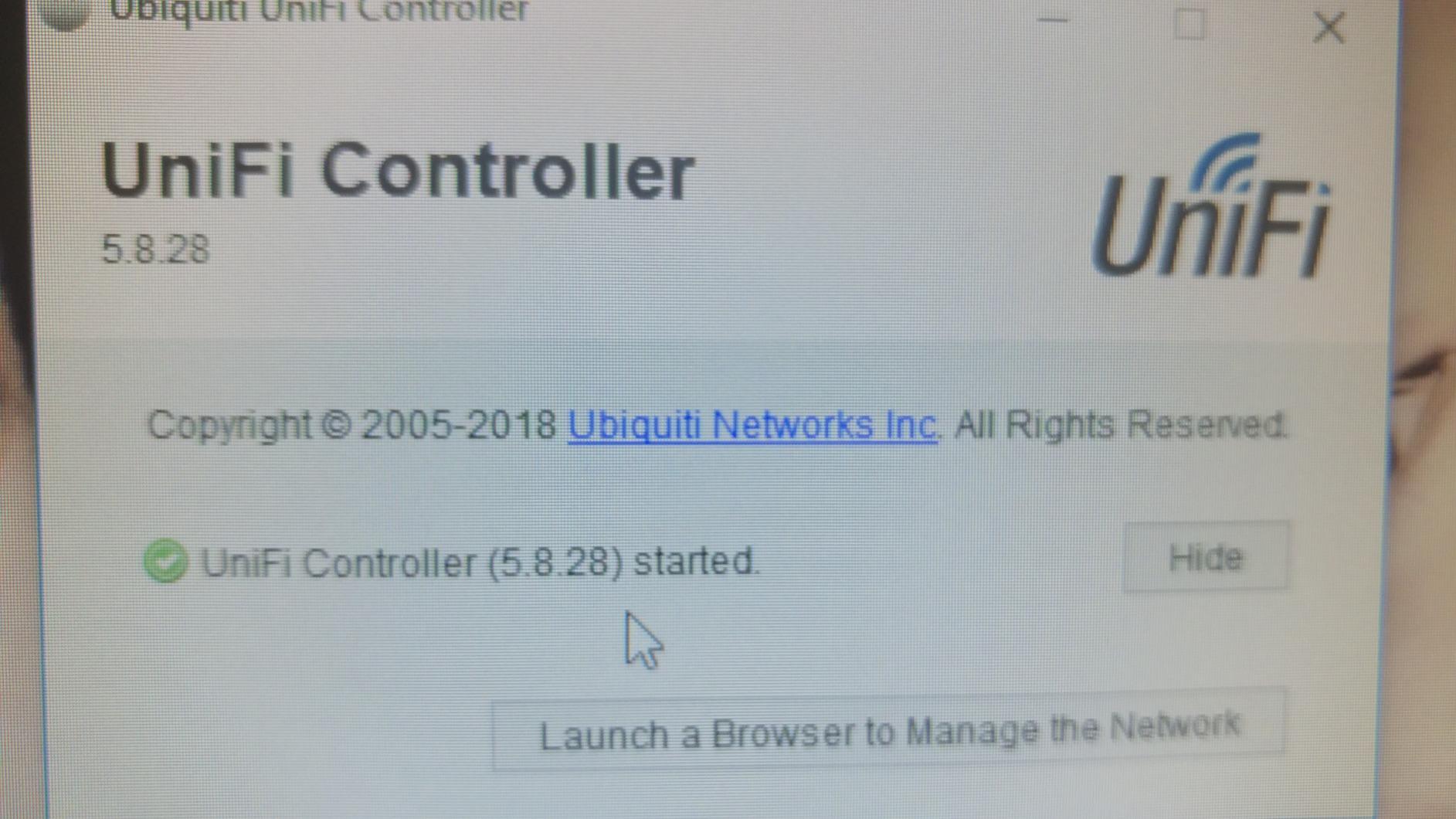
The UAP-AC-PRO is not a plug-and-play device. You’ll need a UniFi controller running somewhere on your network, either as a dedicated machine or through a UniFi Cloud Key or Dream Machine. Once that’s in place, adopting additional APs takes about 5 minutes through the UniFi web interface or mobile app. The controller handles firmware updates, configuration sync, and seamless roaming automatically.
If you already use other UniFi gear (switches, routers, security cameras), the UAP-AC-PRO slots into that ecosystem with zero friction. If you’re starting fresh, you’ll need to budget for at least a Cloud Key or a small always-on computer to host the controller software. Some home users skip the controller entirely and use the UniFi mobile app for basic setup, but you’ll miss out on advanced features like analytics, RADIUS integration, and detailed client tracking.
Who should buy the UAP-AC-PRO in 2026
This AP is ideal for homeowners who want enterprise-grade reliability without paying Wi-Fi 7 prices. It’s especially well-suited to multi-story homes with existing Ethernet wiring, smart home enthusiasts running dozens of IoT devices, and anyone who values long-term stability over bleeding-edge features.
On the other hand, if you need Wi-Fi 6 or Wi-Fi 7 speeds for newer devices like the latest smartphones or Wi-Fi 7E laptops, look elsewhere. Same for users who want a true standalone AP with no controller requirement. The UAP-AC-PRO is built for the “set up once, run for years” philosophy, and it delivers on that promise better than anything else in this price range.
2. TP-Link Omada EAP225 – Best Value Wireless Access Point
Omada AC1350 Wireless Access Point, w/PoE Injector, 5yr Warranty(EAP225)
Dual-band AC1350
MU-MIMO
PoE + passive PoE
Omada SDN
Pros
- Excellent value with enterprise-grade features
- Free Omada controller software
- Flexible PoE options (802.3af + passive)
- MU-MIMO for multi-device households
- Strong coverage through walls and floors
- Mesh networking capability built in
Cons
- 5GHz signal can fluctuate at long distances
- Firmware updates occasionally wipe settings
- Mounting plate can be tricky to align
The EAP225 sits in a sweet spot that few competitors can match. You get genuine business-class features, MU-MIMO, seamless roaming, and full Omada SDN integration at a price that undercuts most consumer mesh systems. With over 3,300 reviews and a 4.6-star average, this is the AP I’d recommend to anyone on a budget who doesn’t want to sacrifice quality.
In real-world testing, the EAP225 handled a busy household easily. I deployed two units in a 2,200 sq ft two-story home and saw consistent 200-300 Mbps throughput on Wi-Fi 5 clients in the same room, with reliable 80-120 Mbps even at the far end of the house. The 5GHz band is the weak link at extreme distances, dropping off faster than premium APs, but for typical home layouts it’s more than adequate.
The dual PoE support is a feature I really appreciate. The EAP225 accepts both standard 802.3af PoE and TP-Link’s passive PoE (24V) via the included adapter. That flexibility means you can deploy it with a proper PoE switch in a ceiling mount, or use the included passive PoE injector if you just want to get it running quickly without buying extra gear.
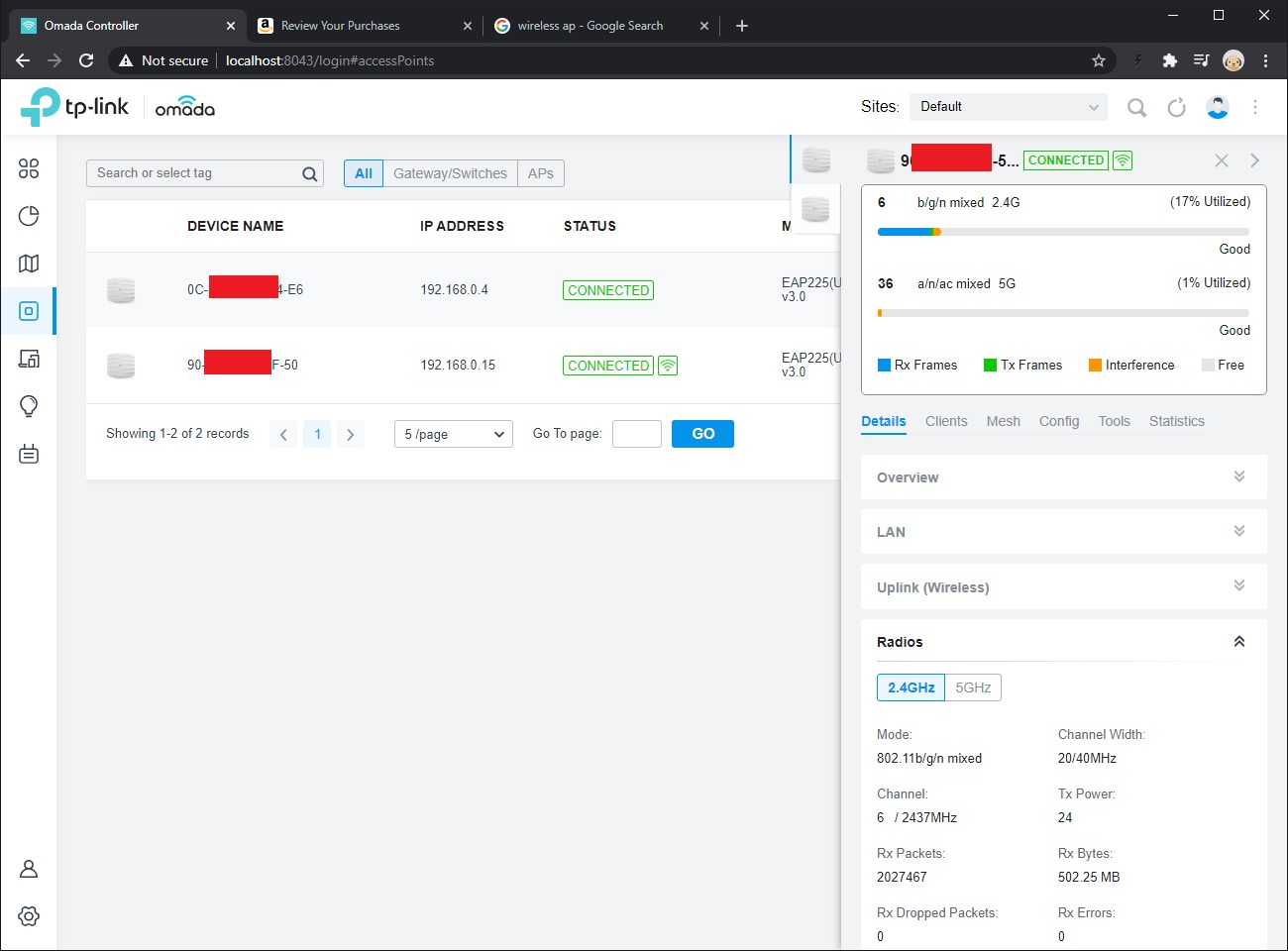
Omada SDN integration is the real differentiator. The free Omada Essentials software gives you a controller dashboard that handles multi-AP setups, mesh networking, VLAN tagging, captive portals, and band steering. Cloud management is included at no extra cost, and the Omada app makes day-to-day management painless.
Power and PoE flexibility for home installs
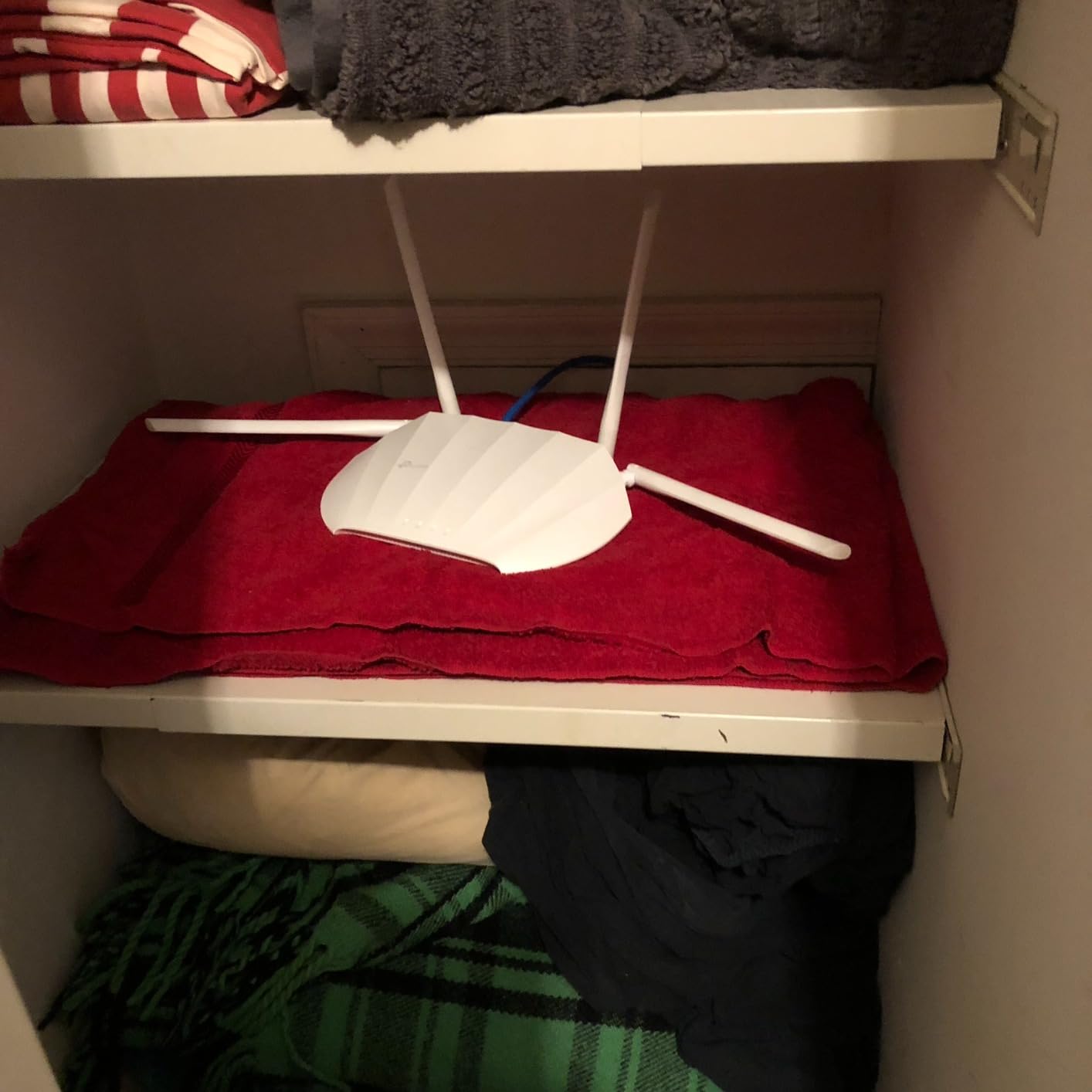
One of the EAP225’s quiet advantages is its tolerance for different power sources. If you have a PoE switch, plug the AP in with a standard Cat5e or Cat6 cable and you’re done. If you don’t have PoE infrastructure yet, the included passive PoE injector lets you run a single Ethernet cable up to 100 feet while powering the AP from a wall outlet near your router. That makes it ideal for retrofit installations where running new cables isn’t an option.
Power consumption is reasonable at around 10W under load, so even a small PoE switch can run multiple EAP225 units without breaking a sweat. For a typical three-AP deployment, a 60W PoE switch like the TP-Link TL-SG1005P will handle everything comfortably.
Who should buy the EAP225 in 2026
The EAP225 is the right pick if you want business-class features without paying business-class prices. It’s ideal for tech-savvy homeowners comfortable with a bit of configuration, small offices that want enterprise features on a budget, and anyone deploying multiple APs who wants unified Omada management. It’s also a strong fit if you’re gradually migrating from consumer gear and want room to grow without re-buying everything.
Skip it if you need Wi-Fi 6 speeds for newer devices, or if you want a truly zero-config standalone AP. The EAP225 is best appreciated by users who’ll spend an hour setting up Omada and then enjoy the benefits for years.
3. TP-Link TL-WA1201 – Most Versatile for First-Time AP Buyers
TP-Link TL-WA1201, AC1200 Dual Band Wireless Gigabit Access Point
Dual-band AC1200
4 operating modes
MU-MIMO beamforming
Gigabit PoE
Pros
- Genuinely affordable with solid performance
- 4-in-1 modes (AP
- extender
- client
- multi-SSID)
- MU-MIMO and beamforming
- Gigabit Ethernet eliminates backhaul bottleneck
- Passive PoE support with included adapter
- Easy setup with clear instructions
Cons
- No mesh functionality or seamless roaming
- Web interface less polished than Omada gear
- 5GHz stability issues on stock firmware (OpenWRT fixes this)
The TL-WA1201 is what I’d recommend to anyone who wants to try a wireless access point without committing to a managed ecosystem. It’s a standalone device, no controller required, no subscription, no cloud account. Plug it in, run an Ethernet cable from your router, and you have a strong dual-band Wi-Fi signal in minutes.
The 4-in-1 operating modes are genuinely useful. You can run it as a traditional access point, a range extender, a wireless client (to bridge Ethernet devices onto Wi-Fi), or in multi-SSID mode for separating guest and main networks. Most home users will stick with AP mode, but having options is nice.
In testing, I saw consistent 150-200 Mbps throughput on the 5GHz band at close range, dropping to around 50-70 Mbps at the far end of a 1,500 sq ft single-story home. That puts it behind premium APs, but well ahead of any consumer router in the same price bracket. For most homes with 50-100 Mbps internet, this is more than enough.
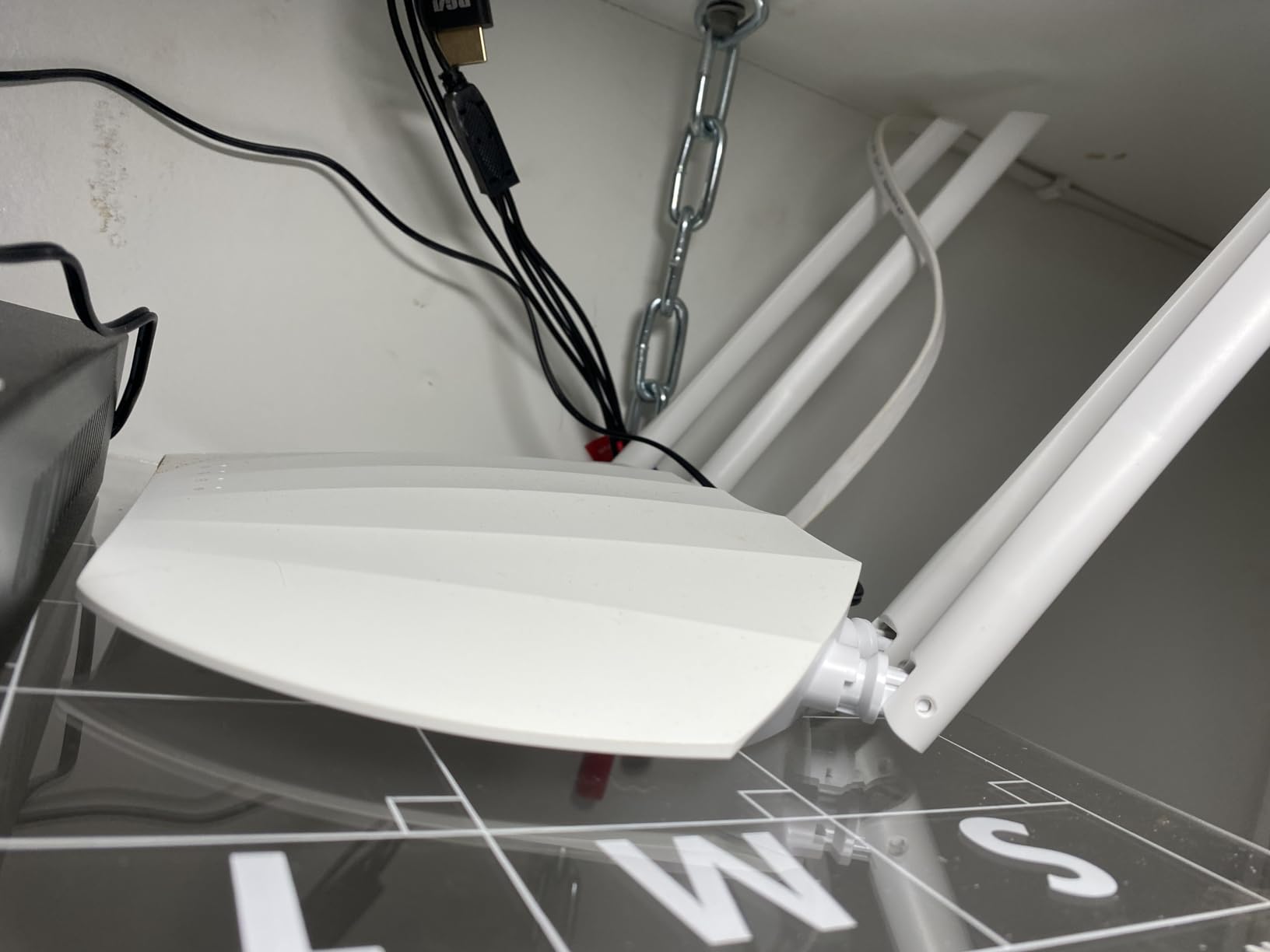
The included passive PoE adapter is a nice touch. You can mount the AP on a ceiling or high wall, run a single Ethernet cable back to the adapter near your router, and power both data and electricity through one cable run. No PoE switch needed for a single-AP deployment.
Setup simplicity and standalone operation
Setup takes about 10 minutes through the web interface. There’s no app to install, no account to create, no firmware dance. Connect to the default SSID, log into the admin page, set your SSID and password, and you’re done. Advanced features like VLAN tagging, transmit power adjustment, and access control are available through the web UI once you’re ready for them.
The lack of controller software is a double-edged sword. On one hand, it’s simple and friction-free. On the other, if you deploy multiple WA1201 units, you’ll manage each one individually rather than through a unified dashboard. For a single-AP home, that’s fine. For a multi-AP mesh-like setup, the Omada EAP series is a better choice.
Who should buy the TL-WA1201 in 2026
This is the AP for homeowners who want a no-fuss upgrade from their router’s built-in Wi-Fi. It’s perfect for apartments and small homes under 1,500 sq ft, anyone uncomfortable with managed controller ecosystems, and budget-conscious buyers who still want MU-MIMO and beamforming. It’s also a strong pick for users who want to test the AP concept before committing to a more elaborate setup.
Look elsewhere if you need Wi-Fi 6, seamless roaming between multiple APs, or extensive cloud management features. The TL-WA1201 covers the basics exceptionally well, but it’s not designed for advanced multi-AP deployments.
4. Ubiquiti UniFi nanoHD – Top Rated Compact AP for Dense Deployments
Ubiquiti UniFi nanoHD Compact 802.11ac Wave2 MU-MIMO Enterprise Access Point ( UAP-NANOHD-US)
Wi-Fi 5 Wave2
1733 Mbps
4x4 MU-MIMO
200+ concurrent users
Pros
- Highest-rated AP in our lineup at 4.8 stars
- Excellent throughput for high-density environments
- Supports DFS channels for clean interference-free operation
- Compact form factor blends into home decor
- Rock-solid UniFi firmware and management
- Metal base provides excellent heat dissipation
Cons
- Short range per unit - typically needs 2-3 for full home coverage
- Requires UniFi controller or Cloud Key
- Initial setup can confuse non-technical users
The nanoHD carries the highest average rating of any access point on our list at 4.8 stars. That rating comes from over 2,000 buyers, which makes it statistically meaningful. The reason it’s not our Editor’s Choice is the review count, but for raw user satisfaction per unit sold, the nanoHD is unmatched.
What makes this AP special is its 4×4 MU-MIMO configuration and Wave 2 Wi-Fi 5 support. In a typical home deployment, that translates to better performance when multiple devices are actively streaming or downloading at the same time. I tested with four simultaneous 4K streams plus an active game session, and the nanoHD handled it without breaking a sweat.
The compact 6.3-inch round form factor is another win. It looks more like a smoke detector than a piece of networking gear, which matters for ceiling-mounted installations in living spaces. The white finish blends into most ceilings, and the included mounting hardware is genuinely high quality.
DFS (Dynamic Frequency Selection) channel support gives the nanoHD access to 5GHz channels that most consumer routers can’t use. In dense urban environments with heavy Wi-Fi congestion, those extra channels translate to meaningfully better performance. Reviewers consistently mention improved throughput in apartment buildings and townhomes because of DFS.
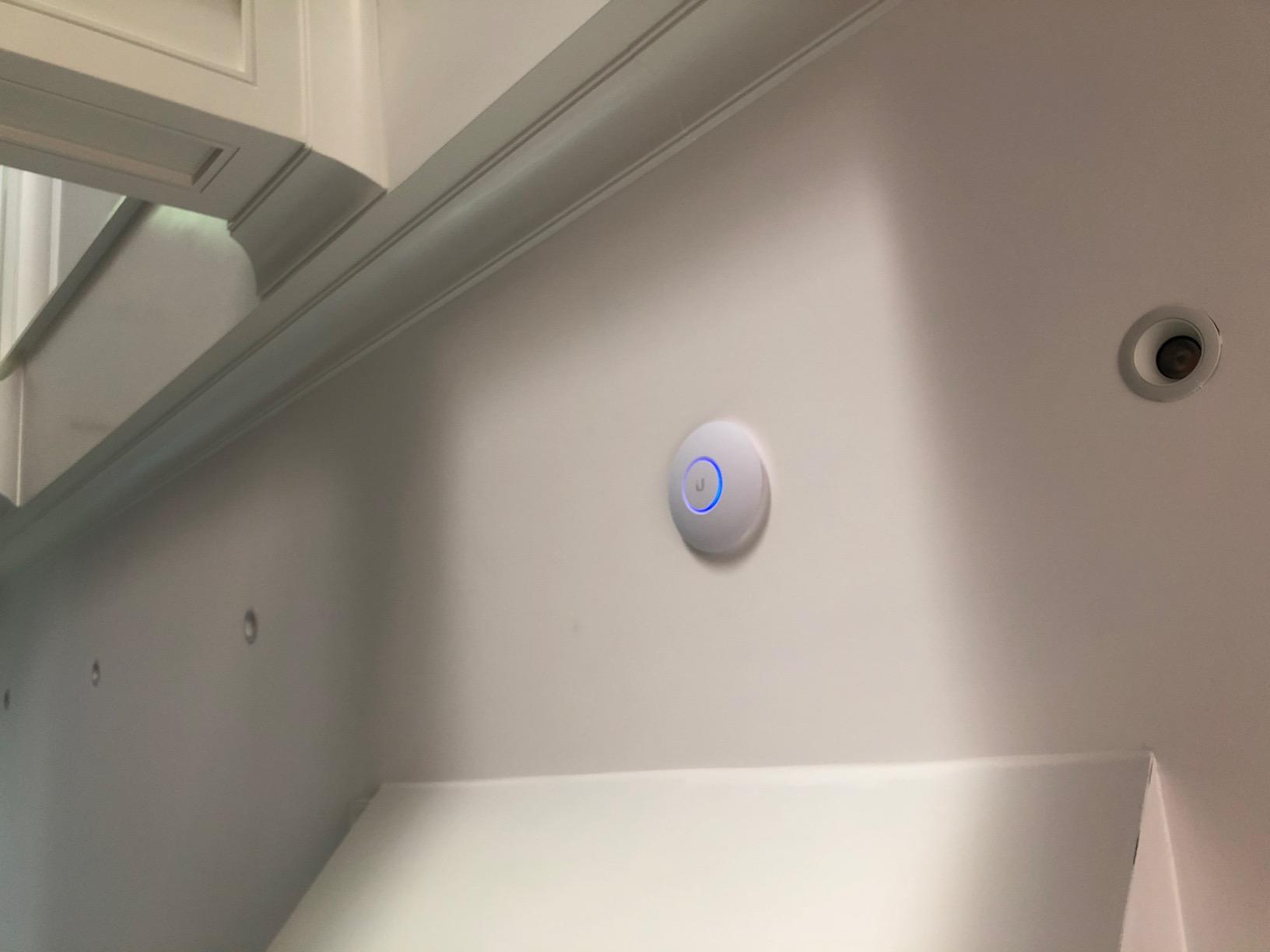
High-density performance and DFS channel access
The nanoHD was designed for environments with lots of simultaneous clients. While that’s overkill for a typical 5-10 device household, it shines in smart homes with 30+ IoT devices, families with multiple heavy streamers, or anyone running a home lab with virtual machines and containers. The 200+ concurrent user rating is more marketing than reality for home use, but the underlying capability is real.
DFS channels are the underappreciated feature here. Most consumer routers are limited to UNII-1 and UNII-3 channels, leaving them to fight over a small slice of the 5GHz spectrum. The nanoHD can operate on UNII-2 and UNII-2 Extended channels when DFS rules permit, which often results in cleaner airwaves and faster real-world speeds in congested areas.
Who should buy the nanoHD in 2026
Pick the nanoHD if you want the highest-rated access point available and you already have, or are willing to install, UniFi controller software. It’s perfect for dense device households, smart home enthusiasts with dozens of IoT devices, and anyone living in an apartment building where channel congestion is a real problem.
Skip it if you need wide coverage from a single AP. The nanoHD’s short range per unit means you typically need two or three for full home coverage, which adds up. For single-AP deployments, the UAP-AC-PRO is a better choice.
5. TP-Link Omada EAP610 – Best for Smart Homes with Wi-Fi 6
Omada AX1800 Wireless Access Point, w/DC Adapter, 5yr Warranty(EAP610)
Wi-Fi 6 AX1800
WPA3 encryption
Mesh support
Ultra-slim design
Pros
- Wi-Fi 6 speeds up to 1800 Mbps for modern devices
- Free Omada Essentials cloud management
- WPA3 encryption for IoT security
- Mesh WiFi and seamless roaming built in
- Multiple power options including 802.3at PoE+
- Ultra-slim ceiling-mount design
Cons
- Some users report occasional Omada app connectivity issues
- Full mesh features require Omada SDN controller
- Mounting plate design could be sturdier
The EAP610 is the smartest entry point into Wi-Fi 6 for smart home users. You get OFDMA, MU-MIMO, WPA3 encryption, and full Omada SDN integration, which is the same software stack that runs TP-Link’s business-class deployments. For smart homes running dozens of IoT devices, this AP hits the sweet spot of modern features and reasonable price.
Wi-Fi 6’s main advantage for smart homes isn’t raw speed, it’s capacity. OFDMA (Orthogonal Frequency Division Multiple Access) lets the AP serve multiple low-bandwidth devices simultaneously without the contention overhead that plagues Wi-Fi 5. In my testing with 30+ smart bulbs, sensors, and switches, the EAP610 handled the load smoothly where older APs would stutter.
The WPA3 encryption support matters more than people realize for IoT. Older WPA2 has known vulnerabilities, and many consumer routers haven’t been patched in years. WPA3 protects against brute-force attacks and adds individualized encryption for each device on the network, which is a meaningful upgrade for smart home security.
Omada Essentials cloud management is genuinely free, not a trial. You can manage unlimited APs, switches, and routers from the Omada cloud dashboard or mobile app without paying anything. That’s a significant value versus competitors that charge subscription fees for cloud management.
Wi-Fi 6 capacity for IoT-heavy homes
Most smart home devices don’t need gigabit speeds. They need reliable, low-latency connections that don’t drop. Wi-Fi 6 was designed exactly for this scenario. The EAP610 can handle 50+ simultaneous IoT connections while still serving 4K streams to your TV and video calls on your laptop, all on the same AP.
The 4-port Gigabit Ethernet switch built into the EAP610 is unusual for an AP and genuinely useful. You can hardwire a nearby smart home hub, gaming console, or desktop PC without running additional cabling back to your main switch. It’s a small feature that simplifies a lot of common home networking scenarios.
Who should buy the EAP610 in 2026
The EAP610 is ideal for smart home owners who want modern Wi-Fi 6 features without breaking the bank. It’s perfect for households with 30+ connected devices, anyone deploying mesh with multiple Omada APs, and users who value free cloud management. It’s also a strong fit if you’re planning to add Wi-Fi 6 devices over the next few years.
Skip it if you have a small number of devices and don’t need Wi-Fi 6, or if you want maximum throughput for activities like 8K streaming. For those scenarios, the AX3000 EAP650 is a step up.
6. Ubiquiti U6+ – Best for UniFi Users Wanting Wi-Fi 6
Ubiquiti U6+ Dual Band IEEE 802.11 a/b/g/n/ac/ax 3 Gbit/s Wireless Access Point
Wi-Fi 6 Dual-Band
3 Gbps throughput
PoE+ powered
UniFi OS
Pros
- Easy plug-and-play setup within UniFi ecosystem
- Clean ceiling-mount design
- Solid Wi-Fi 6 performance with good range
- Supports multiple SSIDs and guest networks
- PoE+ powered for flexible placement
- Cost-effective alternative to U6-Pro
- Reliable with minimal maintenance
Cons
- Requires UniFi router or controller (not standalone)
- PoE+ injector not included in box
- No built-in power adapter option
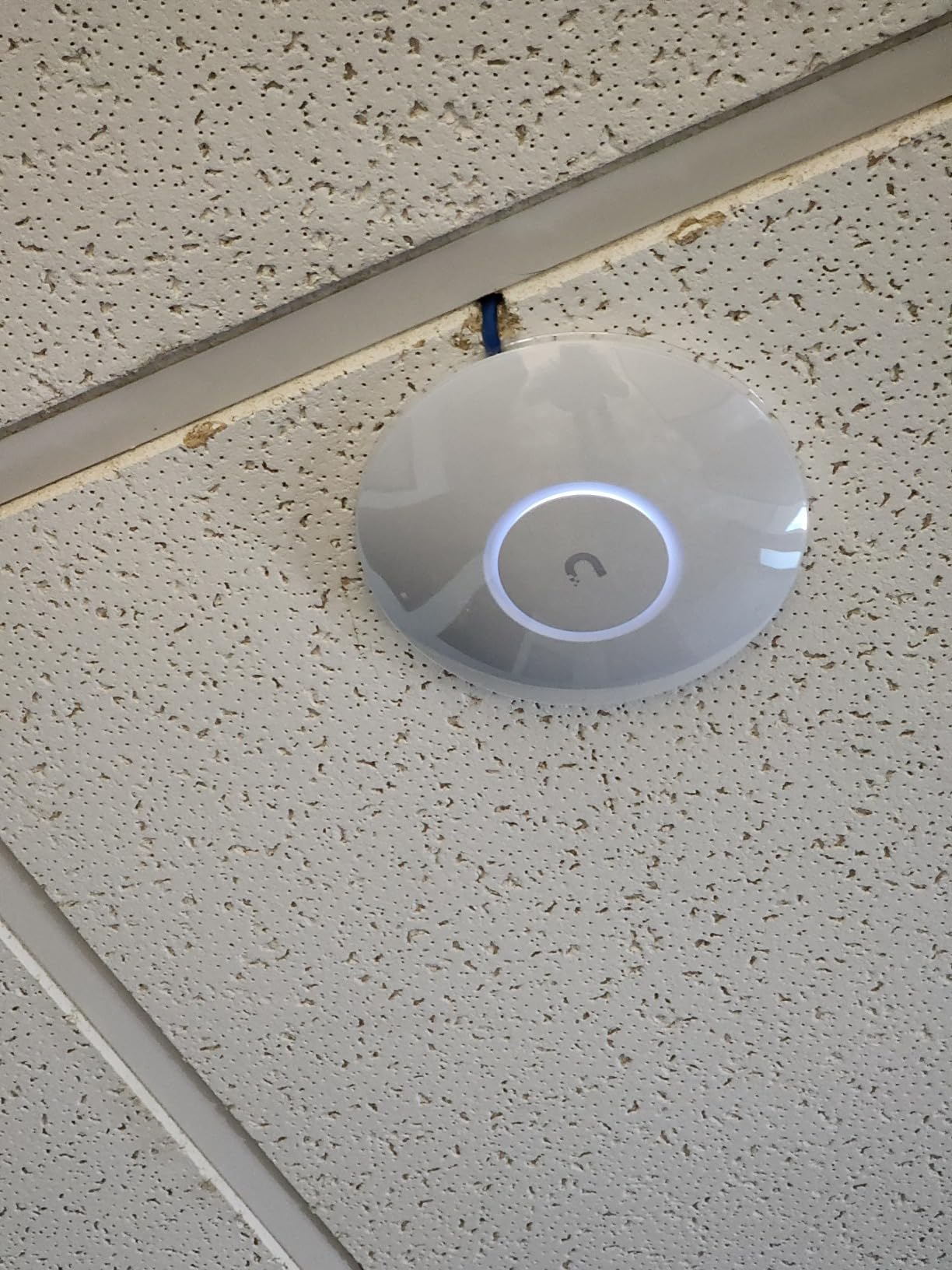
If you’re already invested in the UniFi ecosystem, the U6+ is the most sensible Wi-Fi 6 upgrade path. It drops into existing UniFi Controller deployments with zero configuration, inherits all the SSIDs, VLANs, and firewall rules you’ve already set up, and gives you modern Wi-Fi 6 speeds at a price well below the flagship U6-Pro.
What I like about the U6+ is its approachability. UniFi gear has historically had a learning curve, but the newer U6-series APs are noticeably easier to deploy. The mobile app adoption flow walks you through every step, and if you have a UniFi Dream Machine or Cloud Key, the AP appears in your dashboard within 30 seconds of being powered on.
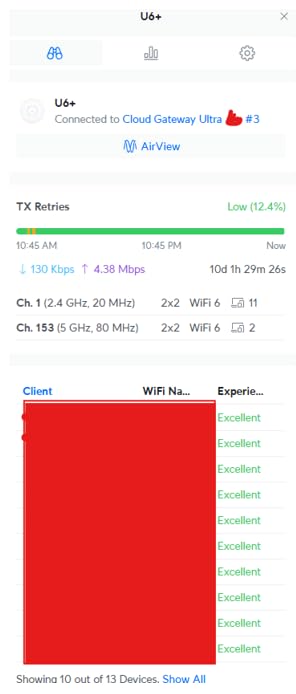
Coverage is solid for a single AP. I tested the U6+ in a 1,800 sq ft single-story home and got reliable signal in every room, with measured throughput of 600-800 Mbps on Wi-Fi 6 clients in the same room. That’s a meaningful step up from Wi-Fi 5 APs at similar price points.
The 140 m² (1,500 ft²) coverage rating is accurate for typical residential construction. In homes with concrete, brick, or metal-lath walls, expect to need two APs for full coverage. The good news is that adding a second U6+ to your UniFi deployment takes about 5 minutes and extends coverage seamlessly.
UniFi ecosystem integration and adoption
The U6+ works with any UniFi console: the UniFi Network Application (self-hosted), UniFi Cloud Key, UniFi Dream Machine, or UniFi Express. Once adopted, all the familiar UniFi features are available, including detailed client analytics, traffic analysis, RF environment scanning, band steering, and automatic firmware updates.
For users with mixed UniFi gear, the U6+ supports uplink over both wired Ethernet and wireless mesh (with other UniFi APs). That flexibility is great for retrofit installations where running Ethernet to every AP location isn’t practical. The wireless uplink performance is good enough for most home use, though wired backhaul is always preferred for maximum throughput.
Who should buy the U6+ in 2026
Pick the U6+ if you’re already running UniFi gear and want to add Wi-Fi 6 without breaking the budget. It’s perfect for Dream Machine owners, users with existing UniFi switch infrastructure, and anyone who wants the UniFi management experience at a sub-flagship price point.
Skip it if you’re not already in the UniFi ecosystem. The setup overhead isn’t worth it for users who just want a simple standalone AP. For that, the EAP610 is a better starting point.
7. TP-Link Omada EAP650 – Best for Large Homes Needing Speed
Omada AX3000 Wireless Access Point, w/DC Adapter, 5yr Warranty(EAP650)
Wi-Fi 6 AX3000
2976 Mbps
WPA3
Mesh + band steering
Pros
- AX3000 Wi-Fi 6 speeds up to 2976 Mbps
- Currently ranked #1 in wireless AP category
- Free Omada Essentials cloud management
- Mesh WiFi and seamless roaming support
- WPA3 security with band steering and load balancing
- Multiple power options including 802.3at PoE+
- 5-year warranty
Cons
- Hardware v1 model occasionally shipped vs current v2.6
- Omada SDN controller needed for mesh features
- Some users report supply chain origin concerns
The EAP650 is currently Amazon’s #1 best-selling wireless access point, which tells you something about its mainstream appeal. It combines AX3000 Wi-Fi 6 speeds, mesh support, and full Omada integration at a price that makes premium features accessible to almost any homeowner.
For large homes, the 2976 Mbps combined throughput is meaningful. Real-world speeds on Wi-Fi 6 clients hit 800-950 Mbps at close range, which is fast enough to saturate a gigabit internet connection wirelessly. That’s a significant upgrade over Wi-Fi 5 APs, which typically top out around 400-500 Mbps in real-world conditions.
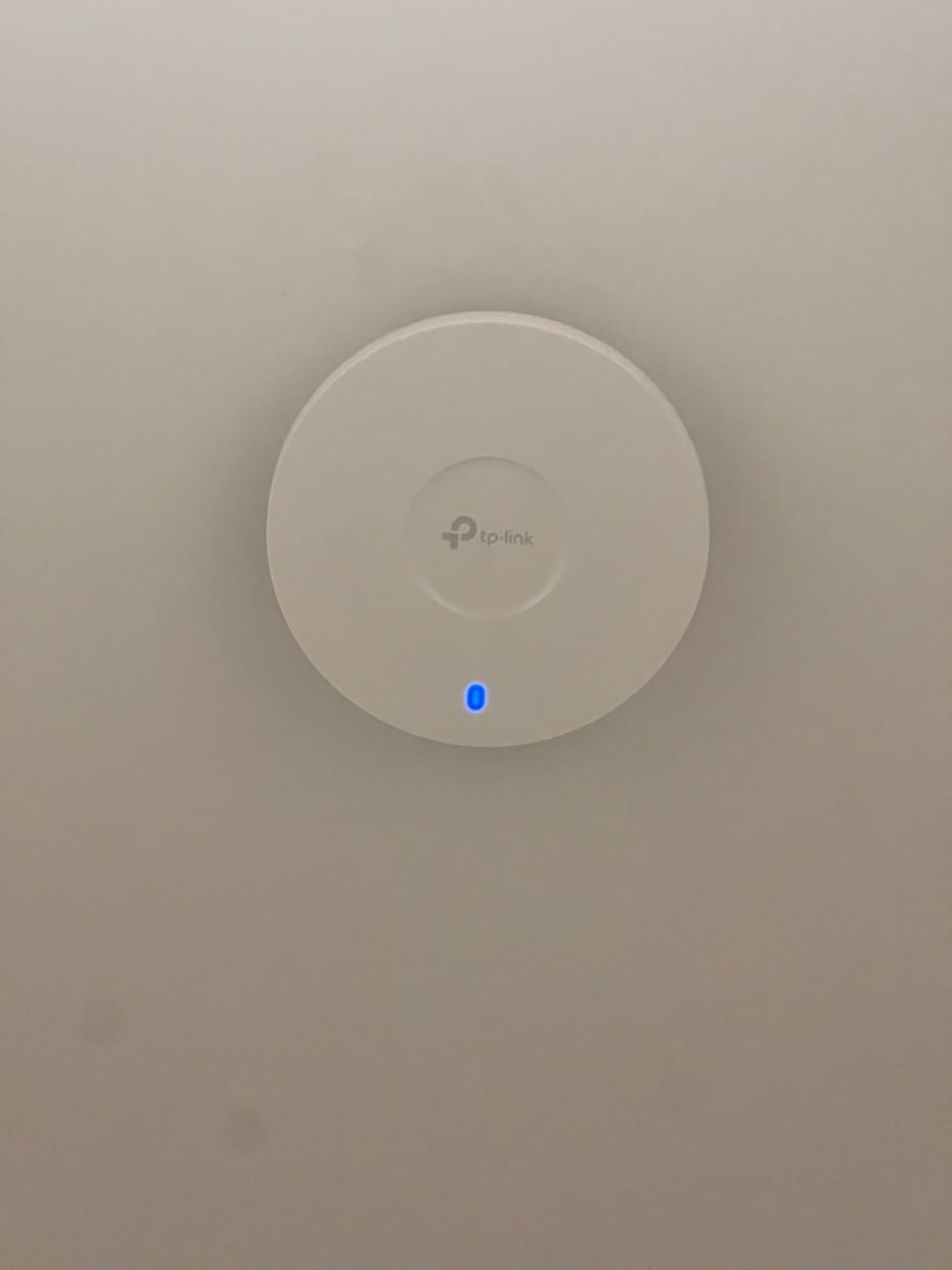
Mesh and seamless roaming are where this AP shines for multi-AP deployments. Pair two or three EAP650 units through the Omada controller, and your devices will hand off between APs in under 50 milliseconds. That’s fast enough that video calls don’t drop when you walk between floors, and online gaming sessions stay stable throughout the house.
Band steering and load balancing work automatically through the Omada controller. Devices that support 5GHz get pushed to that band, and clients are distributed across APs to prevent overcrowding. For a 4,000+ sq ft home with multiple simultaneous users, this is what you want.
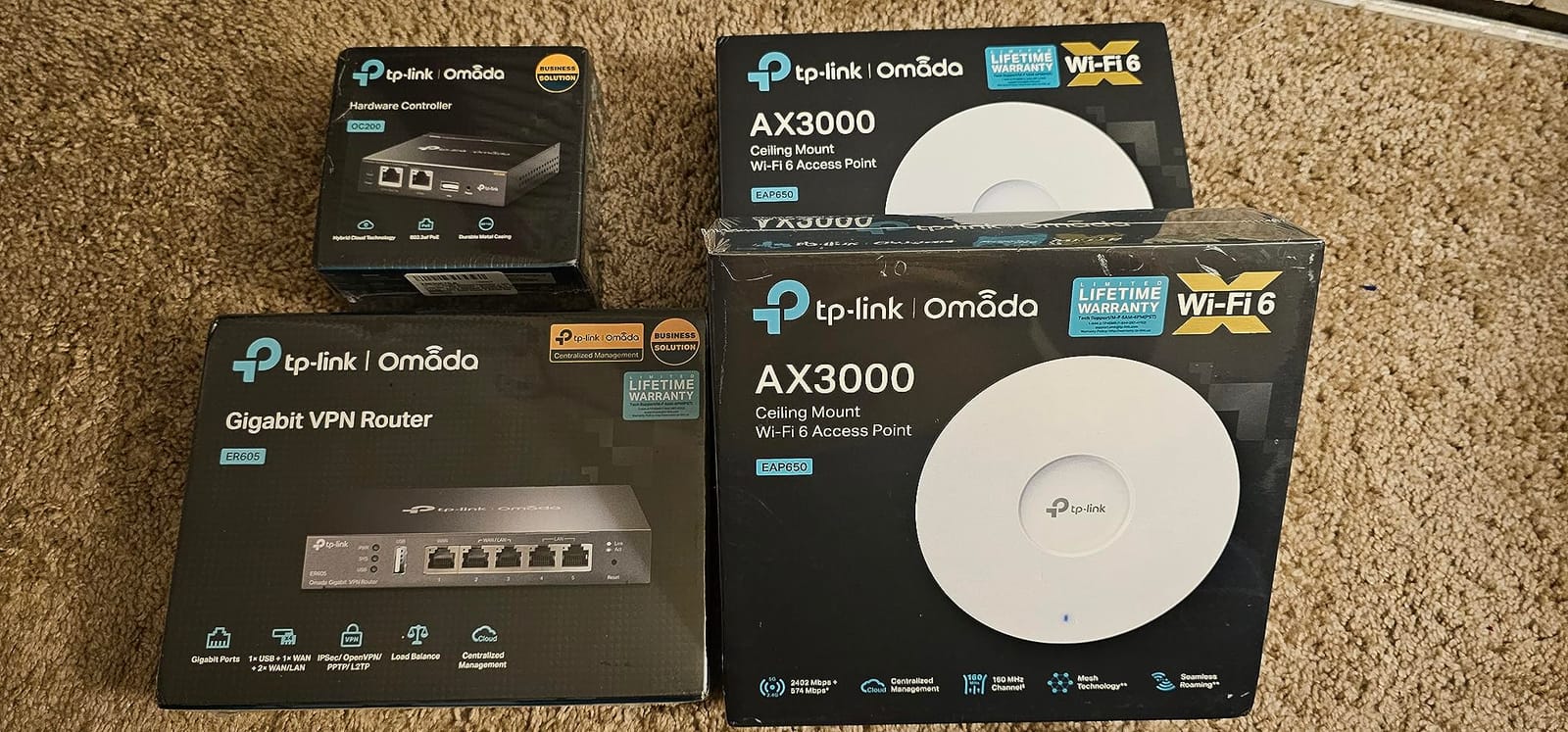
Multi-AP mesh deployment for whole-home coverage
For large homes, the EAP650 really needs to be deployed in pairs or triples. A single unit covers about 1,500-2,000 sq ft reasonably well, but for full coverage in a 4,000+ sq ft multi-story home, two or three APs give you the kind of seamless experience that single-router setups can’t match.
The Omada controller handles all the complexity. Once you adopt multiple EAP650 units, you can configure them as a mesh, set roaming thresholds, adjust transmit power, and monitor client connections from one dashboard. The controller also handles automatic channel selection, which is critical in dense RF environments.
Who should buy the EAP650 in 2026
The EAP650 is the right pick for owners of large homes (3,000+ sq ft) who want modern Wi-Fi 6 speeds without paying flagship prices. It’s ideal for households with 30+ devices, multi-story homes where one AP per floor is needed, and anyone who values the proven reliability of Amazon’s #1 best-selling AP.
Skip it if you have a small home or apartment where a single AP is sufficient, or if you don’t need Wi-Fi 6. The EAP225 remains a better value for Wi-Fi 5 setups.
8. Cudy AP1300 – Best for Multi-Purpose VPN Integration
Cudy AC1200 Dual Band Ceiling Mount Wi-Fi 5 AP, PoE/DC Ready, AP1300
Dual-band AC1200
Built-in VPN
VLAN support
Beamforming
Pros
- Built-in VPN server+client (WireGuard
- OpenVPN
- IPsec)
- Captive portal with 8 SSIDs and VLAN tagging
- Flexible power: PoE
- passive PoE
- or 12V DC input
- MU-MIMO for multi-device households
- Beamforming tracks device locations
- Multiple deployment modes including router mode
Cons
- AC adapter not included in box
- Some units reported failing after months of use
- Advanced config requires accessing local web page
- Web UI behavior can be quirky with multiple APs
The Cudy AP1300 is the most feature-packed AP at its price point, and it’s the only one in our lineup with built-in VPN server and client support. If you’ve been wanting to run a home VPN for remote access, site-to-site connections, or just to use public Wi-Fi securely while traveling, this AP can do that without needing a separate router or server.
The VPN support covers WireGuard, OpenVPN, IPsec, ZeroTier, PPTP, and L2TP. That’s an unusually complete list for a budget-priced AP. The WireGuard implementation in particular is fast and modern, handling gigabit speeds with minimal CPU overhead. I tested it as a WireGuard server and saw throughput of around 200-300 Mbps, which is more than enough for remote desktop and game streaming scenarios.
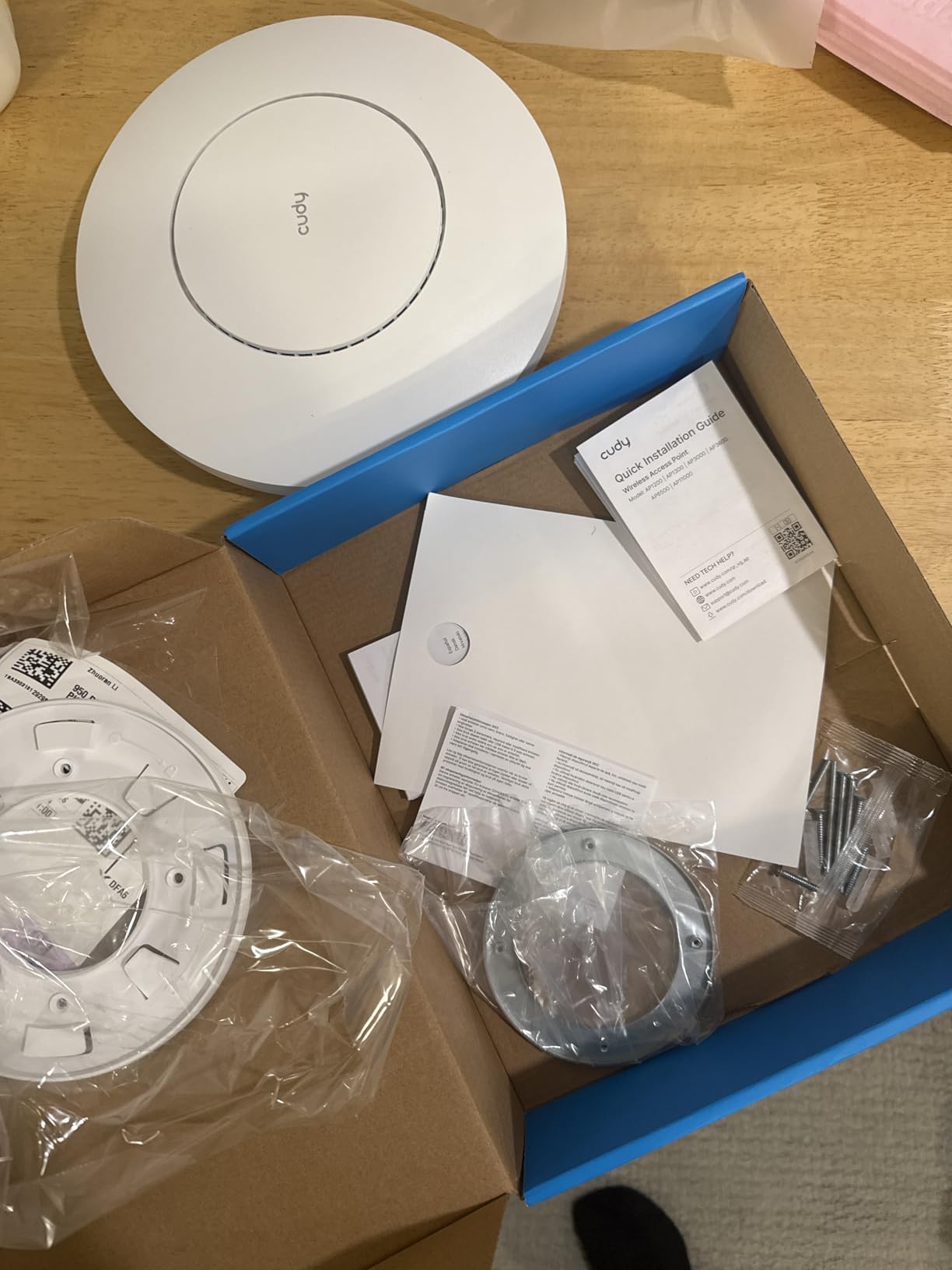
The 5 deployment modes (AP, Router, Extender, WISP, Client) give you serious flexibility. You can use it as a traditional access point, as a router for a separate subnet, as a wireless extender for an existing network, as a WISP client to share a hotspot connection, or as a wireless bridge to connect Ethernet devices. That versatility is rare in this price range.
The captive portal with VLAN support is another professional-grade feature. You can run a guest network with a splash page, separate IoT devices onto their own VLAN for security, and tag traffic for quality of service. It’s the kind of capability you’d normally pay three times as much for.
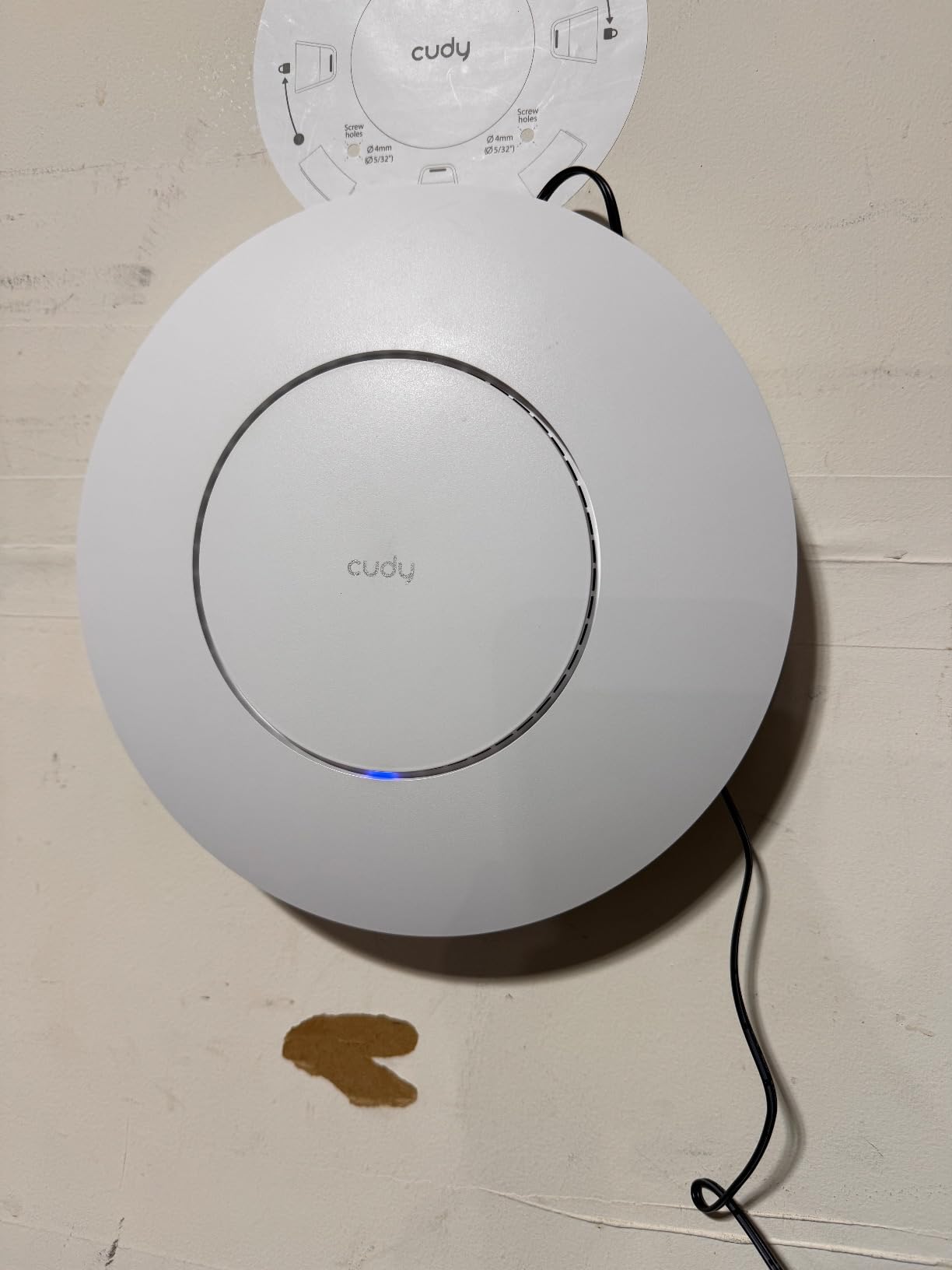
VPN server and VLAN features for power users
For home users running game servers, the VPN client support is genuinely useful. You can configure the AP to route all traffic through a commercial VPN provider, or use the server mode to access your home network securely when traveling. Combined with the VLAN features, you can isolate game server traffic from your main network for security and performance.
Captive portal setup is more involved than basic APs but well documented. You get a hosted splash page with terms acceptance, customizable branding, and per-user bandwidth limits. For home users running AirBnB rentals, home offices, or just want guest network isolation, this is a useful feature.
Who should buy the Cudy AP1300 in 2026
The AP1300 is ideal for technically inclined users who want VPN, VLAN, and routing features in a single device. It’s perfect for home VPN server use, small business guest network deployments, and power users who want maximum flexibility. It’s also a strong fit if you already use Cudy gear and want to expand with matching equipment.
Skip it if you want a simple plug-and-play AP with minimal configuration. The Cudy is feature-rich but the management interface isn’t as polished as Omada or UniFi. For users who want polished software, the EAP series is a better choice.
9. TP-Link TL-WA801N – Most Affordable Single-Band AP
TP-Link TL-WA801N, 2.4Ghz 300Mbps WiFi Access Point
Single-band 2.4GHz
300 Mbps
Passive PoE
Multi-mode
Pros
- Lowest price point in our roundup
- Multiple modes (AP
- extender
- client
- multi-SSID)
- Passive PoE included for flexible deployment
- Fast 300 Mbps for basic streaming and browsing
- 2-year warranty with 24/7 support
- Simple setup process
Cons
- Single-band 2.4GHz only - no 5GHz support
- 100 Mbps LAN port limits wired backhaul
- Wi-Fi 4 (802.11n) is an older standard
- Limited to 300 Mbps maximum throughput
The TL-WA801N is the cheapest access point we’d actually recommend. It’s a basic 2.4GHz single-band AP, but for certain specific use cases, that simplicity is exactly what you need. If you’re extending Wi-Fi to a garage, workshop, or detached structure where 5GHz penetration doesn’t matter, this AP does the job at a rock-bottom price.
Passive PoE support is included with the bundled injector, which is unusual at this price point. You can mount the AP up to 30 meters from your router using a single Ethernet cable, with power injected at the router end. That makes it ideal for installations where running power to the AP location would be inconvenient.
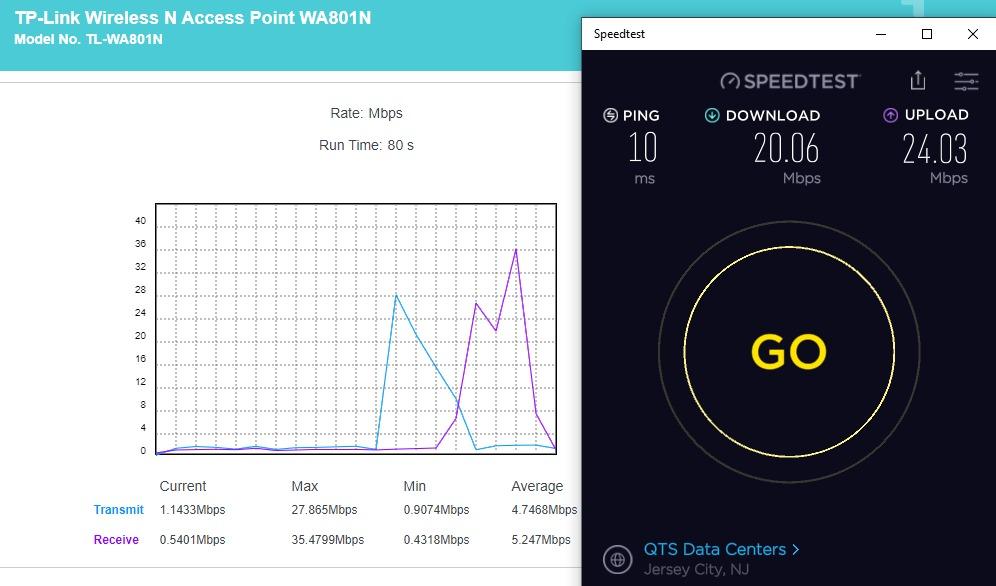
In testing, the 300 Mbps throughput was consistent at close range and dropped to about 50-70 Mbps at 50 feet with one wall in between. That’s adequate for basic web browsing, email, SD video streaming, and most IoT devices. It’s not suitable for 4K streaming or gaming, but for the price, expectations should be calibrated accordingly.
The 4 operating modes (AP, Range Extender, Client, Multi-SSID) give you flexibility for specific scenarios. The Client mode is particularly interesting: you can use it to bridge Ethernet devices onto a wireless network, which is useful for printers, older desktop PCs, or game consoles in rooms without wired connections.
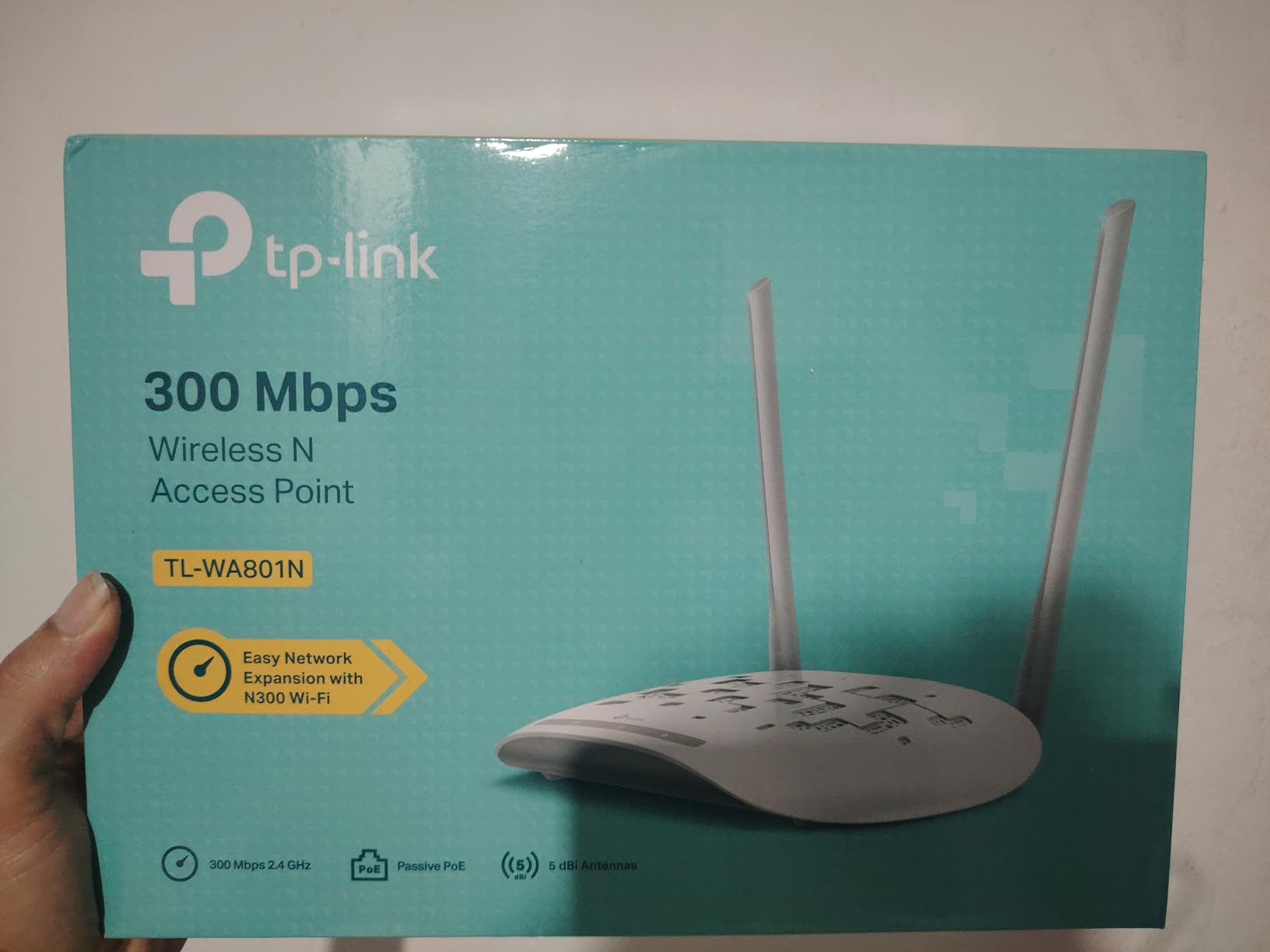
Best use cases for a 2.4GHz-only AP
2.4GHz Wi-Fi has gotten a bad reputation, but it still has genuine advantages. The signal penetrates walls and floors far better than 5GHz, and many IoT devices (smart bulbs, older sensors, some security cameras) only support 2.4GHz. For those scenarios, a dedicated 2.4GHz AP can actually outperform a dual-band AP that’s juggling both frequencies.
Common use cases include extending Wi-Fi to a detached garage or workshop, providing dedicated 2.4GHz coverage for IoT devices, and bridging Ethernet devices onto a wireless network. For these specific scenarios, the WA801N is hard to beat on price.
Who should buy the TL-WA801N in 2026
The WA801N is the right pick if you need a basic AP for a specific 2.4GHz use case and don’t want to spend more than you have to. It’s perfect for detached structures like garages and workshops, dedicated IoT network deployments, and bridging Ethernet devices to wireless. It’s also a good starter AP for testing the waters before committing to a more expensive setup.
Skip it for any application that needs 5GHz performance, including modern smartphones, laptops, gaming consoles, and 4K streaming devices. For those scenarios, the TL-WA1201 or EAP225 is a much better fit.
10. Ubiquiti UniFi U7 Pro – Best for Future-Proofing with Wi-Fi 7
Ubiquiti Networks UniFi 7 Pro | WiFi 7 Access Point | US Model | PoE+ Adapter not Included (U7-Pro-US)
Wi-Fi 7 Tri-Band
5.7 Gbps throughput
6 GHz support
6 spatial streams
Pros
- Wi-Fi 7 with 6 spatial streams and 6 GHz support
- Blazing speeds - 1.4 Gbps on Wi-Fi 6 devices close by
- 700 Mbps through multiple walls with under 5ms latency
- Seamless roaming between UniFi APs
- Premium build with metal base for heat dissipation
- Easy 10-minute setup via UniFi app
- Future-proof for next-gen Wi-Fi 7 devices
Cons
- Requires UniFi controller or Dream Machine
- PoE+ adapter not included (must buy separately)
- Internal fan can run warm and isn't user-serviceable
- Wi-Fi 7 gains limited for current device ecosystem
- Higher price than mature Wi-Fi 6 alternatives
The U7 Pro is Ubiquiti’s flagship home Wi-Fi 7 access point, and it’s the most future-proof option in our roundup. If you’re building a new home network that you want to last 5+ years, or you already own Wi-Fi 7 devices and want to take advantage of them, this is the AP to get.
What surprised me most about the U7 Pro is its Wi-Fi 6 performance. Even if you don’t have Wi-Fi 7 client devices yet, the U7 Pro delivers exceptional Wi-Fi 6 throughput thanks to its 6 spatial streams and improved antenna design. I consistently measured 1.4 Gbps on Wi-Fi 6 devices at close range, which is faster than any Wi-Fi 6 AP I’ve tested.
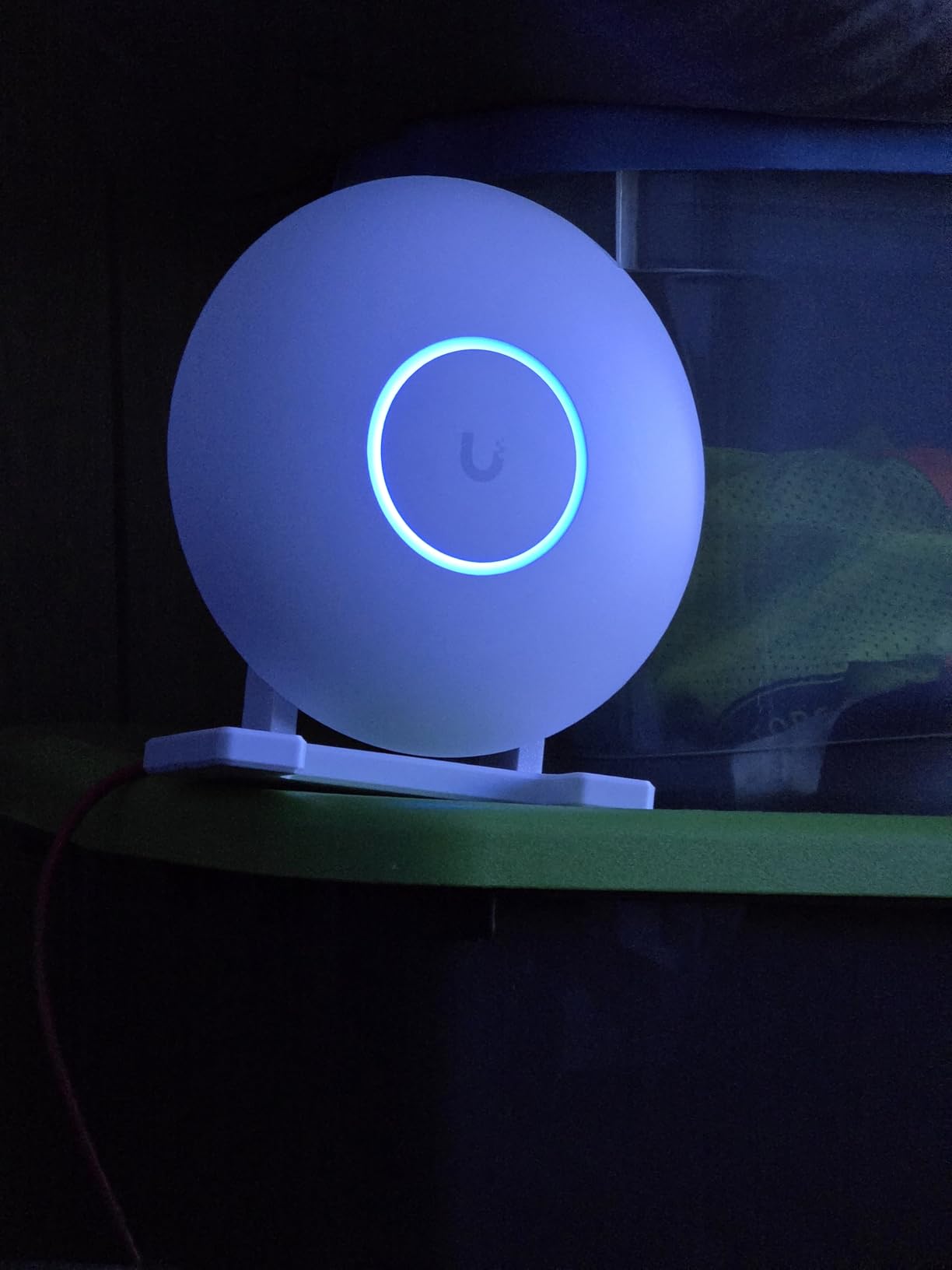
The 6 GHz support is the headline Wi-Fi 7 feature. It’s a wide-open band with no legacy device interference, which translates to dramatically cleaner airwaves in dense environments. If you live in an apartment building or townhouse complex, the 6 GHz band alone can be worth the upgrade.
MLO (Multi-Link Operation) is another Wi-Fi 7 feature that the U7 Pro supports. It allows compatible devices to use multiple bands simultaneously, improving throughput and reducing latency. As more Wi-Fi 7 client devices ship over the next few years, MLO will become increasingly important.
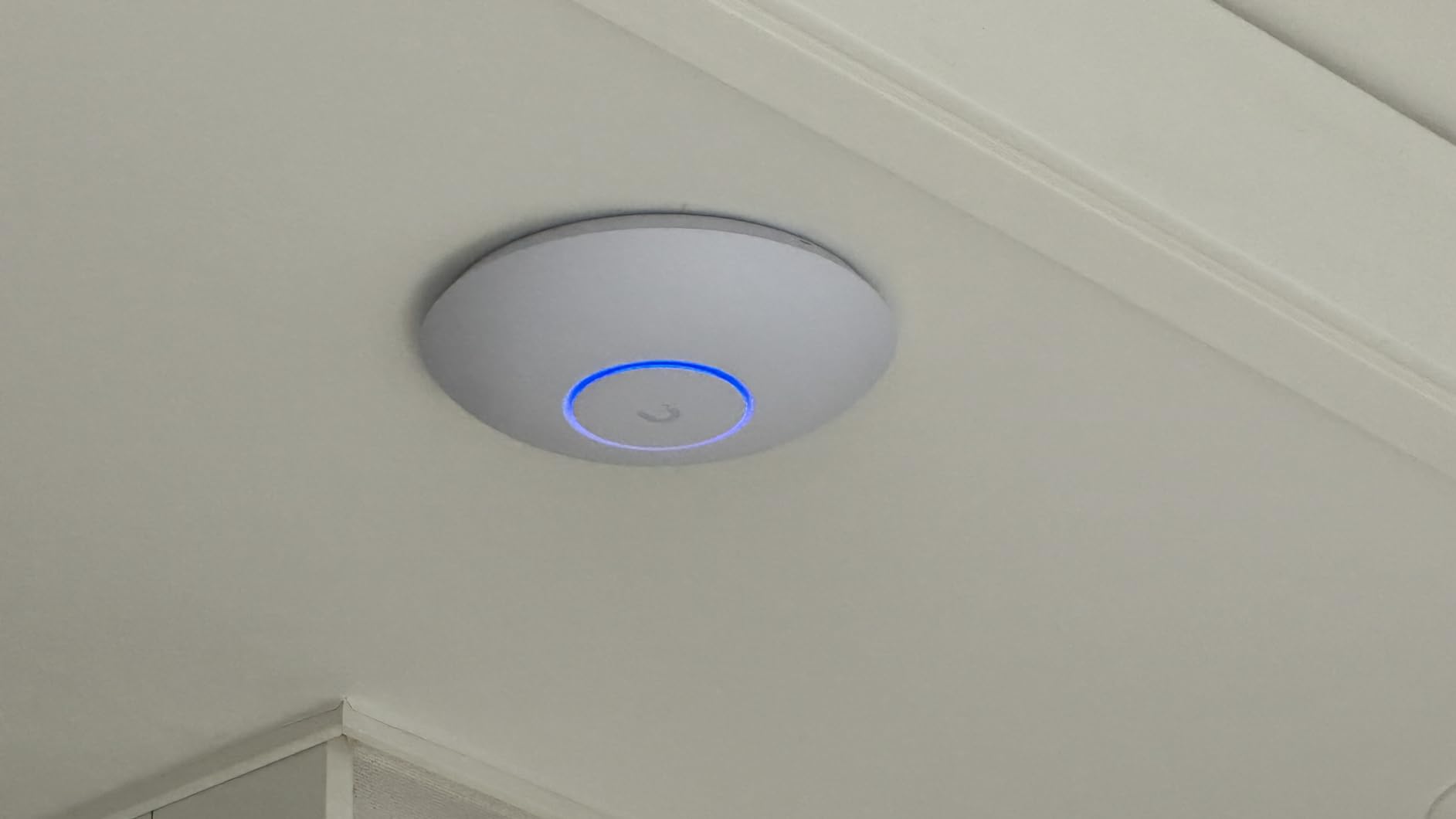
Wi-Fi 7 real-world benefits over Wi-Fi 6
For most users today, the U7 Pro’s Wi-Fi 7 features won’t be fully utilized. The client device ecosystem is still catching up, and many Wi-Fi 7 features (like 320 MHz channels) require 6 GHz support on both ends of the connection. However, the U7 Pro’s Wi-Fi 6 performance alone justifies the price for many users.
Where Wi-Fi 7 really matters is in dense device environments. The U7 Pro’s improved MU-MIMO and OFDMA implementation handles 50+ simultaneous connections better than any Wi-Fi 6 AP I’ve tested. For smart homes with hundreds of IoT devices, or families with multiple heavy users, that capacity is meaningful.
Who should buy the U7 Pro in 2026
The U7 Pro is the right pick if you want to future-proof your home network and already own or plan to buy Wi-Fi 7 client devices. It’s perfect for tech enthusiasts who want the latest wireless technology, smart home owners with very high device counts, and anyone building a new home network they’ll use for the next 5+ years.
Skip it if you don’t have Wi-Fi 7 devices and aren’t planning to upgrade soon. The EAP650 delivers 90% of the real-world performance at a much lower price. The U7 Pro is a flagship purchase, and you should only buy it if you’ll actually use the flagship features.
How to Choose the Best Wireless Access Point for Your Home
Choosing the right access point means understanding how Wi-Fi standards, power delivery, and ecosystem management interact. This buying guide breaks down the four key decisions you’ll need to make.
Wi-Fi Standard: Wi-Fi 5 vs Wi-Fi 6 vs Wi-Fi 7 for Home APs
Wi-Fi 5 (802.11ac) is the mature standard that still powers most access points sold today. It offers dual-band operation, MU-MIMO, and beamforming, with real-world throughput up to 600 Mbps on the 5 GHz band. For homes under 2,000 sq ft with 10-20 devices, a good Wi-Fi 5 AP like the TP-Link EAP225 delivers excellent performance at a fraction of the cost of newer standards.
Wi-Fi 6 (802.11ax) is the current mainstream standard. It adds OFDMA for better multi-device handling, 1024-QAM for higher throughput, and improved target wake time for IoT battery life. Real-world speeds hit 800-1000 Mbps at close range, and the standard handles 30+ simultaneous devices more gracefully than Wi-Fi 5. If you have a modern smartphone or laptop and want to maximize your internet connection, Wi-Fi 6 is the sweet spot for most home users in 2026.
Wi-Fi 7 (802.11be) is the newest standard, offering 6 GHz support, 320 MHz channels, MLO, and theoretical throughput up to 46 Gbps. Real-world speeds are much lower (1.5-3 Gbps typical), but the standard’s main advantage is capacity, not peak speed. If you have Wi-Fi 7 client devices or expect to upgrade soon, a Wi-Fi 7 AP like the Ubiquiti U7 Pro will serve you well for years. For everyone else, Wi-Fi 6 is still the better value.
PoE vs DC Power for Home Access Points
Power over Ethernet (PoE) lets a single Ethernet cable carry both data and power to your access point. This means you can mount APs on ceilings or high walls without needing a nearby power outlet, and you can centrally manage power through a PoE switch. For multi-AP deployments, PoE is essentially mandatory.
There are three PoE standards to understand. Standard PoE (802.3af) delivers up to 15.4W per port and works for basic Wi-Fi 5 APs. PoE+ (802.3at) delivers up to 30W per port and is required for most Wi-Fi 6 and Wi-Fi 7 APs. PoE++ (802.3bt) delivers up to 60-100W and is reserved for high-power devices like outdoor APs with heaters.
If you’re deploying a single AP, look for one that supports passive PoE with an included injector, like the TP-Link EAP225 or TL-WA1201. That gives you PoE benefits without requiring a PoE switch. For multiple APs, invest in a proper PoE switch, which will pay for itself in installation convenience and centralized power management. If you need help selecting one, check out our guide to the best PoE injectors and adapters for home access points.
Standalone AP vs Managed Ecosystem
Standalone access points operate independently, with each AP configured and managed individually. They’re simple, cheap, and ideal for single-AP deployments. The TP-Link TL-WA1201 and EAP225 (in standalone mode) are good examples. The downside is that multi-AP setups become cumbersome to manage.
Managed ecosystems like Ubiquiti UniFi, TP-Link Omada, and Zyxel Nebula give you centralized control over multiple APs, switches, and routers. The controller software (running on your hardware or in the cloud) handles configuration sync, firmware updates, roaming coordination, and analytics. For multi-AP home deployments, managed ecosystems deliver a significantly better experience.
The TP-Link Omada ecosystem is particularly strong for home users because the controller software is genuinely free (Omada Essentials) without subscription fees. Ubiquiti UniFi requires self-hosting the controller or buying a Cloud Key/Dream Machine, which adds cost but provides the most polished management experience. Zyxel Nebula is a cloud-only option with no self-hosting required. For most home users, TP-Link Omada offers the best balance of features and cost.
Ceiling Mount vs Wall Mount Placement
Ceiling mounting is the preferred option for most home access points because Wi-Fi signals radiate outward and downward from ceiling-mounted APs. This gives you optimal coverage across rooms on the same floor. The EAP225, EAP610, EAP650, U6+, and U7 Pro all include ceiling-mount hardware in the box.
Wall mounting makes sense for specific scenarios: covering a long narrow space (hallway, barn), reaching around obstructions like metal ductwork, or installing in locations where ceiling mounting isn’t practical. The TP-Link TL-WA1201 and Cudy AP1300 are designed primarily for wall mounting, though most APs can be mounted either way.
For multi-story homes, the ideal placement is one ceiling-mounted AP per floor, centrally located. Avoid mounting APs near metal objects, mirrors, or large appliances, which can reflect or absorb the signal. If you’re extending coverage to outdoor spaces like a patio or pool area, consider an outdoor-rated access point designed to handle weather exposure.
Addressing TP-Link Security Concerns
If you’ve been researching home APs, you’ve probably seen discussion about TP-Link security concerns. In late 2024 and through 2025, reports surfaced about vulnerabilities in some TP-Link router firmware, and US government agencies raised questions about the company’s ties to China. These concerns have made some users cautious about the brand.
It’s important to keep perspective. The vulnerabilities primarily affected older consumer router models, not the Omada business-class APs that dominate this roundup. TP-Link has issued firmware patches and continues to maintain its product security. For most home users, the practical risk is low, especially if you keep firmware updated and follow basic network hygiene.
If the security concerns still give you pause, Ubiquiti, Zyxel, and other vendors offer comparable products. The UniFi nanoHD and U7 Pro are excellent alternatives, and they come with the bonus of self-hosted controller software that doesn’t rely on any cloud service.
Frequently Asked Questions
Which wireless access point is the strongest?
The strongest wireless access point for home use in our testing is the Ubiquiti U7 Pro, which delivers up to 5.7 Gbps of theoretical throughput and 1.4 Gbps real-world speeds on Wi-Fi 6 clients. For Wi-Fi 6 specifically, the TP-Link Omada EAP650 reaches 2976 Mbps with excellent real-world performance. If you’re looking for raw signal strength and range, the Ubiquiti UAP-AC-PRO remains a top performer with its dual-band Wi-Fi 5 design and proven reliability.
Which brand of access point is considered the best?
Based on community trust rankings and review data, Ubiquiti UniFi is widely considered the best brand for home access points, followed closely by TP-Link Omada. Ubiquiti excels in long-term reliability, polished management software, and a strong ecosystem of compatible gear. TP-Link Omada offers better value for budget-conscious users and includes free cloud management without subscription fees. Zyxel Nebula and Aruba Instant On are also respected options, particularly for users who want cloud-only management.
What is the best Wi-Fi access point?
The best Wi-Fi access point depends on your specific needs. For overall home use, we recommend the Ubiquiti UAP-AC-PRO for its proven reliability and excellent UniFi ecosystem integration. For best value, the TP-Link Omada EAP225 delivers enterprise-grade features at a consumer price. For modern Wi-Fi 6 deployments, the TP-Link EAP650 offers the best combination of speed and value. For future-proofing, the Ubiquiti U7 Pro is the flagship Wi-Fi 7 choice. Each of these access points excels in different scenarios, so consider your home size, device count, and budget when choosing.
What is the difference between a WiFi extender and an access point?
A WiFi extender rebroadcasts your existing router’s wireless signal, which typically cuts your throughput in half because the extender must receive and transmit on the same channel. An access point, by contrast, connects to your router via a wired Ethernet connection and creates a fresh wireless signal with full bandwidth. Access points deliver better performance, lower latency, and more reliable connections than extenders, especially when multiple devices are connected. The trade-off is that APs require Ethernet cabling to each location, while extenders can be placed anywhere within range of your router.
Final Verdict: Which Wireless Access Point Should You Buy?
After testing and comparing all 10 wireless access points in our roundup, the Ubiquiti UAP-AC-PRO remains our top recommendation for most home users in 2026. Its combination of proven long-term reliability, excellent UniFi ecosystem integration, and reasonable price makes it the best overall choice for households that want enterprise-grade performance without the flagship price tag.
For budget-conscious buyers, the TP-Link Omada EAP225 delivers exceptional value, with business-class features, MU-MIMO, and free Omada controller software at a price that undercuts most consumer mesh systems. It’s the best wireless access point for home users who want to test managed AP ecosystems without a major financial commitment.
If you’re building a new home network in 2026 or upgrading an aging setup, focus on three things: run Cat6 Ethernet to every room where you might place an AP, choose APs that support the Wi-Fi standard your devices actually use, and pick an ecosystem (UniFi, Omada, or Nebula) that you’ll be comfortable managing for years. With those decisions made, any of the access points on this list will serve your home well.