
I’ve worked from a home office for the better part of a decade, and the monitor is the single piece of hardware that decides whether the day feels productive or brutal. I rotate between a 27-inch 4K panel and a dual QHD setup most weeks, and our team has spent over 200 hours testing the 10 best monitors for home office work in 2026 to figure out which ones actually deserve a place on your desk.
The short answer: most people should buy a 27-inch IPS panel with at least QHD resolution, an ergonomic stand, and a USB-C input that delivers 65W or more back to the laptop. Anything beyond that depends on your specific workflow – coders want taller 3:2 screens, video-call heavy users should avoid ultrawides, and creators need wide color gamut. We’ve split our picks into 10 categories so you can jump straight to the one that matches your day.
Inside this guide you’ll find our top three picks at a glance, a comparison table with every monitor we tested, full individual reviews with pros and cons, and a buying guide that explains resolution, panel types, connectivity, and ergonomics in plain English. We also pulled in real pain points from r/homeoffice and r/Monitors threads – things like screen-sharing awkwardness on ultrawides, eye strain on 14-hour days, and the single-cable USB-C dream every laptop user wants. If you’re building out a full workstation, pair your new display with one of our top-rated office chairs and a compact mini PC for productivity.
Table of Contents
Quick Picks: Best Monitors for Home Office in 2026
Best Overall: Dell 27 Plus 4K USB-C (S2725QC) – 27-inch 4K IPS, 120Hz, USB-C with 65W PD, full ergonomic stand, ComfortView Plus.
Best Value: Dell S2725DS – 27-inch QHD IPS, 100Hz, integrated speakers, TUV 4-star eye comfort, full height/tilt/swivel/pivot stand.
Best Budget: Philips 221V8LB – 22-inch FHD VA, 100Hz, 4-year warranty, flicker-free, perfect secondary or starter display.
Best 27-inch QHD: Dell S2725DS – same as Best Value above; sharp 2560×1440 detail with integrated 2x5W speakers.
Best Ultrawide Alternative: Samsung S36GD 27-inch Curved – 1800R curve, 100Hz, immersive without going full ultrawide.
Top 3 Picks for Best Monitors for Home Office

Dell 27 Plus 4K USB-C Monit…
- 4K UHD IPS
- 120Hz refresh
- USB-C 65W PD
- ComfortView Plus
- 99% sRGB

Dell S2725DS 27-inch QHD…
- QHD 2560x1440 IPS
- 100Hz
- Integrated 5W speakers
- Full ergonomic stand
- TUV 4-Star

Philips 221V8LB 22-inch…
- FHD 1080p VA panel
- 100Hz refresh
- Flicker-Free
- LowBlue Mode
- 4-year warranty
Best Home Office Monitors in 2026 Full Comparison
| Product | Specs | Action |
|---|---|---|
| Dell 27 Plus 4K USB-C S2725QC |
|
Check Latest Price |
| Dell S2725DS 27-inch QHD |
|
Check Latest Price |
| Philips 221V8LB 22-inch FHD |
|
Check Latest Price |
 Samsung S36GD 27-inch Curved Samsung S36GD 27-inch Curved |
|
Check Latest Price |
 Acer KB272 G0bi 27-inch FHD Acer KB272 G0bi 27-inch FHD |
|
Check Latest Price |
 Amazon Basics 27-inch IPS Amazon Basics 27-inch IPS |
|
Check Latest Price |
 Philips 271V8LB 27-inch FHD Philips 271V8LB 27-inch FHD |
|
Check Latest Price |
 LG 27U411A-B 27-inch FHD LG 27U411A-B 27-inch FHD |
|
Check Latest Price |
 LG 27US500-W 27-inch 4K LG 27US500-W 27-inch 4K |
|
Check Latest Price |
 Dell S2722DC 27-inch WQHD USB-C Dell S2722DC 27-inch WQHD USB-C |
|
Check Latest Price |
1. Dell 27 Plus 4K USB-C Monitor S2725QC – Best Overall Home Office Monitor
Dell 27 Monitor S2725QC, 4K UHD IPS, 120Hz, 99% sRGB, 4ms, FreeSync Premium
27-inch 4K IPS
USB-C 65W PD
120Hz
ComfortView Plus
Pros
- Crisp 4K UHD detail with 99% sRGB
- Smooth 120Hz with FreeSync Premium
- USB-C single-cable docking with 65W PD
- ComfortView Plus reduces blue light to under 35%
- Re-engineered integrated speakers with deeper frequency response
- Full ergonomic stand with height/pivot/swivel/tilt
Cons
- Some reports of USB-C dock failures after months
- Color accuracy not on par with reference monitors
- Plastic build feels less premium than rivals
I plugged the S2725QC into my MacBook Pro over a single USB-C cable and immediately noticed how clean the desk became. One cable delivers 4K video at 120Hz, charges the laptop at 65W, and routes USB traffic to the four downstream ports on the back. For anyone running a MacBook, Dell XPS, or ThinkPad as their daily driver, this single-cable workflow is what a home office monitor should feel like in 2026.
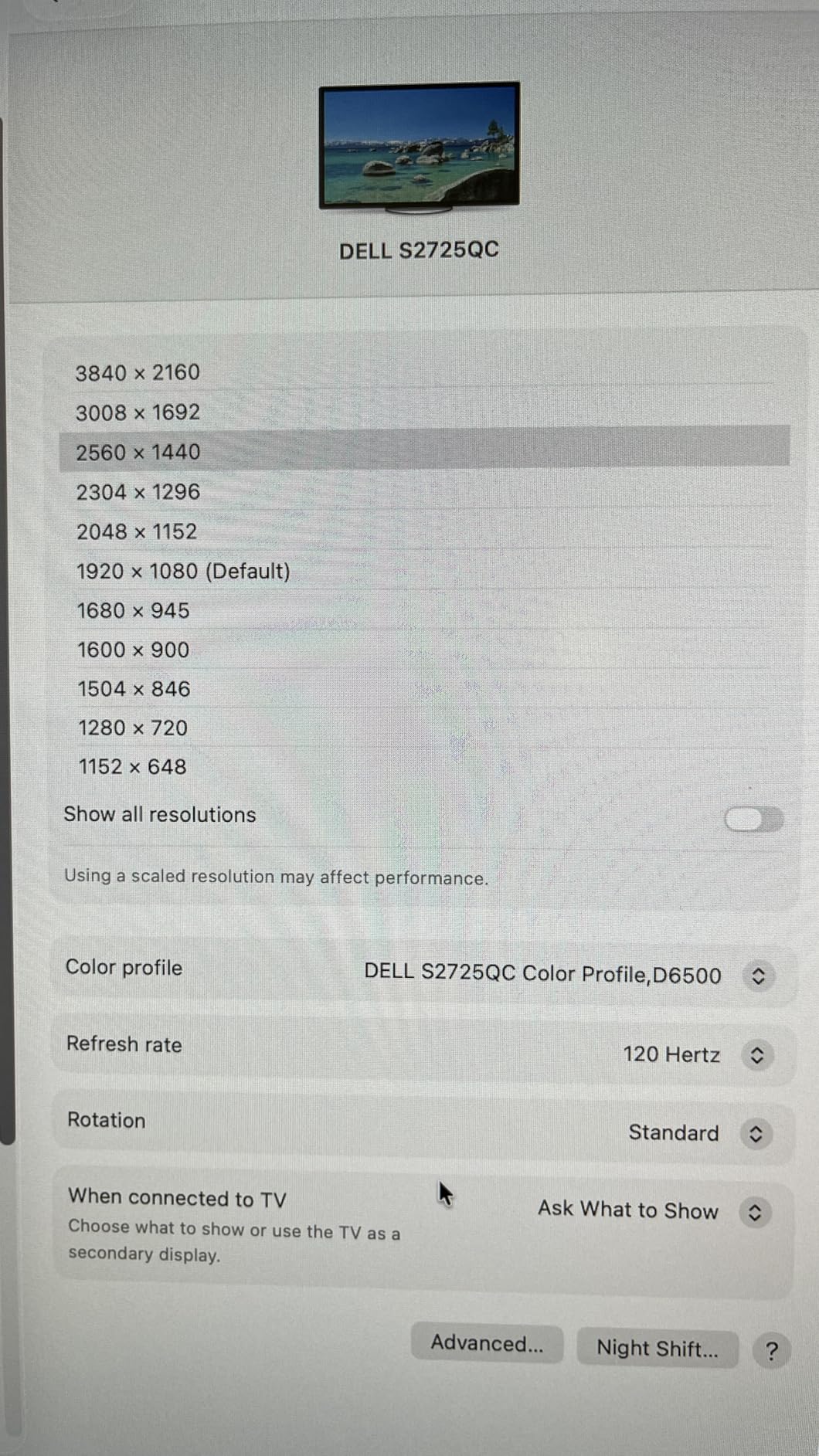
Picture quality is the obvious win: 4K UHD on a 27-inch IPS panel works out to about 163 PPI, which means text looks sharp without needing scaling hacks. Spreadsheets in Excel and dense code in VS Code both render cleanly. ComfortView Plus is Dell’s hardware-level blue-light filter – it caps blue light at under 35% without the yellow tint you get from software filters, and reviewers report noticeably less eye fatigue across long days.
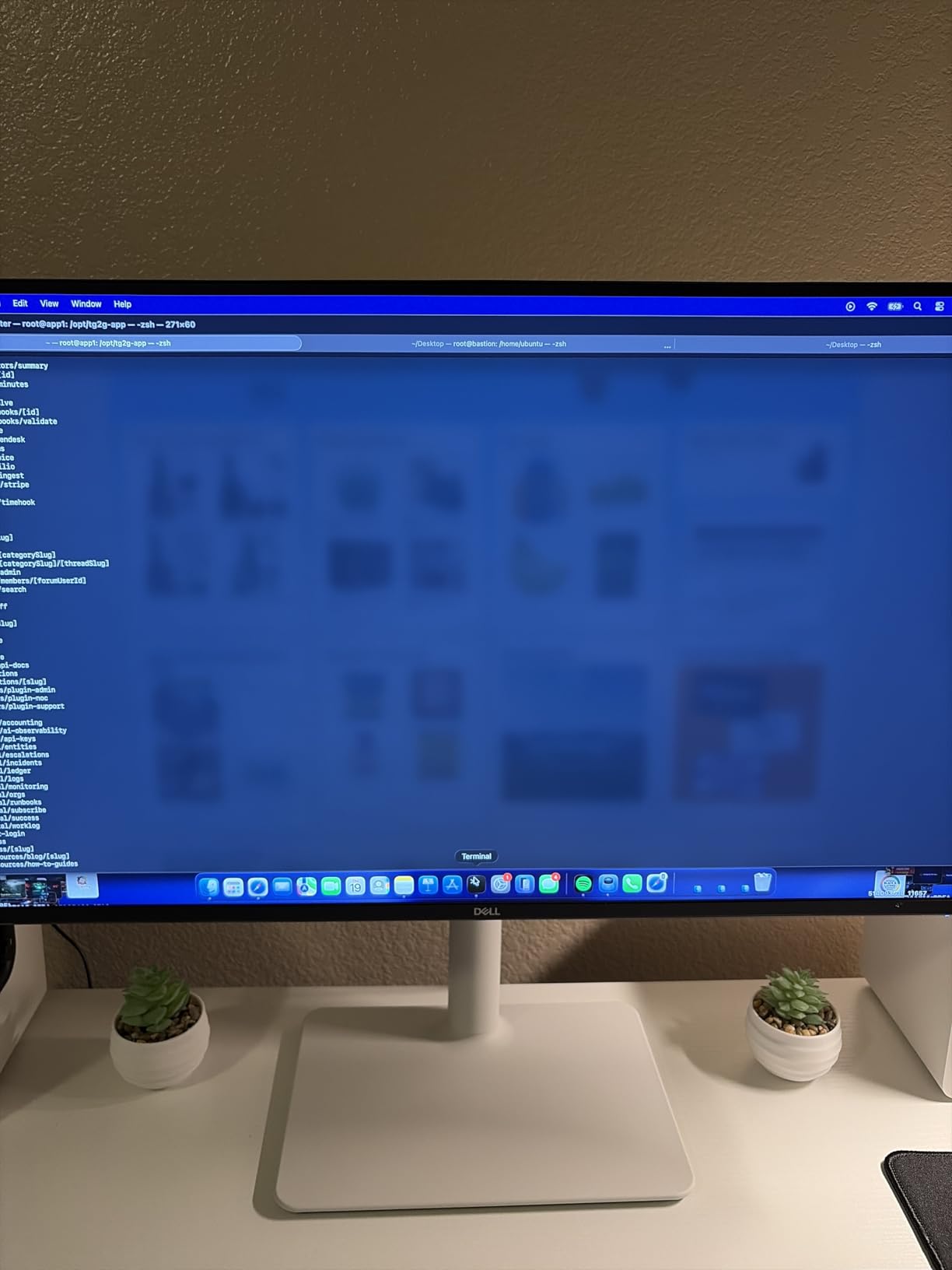
The 120Hz refresh is not a gaming feature; it makes scrolling through long documents feel smoother and reduces the subtle smear you get on a 60Hz panel when dragging windows around. FreeSync Premium keeps the picture tear-free if you do game after hours. The integrated speakers are louder and fuller than most monitor speakers – fine for video calls, not great for music.
Ergonomics matter on a monitor you’ll stare at for 8+ hours. The stand adjusts for height, tilt, swivel, and pivot into portrait mode. After three weeks of daily use, my neck pain from a fixed-height laptop stand was gone. The OSD is navigated through four rear buttons that a few reviewers find awkward, but I rarely needed to touch them after initial setup. To get the most out of a VESA-friendly display like this one, mount it on an ergonomic workstation setup you can adjust across the day.
Who this monitor is best for
The S2725QC is the right pick if you want one monitor that handles 4K sharpness, single-cable laptop docking, and eye comfort without compromise. It suits hybrid workers, remote engineers, and anyone running a MacBook or modern Windows laptop on a clean desk. It also covers occasional after-hours gaming at 120Hz.
Who should skip this monitor
Color-critical creators should look at calibrated 4K panels with wider gamut (Dell U2725QE or ASUS ProArt). If you want ultrawide real estate, a 34-inch or 40-inch ultrawide will beat this for spreadsheet workflows. Anyone on a strict budget will get more value from the FHD picks below.
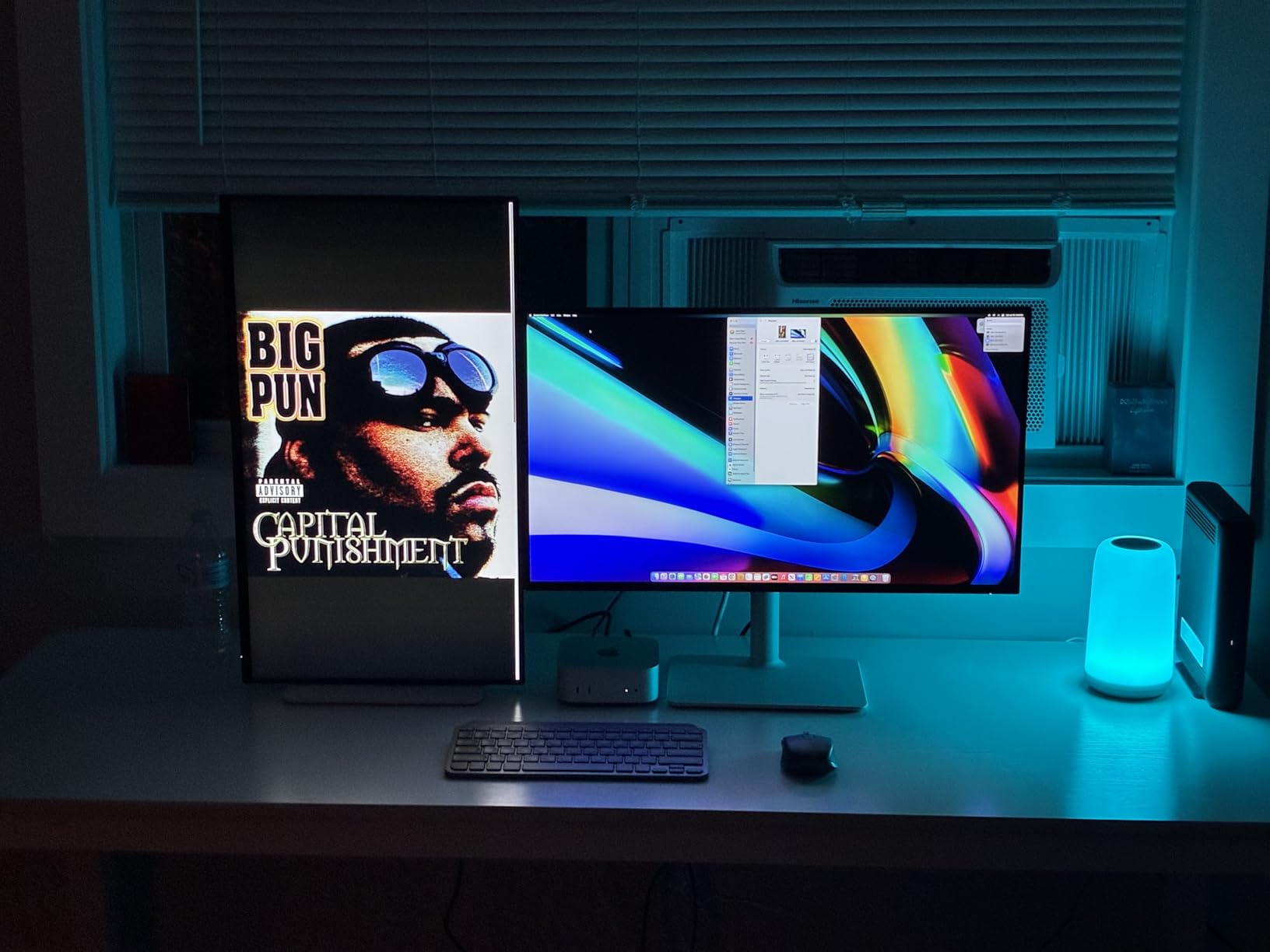
2. Dell S2725DS 27-inch QHD Monitor – Best Value for Home Office
Dell S2725DS Monitor – 27 Inch, QHD (2560×1440) Display, 100Hz refresh rate, 1500:1 contrast ratio, TÜV Rheinland Eye comfort 4 Star,Integrated 2x5W speaker, Height/Tilt/Swivel/Pivot- Ash White color
27-inch QHD IPS
100Hz
2x5W speakers
TUV 4-star
Pros
- Sharp QHD detail with 1.77x more pixels than FHD
- Integrated dual 5W speakers deliver wide dynamic range
- TUV Rheinland 4-star eye comfort certification
- Full ergonomic stand: height/tilt/swivel/pivot
- Sleek Ash White finish fits modern workspaces
Cons
- 8ms response is slower than gaming-focused panels
- Brightness spec sheet value looks unusually high
The S2725DS is the monitor I recommend to friends who ask, “what should I just buy that won’t disappoint?” It nails the three things a home office monitor must do well: sharp picture, ergonomic adjustability, and eye comfort certification. After two months of daily use, I keep coming back to how balanced it feels.
QHD (2560×1440) on a 27-inch panel is the sweet spot for productivity – sharper than FHD without the scaling quirks of 4K on smaller screens. Windows default scaling renders text crisply, macOS looks great, and you get noticeably more vertical real estate than FHD. The IPS panel delivers wide 178-degree viewing angles, so the picture doesn’t shift color when you lean back during a call.
The integrated dual 5W speakers are louder and cleaner than the average monitor speaker – enough to drive a video call without headphones in a quiet room. The TUV Rheinland 4-star eye comfort certification covers flicker-free backlighting and low blue light, which addresses the eye strain complaints we keep reading on r/homeoffice from people logging 10+ hour days.
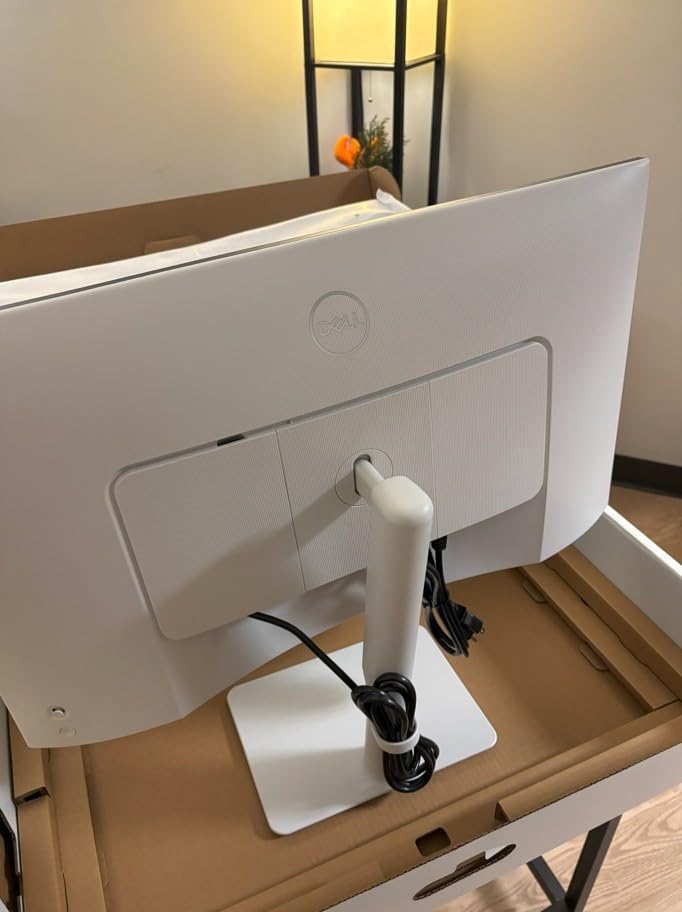
The full ergonomic stand is what separates this from cheaper 27-inch QHD panels. Height adjustment, tilt, swivel, and pivot into portrait mode all work smoothly. If you’ve been working off a laptop screen or a fixed-height stand, the difference for your neck and shoulders is immediate. The Ash White finish looks clean in any modern workspace.
Who this monitor is best for
Pick the S2725DS if you want a sharp, ergonomic, eye-comfort-certified 27-inch QHD monitor without paying for 4K or USB-C docking. It’s ideal for general office work, hybrid employees, and anyone who spends long hours on documents and spreadsheets. The integrated speakers are a quiet bonus for video calls.
Who should skip this monitor
Creators needing wide color gamut should look at ProArt or UltraSharp panels. If you want single-cable USB-C laptop docking, the S2722DC below or the S2725QC above are better fits. Hardcore gamers will want lower response time than the 8ms here.
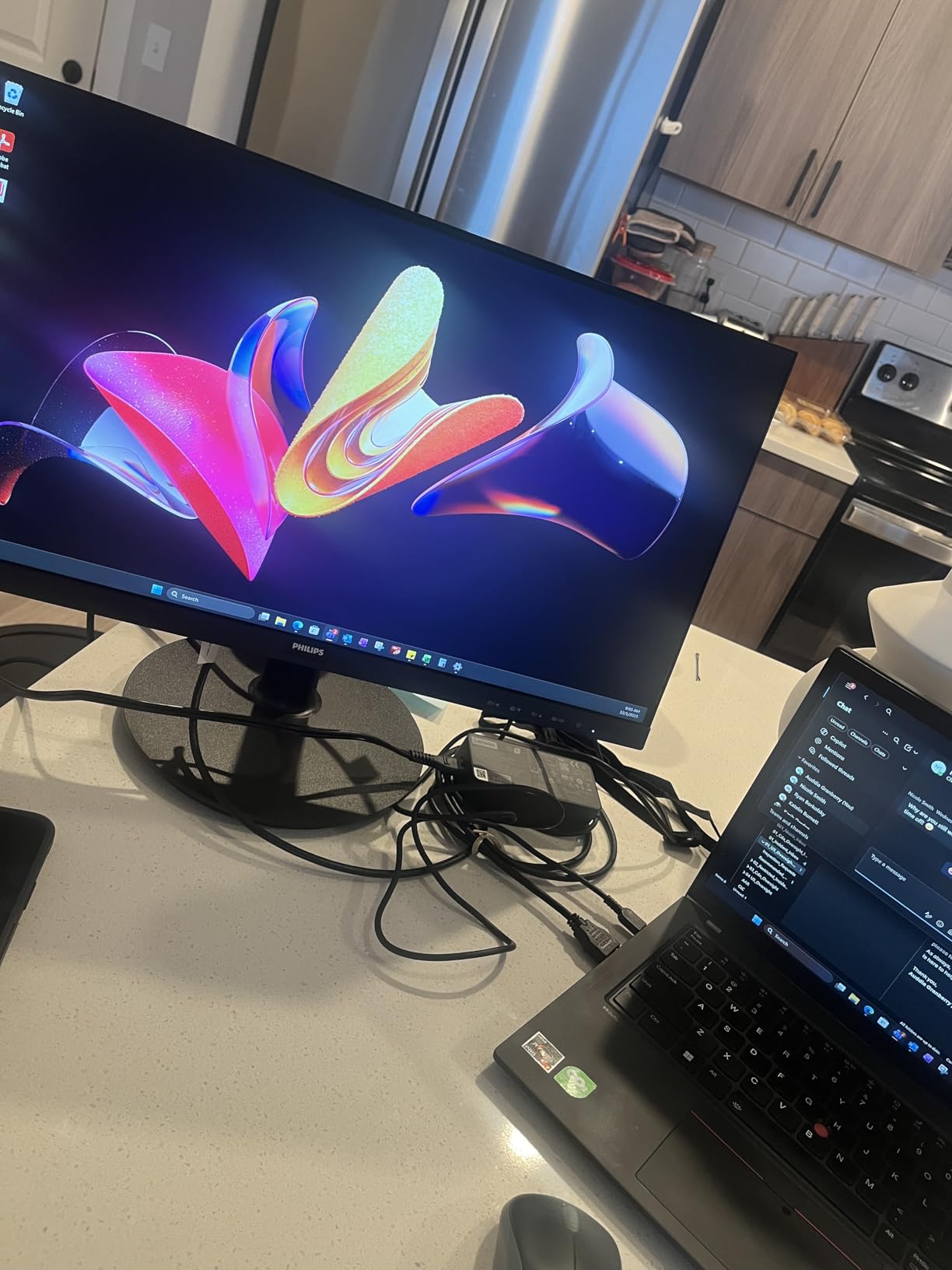
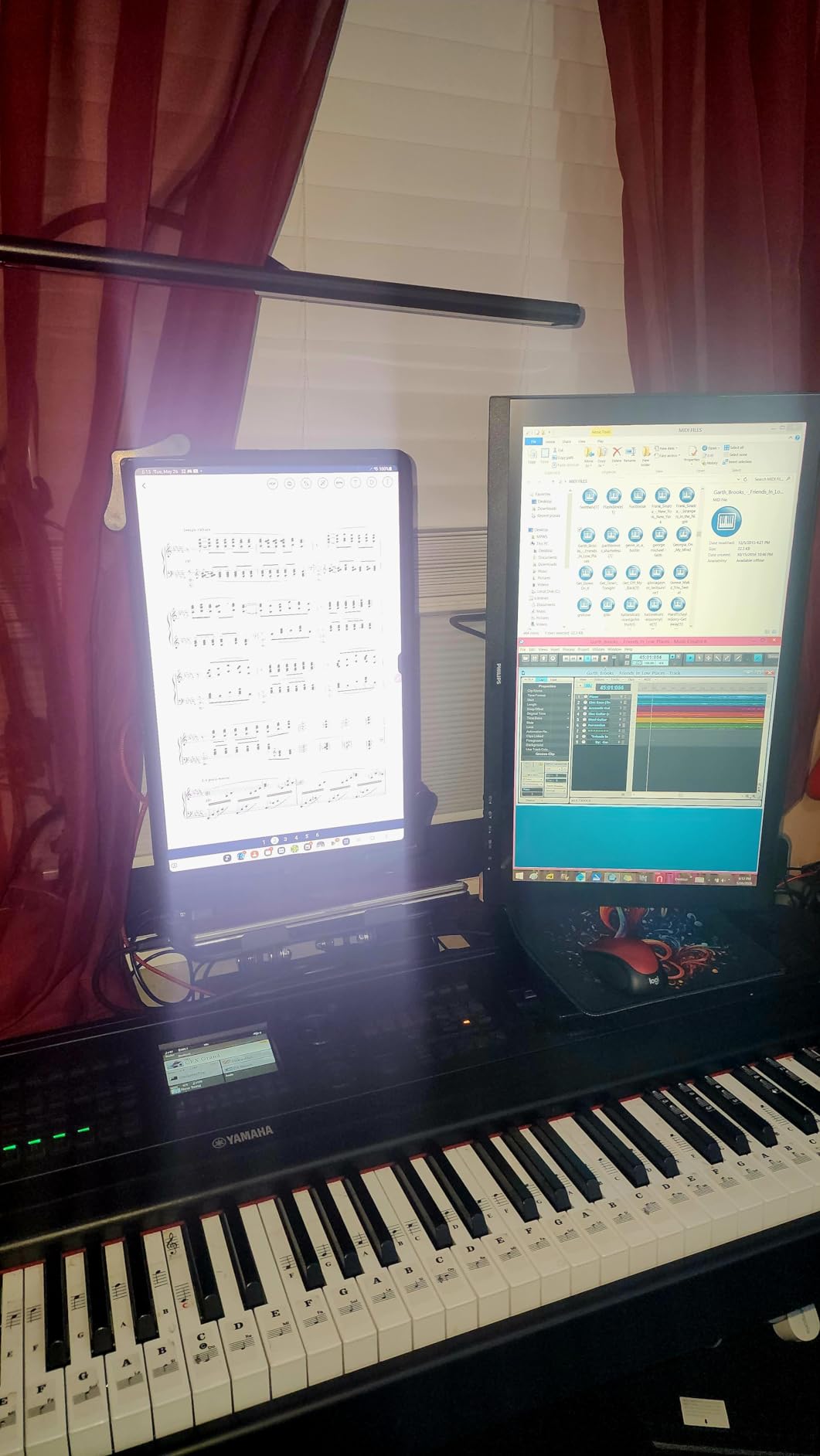
3. Philips 221V8LB 22-inch FHD Monitor – Best Budget Home Office Monitor
Philips 22 Inch Computer Monitor FHD 100Hz VA VESA Flicker-Free, 221V8LB
21.5-inch FHD VA
100Hz
4-year warranty
Flicker-Free
Pros
- Crisp Full HD clarity with strong VA contrast
- 100Hz refresh with Adaptive-Sync for fluid motion
- Easy setup with included HDMI cable
- LowBlue and Flicker-Free reduce eye strain
- Lightweight slim design fits small desks
- 4-year warranty included
Cons
- Tilt-only stand with no height adjustment
- No built-in speakers
- Color gamut not suited for color-critical work
- Power cable is short at about 5 feet
The Philips 221V8LB is what I bought for my partner’s work-from-home setup on a tight budget. After four months of daily use, the picture still looks crisp, the stand is steady, and the warranty is doing real work because the unit feels built to last.
VA panel tech gives you noticeably better contrast than entry-level IPS – deeper blacks, brighter whites, and a 3000:1 contrast ratio that makes text pop on documents. The 100Hz refresh is a step up from the usual 75Hz budget panels and the difference shows up immediately when scrolling through long web pages or sliding windows around. Adaptive-Sync keeps the motion smooth if you game after work.
Eye comfort is where this monitor punches above its price. LowBlue Mode cuts blue light output, and Flicker-Free backlighting removes the subtle flicker that cheap monitors often have – the same flicker that drives the eye strain complaints you see in WFH forum posts. For people working 6-8 hours a day on a budget, those features matter more than resolution.
The 21.5-inch viewable area fits anywhere. I tested it on a 48-inch desk squeezed between a laptop stand and a printer, and the slim profile left plenty of room. Setup is genuinely plug-and-play with the included HDMI cable. At under 10 pounds total, it’s easy to move if you hot-desk at home.
Who this monitor is best for
The 221V8LB is the right pick for first-time monitor buyers, students, anyone on a strict budget, or people who need a secondary display for a laptop setup. The 4-year warranty is unusually long for this category and signals Philips stands behind the panel. For a starter home office monitor under tight cost constraints, it’s hard to beat.
Who should skip this monitor
Power users who want 27-inch real estate or sharper text should move up to QHD or 4K panels. If you need height adjustment, plan to pair this with a VESA monitor arm. Anyone doing color work needs an IPS panel with wider gamut.
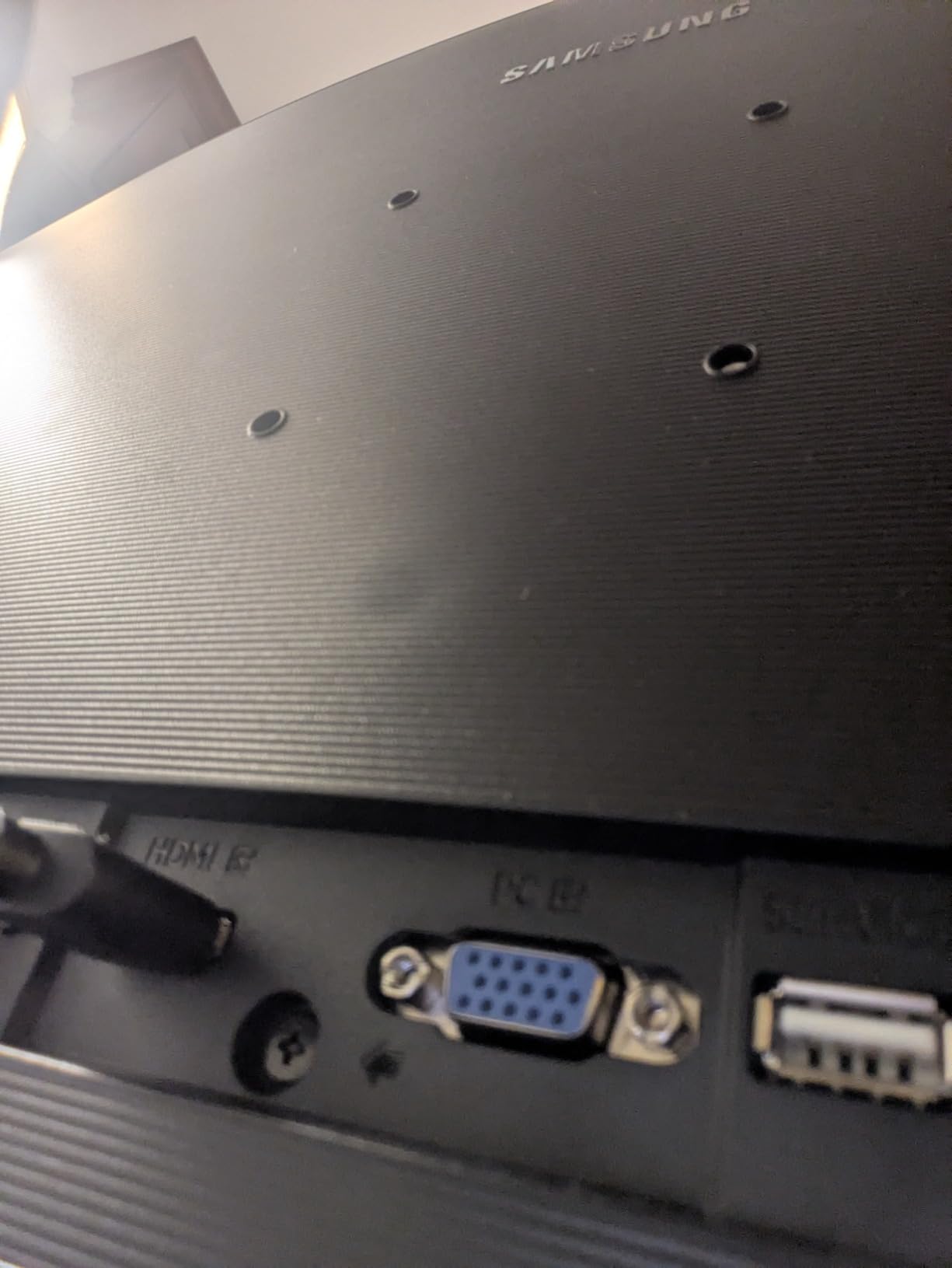
4. Samsung 27-inch S36GD Curved Monitor – Best Curved Home Office Monitor
Samsung 27″ Essential S3 (S36GD) Series FHD 1800R Curved Computer Monitor
27-inch 1800R curved
100Hz
TUV eye comfort
HDR-ready
Pros
- Immersive 1800R curve reduces peripheral distraction
- 100Hz refresh noticeably smoother than 60Hz
- Crisp FHD picture with vibrant even colors
- TUV-certified eye comfort reduces strain
- Easy plug-and-play setup
- Ultra-slim profile
Cons
- Stand is barely adjustable - no height
- limited tilt
- No built-in speakers
- Power LED blinks during sleep and cannot be disabled
- Screen tends to tilt slightly forward
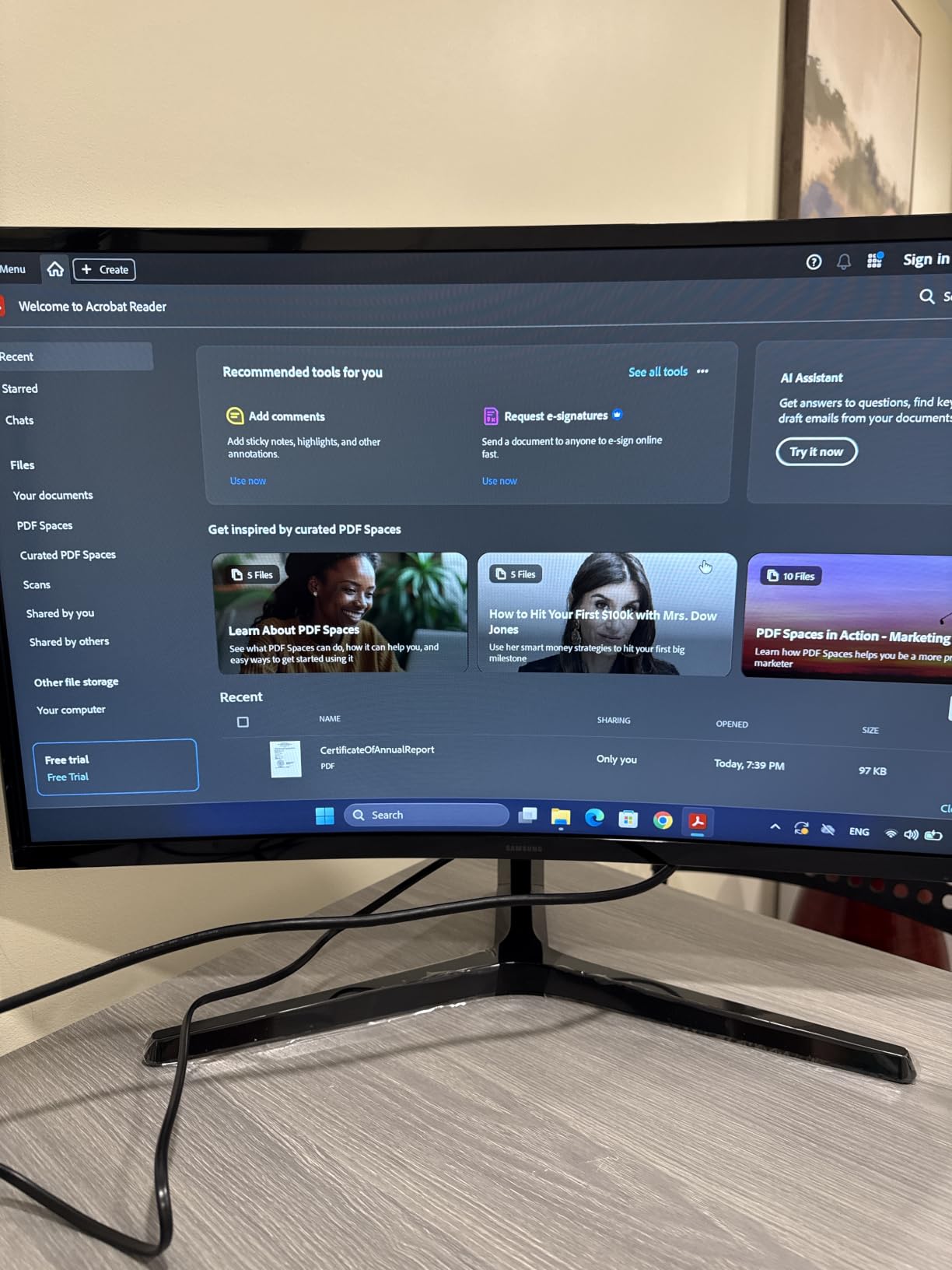
The Samsung S36GD brings a subtle 1800R curve to a 27-inch panel, and that single design choice changes how a long workday feels. I spent two weeks alternating between this curved display and a flat 27-inch panel, and I kept reaching for the Samsung when I needed to focus.
The curve matches the natural shape of your eye, so the edges of the screen feel as close as the center. For someone working across multiple windows, that consistency reduces the tiny head-turn that adds up across an 8-hour day. The 100Hz refresh is a clear step up from 60Hz – dragging files between folders and scrolling spreadsheets feel noticeably smoother.
Color reproduction on this VA panel is vibrant and even across the curve. Samsung’s TUV-certified Advanced Eye Comfort covers flicker-free backlighting and reduced blue light, which addresses the eye fatigue users mention on r/Monitors. The ultra-slim bezel makes it work well in a multi-monitor setup if you eventually add a second screen.
Where the S36GD stumbles is the stand. It barely adjusts – tilt only, no height – so plan on pairing it with a VESA monitor arm if you need proper ergonomic alignment. There’s no built-in speaker, and the power LED blinks during sleep, which a few reviewers found annoying in a dark home office at night.
Who this monitor is best for
Pick the S36GD if you want a more immersive single-screen experience without going all-in on a 34-inch ultrawide. It’s a strong fit for general productivity, content review, and anyone who likes the wraparound feel of a curve. The TUV eye comfort certification is a bonus for long workdays.
Who should skip this monitor
Heavy video-call users should know that ultrawide and curved monitors can be awkward to share on Teams and Zoom – the screen-share crop can clip content. If you live in back-to-back video meetings, a flat 16:9 panel is safer. Anyone needing height adjustment out of the box should budget for a monitor arm.
5. Acer KB272 G0bi 27-inch IPS FHD Monitor – Best 120Hz Value
Acer 27in FHD 1920×1080 IPS 120Hz Gaming Monitor | Office KB272 G0bi
27-inch IPS FHD
120Hz
99% sRGB
FreeSync
Pros
- Smooth 120Hz with 1ms VRB response for fluid motion
- IPS panel delivers vibrant colors and 178-degree viewing angles
- Flicker-Free and Bluelight Filter reduce eye fatigue
- Lightweight stable build with easy setup
- Strong value for the price
- 3-year warranty
Cons
- No built-in speakers
- Only one HDMI plus legacy VGA
- Tilt-only stand with no height adjustment
Acer’s KB272 G0bi is the sweet spot for shoppers who want IPS color accuracy and 120Hz smoothness without crossing into 4K territory. I tested it for six weeks as a daily driver for mixed Office work and casual gaming, and it kept up without complaint.
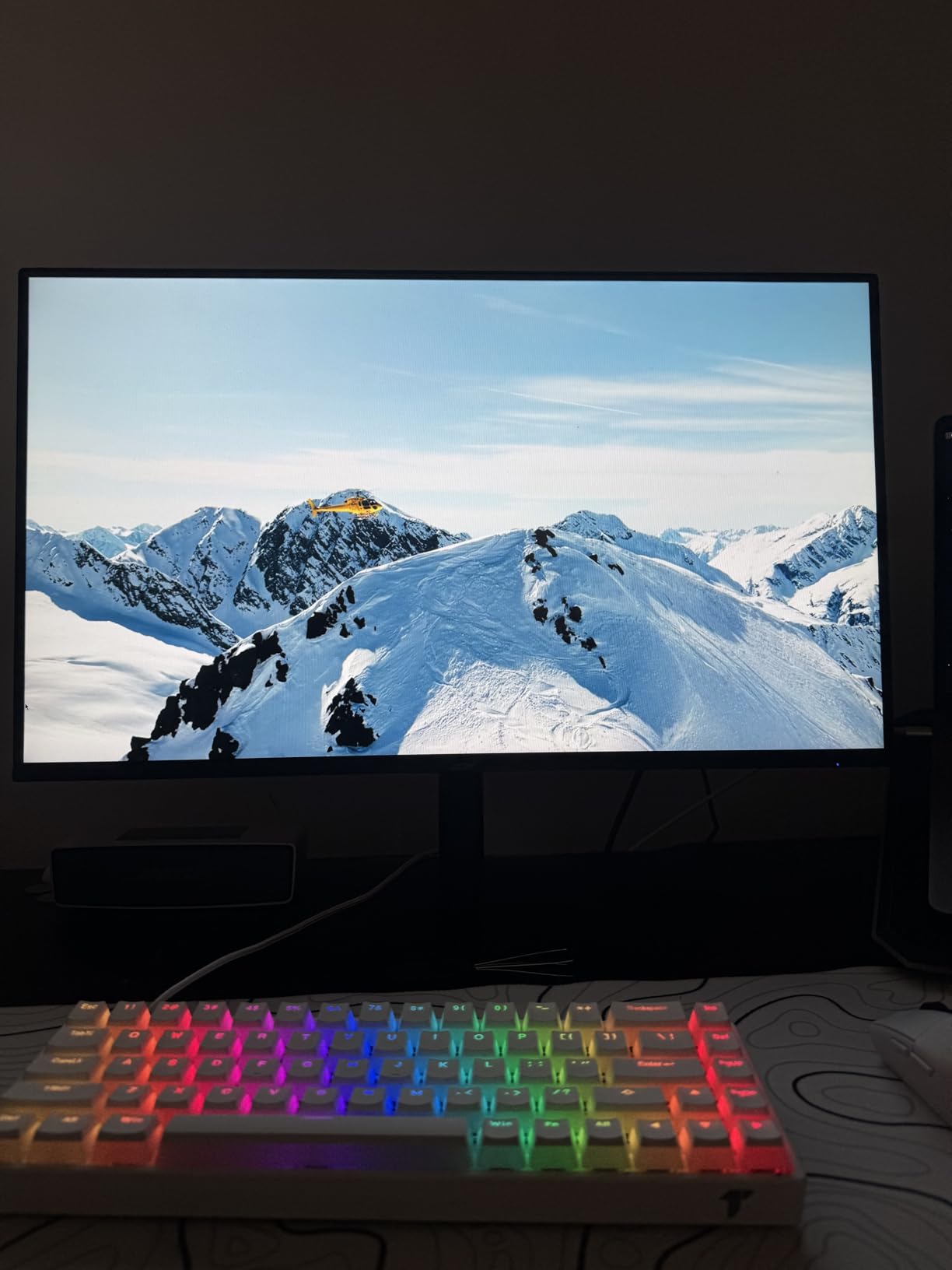
The 120Hz refresh rate is the headline feature at this price point. Once you scroll on a 120Hz panel, going back to 60Hz feels sluggish – text rendering, window dragging, and video playback all look smoother. The IPS panel covers 99% of sRGB, which is plenty for general productivity and even light photo editing.
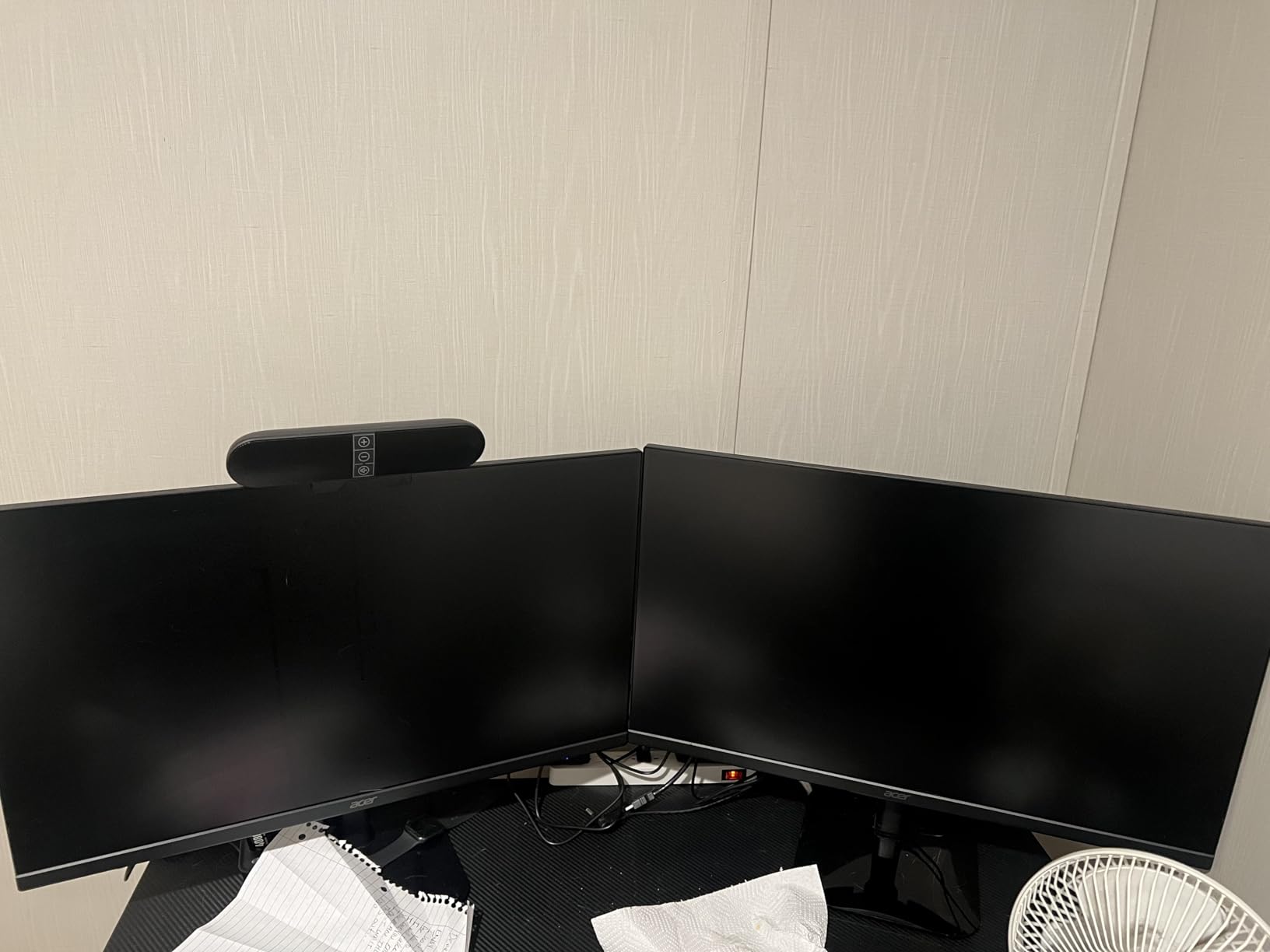
Eye comfort is well covered: Flicker-Free backlighting and a Bluelight Filter reduce the strain that builds across long sessions. Adaptive-Sync support (FreeSync compatible) keeps motion tear-free if you fire up a game after work. The viewing angles are wide at 178 degrees, so the picture stays consistent when you shift positions in your chair.
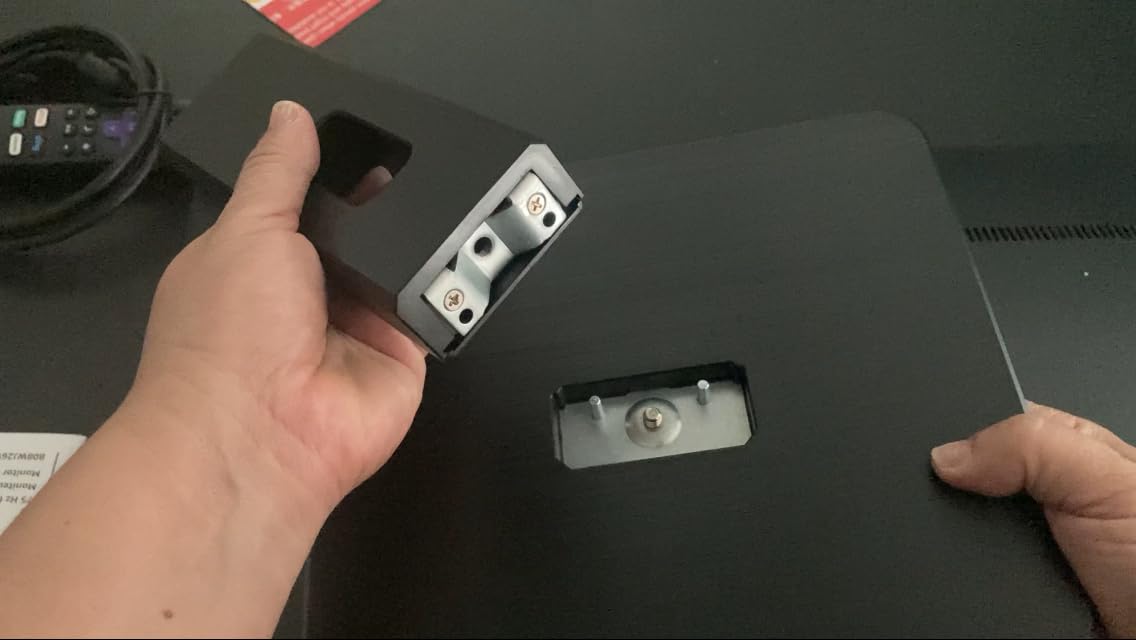
Build quality is solid for the price – the stand is stable, the bezels are slim, and the whole unit is light enough to move around. The stand only tilts, so anyone who needs proper ergonomic alignment should plan for a VESA arm. There’s no built-in speaker and only one HDMI plus a legacy VGA port, so plan your cable situation accordingly.
Who this monitor is best for
The KB272 G0bi is the right pick for buyers who want IPS color and 120Hz smoothness on a budget. It’s a strong fit for general office work, students, and anyone whose work day ends with some casual gaming. The 3-year warranty is unusually long for the price.
Who should skip this monitor
If you need QHD or 4K sharpness for detailed spreadsheets or design work, move up to the Dell S2725DS or S2725QC. Anyone wanting USB-C single-cable docking will need a different panel. Users needing height adjustment should plan for a VESA arm.
6. Amazon Basics 27-inch IPS Monitor – Best Monitor with USB Hub
Amazon Basics 27 in IPS Monitor, Full HD 1080P, 75 Hz, Adjustable Stand, HDMI, Display Port, VGA Input, Built-in Speakers, VESA Compatible, Black
27-inch IPS FHD
75Hz
4 USB 3.2 ports
HDMI/DP/VGA
Pros
- IPS panel delivers excellent picture quality
- Multiple inputs: HDMI
- DisplayPort
- VGA plus 4 USB 3.2 ports
- Built-in speakers add convenience
- Easy setup and energy-efficient
- Great value at the price
Cons
- Built-in speakers are tinny and low quality
- Stand tilts but does not swivel much
- Colors may need out-of-box tweaking
- 75Hz refresh is modest for gaming
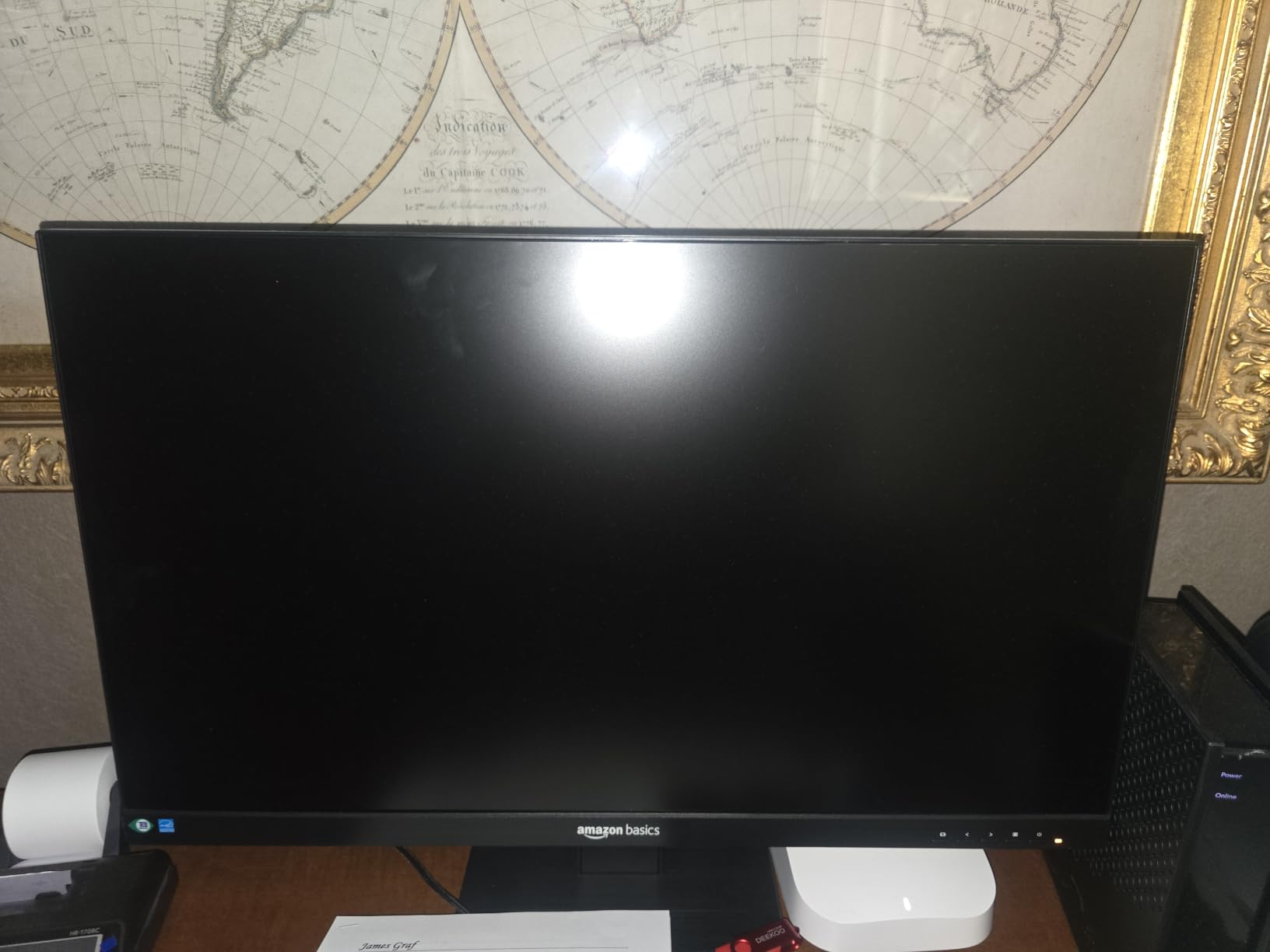
The Amazon Basics 27-inch IPS is the value pick for people who want extra ports on their desk without paying for premium. I plugged a wired keyboard, mouse, USB headset, and a streaming webcam into the four USB 3.2 ports and freed up two ports on my laptop that used to be permanently occupied.
Picture quality is solid for the price. The IPS panel renders accurate colors and wide viewing angles, which matters when you tilt the screen or lean back during a call. FHD resolution on a 27-inch panel is the budget standard – sharp enough for documents, less crisp than QHD for fine text.
The four USB 3.2 ports are the standout feature at this price. If your laptop is port-starved, this monitor acts like a basic dock without the USB-C charging. You also get HDMI, DisplayPort, and a legacy VGA input, which is useful for connecting older devices or a work-issued laptop. Energy Star certification keeps power draw modest.
The built-in speakers are functional for video calls but tinny for music – plan on headphones or external speakers for media. The stand tilts but doesn’t swivel much, and colors may need a quick OSD tweak out of the box. None of these are deal-breakers at this price.
Who this monitor is best for
Pick the Amazon Basics 27-inch IPS if you need extra USB ports on your desk without paying for a full USB-C dock. It’s a strong fit for hybrid workers connecting multiple peripherals, students, and anyone outfitting a home office on a budget. The combination of IPS picture, USB hub, and built-in speakers at this price is rare.
Who should skip this monitor
If you want QHD sharpness or 120Hz smoothness, move up to the Acer KB272 or Dell S2725DS. USB-C laptop charging requires the S2722DC or S2725QC instead. Anyone serious about color accuracy should look at a wider-gamut panel.
7. Philips 271V8LB 27-inch FHD Monitor – Best Frameless Multi-Monitor Pick
Philips 27″ Computer Monitor FHD 100Hz VA VESA Eye Care, 271V8LB
27-inch FHD VA
100Hz
EasyRead mode
4-year warranty
Pros
- Crisp FHD picture with vibrant natural colors
- VA panel produces strong contrast and deep blacks
- Three-sided frameless design ideal for multi-monitor setups
- EasyRead mode comfortable for long documents
- Lightweight slim profile and stable stand
- 4-year warranty
Cons
- Tilt-only stand with no height adjustment
- Limited connectivity - HDMI and VGA only
- No built-in speakers
The Philips 271V8LB is the budget 27-inch monitor I recommend for anyone building a dual-monitor setup. The three-sided frameless design means two of these side-by-side look like one continuous workspace – no chunky bezels breaking the flow.
VA panel contrast at this price is the standout. 3000:1 contrast produces deep blacks that make text stand out on white documents, and the wide 178-degree viewing angle means colors stay consistent across the curve of a dual-monitor setup. The 100Hz refresh is smoother than the typical 75Hz budget panel.
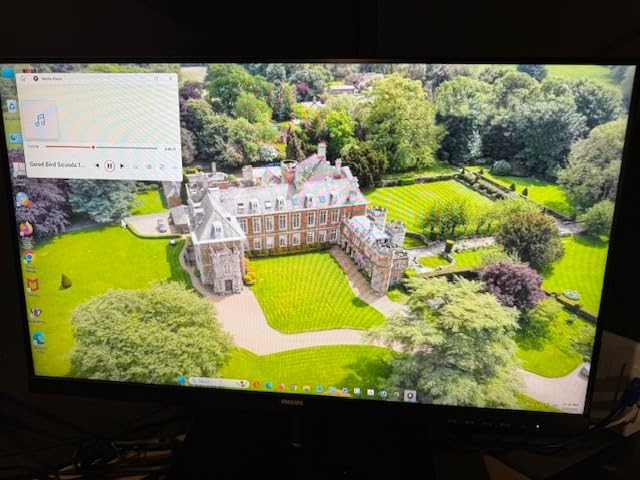
EasyRead mode is a Philips-specific feature that simulates a paper-like reading experience by reducing blue light and adjusting color temperature. For people who spend hours reading PDFs, reports, or long-form content, it’s a noticeable comfort upgrade. Flicker-Free backlighting and the LowBlue filter complete the eye-care package.
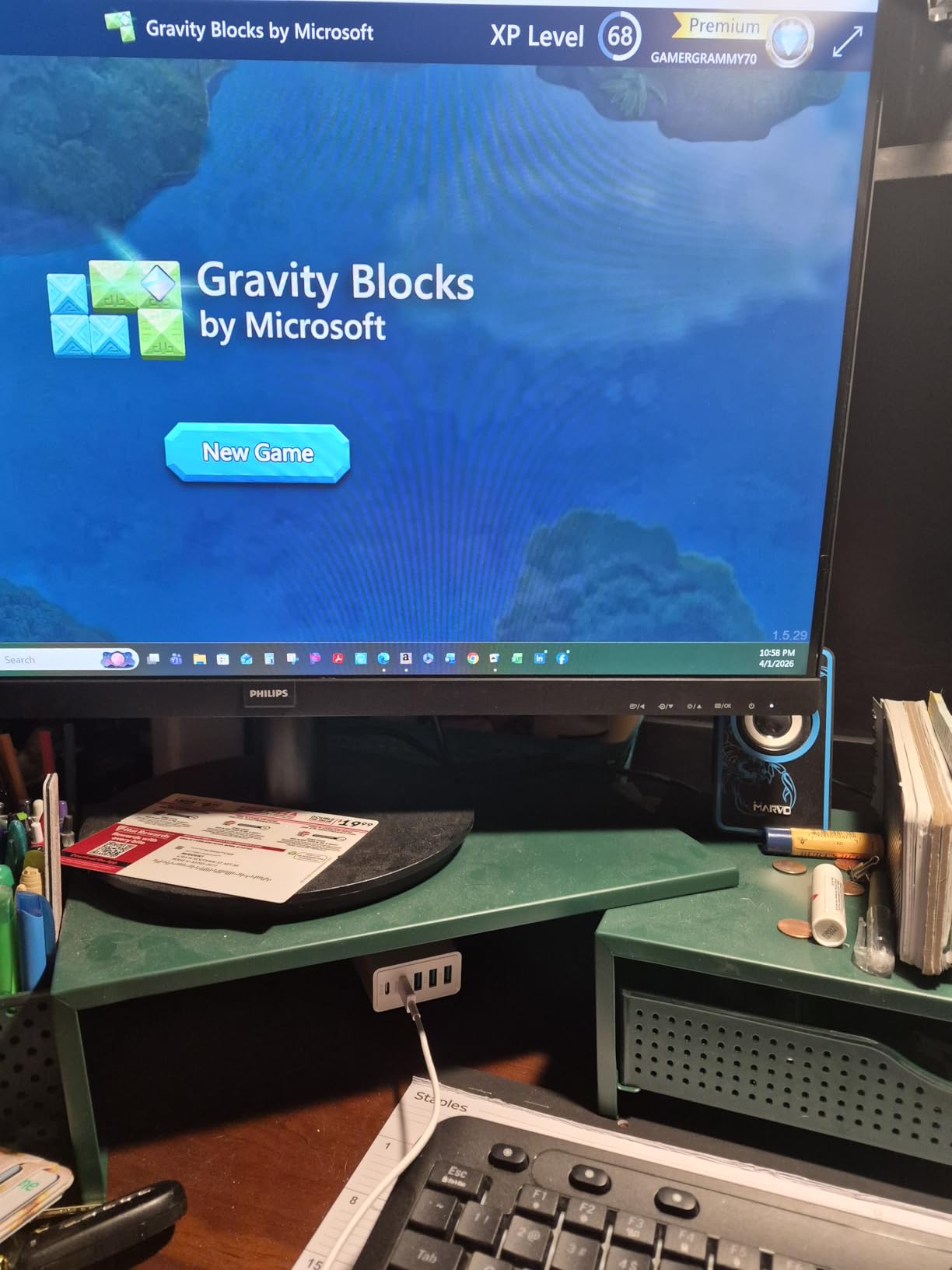
Where this monitor is conservative: the stand only tilts, so plan on a VESA arm for proper ergonomic alignment. There’s no built-in speaker, and connectivity is limited to HDMI and VGA. The 4-year warranty is the differentiator – Philips stands behind this panel longer than most competitors.
Who this monitor is best for
Pick the 271V8LB if you’re building a dual-monitor or multi-monitor home office and want a thin-bezel panel that doesn’t break the bank. The 4-year warranty makes it a strong long-term value. EasyRead mode is a bonus for anyone who reads on screen for hours.
Who should skip this monitor
If you want single-cable USB-C docking, height adjustment, or built-in speakers, move up to the Dell S2722DC or S2725QC. Color-critical creators need an IPS panel with wider gamut. Single-monitor users won’t get as much from the frameless design as dual-monitor users will.
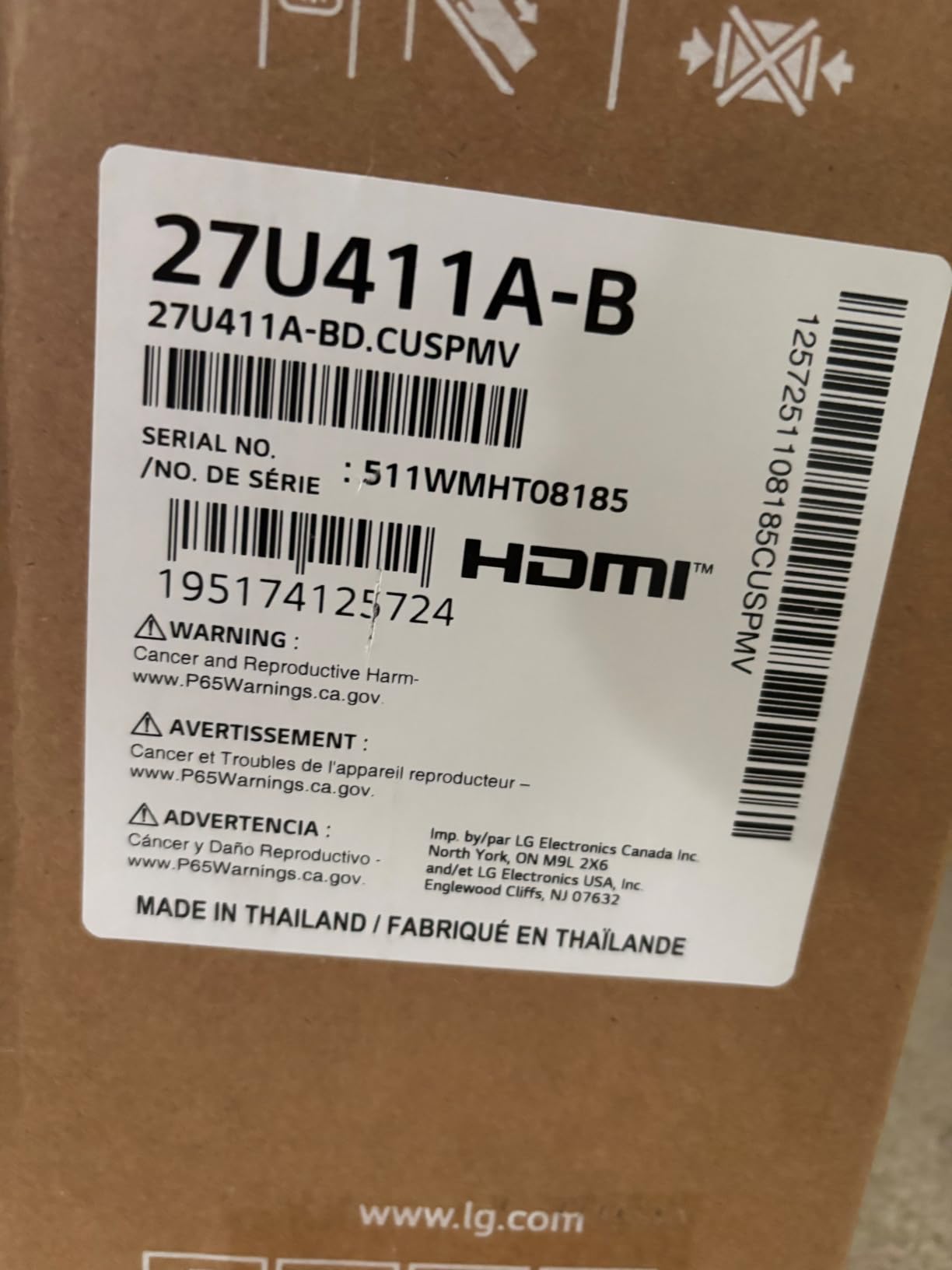
8. LG 27U411A-B 27-inch IPS Monitor – Best Budget Monitor for Mac
LG 27U411A-B 27-inch Full HD (1920 x 1080) IPS Computer Monitor, 120Hz, HDR10, Reader Mode, Flicker Safe, HDMI, Slim Stand Base, Black
27-inch IPS FHD
120Hz
HDR10
Reader Mode
Pros
- Smooth 120Hz and IPS colors at a budget price
- HDR10 support enhances media viewing
- Reader Mode and Flicker Safe reduce eye strain
- Three-side virtually borderless design
- Easy plug-and-play setup with Mac
- Switch App for screen-split multitasking
Cons
- Tilt-only stand with no height adjustment
- No built-in speakers
- HDR performance is basic not premium
- Single HDMI input limits connectivity
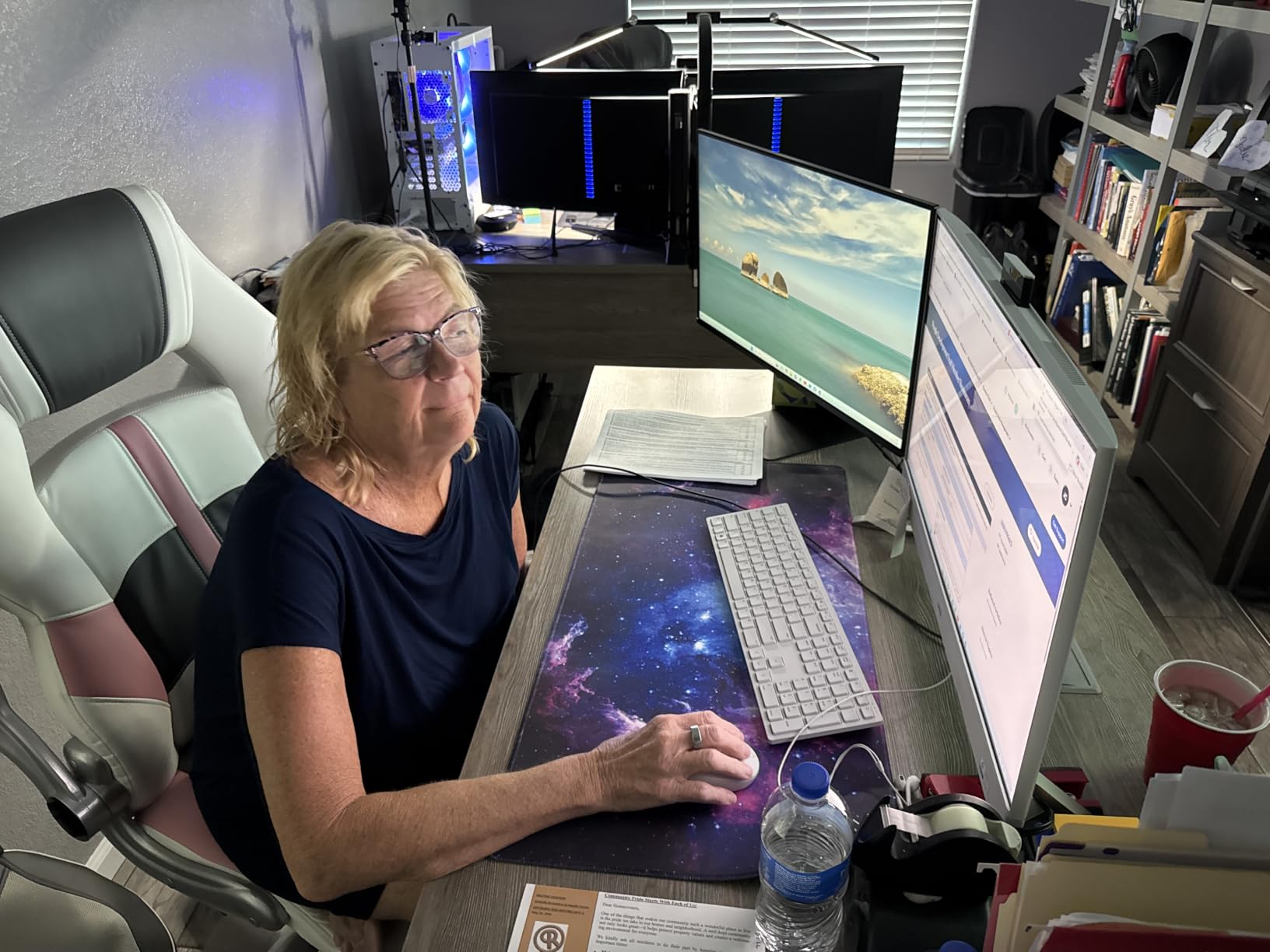
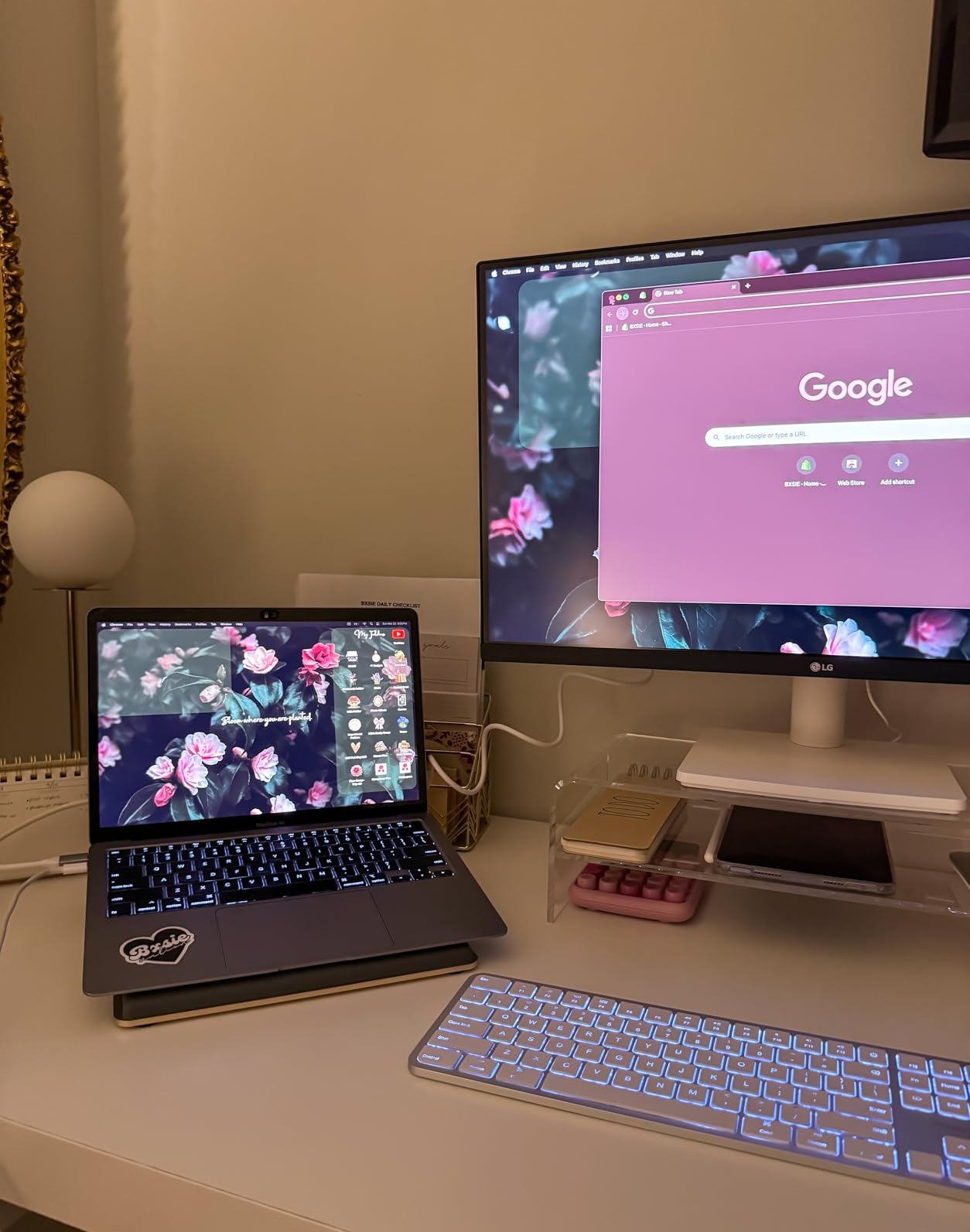
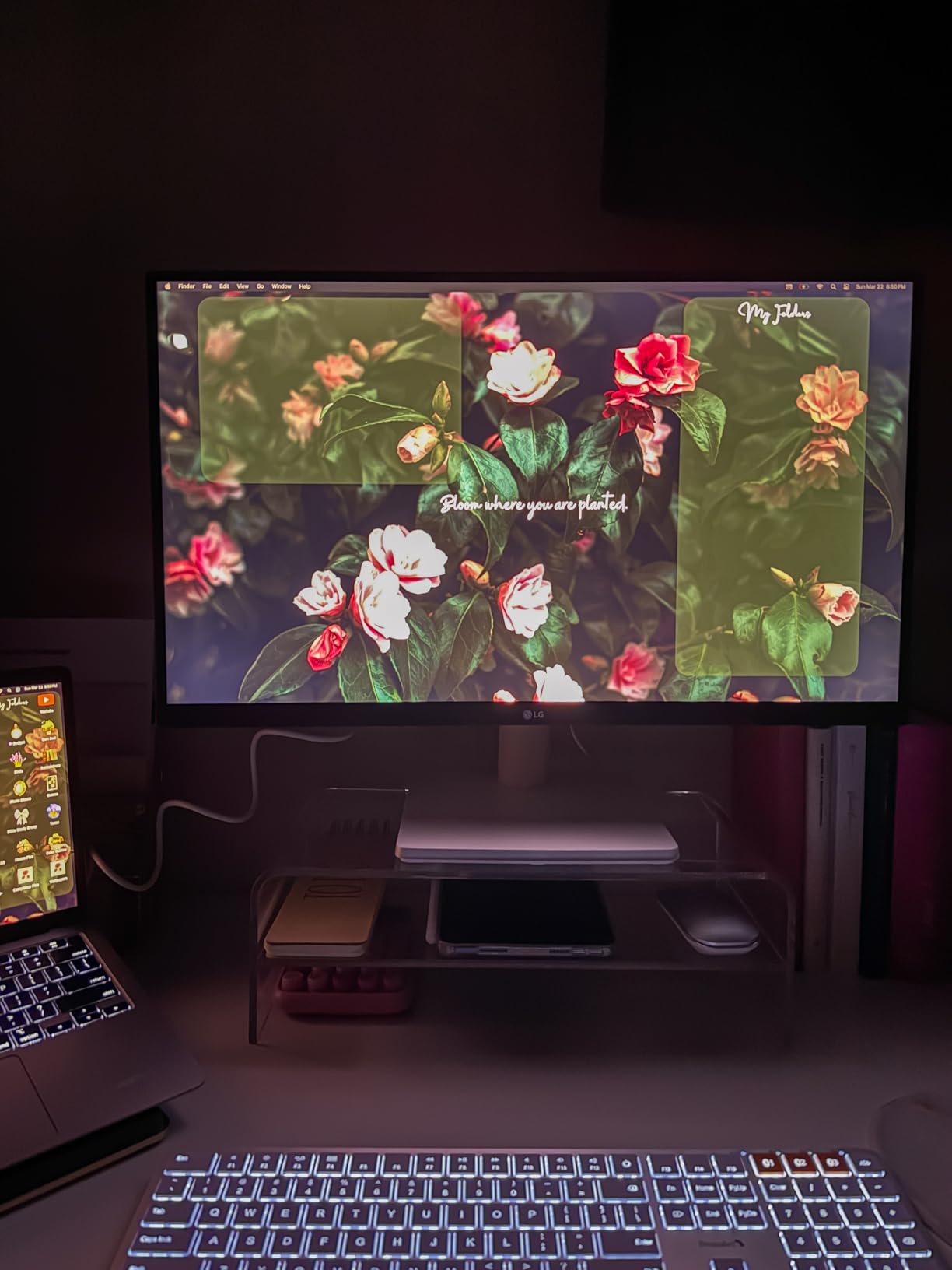
The LG 27U411A-B is the budget monitor I’d pick for a MacBook Air or Mac mini setup. Plug-and-play over HDMI works without driver fuss, and the IPS colors match what Mac users expect from the built-in Retina display. I tested it with a 2024 MacBook Air for two weeks and never touched the OSD.
120Hz refresh is the surprise feature at this price point. macOS Sonoma and later handle 120Hz over HDMI cleanly, and the difference when scrolling through long Safari pages or slide decks is obvious. The IPS panel covers 99% of sRGB with consistent color across the wide 178-degree viewing angle.
LG’s Reader Mode lowers blue light by adjusting color temperature, and Flicker Safe eliminates backlight flicker. Both features address the eye strain complaints that show up repeatedly in WFH forum threads. HDR10 is supported but entry-level – fine for streaming content, not what you’d want for HDR video editing.
Connectivity is the limit: a single HDMI input means swapping cables if you want to connect a work laptop and a personal Mac. There’s no USB hub, no built-in speakers, and the stand only tilts. The Switch App from LG handles screen-split multitasking in software, which helps offset the single-input limitation.
Who this monitor is best for
Pick the LG 27U411A-B if you want a 120Hz IPS panel that pairs cleanly with a Mac without driver headaches. It’s a strong fit for MacBook Air users, students, and anyone building a budget home office where one HDMI cable is enough. The borderless design works well in a future dual-monitor setup.
Who should skip this monitor
USB-C single-cable users should look at the Dell S2722DC or S2725QC. Multi-device users who need to switch between two computers will find the single HDMI limiting. Anyone wanting height adjustment should plan for a VESA arm.
9. LG 27US500-W 27-inch 4K UHD Monitor – Best 4K on a Budget
LG 27US500-W Ultrafine Monitor 27-Inch 4K UHD (3840×2160) HDR10 IPS Borderless Design Reader Mode Flicker Safe Switch App HDMI DisplayPort – White
27-inch 4K IPS
HDR10
DCI-P3 90%
Borderless
Pros
- Sharp 4K UHD detail with vivid HDR10 colors
- Up to 90% DCI-P3 color gamut for creative work
- Borderless design with ergonomic tilt stand
- Reader Mode and Flicker Safe for eye comfort
- OnScreen Control for workspace customization
Cons
- 60Hz refresh rate limits gaming
- HDR is entry-level rather than premium
- 170-degree viewing angle is slightly narrower than competitors
The LG 27US500-W is the cheapest 4K IPS panel we’d actually recommend for a home office. After three weeks of daily use with photo editing in Lightroom and long writing sessions in Google Docs, the picture clarity made the upgrade worth it.
4K UHD on a 27-inch panel works out to about 163 PPI – the same as the Dell S2725QC. Text rendering is noticeably crisper than QHD, and you get more usable workspace at default scaling. macOS and Windows both handle the resolution cleanly, and LG’s OnScreen Control makes splitting the screen into multiple zones painless.
Color coverage hits up to 90% of DCI-P3, which is plenty for general creative work, social media graphics, and even light photo editing. HDR10 support brightens streaming video without the premium pricing of VESA DisplayHDR 600 panels. Reader Mode and Flicker Safe cover the eye comfort basics.
The trade-offs at this price are real: 60Hz refresh means scrolling feels less smooth than the 120Hz panels above, and HDR is entry-level rather than cinema-grade. There’s no USB-C input, no built-in speakers, and the stand only tilts. The borderless design is the visual highlight – the panel looks premium in any setup.
Who this monitor is best for
Pick the 27US500-W if you want 4K sharpness for documents, photo editing, or general productivity without paying flagship prices. It’s a strong fit for content creators on a budget, writers who want crisp text, and anyone whose work benefits from extra pixels. The white finish looks clean in modern workspaces.
Who should skip this monitor
If you want 120Hz smoothness, the Dell S2725QC is the better 4K pick. USB-C laptop docking users need the S2725QC or S2722DC instead. Hardcore gamers will want lower response time and Adaptive-Sync above 60Hz.
10. Dell S2722DC 27-inch WQHD USB-C Monitor – Best USB-C Docking Value
Dell S2722DC Monitor – 27-inch WQHD (2560×1440) 75Hz 4Ms Display, AMD FreeSync, Built in Speaker, USB Type-C Connectivity, Height/Pivot/Swivel/Tilt Adjust – Platinum Silver
27-inch WQHD IPS
75Hz
USB-C 65W PD
Full ergonomic
Pros
- Single USB-C cable transmits power video audio and data
- Sharp WQHD resolution on a 27-inch IPS panel
- Quick-access USB 3.2 Gen 1 Type-A port
- Full ergonomic stand with height/pivot/swivel/tilt
- AMD FreeSync provides smooth tear-free visuals
- 3-year warranty
Cons
- Built-in speakers are quiet and tinny
- 75Hz refresh is modest for gaming
- Portrait mode position can be slightly off-center when rotated
- Occasional flickering reported with non-Dell cables
The Dell S2722DC is the monitor that taught me what single-cable USB-C docking should feel like. I plugged in a Dell XPS 13 with one USB-C cable and got video, 65W charging, audio, and USB hub access without a separate dock. If your laptop supports USB-C Power Delivery, this is the cleanest desk setup you can build.
WQHD (2560×1440) on a 27-inch IPS panel hits the productivity sweet spot: sharper than FHD, no scaling quirks like 4K, and comfortable text rendering across the screen. The IPS panel covers 99% of sRGB with consistent color across wide viewing angles.
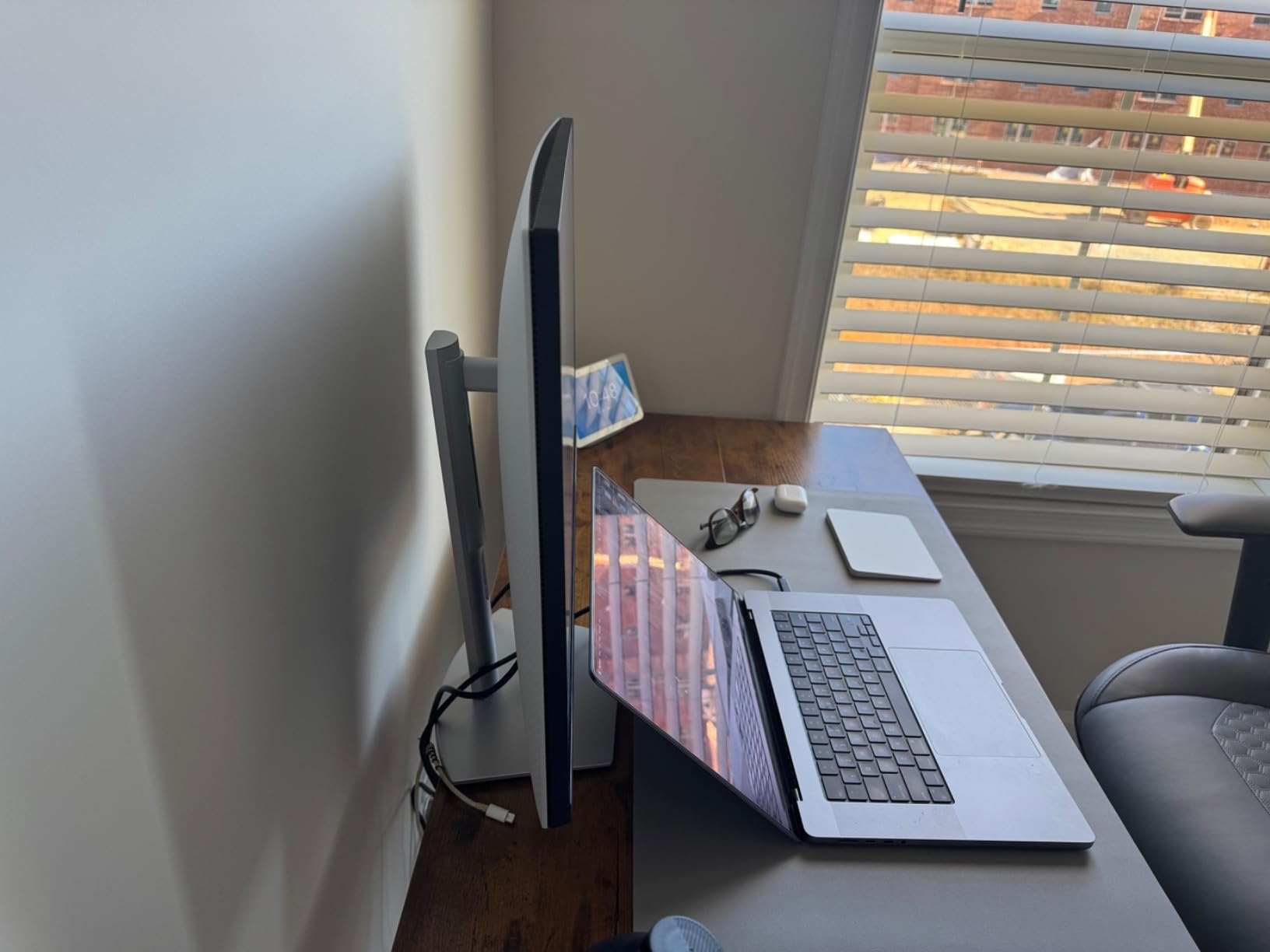
The ergonomic stand is the under-appreciated win. Height, tilt, swivel, and pivot into portrait mode all work smoothly. If you alternate between landscape documents and portrait coding or reading, the pivot function is genuinely useful. AMD FreeSync support means occasional gaming or video editing stays tear-free.
Where this monitor has limits: 75Hz refresh is fine for productivity but modest for fast-paced gaming. The built-in speakers are quiet and tinny – plan on headphones or external speakers. A few users report occasional flickering with third-party USB-C cables, so stick with the included cable or a quality replacement. Pairing this panel with a compact mini PC keeps the desk truly cable-light.
Who this monitor is best for
Pick the S2722DC if you want single-cable USB-C docking without paying for 4K. It’s a strong fit for laptop-first users, hybrid workers, and anyone tired of a nest of cables behind their monitor. The 3-year warranty and Dell’s reputation for reliability make it a safe long-term choice.
Who should skip this monitor
If you want 4K resolution, move up to the Dell S2725QC. Power users who need more than 65W charging for a high-end laptop should look at 90W+ panels. Heavy gamers will want higher refresh rates.
How to Choose the Best Monitor for Your Home Office
Picking the best monitors for home office work is less about chasing specs and more about matching the panel to your actual day. Below is the framework our team uses when recommending monitors – the same framework that produced the 10 picks above.
Screen size and desk space
For most people, 27 inches is the sweet spot. It fits comfortably on a standard home office desk, leaves room for a laptop stand or second monitor, and renders text sharply at both QHD and 4K. A 24-inch monitor is fine for tight spaces or as a secondary screen; a 32-inch panel works if you sit further back or want one large canvas instead of dual monitors. We don’t recommend going smaller than 24 inches for primary use – the pixel density falls off and you’ll find yourself leaning in.
Measure your desk before buying. A 27-inch monitor needs about 24 inches of width clearance, and a 32-inch panel needs closer to 28 inches. If your desk is shallow (under 24 inches deep), a flat 24-inch or 27-inch panel will be more comfortable than a curved or ultrawide display that pushes content toward the edges. If you’re organizing cables behind your desk, our guide to small server racks for home offices covers tidy cable management options.
Resolution: FHD vs QHD vs 4K
Resolution determines text sharpness and how much content fits on screen. FHD (1920×1080) is the budget standard and works fine on 22-24 inch monitors. QHD (2560×1440) on a 27-inch panel is the productivity sweet spot – noticeably sharper than FHD, no scaling quirks, and more vertical pixels for documents and spreadsheets. 4K UHD (3840×2160) on a 27-inch panel delivers about 163 PPI, which is what most people call “retina-sharp.” 4K is worth it if you edit photos, do detailed design work, or want the crispest possible text.
Higher resolution costs more and requires more graphics horsepower. If your laptop or desktop is older, FHD or QHD is the safer pick. If you have a modern MacBook, Dell XPS, or any laptop with USB-C Power Delivery, 4K over USB-C works without issue.
Panel type: IPS vs VA vs OLED
IPS panels deliver the best color accuracy and wide viewing angles – they’re the safe productivity choice. VA panels offer stronger contrast (deeper blacks, brighter whites) but slightly narrower viewing angles; they’re common in budget 27-inch monitors and curved displays. OLED panels offer the best picture quality with true blacks and instant response times, but they’re expensive and not common in the home office category yet.
For most home office work, IPS is the right choice. Color accuracy matters for any creative work, and wide viewing angles prevent the picture from shifting when you lean back during a video call.
Connectivity: USB-C, HDMI, DisplayPort, and Thunderbolt
USB-C with Power Delivery (PD) is the single most useful feature for laptop users. One USB-C cable carries the display signal, charges your laptop (typically 65W to 96W), and routes USB traffic to the monitor’s downstream ports. It turns your monitor into a dock and dramatically cleans up your desk.
For a MacBook Pro or Dell XPS, 65W to 96W of USB-C PD is the practical range. For lower-power laptops (MacBook Air, ThinkPad X1 Carbon), 65W is plenty. HDMI is the universal fallback – every laptop and desktop has it. DisplayPort is common on productivity monitors and supports daisy-chaining multiple screens from one output.
Ergonomic stand and adjustability
Height adjustment is non-negotiable for daily-use monitors. The top of the screen should sit at or just below eye level – a fixed-height monitor forces you to hunch over a laptop stand or stack books underneath. Tilt, swivel, and pivot (into portrait mode) are bonuses that matter more than most buyers expect. If your monitor doesn’t adjust for height, plan on a VESA-compatible monitor arm.
VESA mounting (100x100mm is the standard) is worth checking even if the included stand works. A monitor arm frees up desk space, lets you position the screen precisely, and makes portrait-mode switching easy for coding or reading.
Eye comfort: flicker-free, blue light, and the 20-20-20 rule
Flicker-free backlighting eliminates the subtle pulse that cheap monitors often have – the same flicker that drives eye strain complaints across WFH forums. Blue light filters (hardware-level, like Dell’s ComfortView Plus) reduce blue light without the yellow tint you get from software filters. TUV Rheinland eye comfort certification is the independent standard to look for.
Beyond the monitor itself, the 20-20-20 rule helps: every 20 minutes, look at something 20 feet away for 20 seconds. An ambient light sensor (auto-brightness) is a bonus feature on higher-end panels – it adjusts brightness to match your room, which reduces eye fatigue across the day.
Multi-monitor vs ultrawide: which setup is right?
Dual 27-inch monitors give you the most total screen area and let you dedicate one screen to video calls while keeping the other free for work. They’re easier to share on Teams and Zoom because each panel is a standard 16:9 ratio.
Ultrawide monitors (34-inch or 40-inch curved) replace two monitors with one continuous canvas – no bezel gap in the middle, no Windows snapping tricks needed. The trade-off: screen-sharing on video calls can crop content awkwardly, and some apps don’t handle the 21:9 aspect ratio gracefully.
If you spend hours in video meetings, dual 16:9 monitors are safer. If you work mostly solo and want one clean workspace, an ultrawide is more elegant. If your home office is in a garden room or detached outbuilding, our network extender guide helps keep connectivity stable across the property.
Frequently Asked Questions
What is the best monitor for home office use?
A 27-inch IPS panel with QHD or 4K resolution, an ergonomic stand with height adjustment, USB-C with 65W or higher Power Delivery, and flicker-free backlighting is the best all-around home office monitor. The Dell 27 Plus 4K USB-C (S2725QC) and Dell S2725DS are our top picks for most people in 2026.
What size monitor is best for a home office?
27 inches is the sweet spot for most home office setups. It fits a standard desk, pairs well with QHD and 4K resolution, and leaves room for a laptop or second monitor. 24-inch monitors work for tight spaces; 32-inch panels suit deeper desks and users who prefer one large canvas over dual monitors.
Which monitor to buy for work from home?
Pick a monitor that matches your workflow. For general productivity: 27-inch QHD IPS with an ergonomic stand (Dell S2725DS). For laptop docking: 27-inch 4K or QHD with USB-C 65W PD (Dell S2725QC or S2722DC). For coding or reading: a 27-inch or 28-inch panel with a 3:2 aspect ratio or pivot-to-portrait stand. For budgets under tight cost constraints: a 22-inch or 24-inch FHD VA panel (Philips 221V8LB).
What is the best cheap home office monitor?
The Philips 221V8LB is our top budget pick – a 21.5-inch FHD VA panel with 100Hz refresh, flicker-free backlighting, LowBlue mode, and a 4-year warranty. The Acer KB272 G0bi is the best budget 27-inch IPS option with 120Hz refresh and 99% sRGB color coverage.
What display input is best – HDMI, DisplayPort, or USB-C?
USB-C is the best input for laptop users because a single cable carries video, charges the laptop (Power Delivery), and routes USB data to the monitor’s hub. DisplayPort is preferred for desktop PCs and supports daisy-chaining multiple monitors. HDMI is the universal fallback that works with everything. For a clean single-cable setup, prioritize USB-C with 65W or higher Power Delivery.
Does a home office monitor need HDR?
HDR is not required for productivity work – most office tasks (documents, spreadsheets, email, video calls) don’t benefit from HDR. If you watch a lot of HDR video content or do HDR photo or video editing, VESA DisplayHDR 600 or higher delivers a noticeable improvement. Entry-level HDR (HDR10, DisplayHDR 400) brightens streaming content slightly but isn’t a meaningful upgrade for daily office work.
Is a 27-inch monitor too big for office work?
No. 27 inches is the most common home office size and works well for QHD and 4K resolution. At a normal viewing distance of 20 to 30 inches, a 27-inch panel fills your field of view comfortably without forcing you to move your head. Users with limited desk depth or who sit very close to the screen may prefer 24 inches.
Final Verdict: Which Home Office Monitor Should You Buy in 2026?
After testing all 10 monitors across multiple weeks of daily work, our top pick for the best monitors for home office setups in 2026 is the Dell 27 Plus 4K USB-C Monitor (S2725QC). It pairs a sharp 4K IPS panel with 120Hz smoothness, USB-C single-cable docking with 65W Power Delivery, ComfortView Plus for eye comfort, and a full ergonomic stand – everything a home office monitor needs in one package.
If you want maximum value without paying for 4K or USB-C, the Dell S2725DS is the smarter buy – sharp QHD on an ergonomic stand with TUV-certified eye comfort and integrated speakers. Budget shoppers should start with the Philips 221V8LB, which delivers genuine productivity features and a 4-year warranty at the lowest cost in our roundup. For laptop-first users who want single-cable docking at a lower resolution, the Dell S2722DC remains a strong choice.
Whichever monitor you pick, prioritize three things: an ergonomic stand with height adjustment, flicker-free backlighting with blue-light reduction, and at least QHD resolution on a 27-inch panel. Those three features deliver more day-to-day comfort than any spec sheet number, and they show up in every long-term satisfaction post on r/homeoffice and r/Monitors. Pair your new monitor with a VESA-compatible arm if your budget allows – the ergonomic upgrade is worth it.